
All guides · Live View and screens
Guide · Live View and screens
Use CommaView on a tablet or car screen
The comma 3X’s and comma four’s screens are small. CommaView shows your comma’s Live View on a bigger one: an Android head unit, an Android AI box on the car’s own screen, or a phone or tablet on a mount. The car screen runs its own copy of CommaView, paired with your comma.
Before you start
- Android 8 or later
A head unit, AI box, phone or tablet that runs Android 8 or later, and lets you install an app.
- Your invite
The email your CommaView invite came to, to sign in at my.commaview.com and in the app.
- CommaView on your phone
Easiest: set your comma up from your phone first, then pair the car screen. Set up CommaView.
How it works
Your comma
Sends Live View over a local network, not the internet.
The car screen
Runs its own CommaView, paired with your comma.
Steps
Tick each step off as you go. The first time, do it parked.
-
Step 1 of 6: Install CommaView on the car screen
On the head unit, AI box, phone or tablet, open its web browser and sign in at my.commaview.com with the email your invite came to. Under Get the app, tap Download CommaView, open the download and allow installs from the browser for this one, then turn that back off, as in the setup guide.
Open CommaView and sign in. During the beta it needs the internet now and then to renew its access pass, so give it Wi‑Fi with internet at least once in a while.
Some head units and boxes block installs from the browser. Download the app on a computer, copy it over on a USB stick, and open it from the unit’s file manager.
-
Step 2 of 6: Put it on the same network as the comma
Live View goes straight from the comma to the car screen over a local network. They only have to be on the same one, and in the car that’s usually a hotspot. Pick the one that starts by itself when the car does: it’s usually the least fuss.
The car screen’s hotspot
If the AI box or head unit can share a hotspot (many with a SIM card can), turn it on and join the comma to it in the comma’s Settings › Network.
Your phone’s hotspot
Join the comma and the car screen to your phone’s hotspot. They also get the internet through it.
The comma’s hotspot
Turn on the comma’s hotspot (openpilot calls it tethering: on a comma four, Settings › Network › enable tethering; on a comma 3X, Settings › Network › Advanced › Enable Tethering) and join it from the car screen.
Home Wi‑Fi
At home, both on your Wi‑Fi. Handy for setup, but it ends when you drive away.
Turn off any VPN on the car screen. Some hotspots keep the devices on them apart: if the car screen can’t find the comma on one, try another. More in Connect in the car.
-
Step 3 of 6: Pair it with your comma
If your comma already runs CommaView from your phone, pair the car screen instead of setting it up again. It gets a key of its own.
On your phone
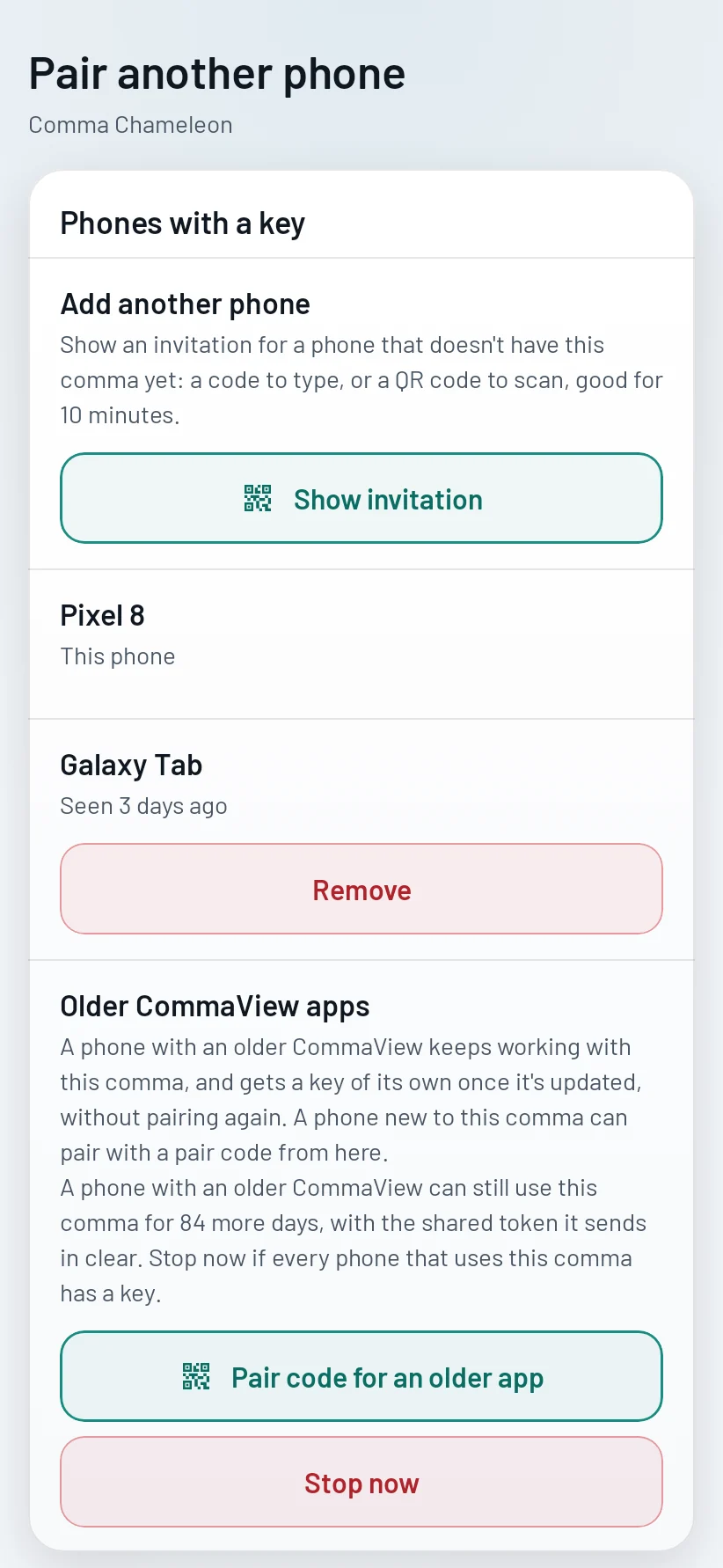
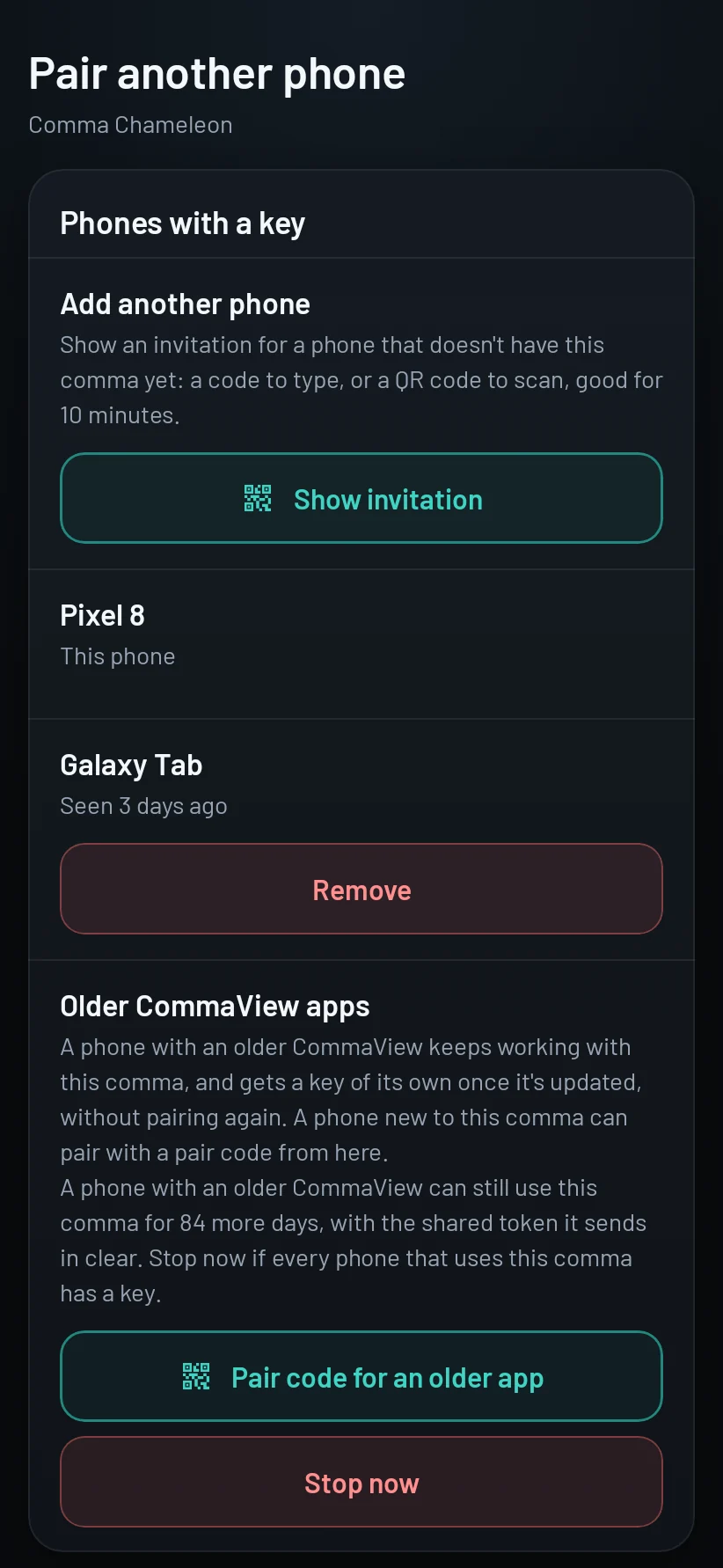
Open the comma’s Device settings, then Pair another phone. Under Add another phone, tap Show invitation: a code to type, or a QR code, good for 10 minutes and used once.
-
Show invitation.
-
The phones with a key, this one marked This phone. The car screen joins them.
On the car screen
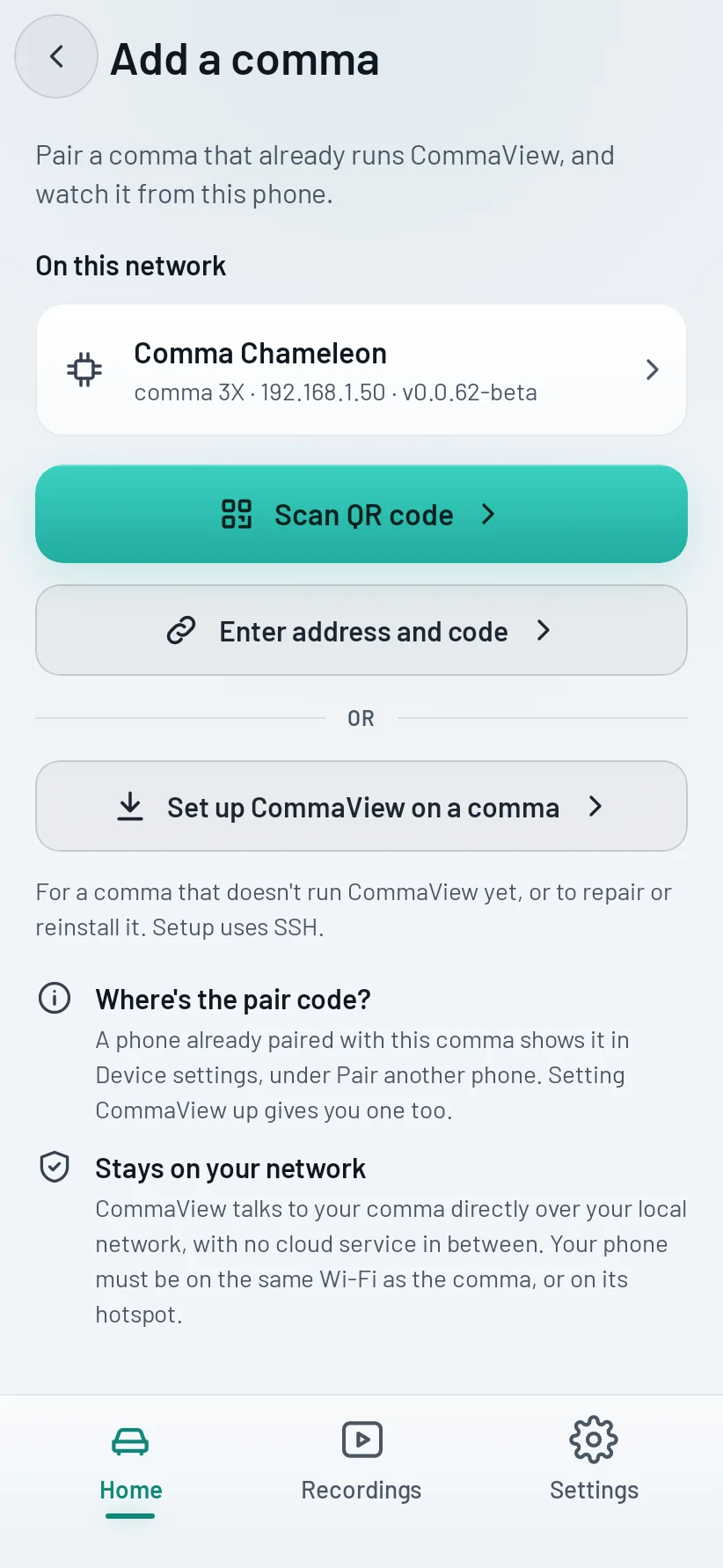
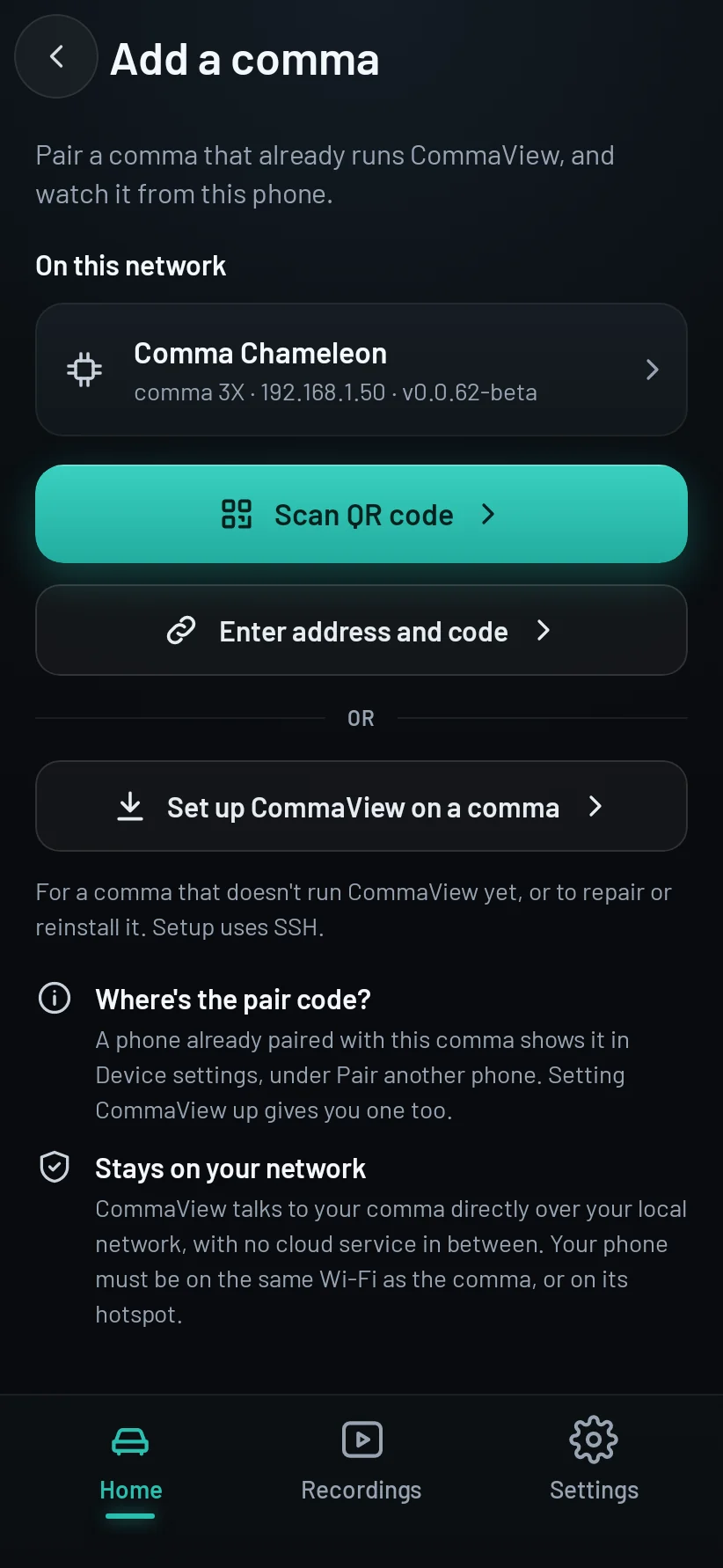
On Connect your comma, tap Pair a comma that runs CommaView (with a comma already added, open Add a comma instead). Pick your comma and tap Enter its pair code, or Scan QR code. If it isn’t listed, tap Enter address and code. Type the invitation in Pair code or invitation and tap Pair comma.
-
Your comma, found on this network.
-
Scan QR code.
-
Enter address and code, if it isn’t listed.
Your phone then says A new phone has a key. Tap It’s mine. Every step: Add another phone or tablet.
-
-
Step 4 of 6: Make it fit your screen
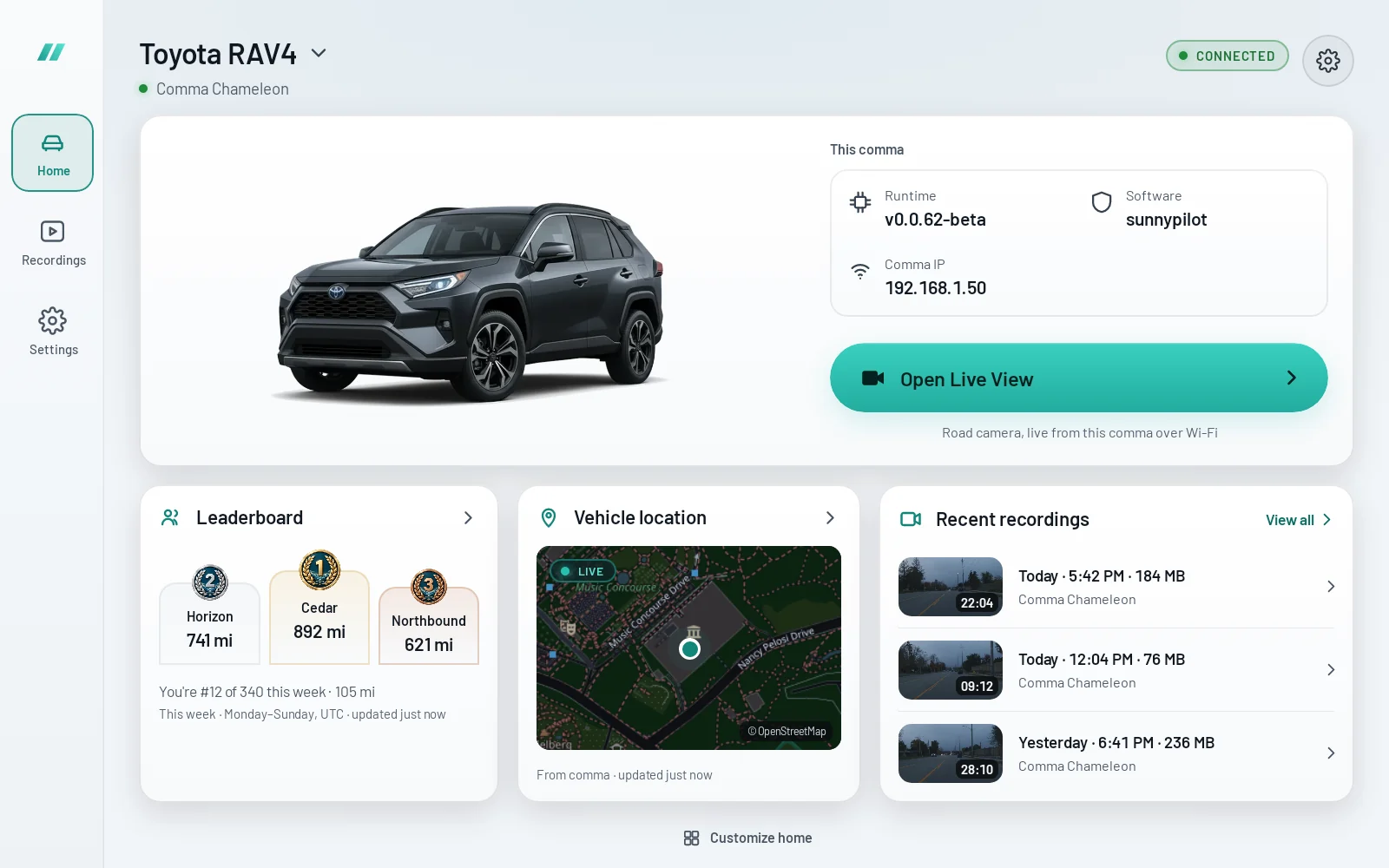
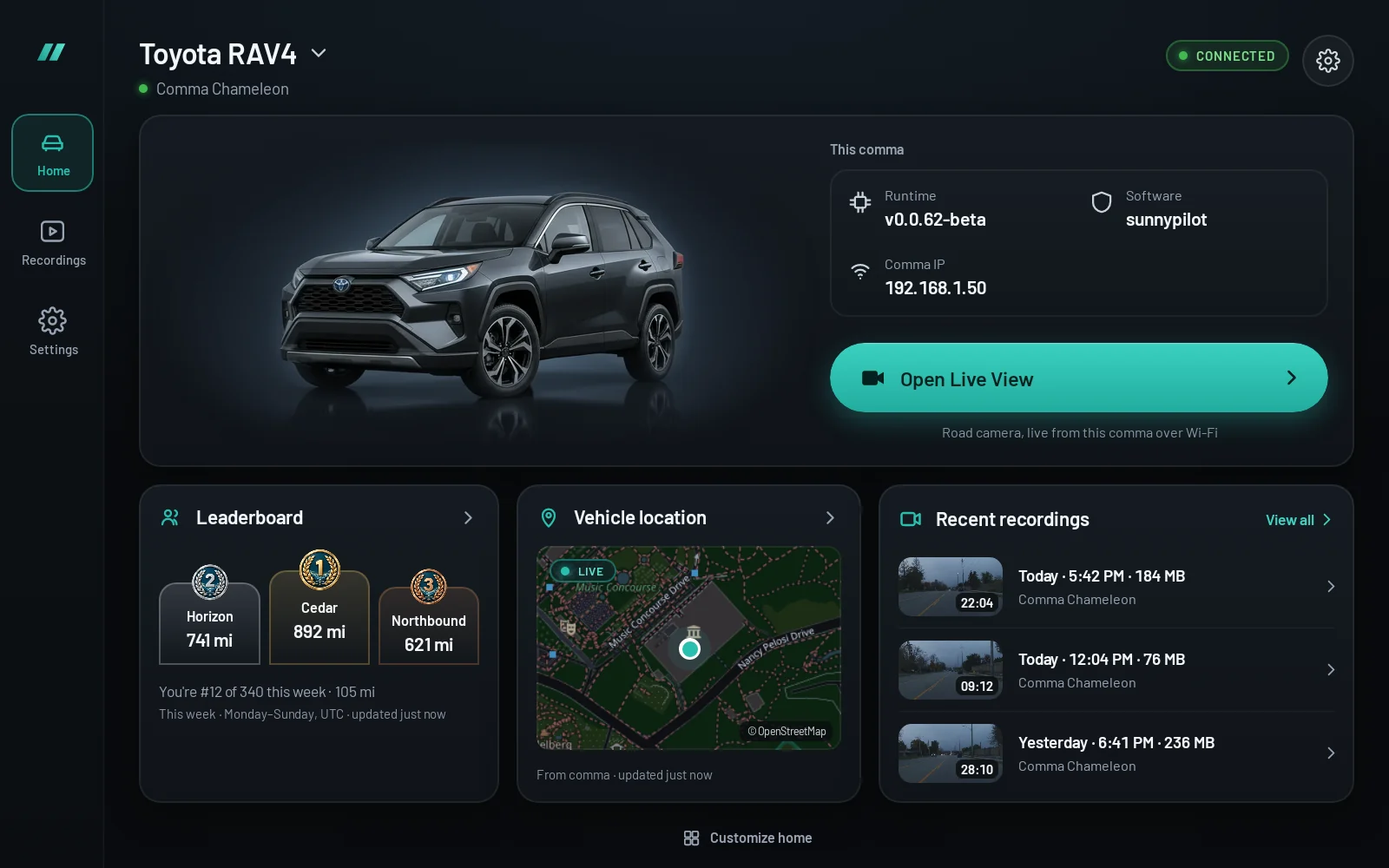
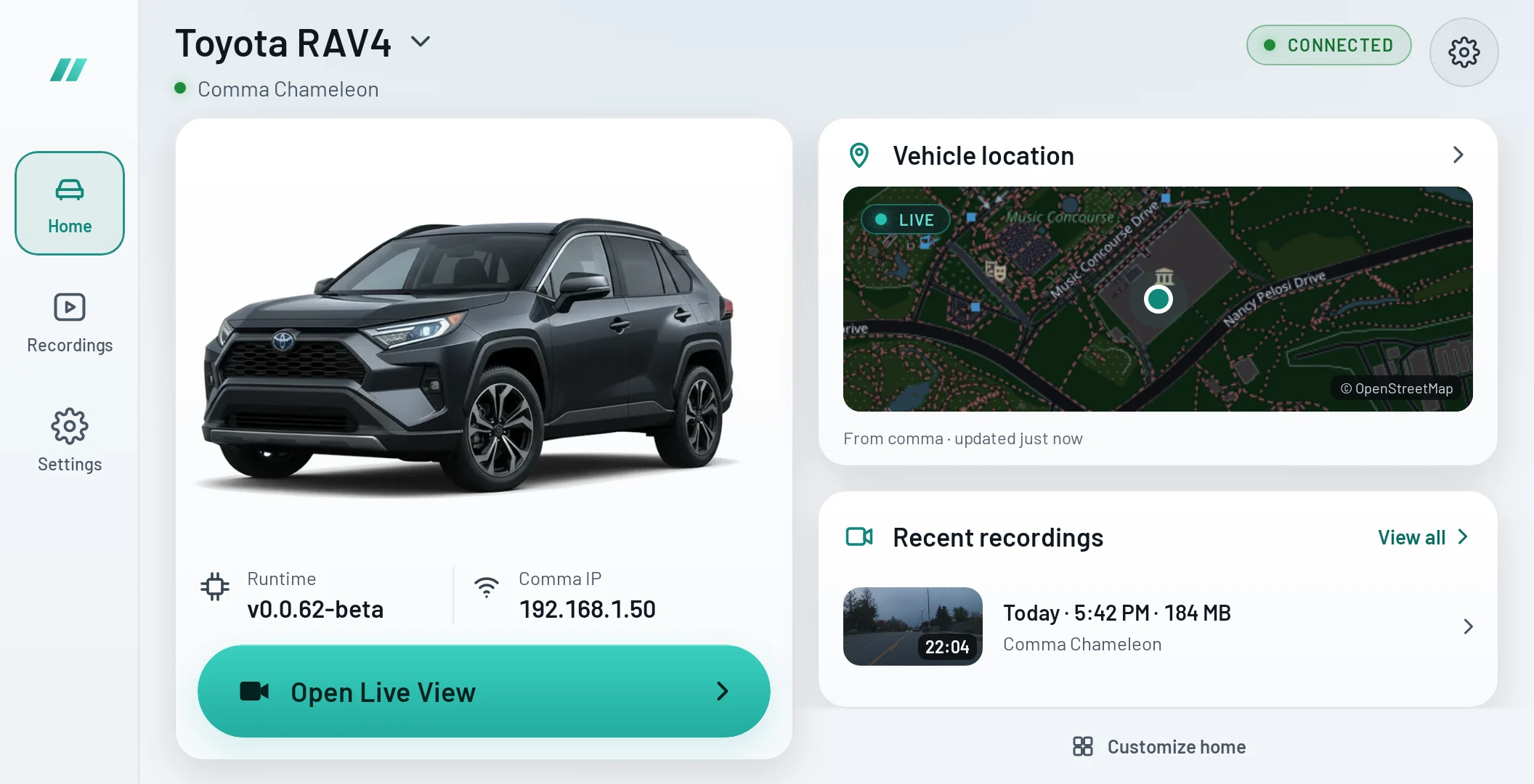
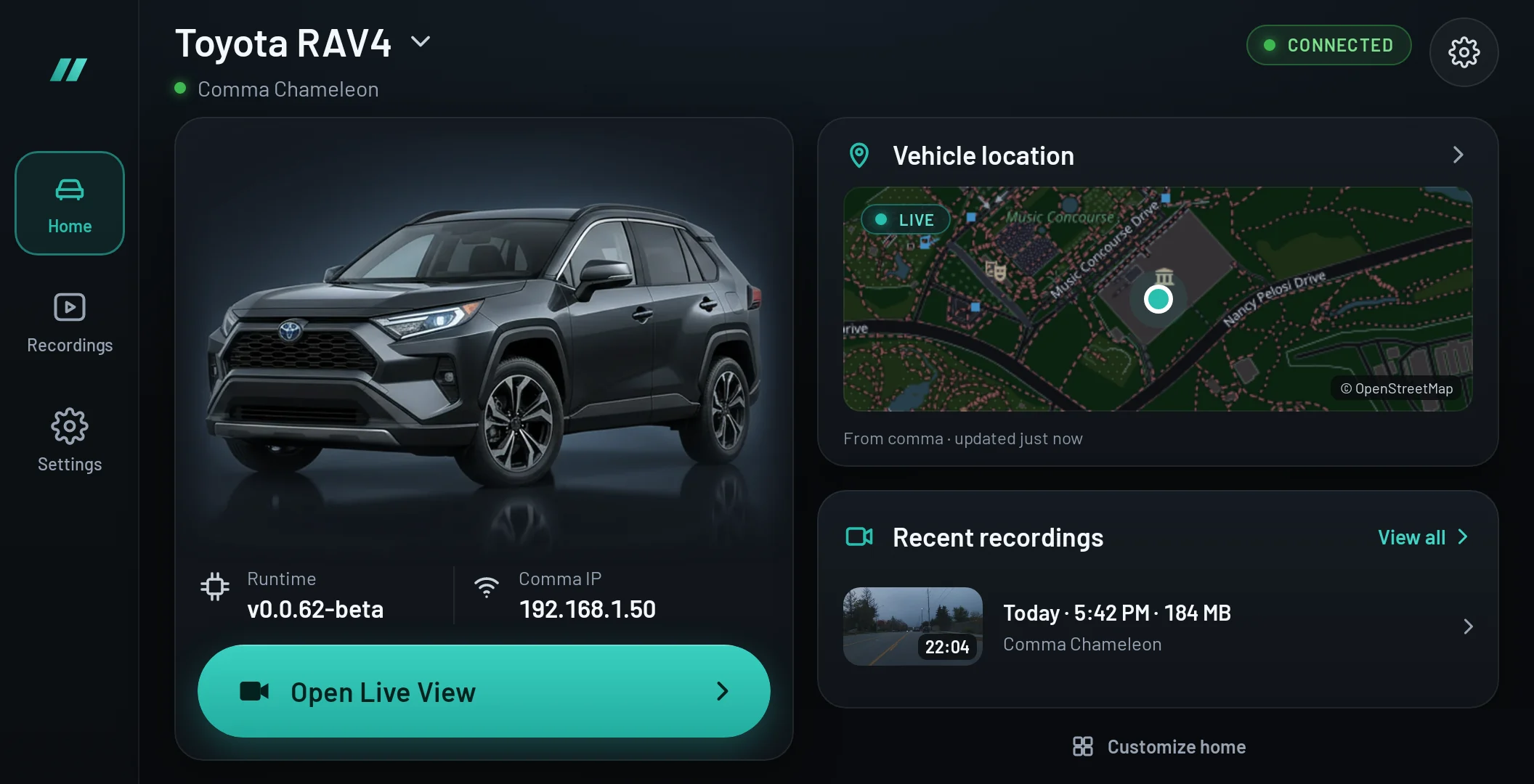
On a wide screen, CommaView lays out as a dashboard, with navigation in a rail at the side. Keep the unit’s text size at a size you can read at a glance: CommaView lays out for the room it has at that size.
Live View’s controls sit on the driver’s side. On Auto, CommaView follows the side your comma reports; to set it yourself, choose Settings › Display › Driver position: Auto, Left-hand drive or Right-hand drive. It mirrors the controls on every screen.
Tablet
Home shows the car, your week, the map and your drives side by side, with the rail at the side.
-
The rail: Home, Recordings, Settings.
-
Open Live View.
Head unit
The same dashboard, sized for an in-dash screen.
-
The rail: Home, Recordings, Settings.
-
Open Live View.
Through an AI box
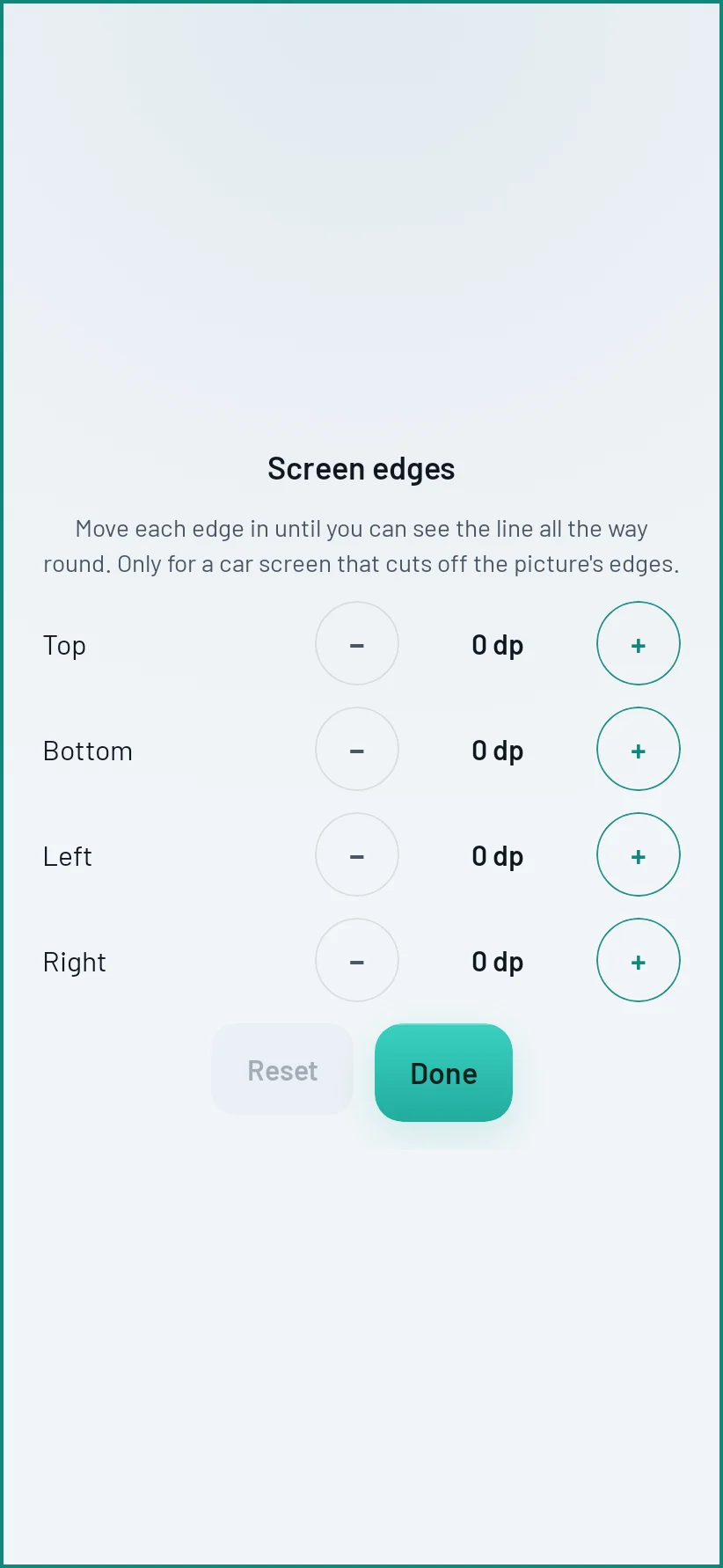
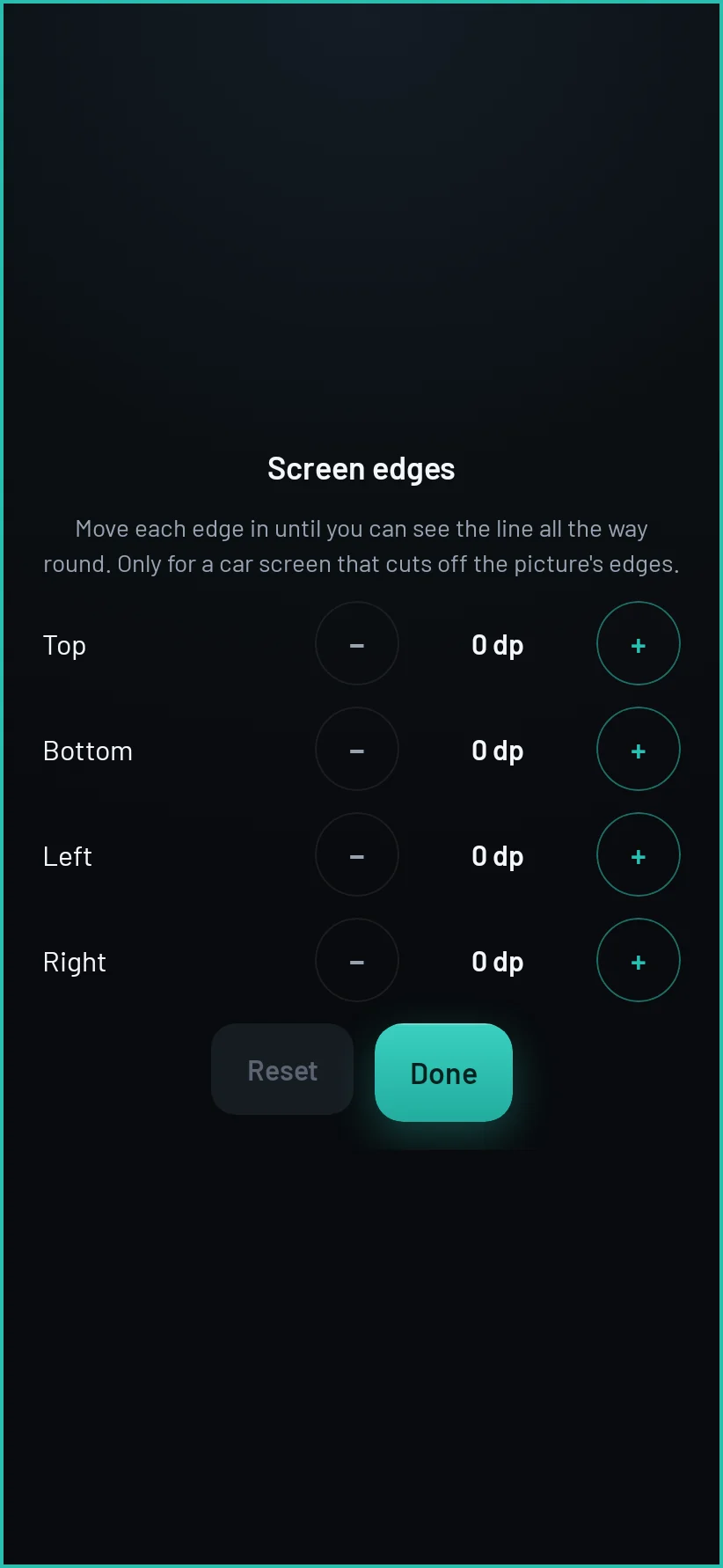
Some cars cut off the edges of the picture an AI box sends, and Android can’t tell. Open Settings › Display › Screen edges and move each edge in until you can see the line all the way round. Then check Home, Live View and Settings fit inside. Theme there can follow the car screen: Same as this device.
-
− and + move each edge in; Done keeps it.
-
-
Step 5 of 6: Open Live View and check it plays
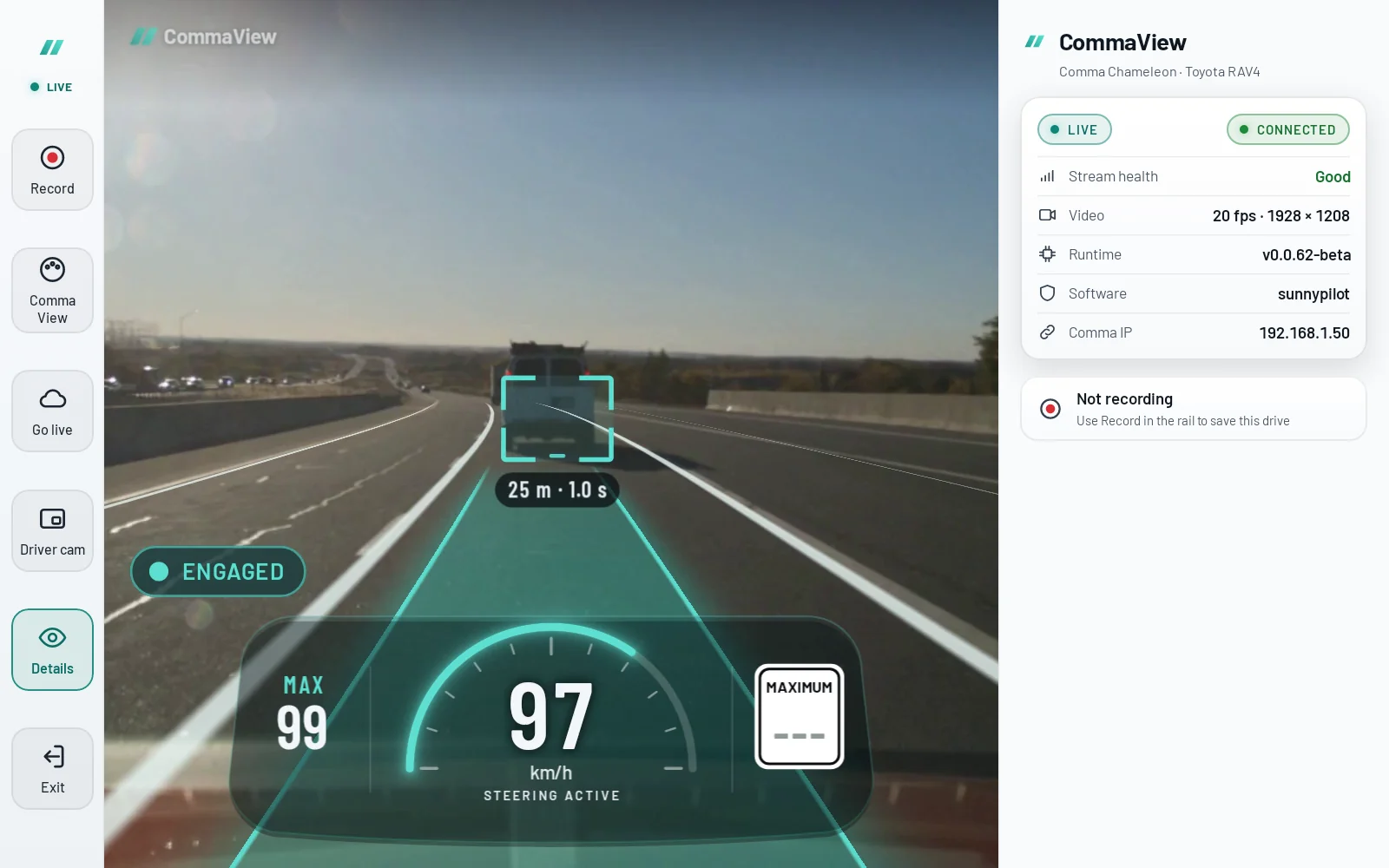
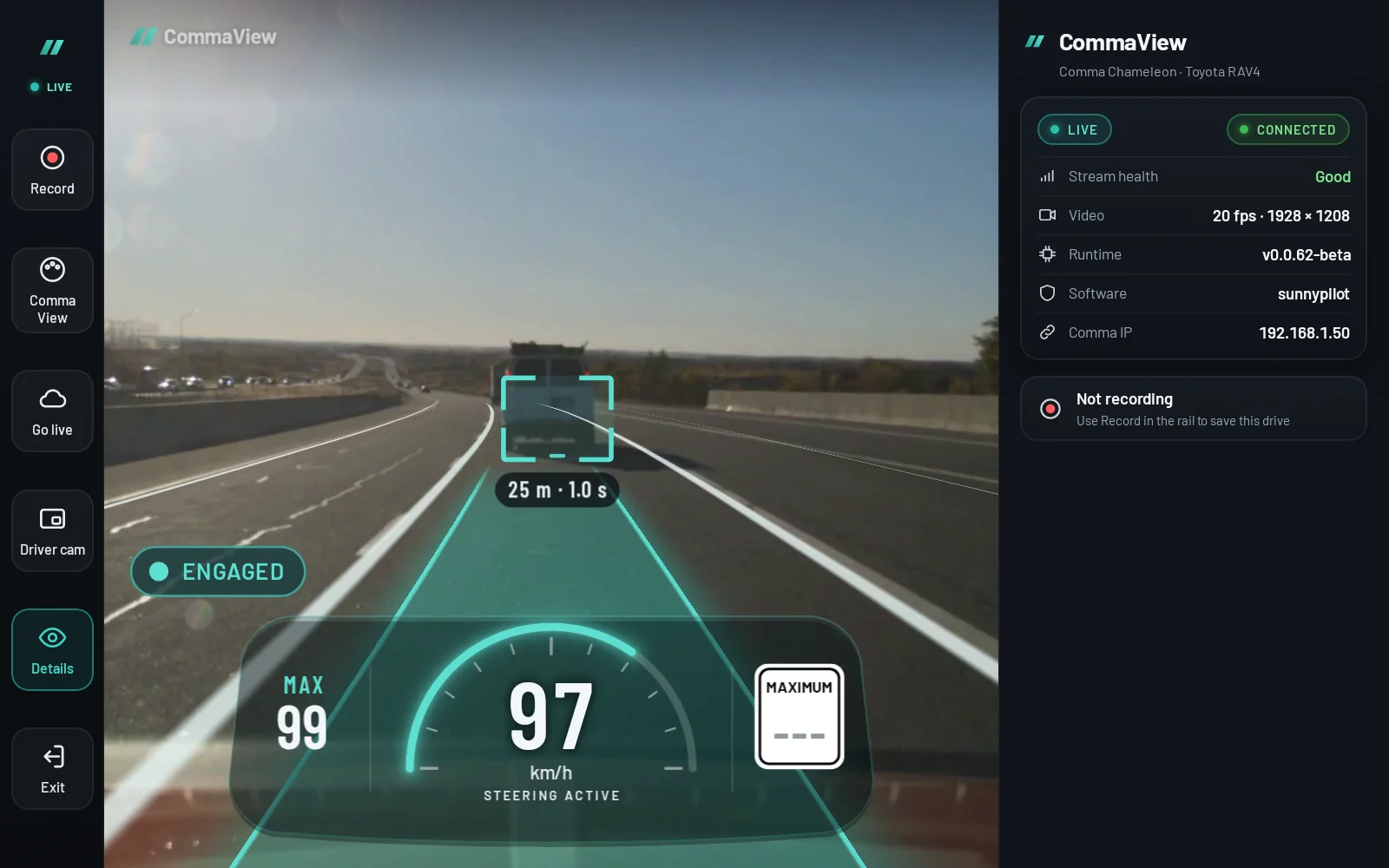
Tap Open Live View, with the car on. Its controls sit in a rail beside the road, on the driver’s side, compact on a short screen.
Tablet
Details opens in a pane beside the video.
-
Details, beside the video.
-
Record.
-
Go live.
Head unit
The rail holds Record, the onroad screen switch, Driver cam, Details and Exit.
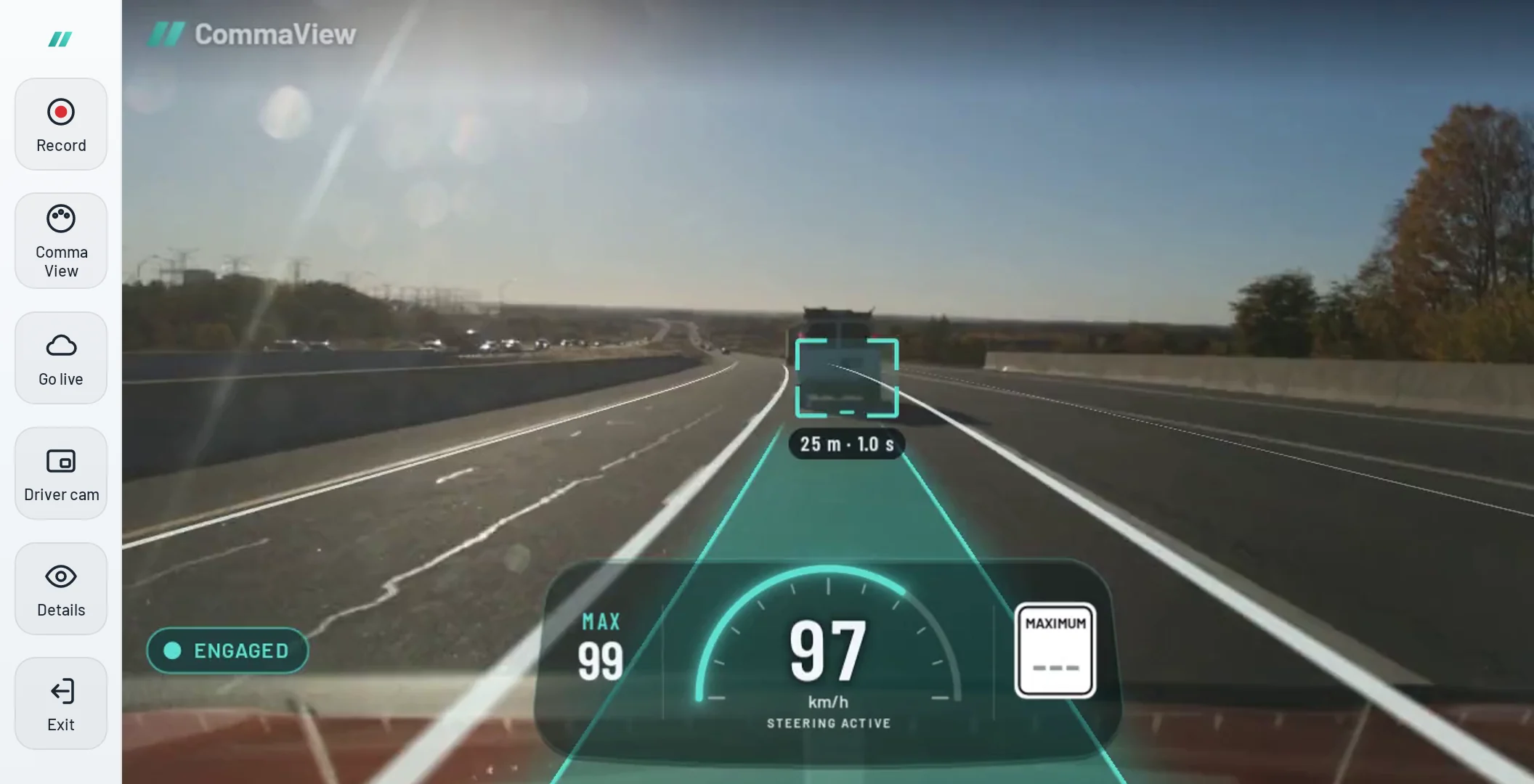
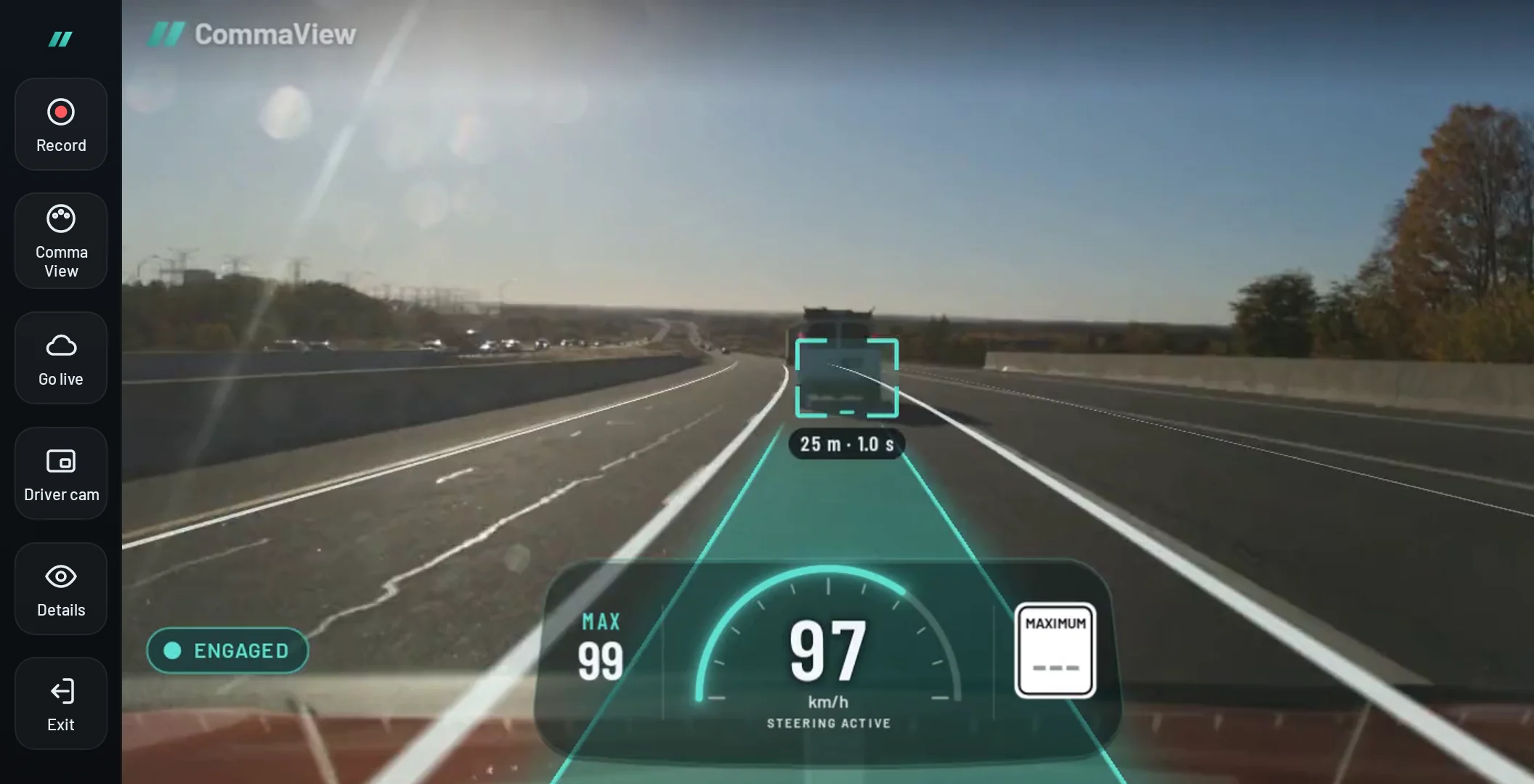
-
Record.
-
The onroad screen switch.
-
Driver cam.
-
Details, below Driver cam.
-
Exit.
-
-
Step 6 of 6: Let it open by itself
In Settings › Display, under Opening Live View:
- Open Live View when connected opens Live View by itself when your comma connects with the car on.
- Open CommaView when this device starts, for a head unit that restarts with the car. One that sleeps instead may have its own list of apps to start.
- Open CommaView when Bluetooth connects: when the device you pick connects, your car, or on a head unit, your phone.
With Display over other apps allowed, CommaView opens by itself. Otherwise a notification offers to open it.
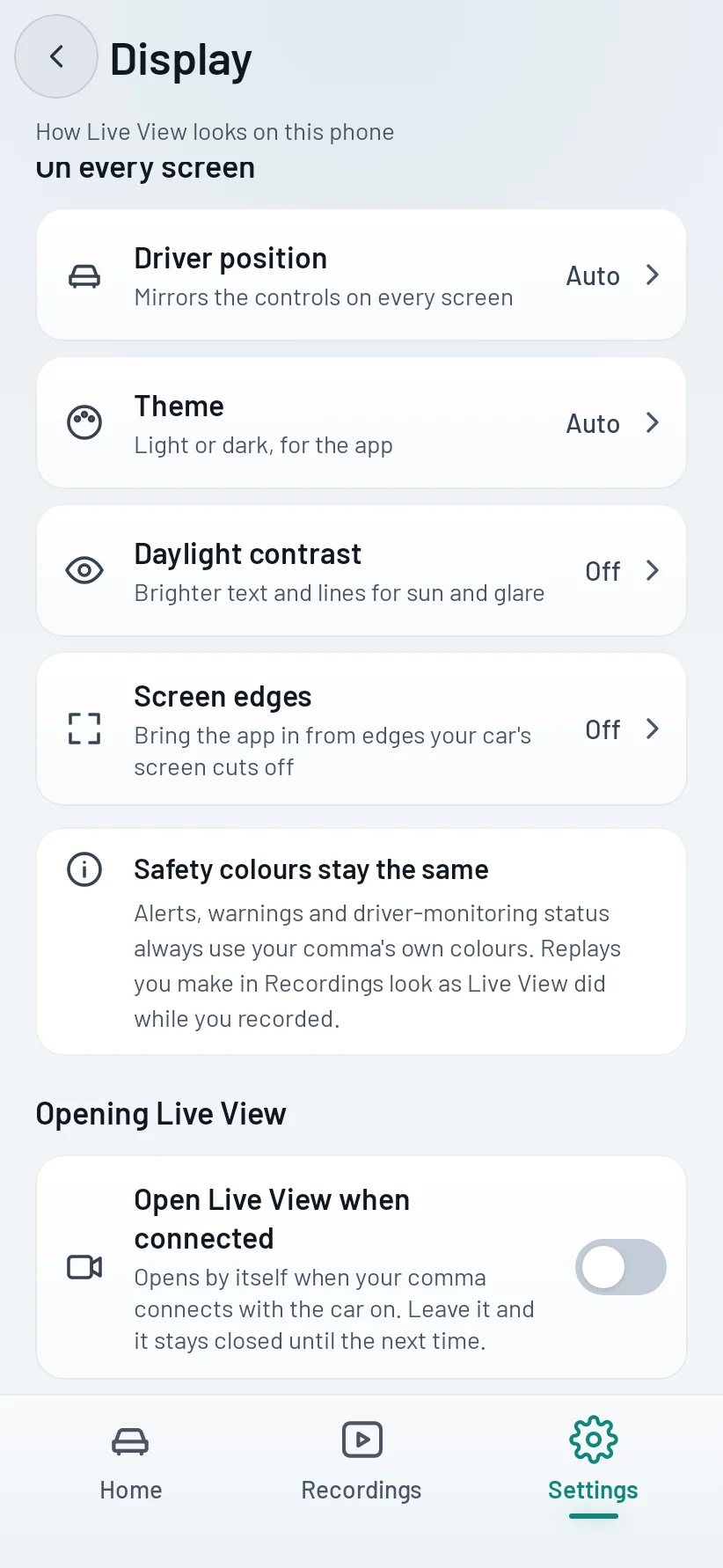
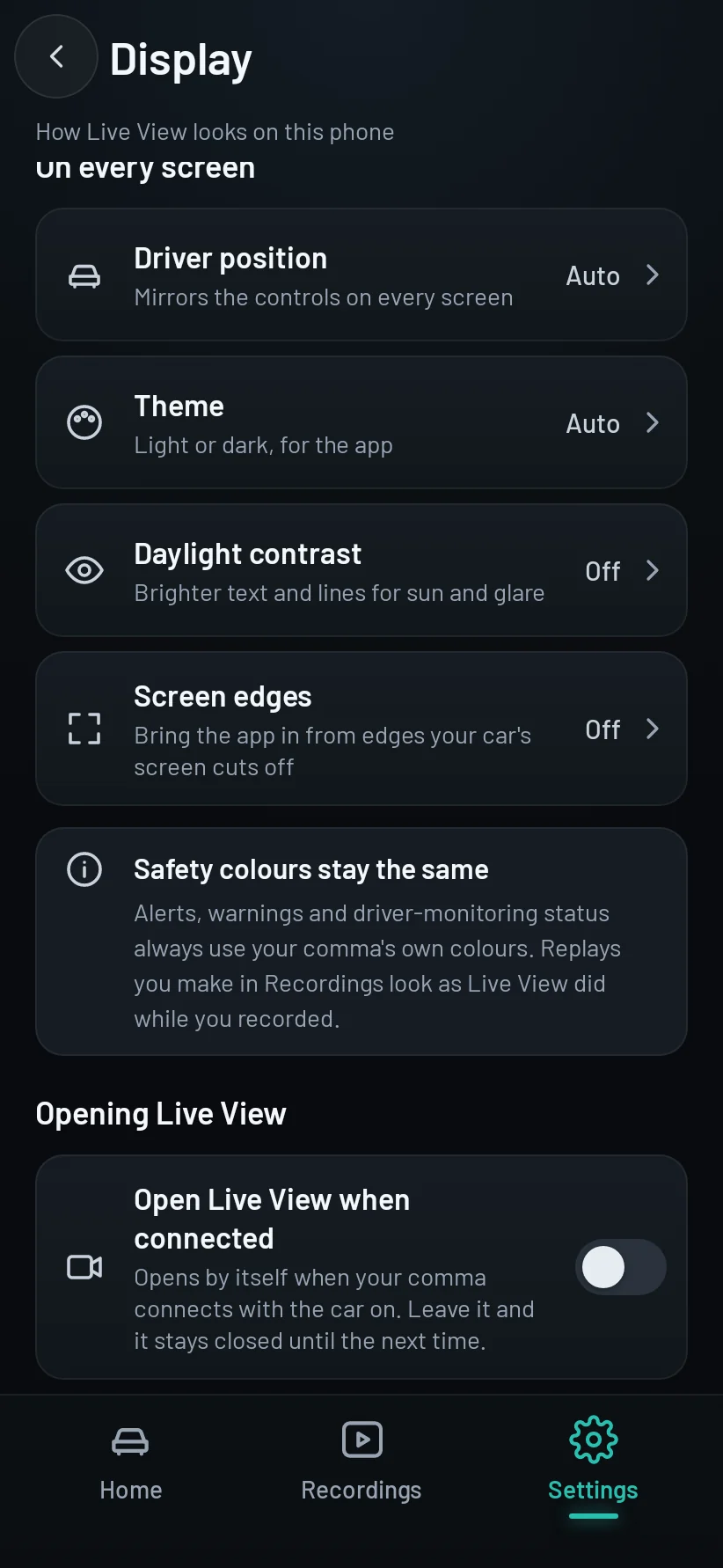
-
Open Live View when connected.
How you know it worked
With the car on, the car screen opens Live View, the stream pill says Live, and every control is inside the screen’s edges.
What works while driving
CommaView is an Android app, so it needs an Android device in front of you. Any of these can run it while you drive:
- An Android head unit. An aftermarket head unit that runs Android 8 or later: CommaView installs on it like on a phone, and runs on the car’s screen while you drive.
- An Android “AI box”. A small Android computer that plugs into a car’s wired CarPlay or Android Auto port and draws its own Android screen there. CommaView runs on the box, not on your phone. See Run CommaView on an Android AI box.
- A phone or tablet on a mount. Any Android phone or tablet, on a dash or vent mount that doesn’t block your view. The simplest route, and the one most people use.
A car with a web browser, such as a Tesla, can show Live View in it instead: see Show Live View in your car’s browser.
What doesn’t, and why
- CarPlay and Android Auto from your phone. CommaView isn’t a CarPlay or Android Auto app. Those platforms don’t let phone apps show video while the car moves.
- Parked video in CarPlay and Android Auto. Apple and Google are adding video for some cars, but only while parked, so it can’t show Live View on the road.
- Mirroring your phone to the car. Adapters that mirror a phone’s screen through CarPlay or Android Auto aren’t supported. Use an Android AI box or head unit that runs CommaView itself instead.
- Google built-in (Android Automotive). These cars install apps only from their own Play Store, where CommaView isn’t.
Tested hardware
Car screens the CommaView team has driven with. CommaView should run on any device with Android 8 or later, but these are the ones we’ve checked:
| Device | Kind | What we checked |
|---|---|---|
| Doro head unit (Qualcomm QCM6125, Android 13, 1280 × 720) | Head unit | Live View on city drives (October 2026). |
| Dasaita 10.2″ head unit (1280 × 720, in a Toyota RAV4) | Head unit | Live View while driving; recording uploads, parked. |
Help us test. Every car screen is different. If you run CommaView on a head unit or box, tell us how it went, and we’ll add it here once we’ve checked it.
Tell us about your car screen
Send it to us from the car screen itself, so the report carries its model and screen size:
- In CommaView on the head unit or box, open Settings › Support & diagnostics and tap Report a problem or send an idea.
- Choose Idea, then switch on This device’s diagnostics (an idea leaves them off): they tell us its make, model and screen size.
- In the note, say your car, the head unit or box (brand and model), how it’s connected (whose hotspot, or Wi‑Fi), and what worked and what didn’t. Then tap Send.
You’ll find what you sent, and our replies, under Your feedback at my.commaview.com. Not in the beta yet, or the app won’t start? Tell us in the CommaView Discord.
Safety
- Install, pair and set the layout while parked. Check Live View plays before you drive.
- Don’t operate CommaView while driving. Keep your eyes on the road and your hands on the wheel, as openpilot asks.
- Your comma’s own alerts and your car’s instruments come first. CommaView only shows what the comma sees.
- Mount a phone or tablet where it doesn’t block your view or an airbag, and follow your local rules on screens in cars.
If it doesn’t work
Can I use CommaView through CarPlay or Android Auto?
Not from your phone. CommaView isn’t a CarPlay or Android Auto app, and those platforms don’t let phone apps show video while the car moves. An Android AI box gets around this, because it’s its own Android device: CommaView runs on the box, and the car shows the box’s screen. See Run CommaView on an Android AI box.
Will it work on my car’s built-in Android Automotive (Google built-in)?
Not yet. Cars with Google built-in install apps only from their own Play Store, where CommaView isn’t. If you try it another way, tell us how it went.
Can I use a car screen and my phone with the same comma?
Yes: pair each one with the comma. One of them has Live View at a time, so leave Live View on the other one first. Live View says Live View is open on another device and starts by itself once you go back to Home on the other one.
My car cuts off the edges of the picture
Some cars crop the picture an AI box sends, and Android can’t tell. Settings › Display › Screen edges keeps the app clear of each edge you set.
The car screen can’t find the comma
CommaView finds the comma by itself on the same network, even if its address changes. If it doesn’t, enter the comma’s IP address: 192.168.43.1 on the comma’s own hotspot (every comma’s is the same), or on any other network, the IP address the comma shows under Settings › Network: under the network’s name on the Wi‑Fi button on a comma four, or under Advanced on a comma 3X.
The car screen stopped getting video after a runtime update
When you update your comma’s runtime, update CommaView on every device that watches it first, the car screen too. A car screen on an older CommaView keeps working for 90 days after the comma’s first phone gets its key; after that it needs CommaView 0.0.166 or later and an invitation.
Did this guide get you there?
Tell us what’s missing