
All guides · Live View and screens
Guide · Live View and screens
Run CommaView on an Android AI box
If your car has factory wired CarPlay or Android Auto, an Android AI box can put CommaView’s Live View on the car’s own screen, with no new stereo and no wiring. The box is a small Android computer that plugs into the USB port you’d plug your phone into. CommaView runs on the box, so your phone stays free for calls and maps.
Before you start
- Wired CarPlay or Android Auto
Factory wired CarPlay or wired Android Auto, through a USB port that carries data. Check the box takes what your car has.
- A box that runs real Android
Android 8 or later that lets you install an app from a file. Closed “video” boxes and plain wireless adapters can’t run CommaView. Which box to buy.
- CommaView on your phone
Set your comma up from your phone first, then pair the box. Set up CommaView.
How it works
Your comma
Sends Live View to the box over a local network.
AI box
Runs CommaView, like any Android device.
Car screen
Shows the box’s screen, the way it shows CarPlay.
Steps
Tick each step off as you go. The first time, do it parked.
-
Step 1 of 6: Plug the box in and install CommaView
Plug the box into the car’s CarPlay or Android Auto USB port and let it start. Connect it to Wi‑Fi with internet for now.
In the box’s browser, sign in at my.commaview.com with the email your invite came to, and tap Download CommaView under Get the app. Allow installs from the browser for this one install, then turn that off again. Open CommaView and sign in.
Run CommaView in the box’s Android mode, not with your phone’s CarPlay passed through.
-
Step 2 of 6: Put the box and the comma on the same network
Live View goes straight from the comma to the box over a local network, not the internet, and any network both are on will do.
The box’s hotspot
Boxes with a SIM card can usually share a hotspot. Turn it on and join the comma to it in the comma’s Settings › Network.
Your phone’s hotspot
Join the box and the comma to your phone’s hotspot. They get the internet through it too.
The comma’s hotspot
Turn on the comma’s hotspot (openpilot calls it tethering) and join it from the box.
Most boxes also use Wi‑Fi to connect your phone for wireless CarPlay, and some drop their Wi‑Fi internet while they do. Turn off any VPN on the box.
-
Step 3 of 6: Pair the box with your comma
On your phone, open the comma’s Device settings, tap Pair another phone, and under Add another phone, Show invitation. On the box, tap Pair a comma that runs CommaView, pick your comma, and type the code or tap Scan QR code. Every step: Use CommaView on a tablet or car screen.
-
Step 4 of 6: Bring the app in from edges the car cuts off
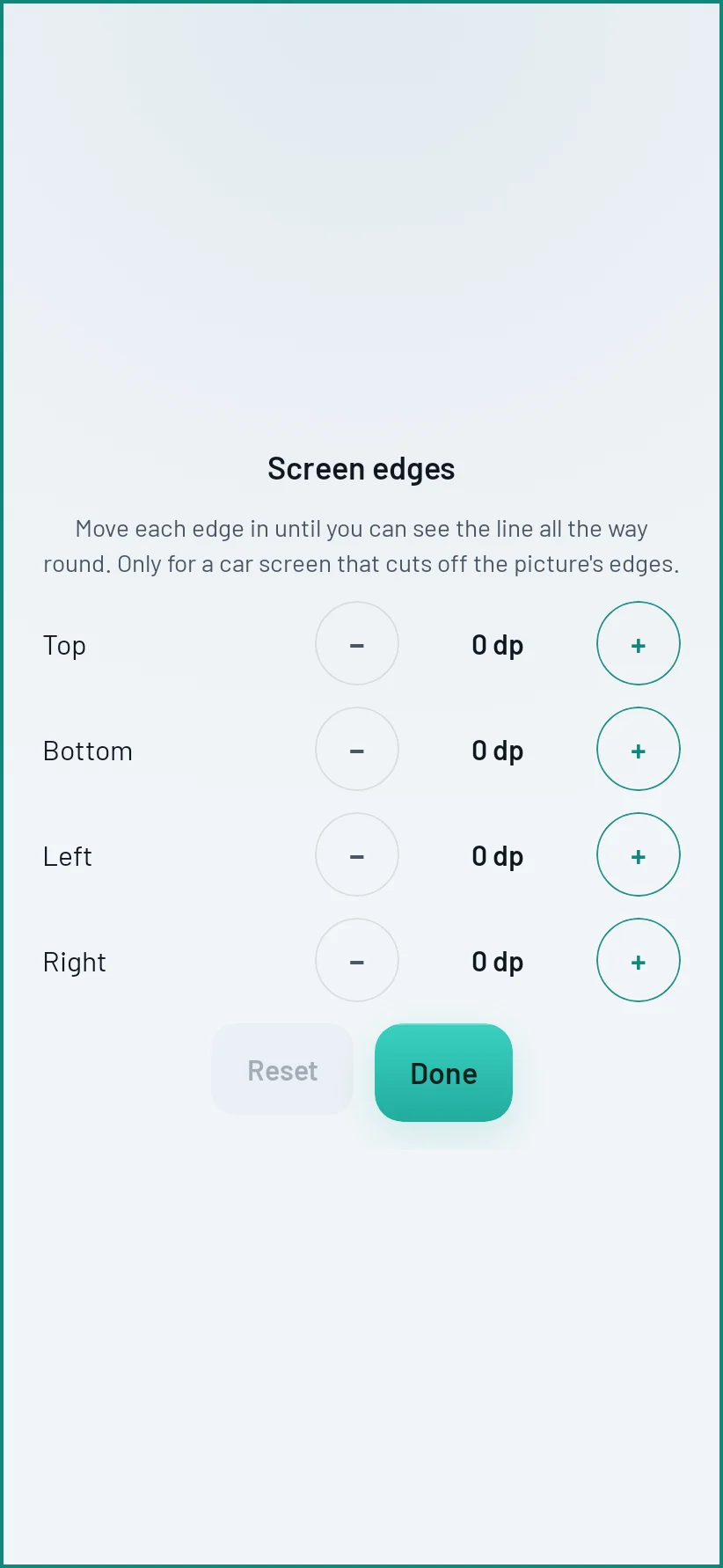
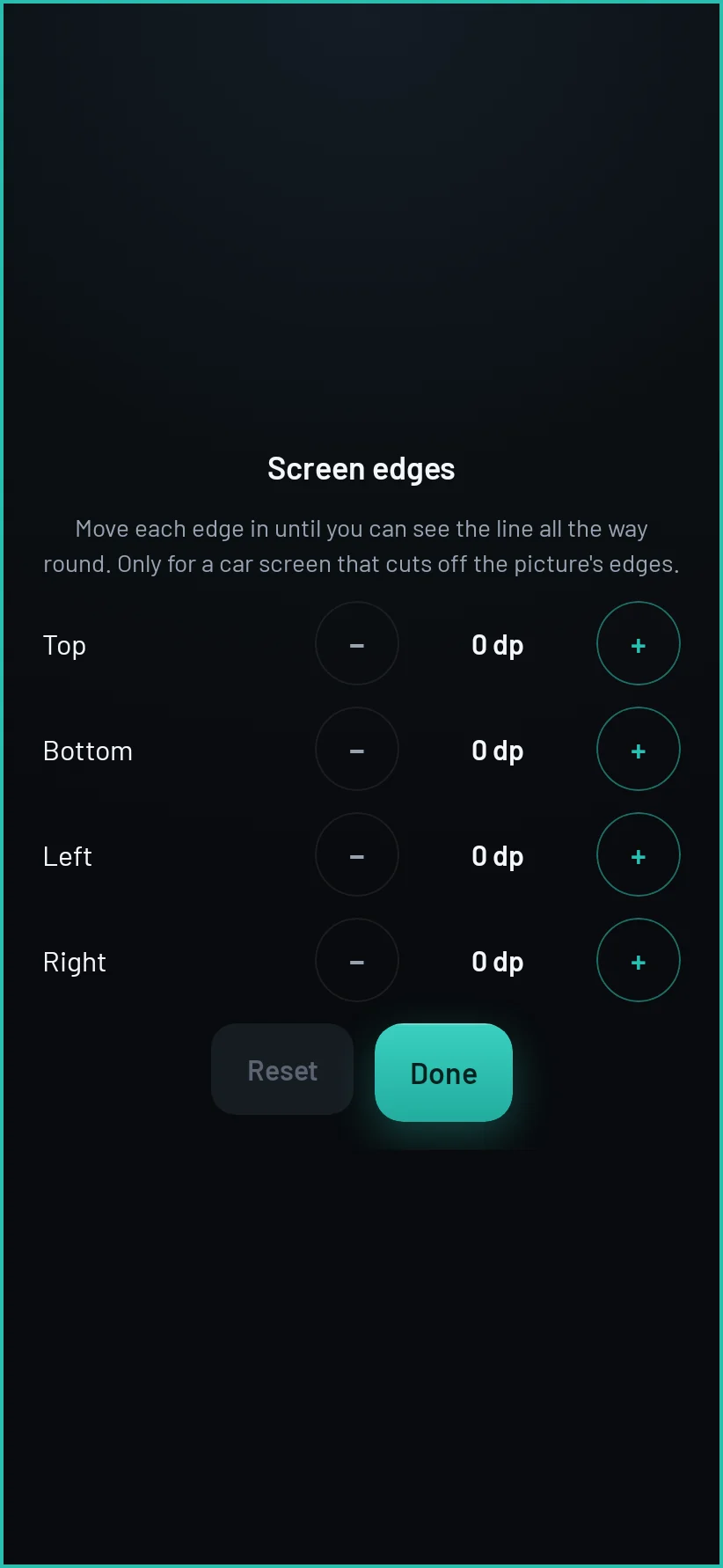
Some cars crop the edges of what the box sends, and Android can’t tell. Open Settings › Display › Screen edges. A line marks where the app ends: move each edge in with − and + until you can see the line all the way round, then tap Done. Reset turns it off.
Then check Home, Live View and Settings fit inside.
-
− and + move each edge in; Done keeps it.
-
Theme, also in Settings › Display: Same as this device follows the box.
-
-
Step 5 of 6: Let it open by itself
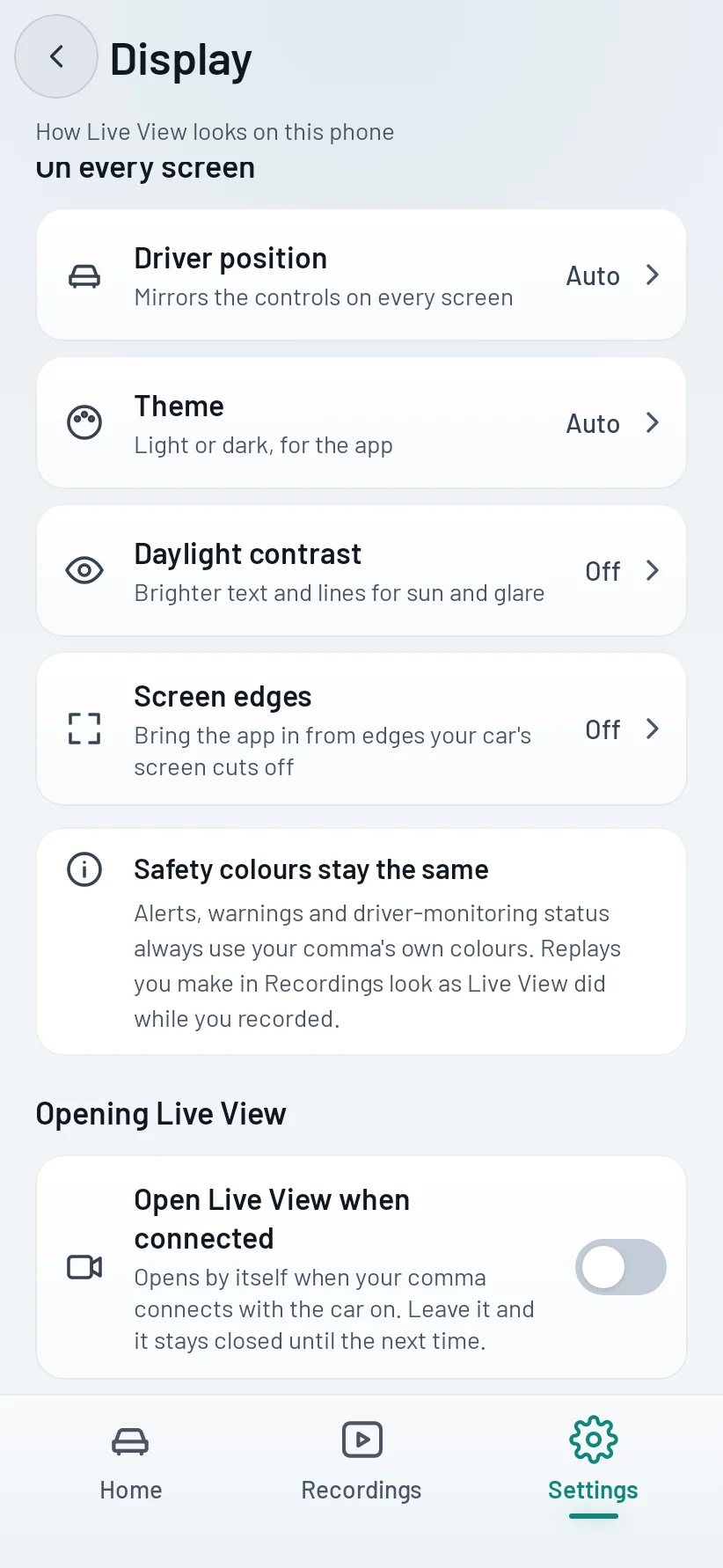
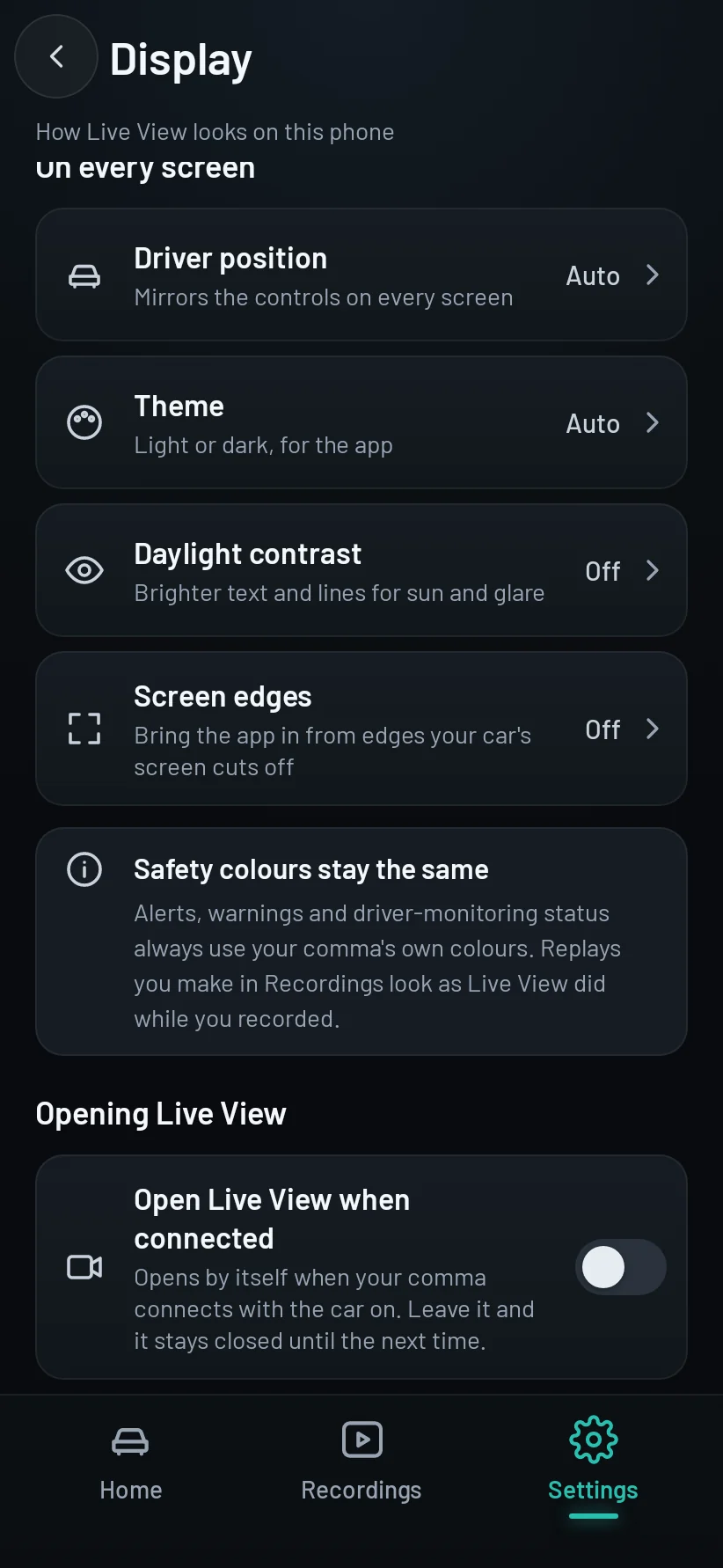
In Settings › Display, under Opening Live View:
- Open CommaView when this device starts, for a box that restarts with the car.
- Open CommaView when Bluetooth connects, picking your phone, for a box that sleeps instead.
- Open Live View when connected, to go straight into Live View once your comma connects with the car on.
Allow Display over other apps so CommaView can open by itself. Without it, a notification offers to open it.
-
Open Live View when connected.
-
Step 6 of 6: Check Live View plays, then drive
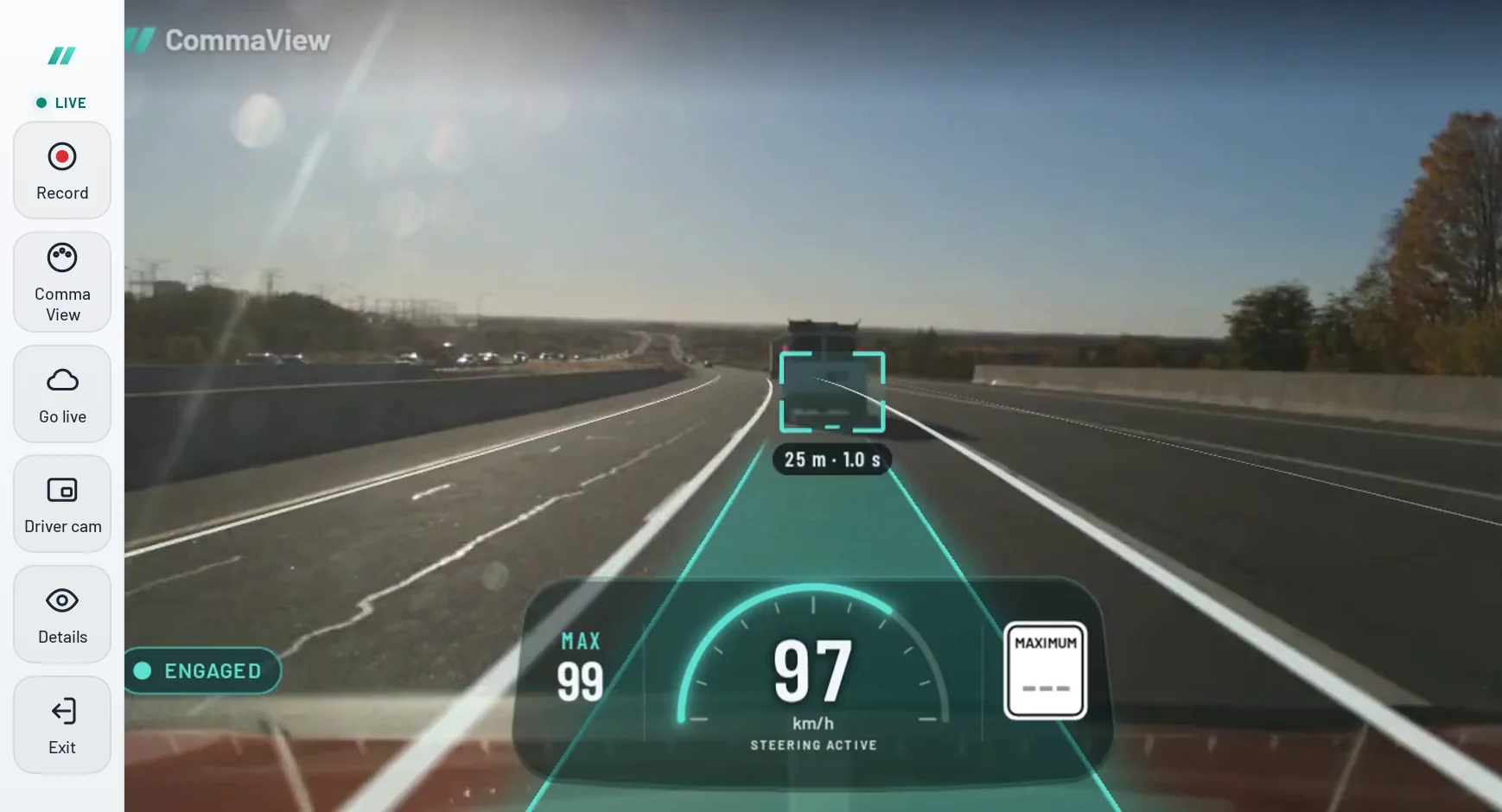
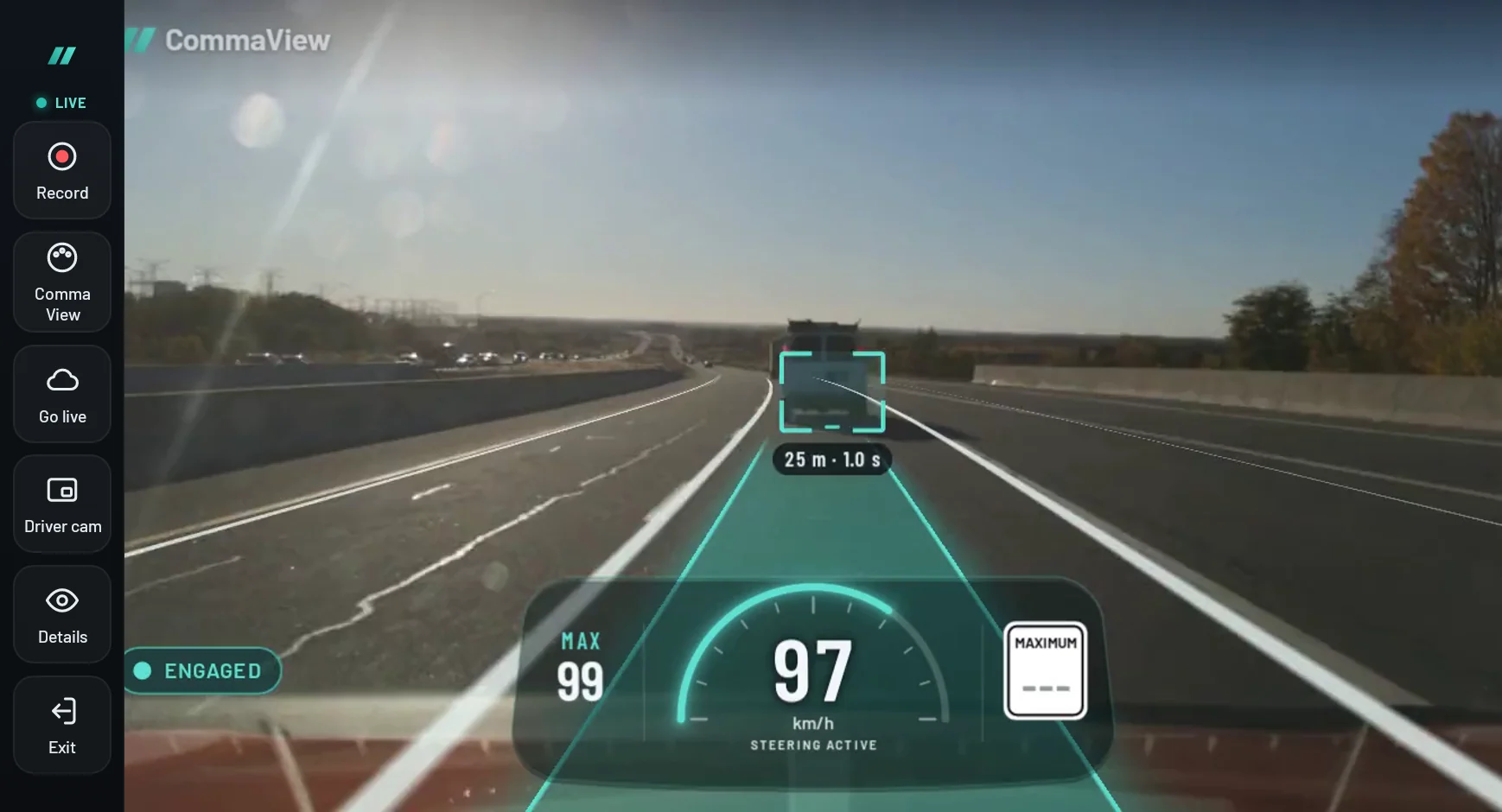
With the car on, open Live View on the box. Its controls sit in a rail on the driver’s side, compact on a short screen. Check the picture plays and nothing is cut off before you drive.
-
Record, at the top of the rail.
-
Details, lower in the rail.
The box’s screen reaches the car as video, so Live View is encoded one more time on the way. Expect it a touch softer and a little later than on a phone in your hand.
-
How you know it worked
The car’s screen shows CommaView’s Home, then Live View with the stream pill saying Live, and the line from Screen edges shows all the way round.
Four kinds of “CarPlay adapter”
Shops sell four quite different things under the same name. Only one runs CommaView.
| Kind | What it does | Runs CommaView? |
|---|---|---|
| Android AI box | Full Android on the car’s screen, apps installed like on a phone | Yes |
| Closed “video” box | A few built-in streaming apps on a locked-down system | No |
| Wireless adapter | Makes wired CarPlay or Android Auto wireless. No Android of its own | No |
| Portable CarPlay screen | A separate screen for your phone’s CarPlay, often not Android inside | No |
The best Android AI boxes for CommaView compares the boxes worth buying. A Tesla has no CarPlay or Android Auto: use Browser View instead.
When you update your comma’s runtime, update CommaView on the box first, like on every device that watches your comma.
Safety
Set the box up parked, then leave it alone. Don’t operate CommaView while driving: keep your eyes on the road and your hands on the wheel, as openpilot asks. Your comma’s own alerts and your car’s instruments come first. CommaView only shows what the comma sees.
If it doesn’t work
The box can’t install CommaView
Some boxes block installs from the browser. Download the app on a computer, copy it over on a USB stick, and open it from the box’s file manager. A box with a closed system and a fixed list of apps can’t install it at all.
The box can’t find the comma
Check both are on the same network, and that the box hasn’t dropped its Wi‑Fi for wireless CarPlay. Enter the comma’s IP address if you need to: 192.168.43.1 on the comma’s own hotspot. More in Connect in the car.
The picture stutters or won’t play
The comma sends its road camera as 1928 × 1208 HEVC (H.265), and the cheapest boxes’ decoders can fall short. If a decoder fails, CommaView tries the box’s others by itself. Live View says Can’t play this comma’s video when none can: send a support report from the box.
“Live View is open on another device”
Your comma streams to one phone or head unit at a time. Go back to Home in CommaView on your phone, and Live View starts on the box by itself.
Can I still use CarPlay from my phone?
Yes. Most boxes pass your phone’s CarPlay or Android Auto through wirelessly, and you switch between that and the box’s Android. CommaView runs in the box’s Android mode.
Does the box need a SIM card?
Not for Live View. During the beta, CommaView needs the internet now and then to renew its access pass, which Wi‑Fi at home, your phone’s hotspot or a SIM in the box gives it.
Did this guide get you there?
Tell us what’s missing