
All guides · Live View and screens
Guide · Live View and screens
Choose the onroad screen and add overlay packs
Live View draws an onroad screen over the road camera: the comma four’s, the comma 3X’s, or CommaView’s own. The comma screens are drawn in your fork’s look. Overlay packs add what your fork’s own screen draws that CommaView doesn’t, such as BluePilot’s hybrid gauges or dragonpilot’s rainbow path.
Before you start
- Live View works
CommaView on an Android phone, paired with your comma. Not yet? Set up CommaView.
- Signed in, for the store
Members browse CommaView’s packs. Signed out, you can still add a pack from a file or a link.
Steps
Tick each step off as you go. The first time, do it parked.
-
Step 1 of 6: Switch screens in Live View
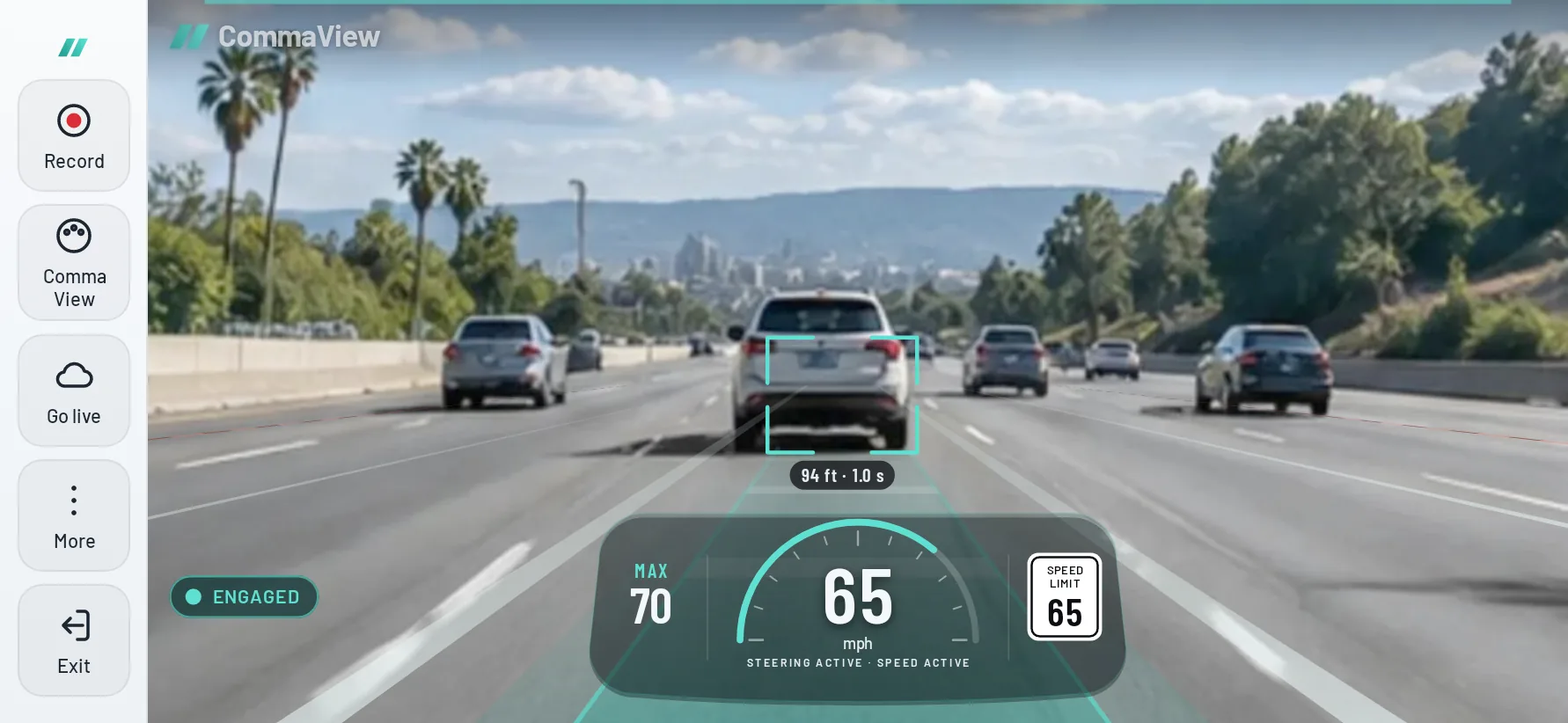
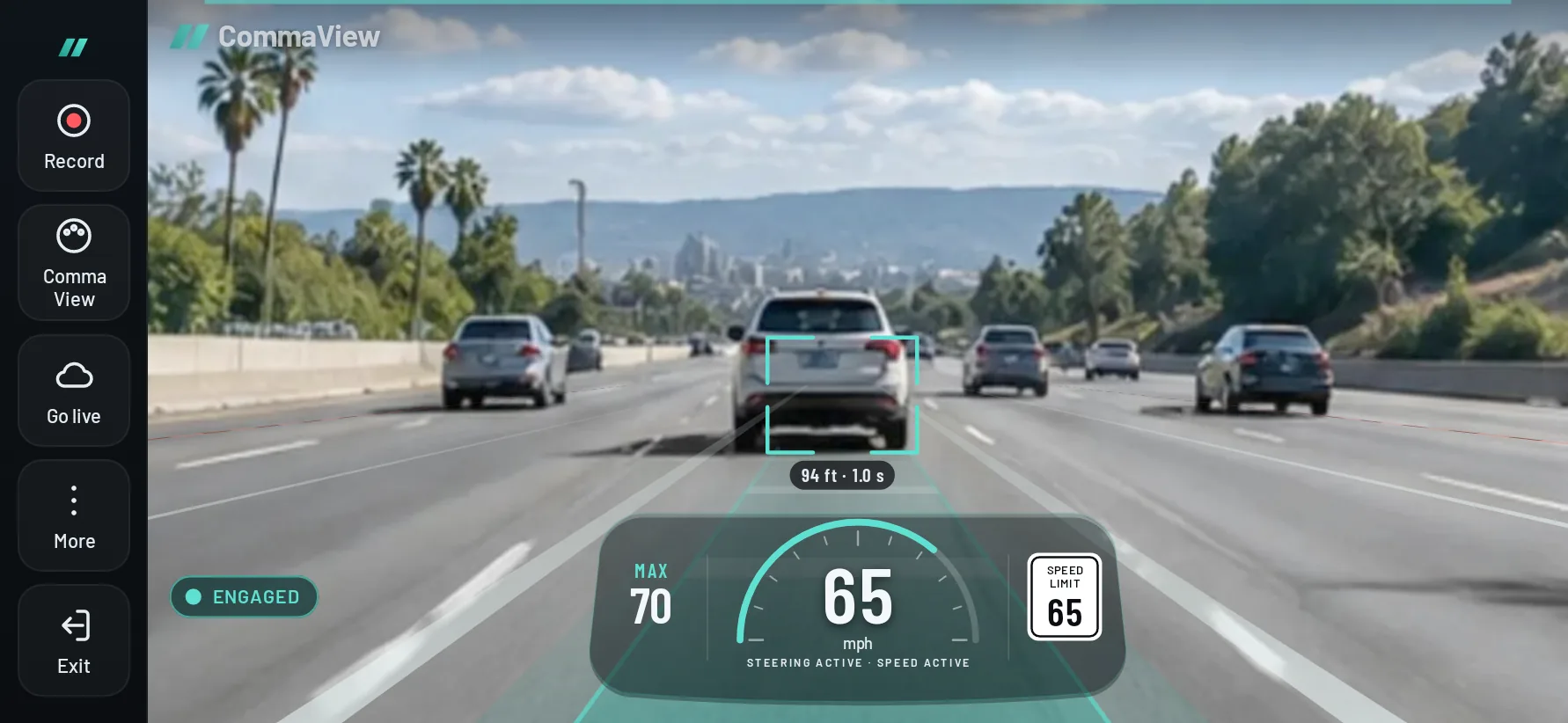
In Live View, tap the onroad screen switch. It’s named for the screen it shows, and each tap moves to the next one: comma 4, comma 3X, CommaView, then round again. The one you leave it on is kept for next time.
-
The onroad screen switch, named for the screen it shows.
Where it doesn’t fit beside the other controls, it’s in More, as Onroad screen. While a recording runs it’s dimmed: a recording keeps the screen it started with.
-
-
Step 2 of 6: Or choose it in Settings › Display
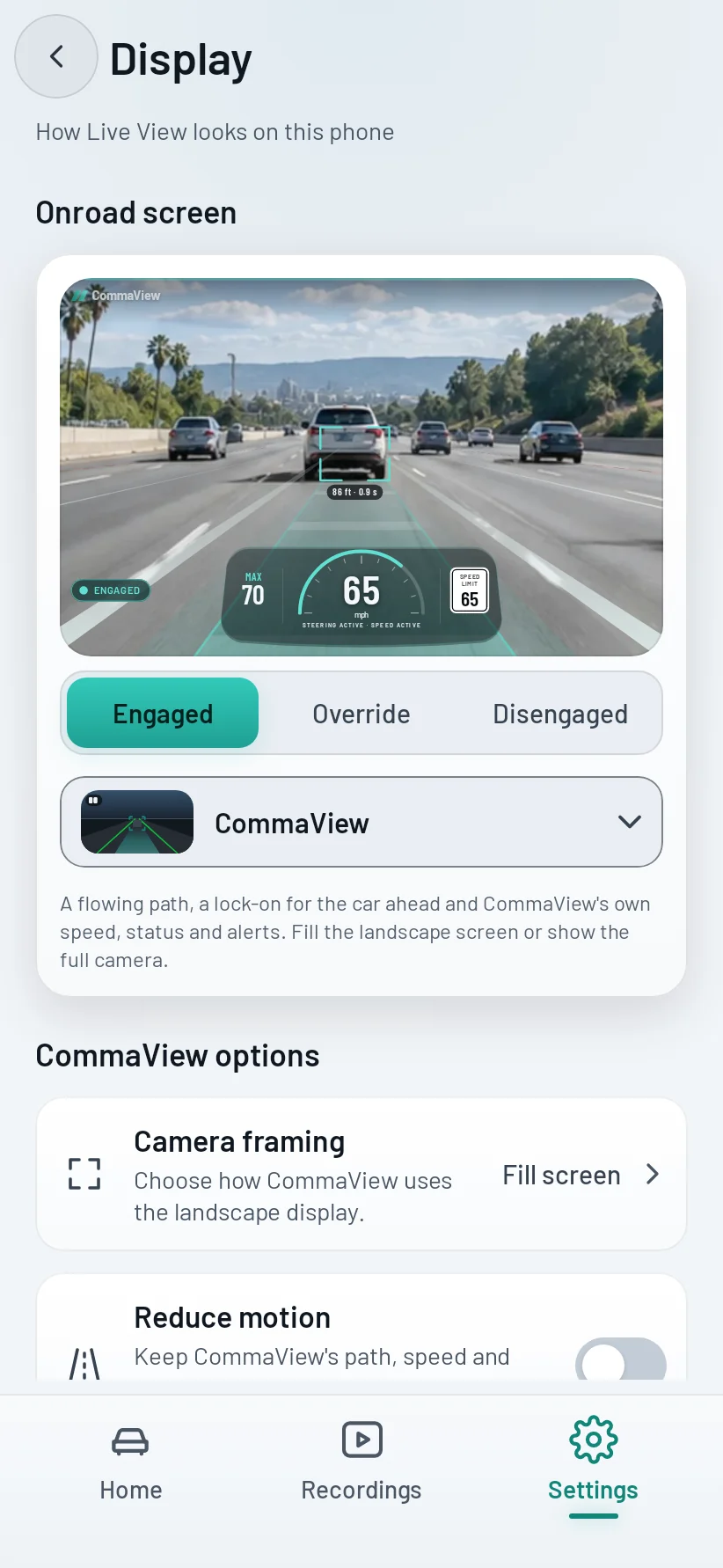
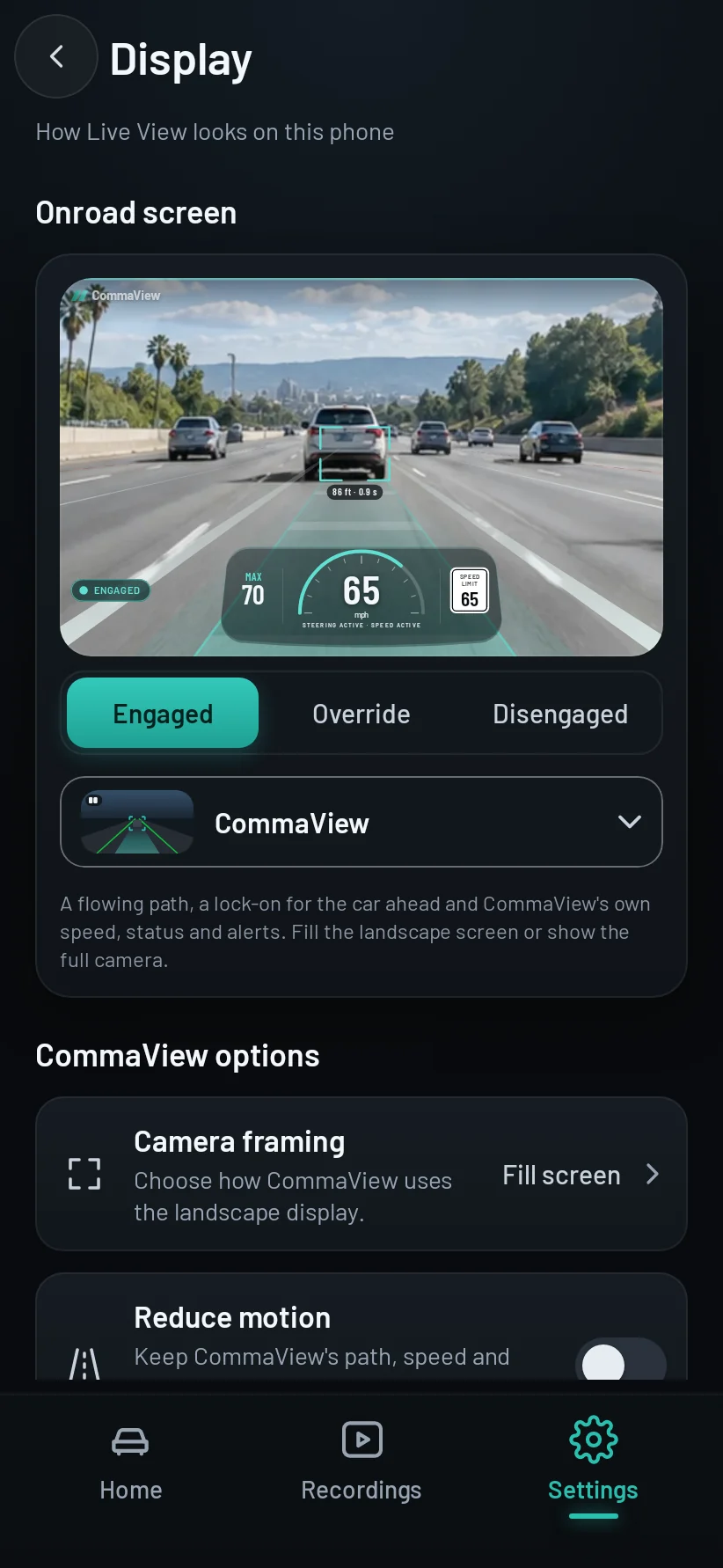
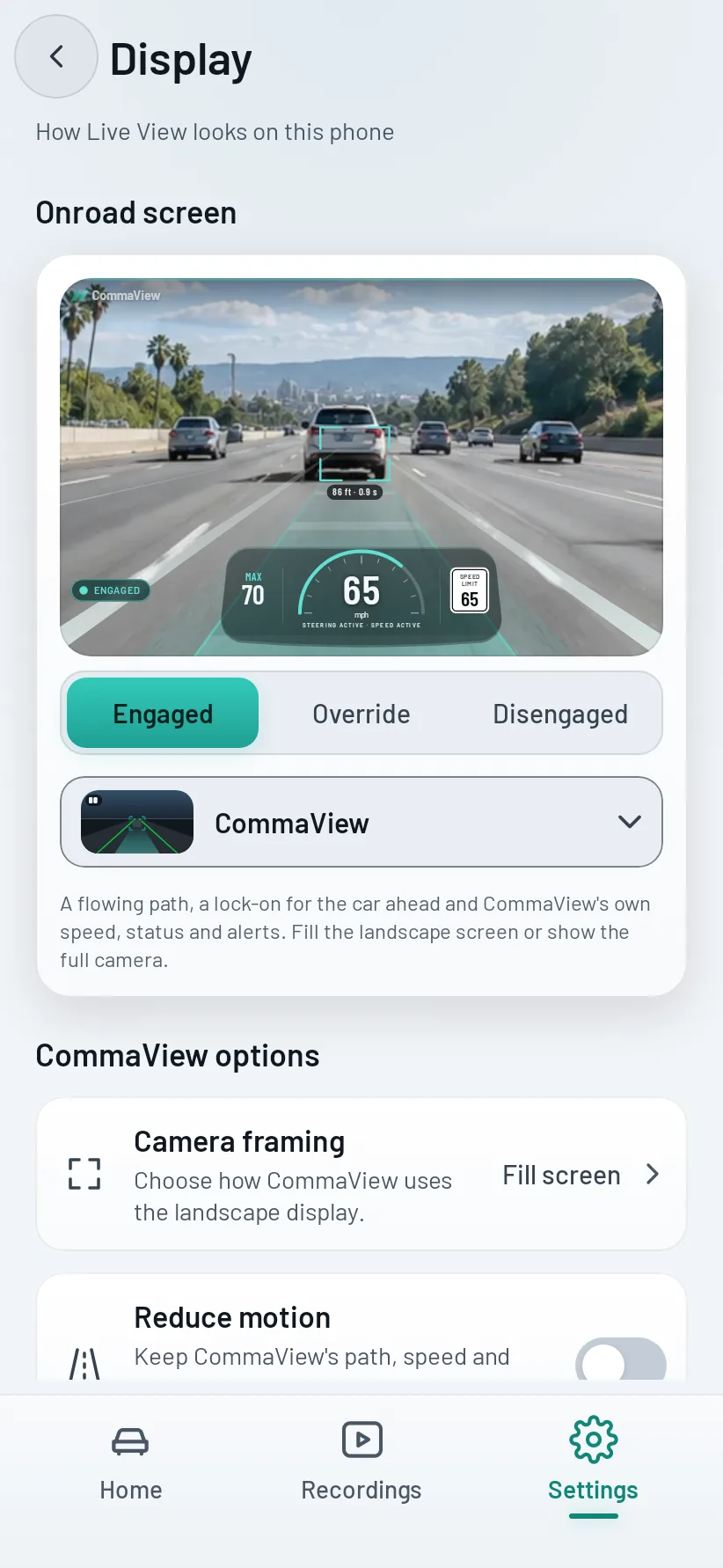
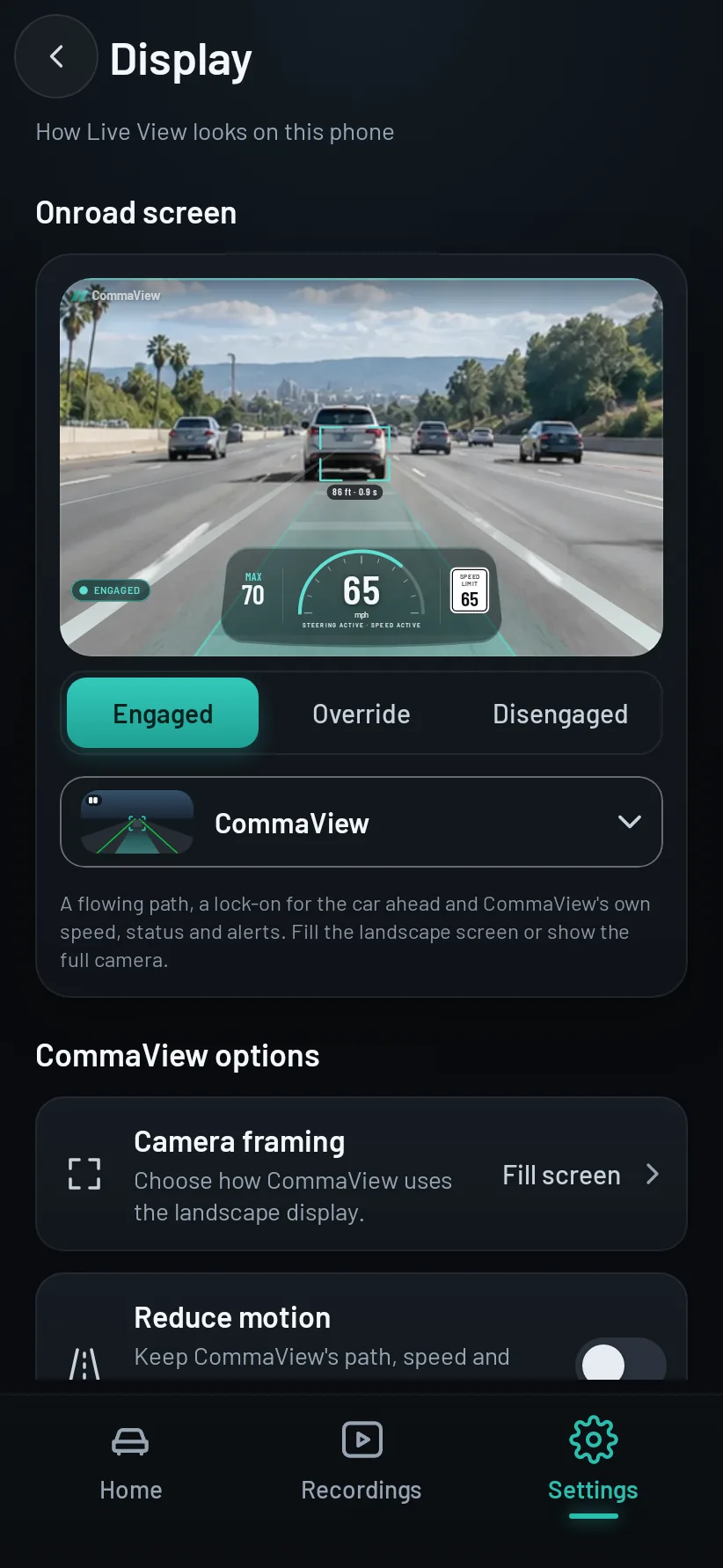
To see every screen before you pick, open Settings › Display. The Onroad screen card shows a preview of the chosen screen on a road photo, framed by your comma’s cameras and drawn in your fork’s look. Engaged, Override and Disengaged under it change the moment shown; they save nothing.
-
The preview of the chosen screen.
-
Onroad screen: tap it to see the list.
-
-
Step 3 of 6: Pick a screen
Each screen in the list has a small picture and a note:
- comma four: MAX above the road as it changes, the wheel and confidence beside it.
- comma 3X: a status border, the MAX box, a large speed and alerts along the bottom.
- CommaView: a flowing path, a lock-on for the car ahead and CommaView’s own speed, status and alerts.
Choosing one saves it and changes the preview, its options and Live View. Any screen works on either comma.
-
comma four.
-
comma 3X.
-
CommaView.
Alerts, warnings and driver-monitoring status always use your comma’s own colours, whichever screen you choose.
-
Step 4 of 6: Open the overlay packs store
Open Settings › Overlay packs, or tap the Overlay packs card on Home.
Signed in
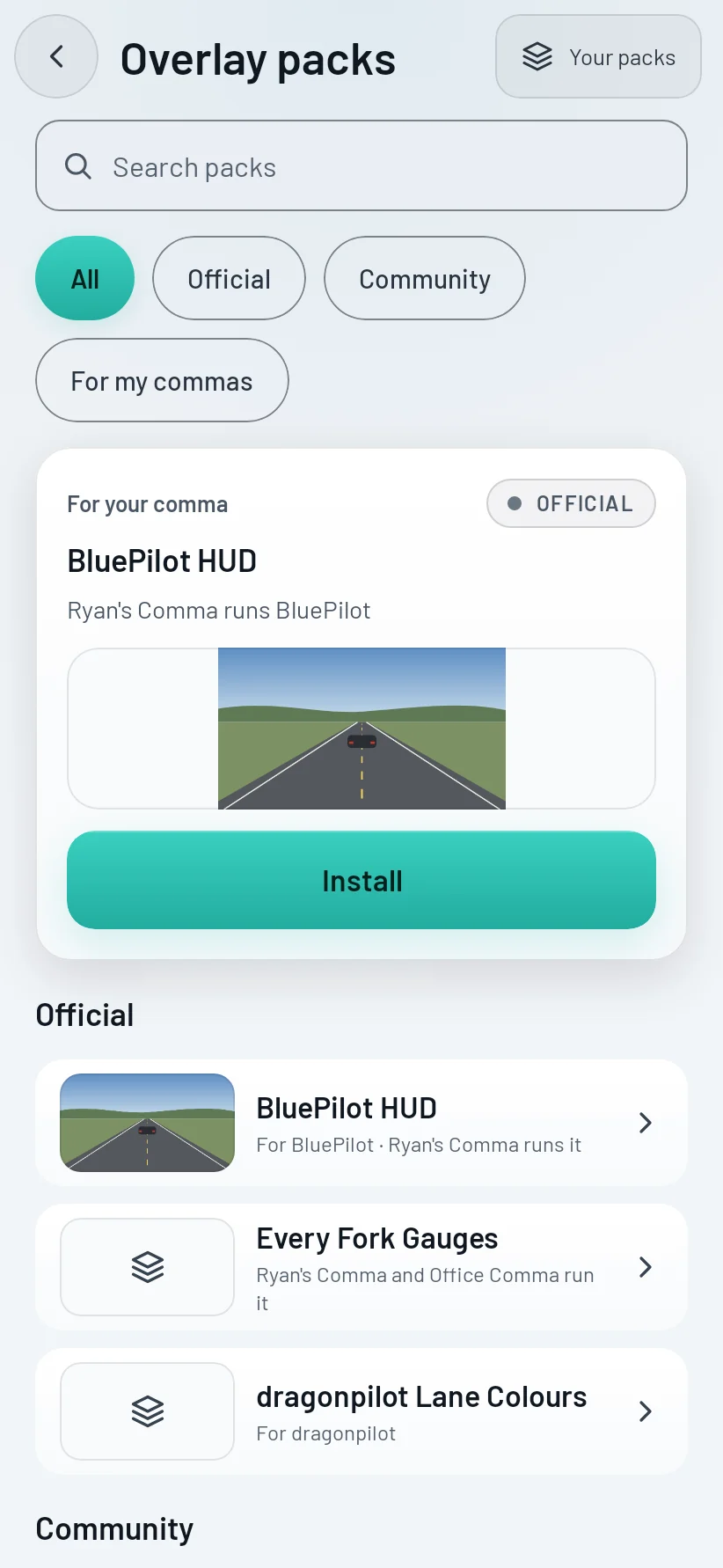
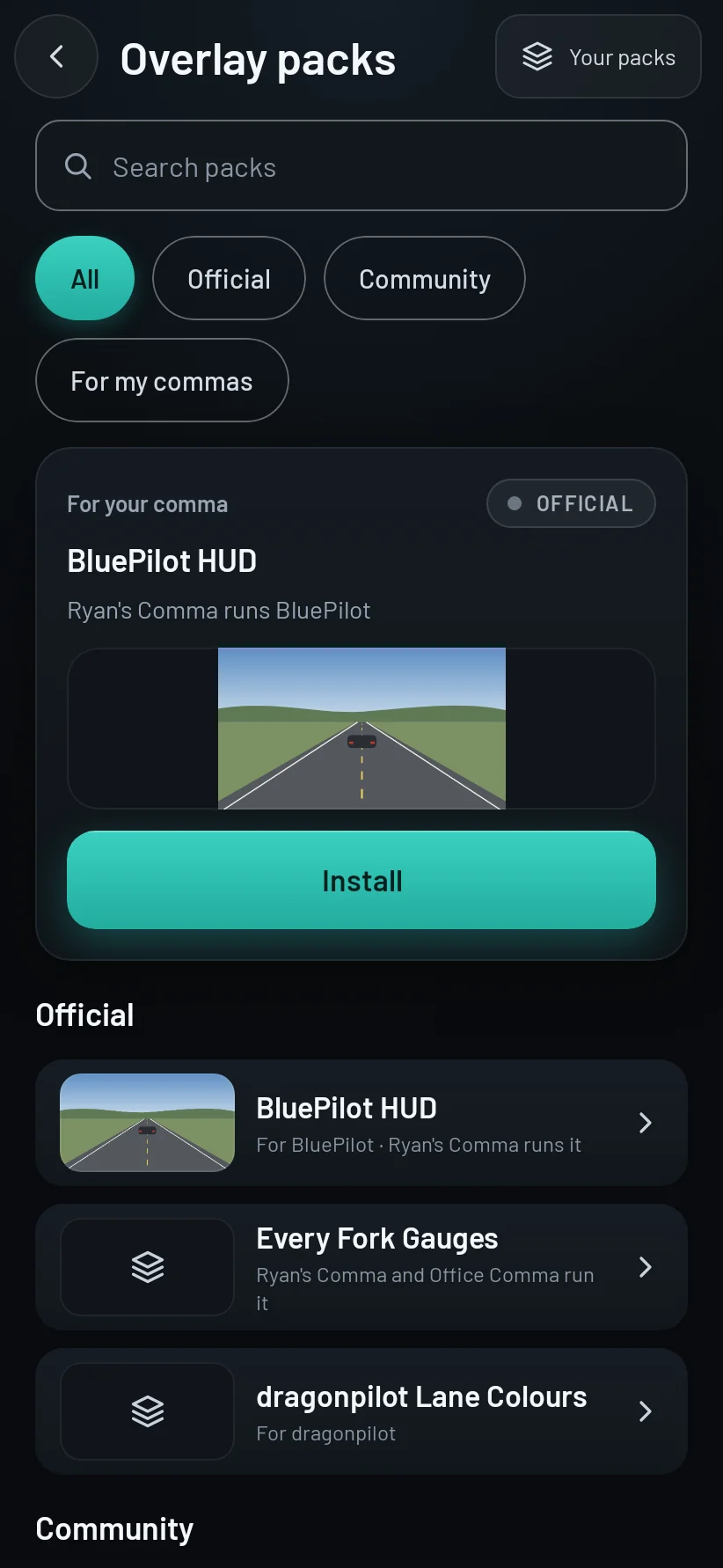
The store lists CommaView’s Official packs first, then the Community’s, each reviewed by CommaView. For your comma offers the official pack for the fork your comma runs. Search, or narrow the list with All, Official, Community and For my commas.
-
Search packs.
-
For your comma: the official pack for your comma’s fork.
-
The Official packs, such as BluePilot HUD.
-
Your packs: what’s on this phone.
From a file or link
Someone shared a
.cvpackfile or a link (GitHub, a gist, a Discord attachment)? Open Your packs and, under Add a pack yourself, tap Install from a file or Paste a link. CommaView hasn’t reviewed a pack added this way, and the install dialog says so. -
-
Step 5 of 6: Install a pack
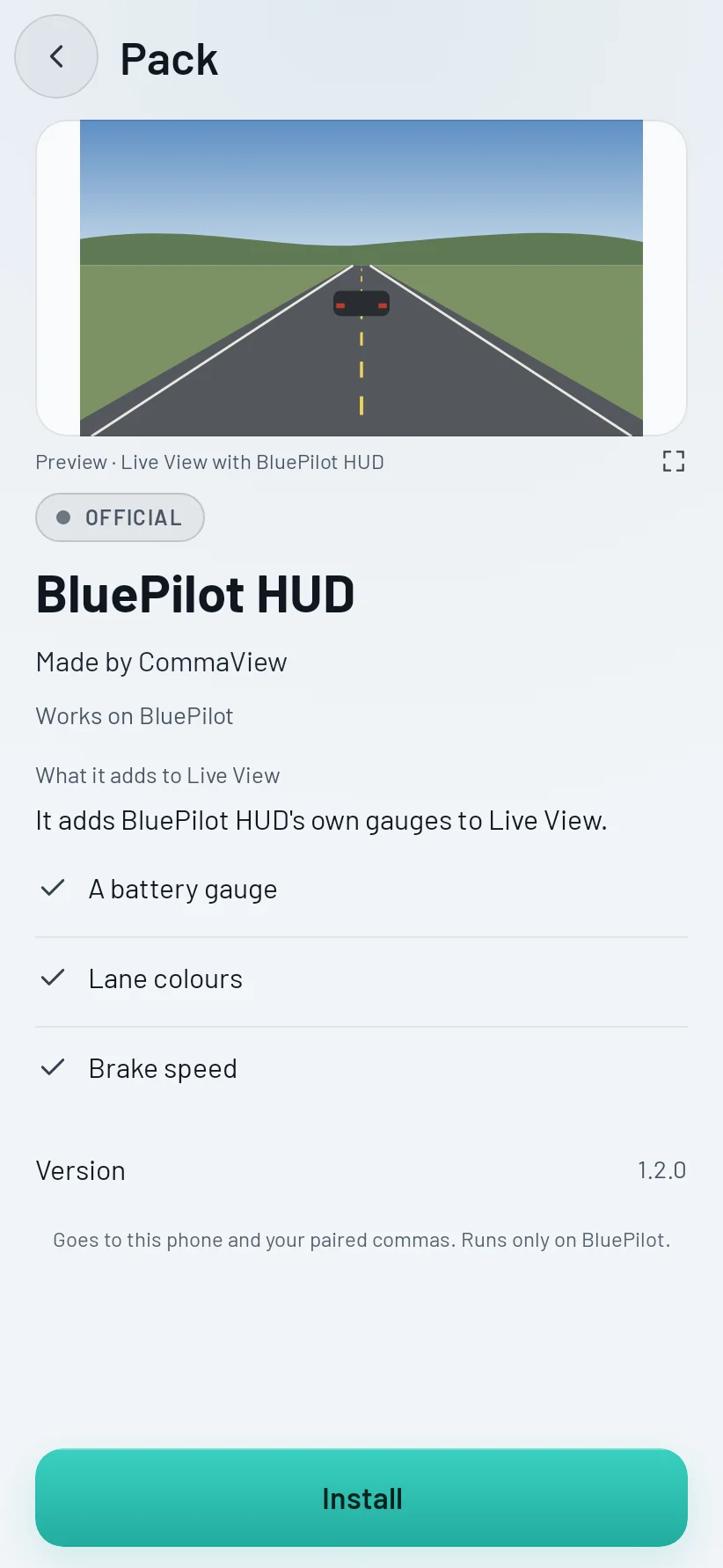
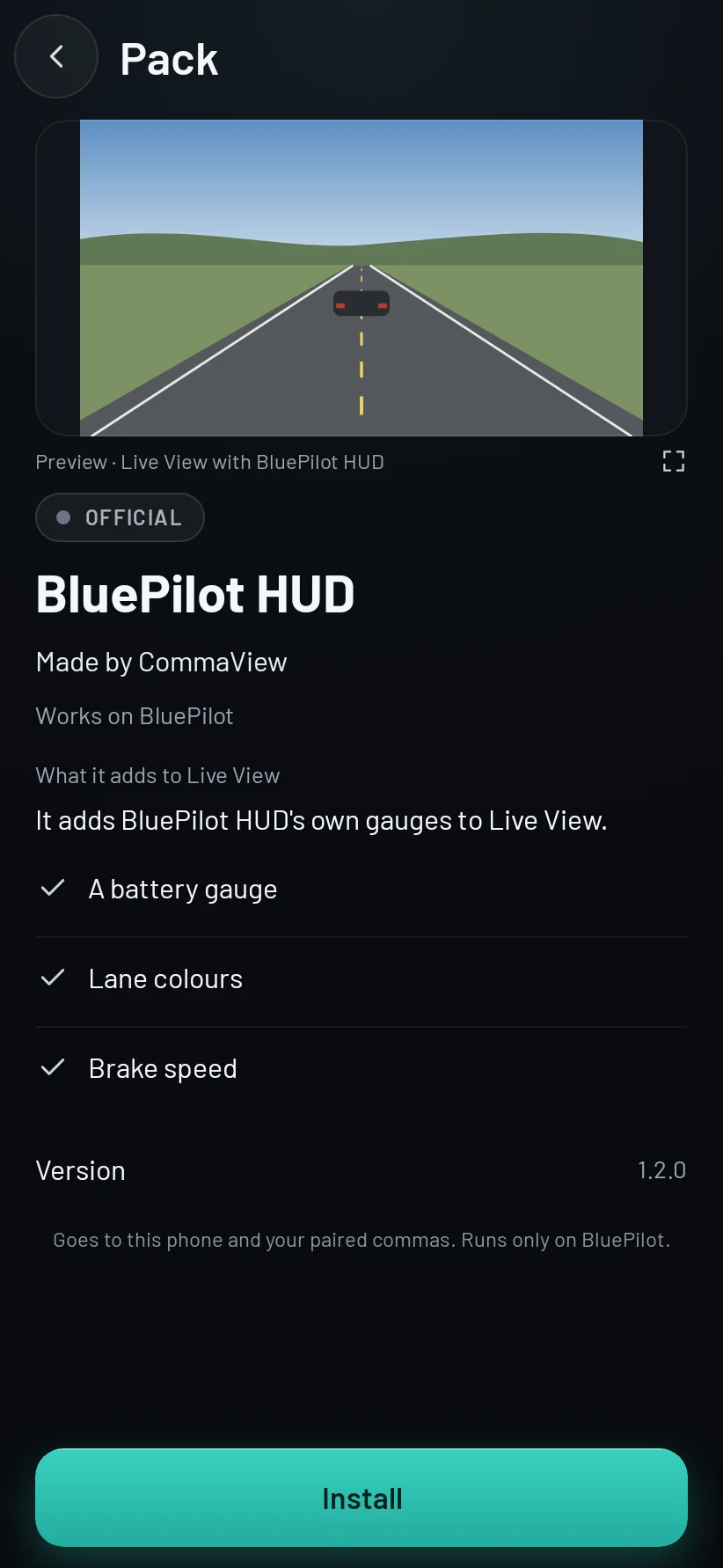
Tap a pack to see its preview, the forks it Works on and what it adds to Live View. Tap Install, then Install again in the dialog. The pack goes to this phone and your paired commas.
-
The preview: Live View with the pack. Tap it to enlarge.
-
Install.
An official pack runs only on the forks it’s made for. If none of your paired commas runs one, the dialog says so; it still installs, but won’t show in Live View until one does.
-
-
Step 6 of 6: See it on your next drive
Once installed, the store says the pack goes to your comma as this phone reaches it, and starts there when the car is off. On your next drive, open Live View: the pack draws on the comma four, comma 3X and CommaView screens, under the onroad screen’s own alerts.
To turn a pack off, open Your packs: each pack has one switch, for this phone and every paired comma together.
How you know it worked
In Live View’s Details, the Overlay packs line names the pack and says it’s running.
Each screen’s options
Under the preview, Settings › Display shows the chosen screen’s own options:
- comma four options: Preview framing (match the comma four’s frame exactly, show more of the camera, or crop it to fill this screen) and Compact confidence panel (a smaller panel and ball, for more video).
- CommaView options: Camera framing (Fill screen crops the camera to fill a landscape display; Full camera shows all of it, with black bars where needed) and Reduce motion, which keeps CommaView’s path, speed and lock-on still.
- comma 3X: none. It’s drawn as the comma draws it.
Then, On every screen: Driver position, which mirrors the controls, Theme, Daylight contrast for sun and glare, and Screen edges for a car screen that cuts off the picture’s edges (car screens).
A replay you make in Recordings draws what Live View drew while you recorded, whatever you choose later.
Where an overlay comes from
CommaView doesn’t guess what to draw. The runtime on your comma sends the same driving data openpilot’s own screen reads (the path, lanes, the car ahead, speeds, alerts, driver monitoring) beside the video, and the app draws it on your phone, lined up with the camera it’s showing. When that data is late, missing or meant for another camera, CommaView leaves that part out rather than draw something that might be wrong.
Safety
Choose the screen and install packs parked. Don’t operate CommaView while driving: keep your eyes on the road and your hands on the wheel, as openpilot asks. An overlay is something to look at, not a driving aid: your comma’s own alerts and your car’s instruments come first. The driver-monitoring icon isn’t proof of attention, and a replay’s overlay is for looking back at a drive, not evidence of exactly what happened.
If it doesn’t work
The onroad screen switch is dimmed
A recording is running. Stop it, or wait for it to end, then switch.
Details says the pack is “not for this fork”
The pack is made for another fork’s screen and draws nothing on yours. Official packs say which forks they’re for under Works on.
The pack isn’t in Live View yet
It reaches your comma as your phone connects to it, and starts there when the car is off. Turn the car off and on again with your phone on the comma’s network, then open Live View.
“Sign in to see CommaView’s packs”
The store lists CommaView’s packs to members who are signed in. Tap Sign in. Packs already on the phone keep working while you’re signed out.
“Can’t reach my.commaview.com”
Check this phone’s internet connection, then tap Try again. Your packs still lists everything on the phone.
Did this guide get you there?
Tell us what’s missing