
All guides · Getting started
Guide · Getting started
Add another phone or tablet
Each phone that watches your comma has a key of its own. To add another phone, tablet or car screen, show an invitation on a phone that already has your comma, and type or scan it on the new one. No SSH, no setting up again.
Before you start
- A phone with a key
One phone already paired with your comma, on CommaView 0.0.166 or later with its runtime. Not yet? Set up CommaView.
- CommaView on the new one
Installed and signed in, on 0.0.166 or later. Get the app.
- The same network
Both on the same Wi‑Fi as the comma, or on its hotspot.
How it works
Your phone
Asks the comma for an invitation: a code or a QR code, good for 10 minutes.
The new phone
Joins with the invitation and gets a key of its own.
Your comma
Tells every phone with a key that a new one has one.
Steps
Tick each step off as you go. The first time, do it parked.
-
Step 1 of 6: On your phone, open Pair another phone
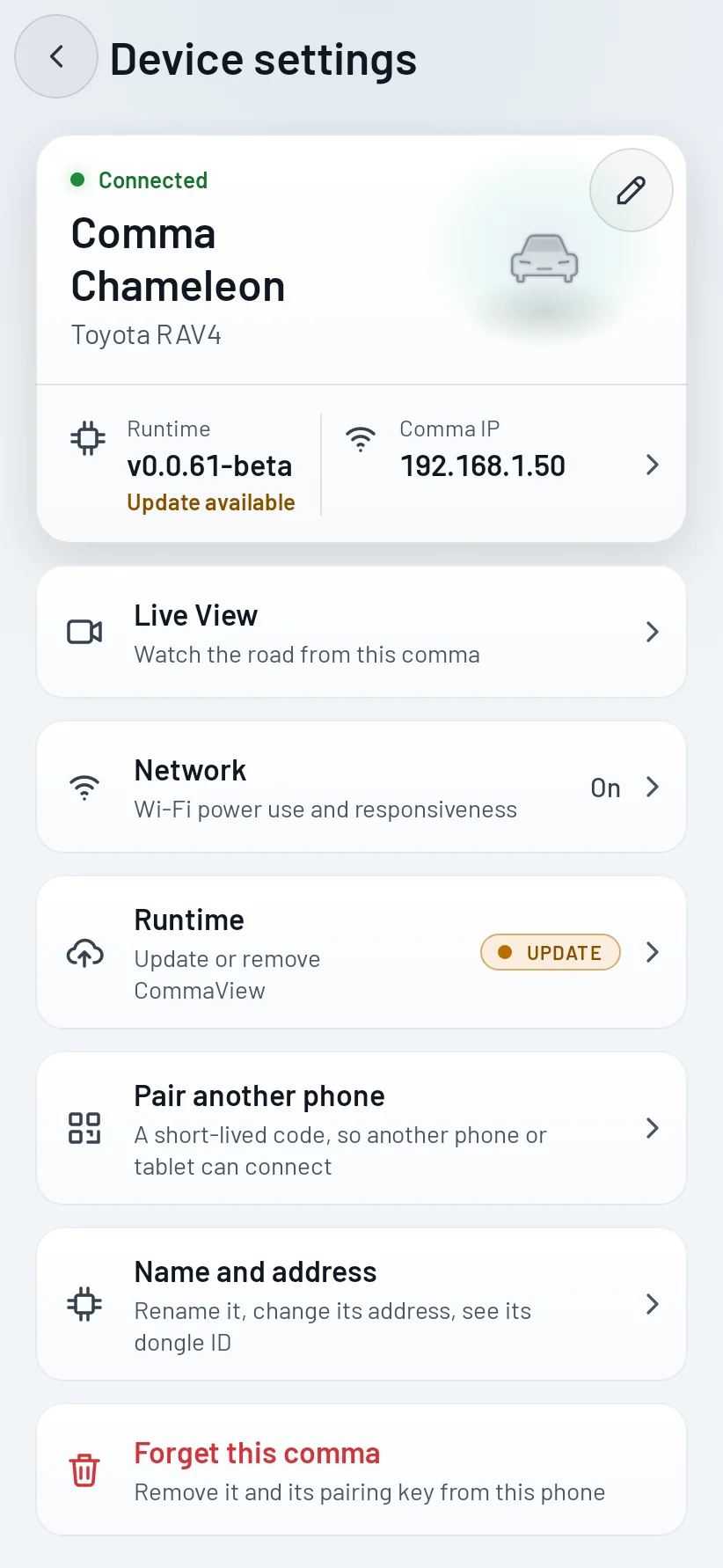
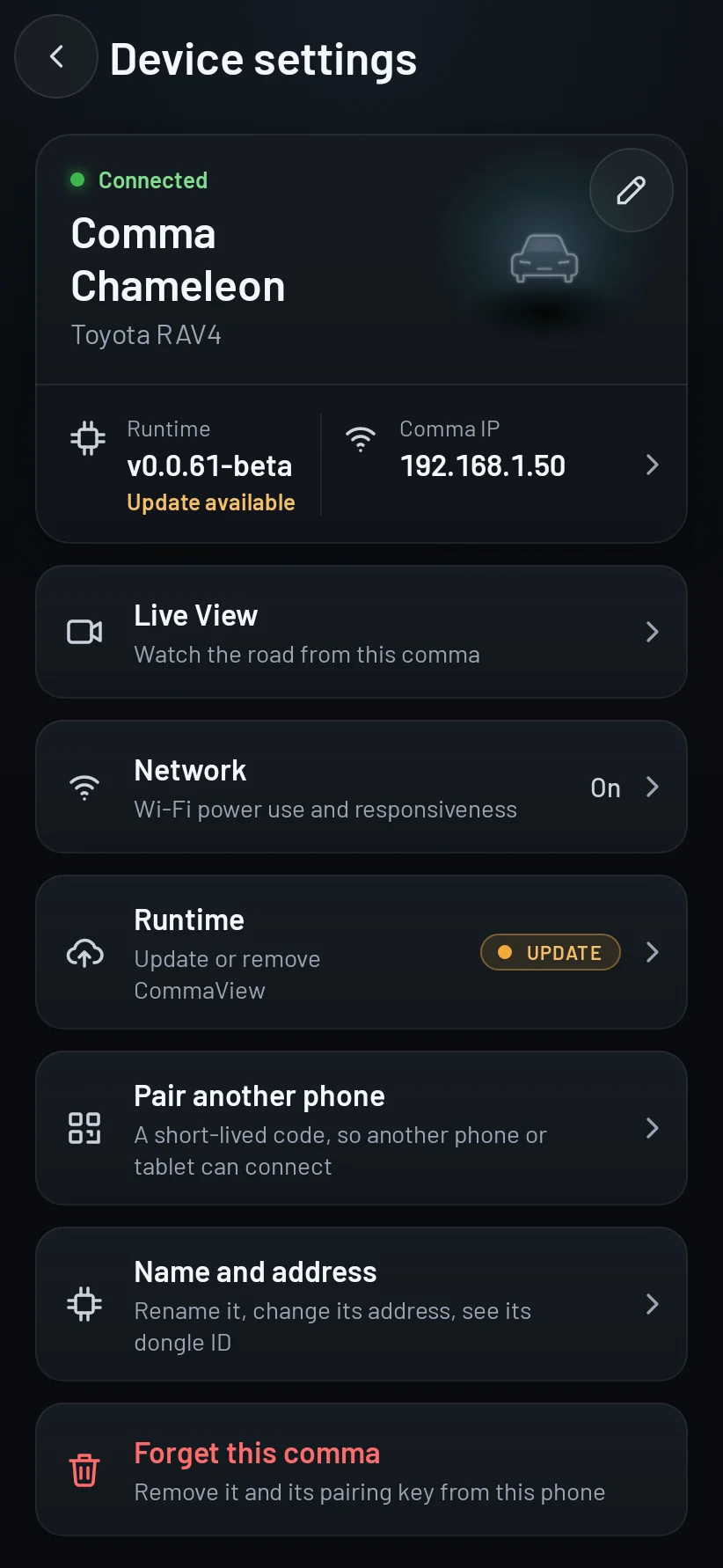
On the phone that already has your comma, open the comma’s Device settings from Home, then Pair another phone.
-
Pair another phone: a short-lived code, so another phone or tablet can connect.
-
-
Step 2 of 6: Show an invitation
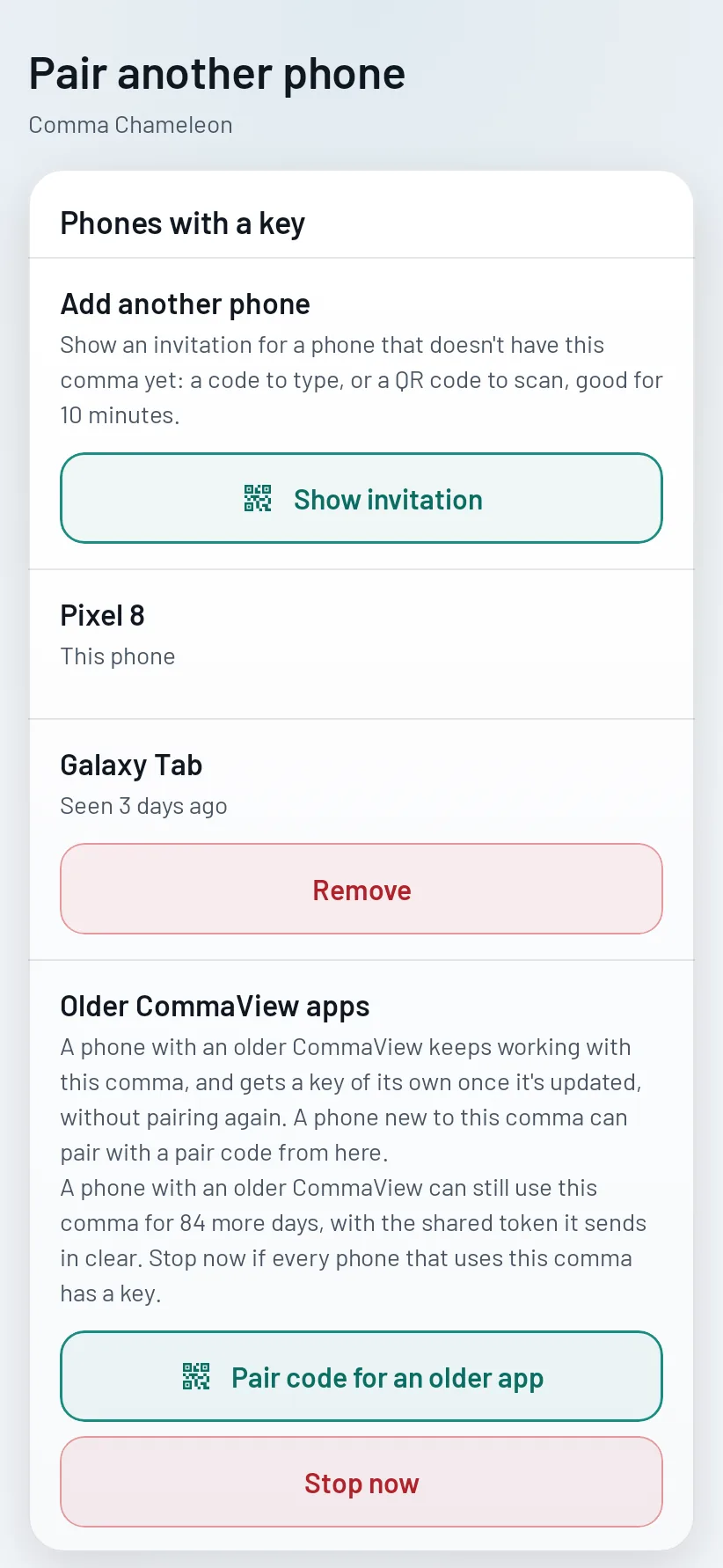
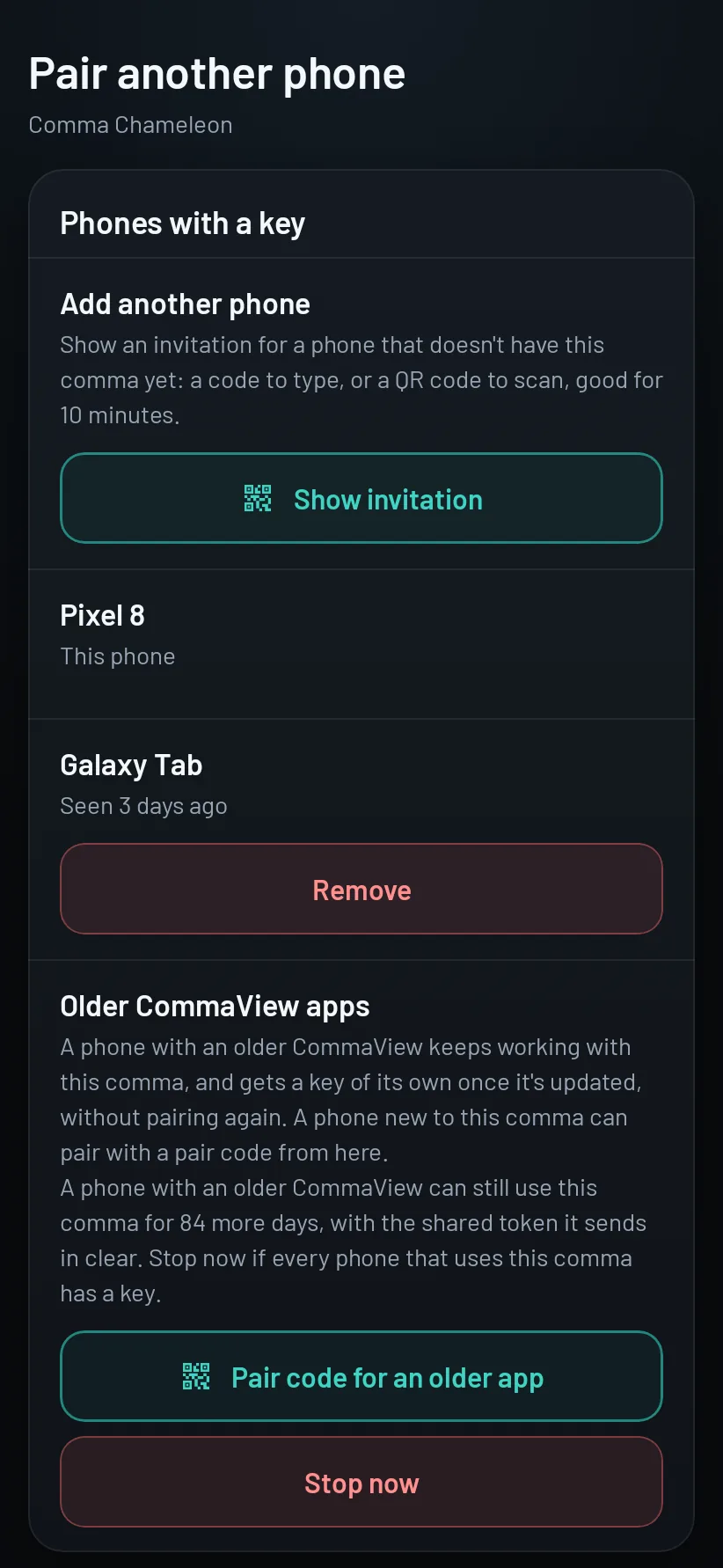
Under Phones with a key, Add another phone shows an invitation for a phone that doesn’t have this comma yet. Tap Show invitation.
-
Show invitation.
-
The phones with a key to this comma, this one first.
-
-
Step 3 of 6: Keep the invitation on screen
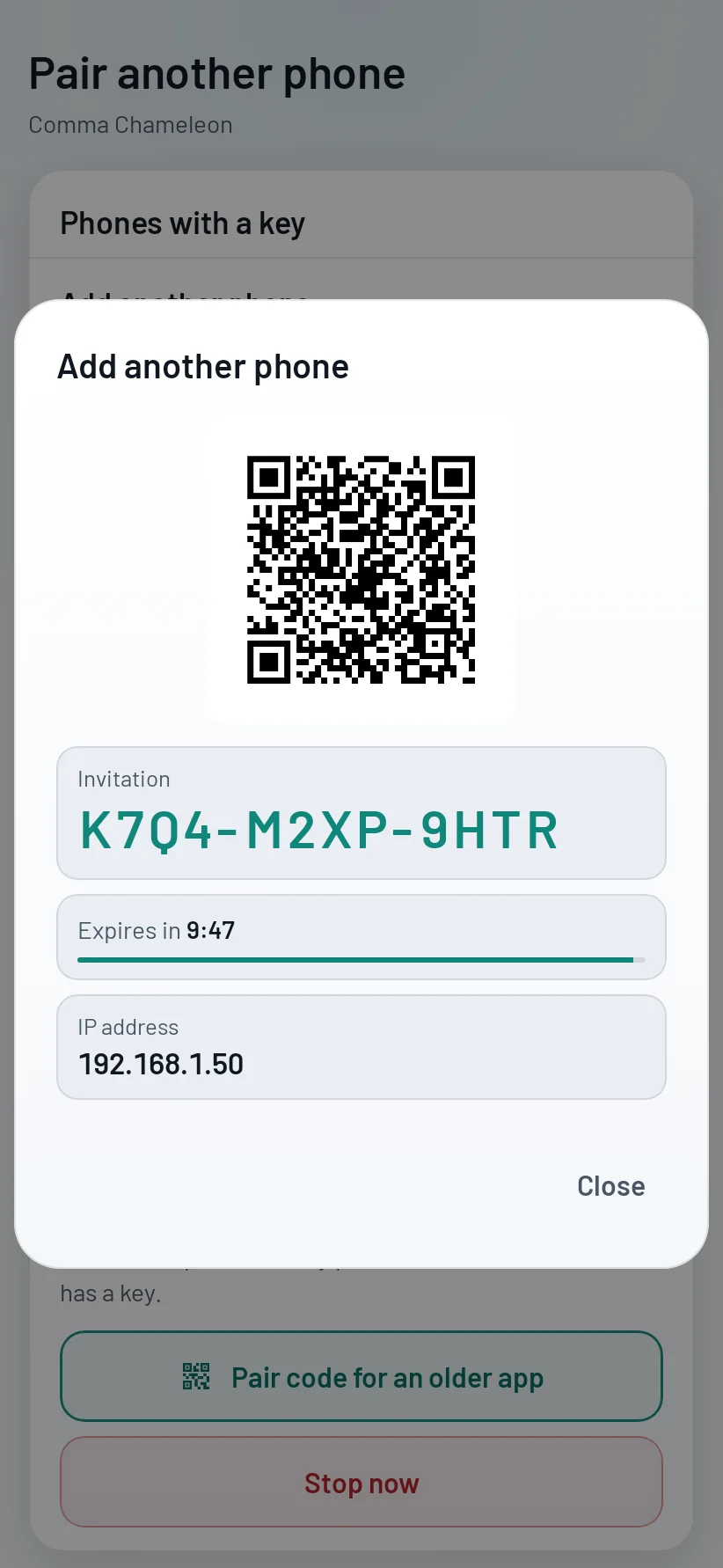
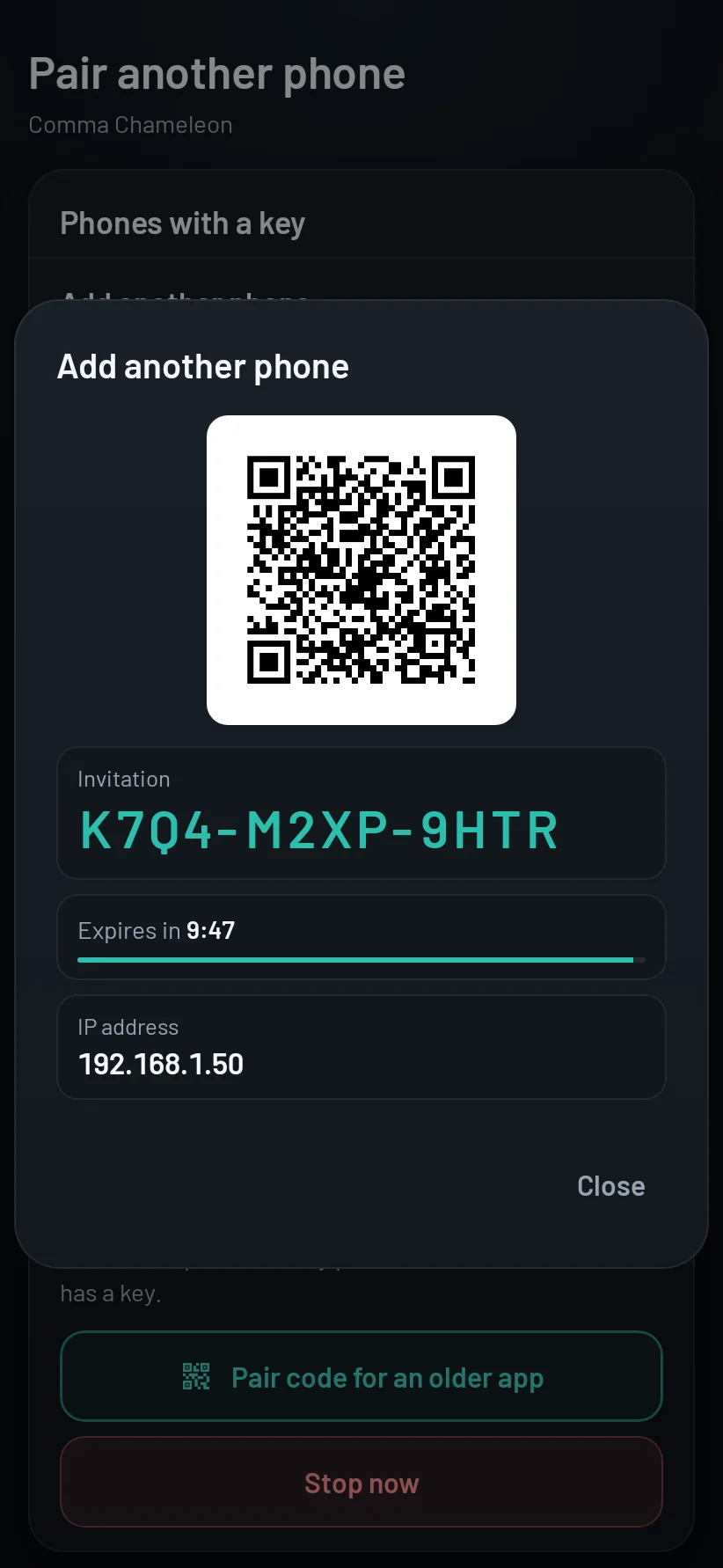
Add another phone shows a code in three groups, a QR code and the comma’s IP address. It’s good for 10 minutes and works once. When it runs out, show a new one.
-
The code to type on the new phone.
-
Or the QR code to scan.
-
Expires in …: 10 minutes from when it’s shown.
-
-
Step 4 of 6: On the new phone, add the comma
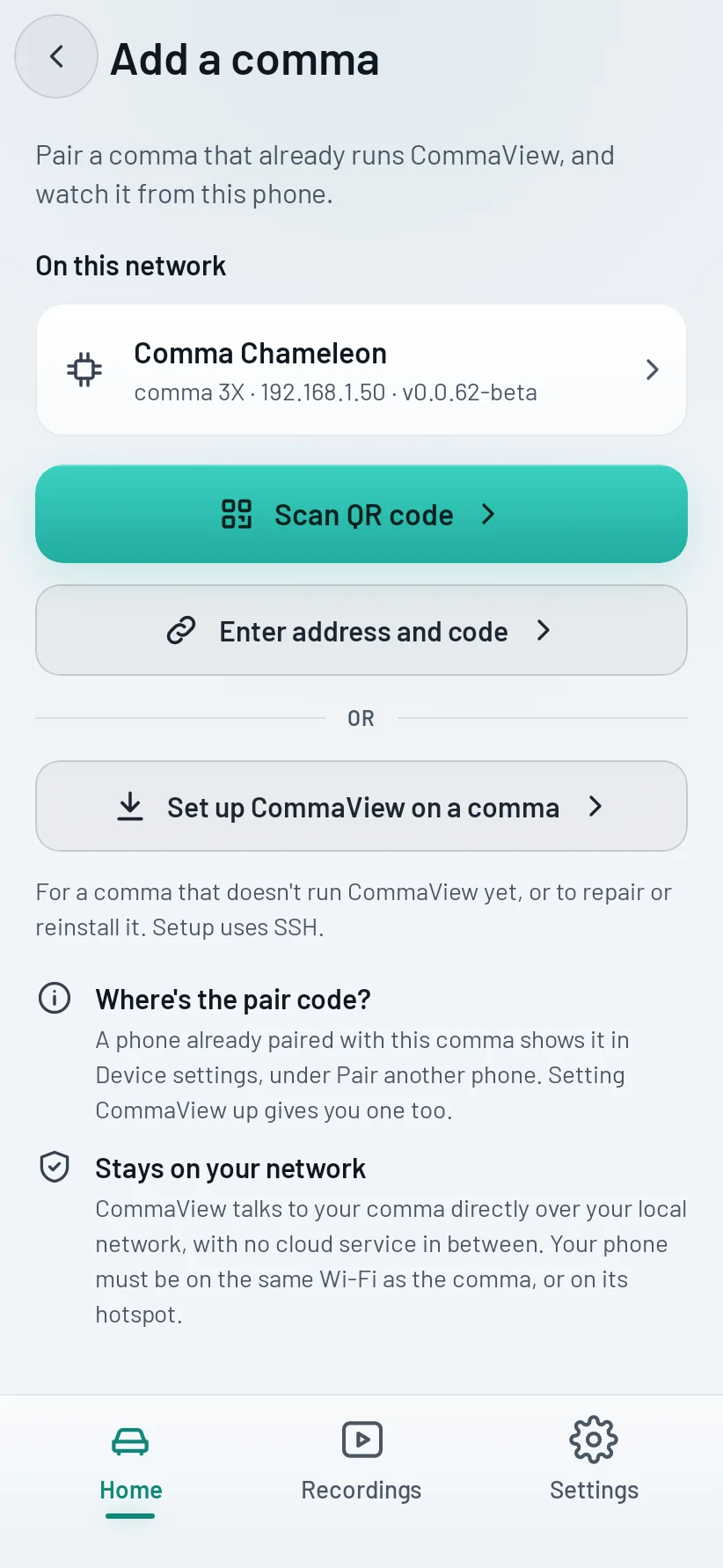
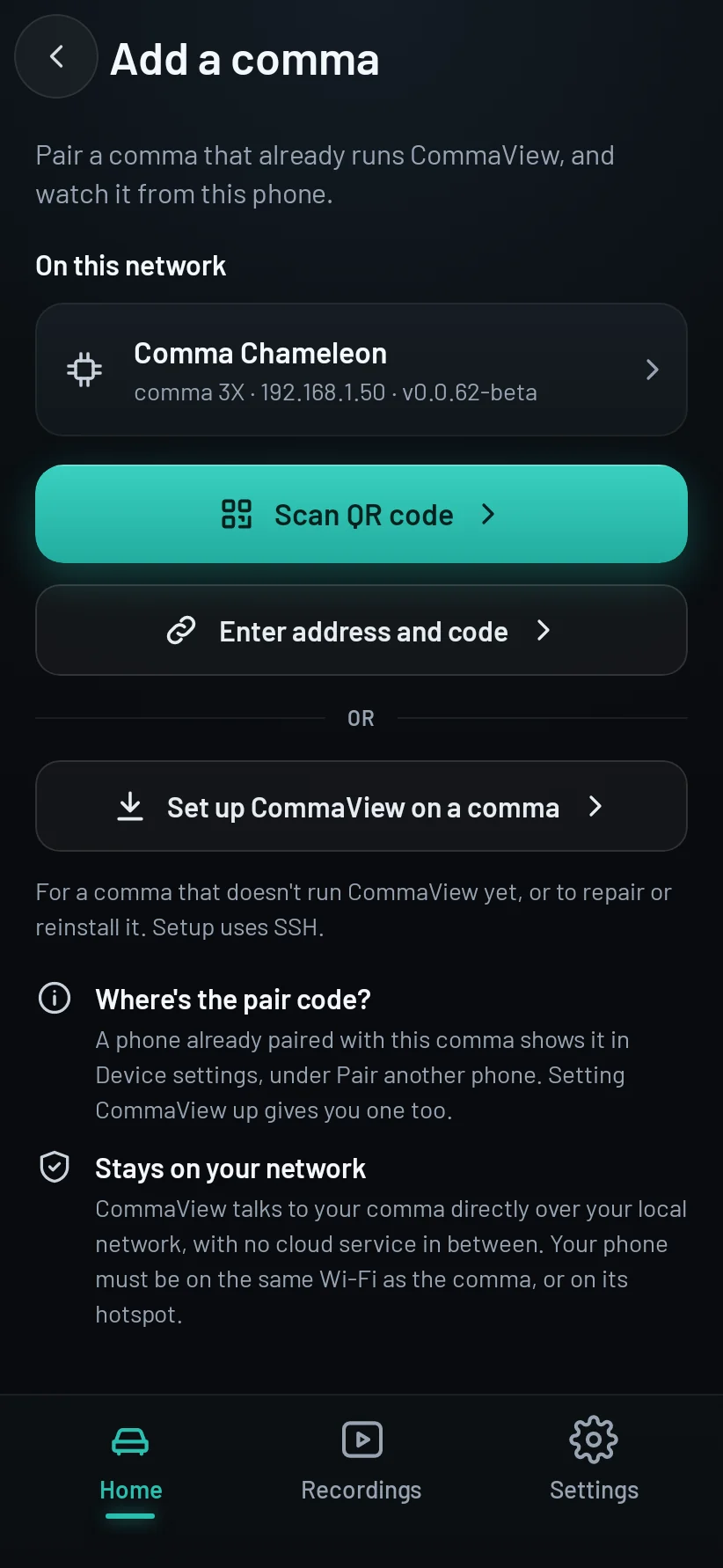
On the new phone, tap Pair a comma that runs CommaView on Connect your comma. With a comma already on it, tap Add a comma on Home instead.
Your comma shows On this network. Tap it, or tap Scan QR code and scan the invitation. If it isn’t listed, tap Enter address and code.
-
Your comma, found on this network.
-
Scan QR code to scan the invitation.
-
Enter address and code when it isn’t listed.
-
-
Step 5 of 6: Type the invitation and pair
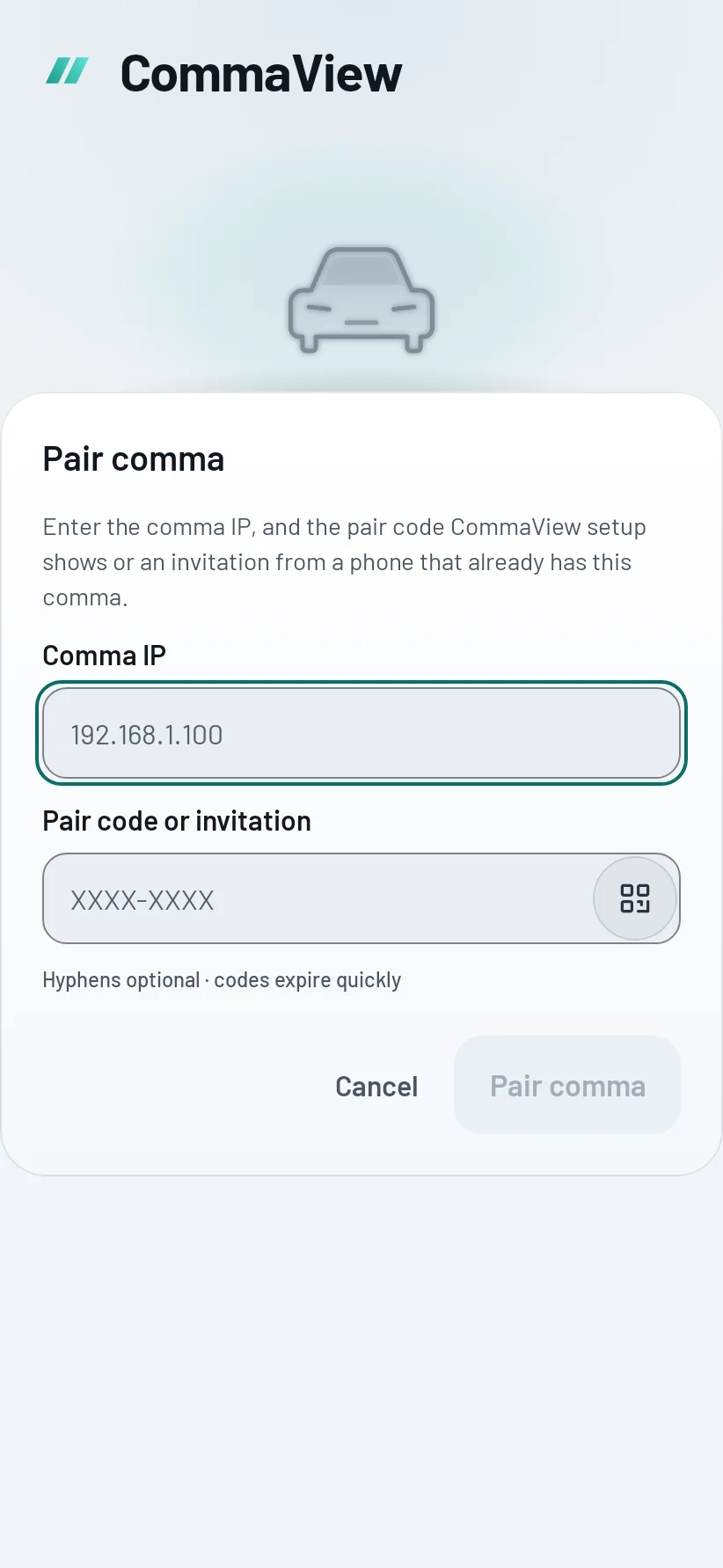
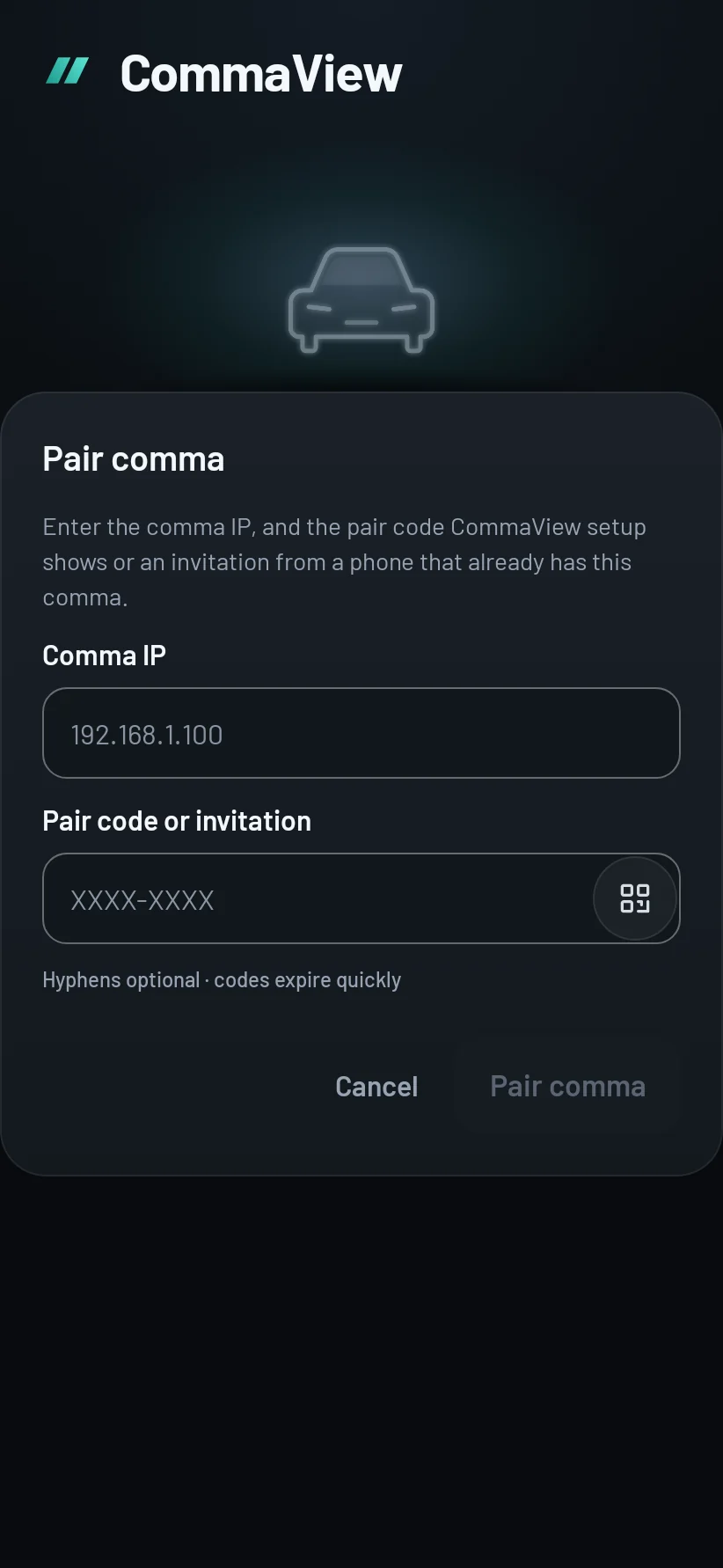
Check the Comma IP, type the invitation into Pair code or invitation (or tap the QR button to scan it), and tap Pair comma. The new phone gets a key of its own and shows your comma on Home.
-
Comma IP, filled in for a comma it found.
-
Pair code or invitation.
-
Scan pairing QR.
-
Pair comma.
-
-
Step 6 of 6: Confirm it on your other phones
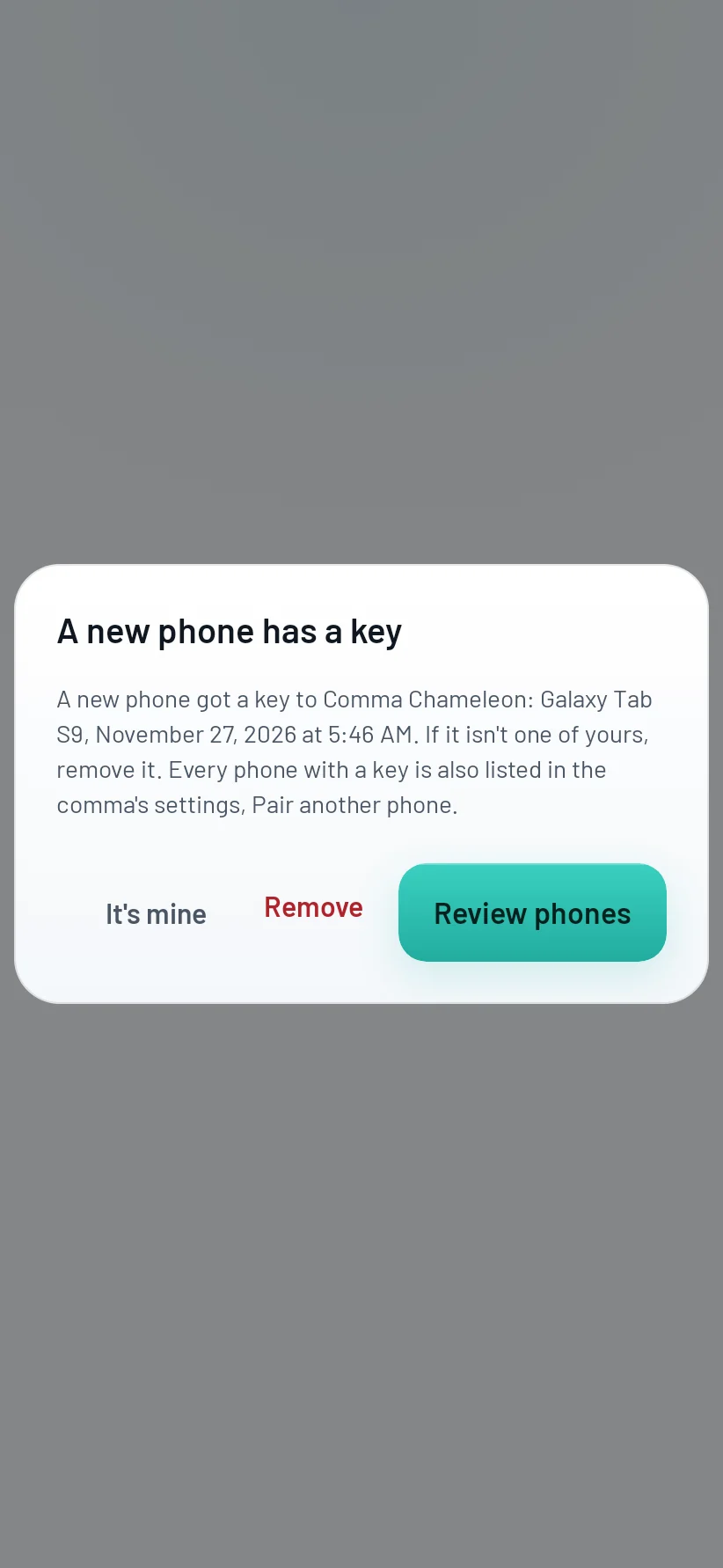
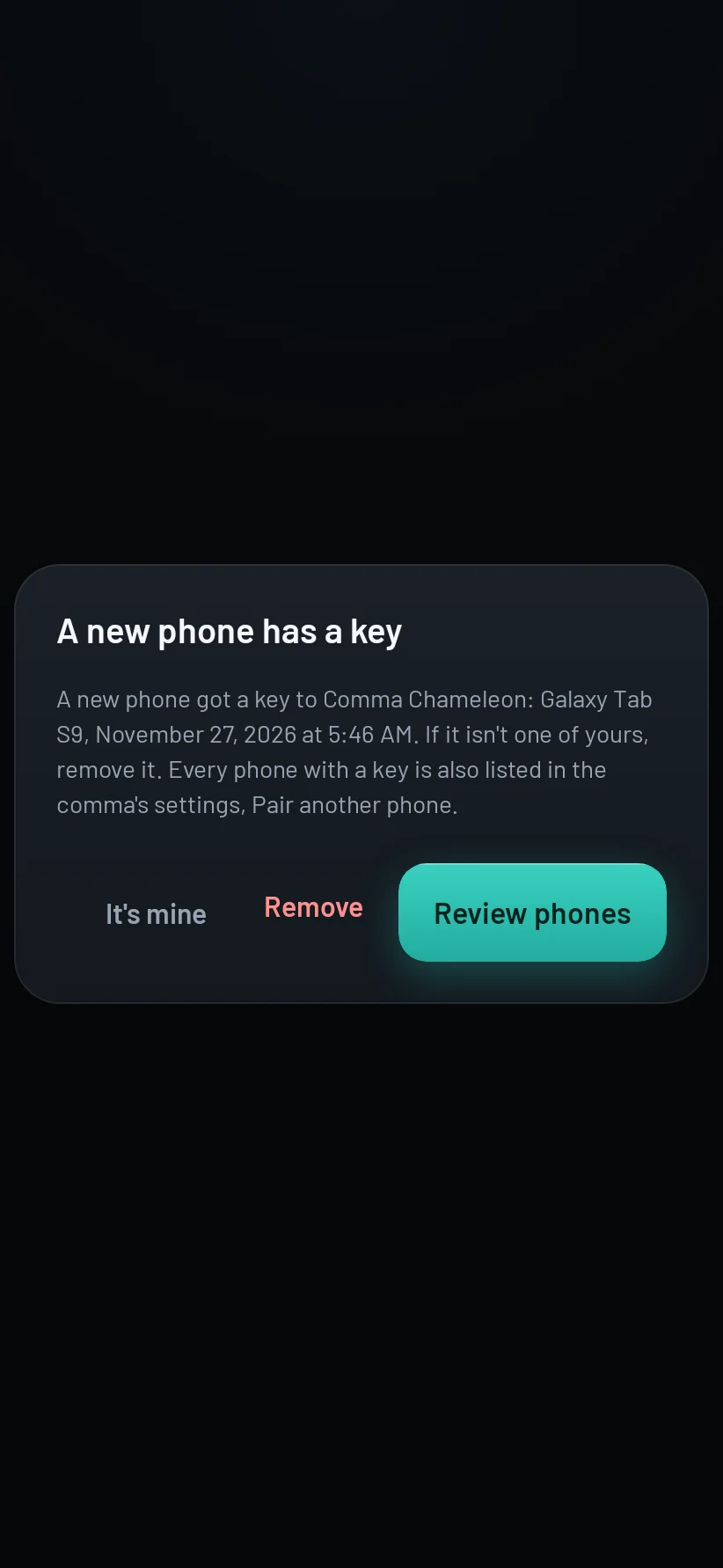
Each phone with a key is told: A new phone has a key, with its name and when. Tap It’s mine. If it isn’t one of yours, tap Remove; Review phones opens Pair another phone, where every phone with a key is listed.
-
It’s mine, for your own phone or tablet.
-
Review phones lists every phone with a key.
-
How you know it worked
The new phone shows your comma on Home and opens Live View. On your first phone, Pair another phone lists it under Phones with a key.
Remove a phone
On a phone with a key, open the comma’s Device settings, then Pair another phone. Tap Remove beside a phone in the list. It can’t reach this comma again until it is added again, with an invitation or by setting the comma up.
Phones on an older CommaView
Before 0.0.166, every phone sent the comma the same shared token. A phone on 0.0.166 gets its key the next time it connects, without pairing again.
- Older CommaView apps on Pair another phone says how many more days a phone with an older CommaView can still use this comma with the shared token: 90 days after its first phone gets a key. Until then, Pair code for an older app pairs a phone on an older CommaView.
- Stop now stops the comma taking the shared token, once every phone that uses it has a key. Phones with an older CommaView stop working with this comma then, and can’t pair again until they’re updated.
- After that, a phone without a key needs CommaView 0.0.166 or later and an invitation.
When you update your comma’s runtime, update CommaView on every device that watches it first, car screens too.
If it doesn’t work
“Couldn’t join with that invitation”
It may be mistyped, have run out, or have been used. Show a new one on the phone that already has this comma (its Device settings, Pair another phone, Add another phone).
“This comma’s runtime is from before phone keys”
Update the comma’s runtime first: Update your comma’s runtime. Then show the invitation.
“Can’t reach this comma”
Both phones must be on the same Wi‑Fi as the comma, or on its hotspot. Connect in the car.
“Pairing failed: this comma no longer pairs by code”
The comma has stopped taking the old shared token. Add the phone from one that already has a key (its settings, Add another phone), or run setup for the comma again.
Did this guide get you there?
Tell us what’s missing