
All guides · Live View and screens
Guide · Live View and screens
Go live to YouTube or another server
Go live streams what Live View shows, the road and its onroad screen, from your phone to your YouTube channel or any RTMP server, at 720p or 1080p. Set it up once in Settings, then start it from Live View.
Before you start
- Live View works
CommaView on an Android phone, paired with your comma. Not yet? Set up CommaView.
- Somewhere to stream
A YouTube channel to sign in with, or a stream key from YouTube Studio or another RTMP server.
- Internet on the phone
When the comma’s Wi‑Fi has no internet, the stream uses your phone’s mobile data: about 1.4 GB an hour at 720p.
How it works
Your comma
Sends Live View to your phone, as usual.
Your phone
Streams what Live View draws: 20 frames a second, 720p or 1080p.
YouTube or your server
Shows it to whoever you let watch.
Steps
Tick each step off as you go. The first time, do it parked.
-
Step 1 of 6: Open Settings › Live streaming
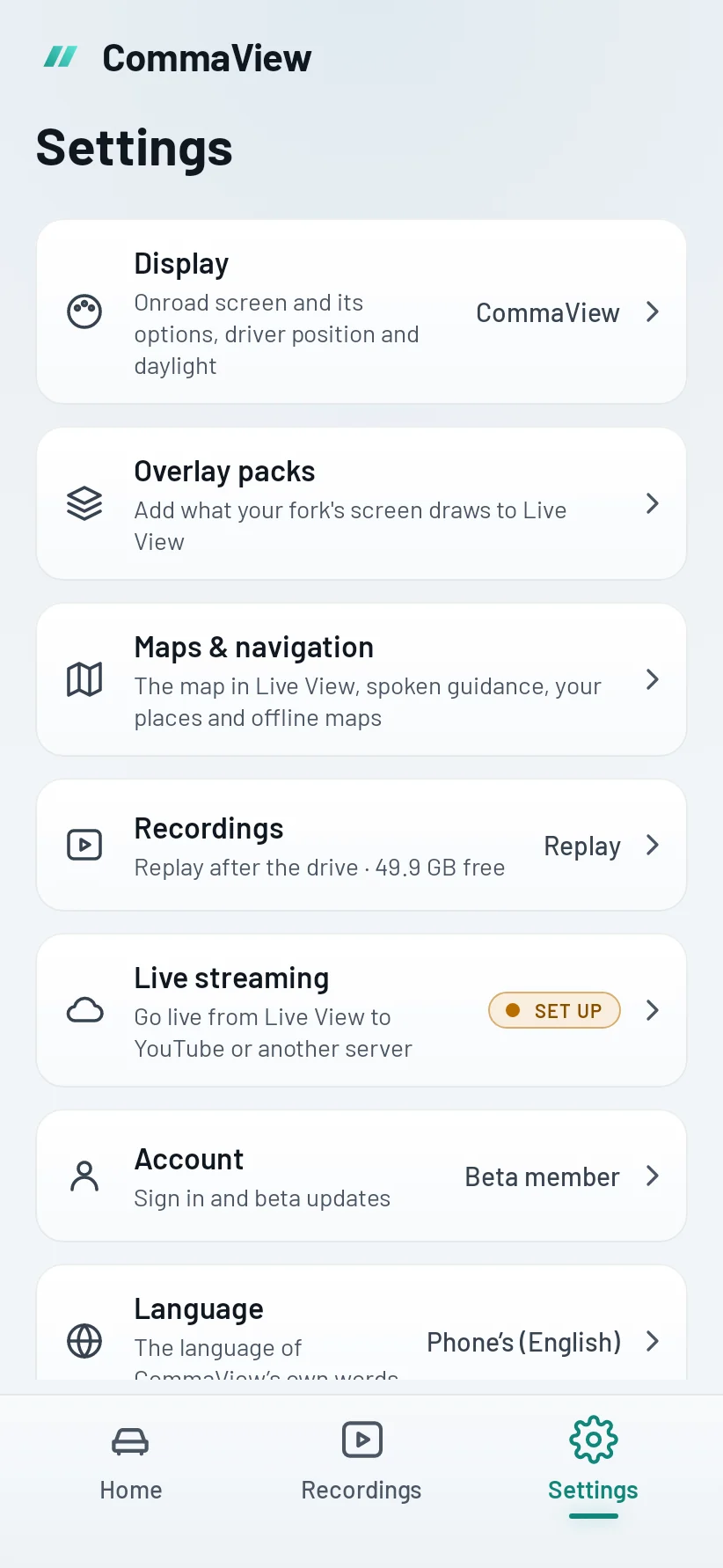
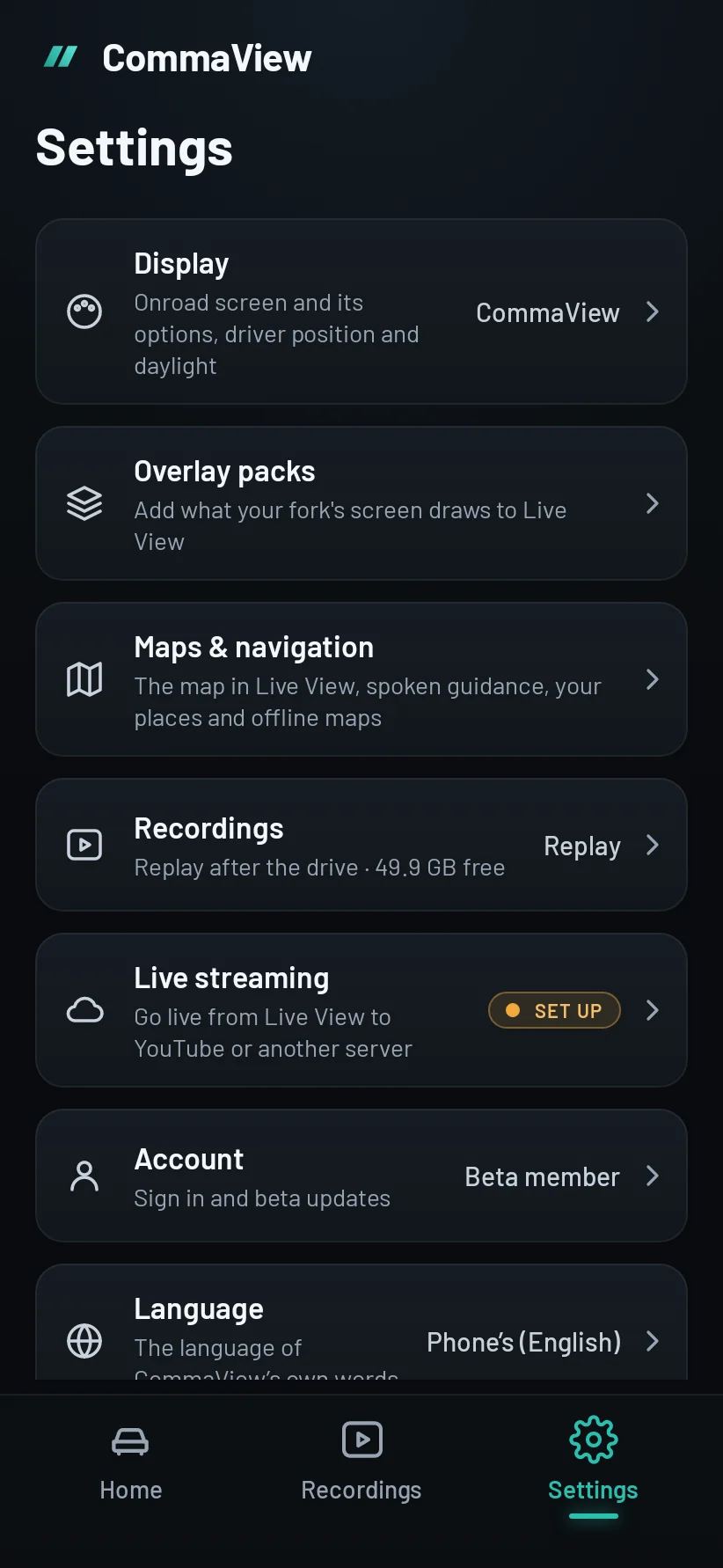
Open Settings and tap Live streaming. Until you’ve set it up, its row says Set up.
-
Live streaming.
-
-
Step 2 of 6: Choose where to stream
Sign in with YouTube
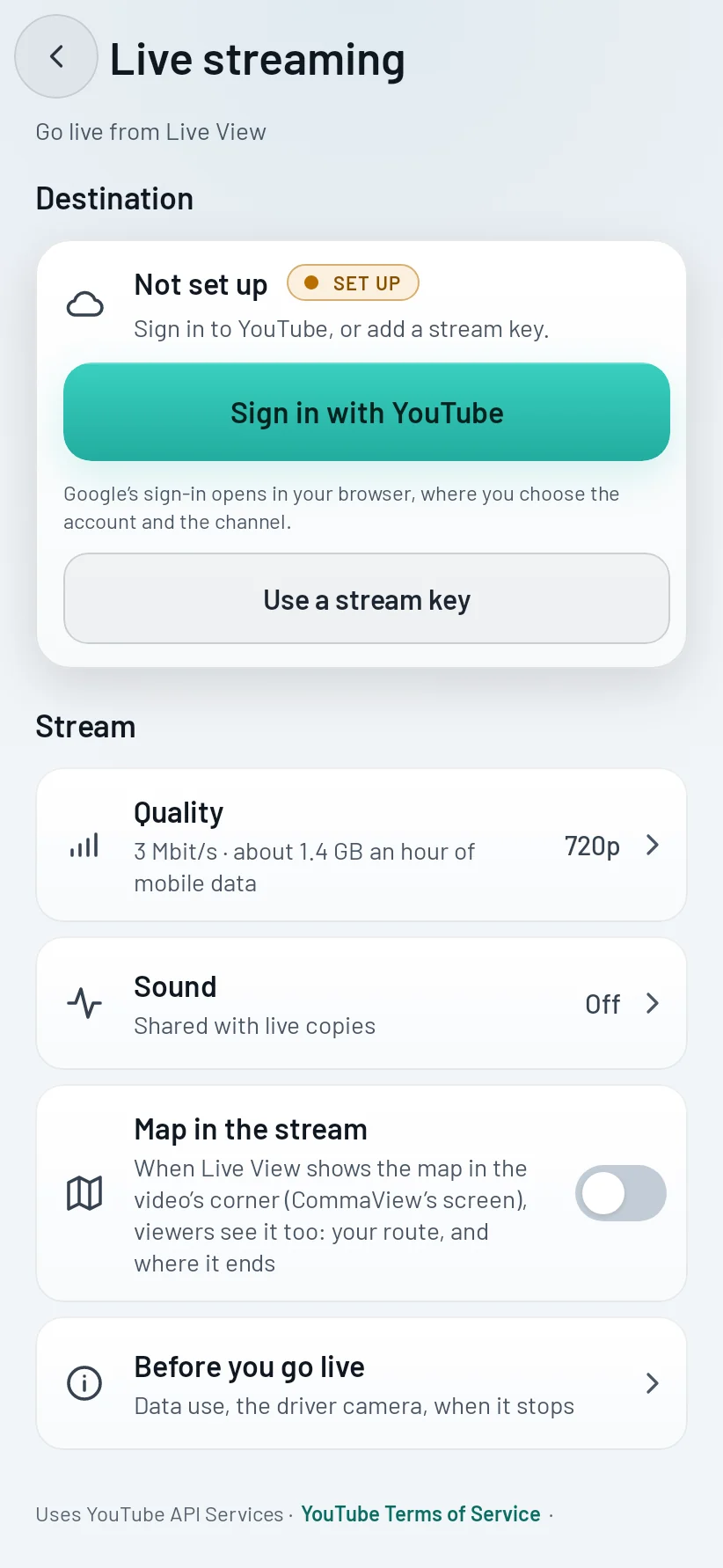
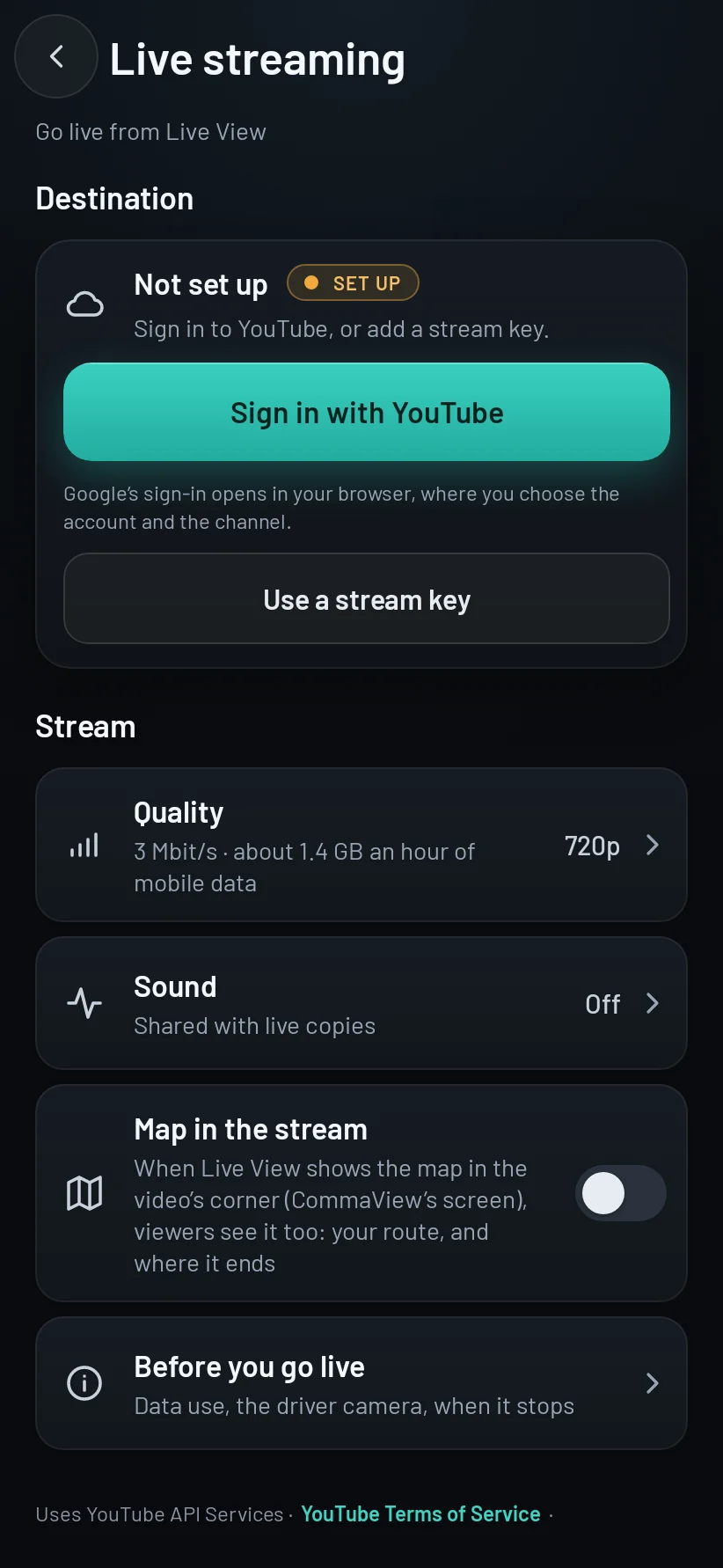
Tap Sign in with YouTube. Google’s sign-in opens in your browser, where you choose the account and the channel. Signed in, Go live makes each broadcast on your channel and YouTube starts it by itself: no stream key, nothing to press in YouTube Studio. The Destination card then shows your channel, Signed in.
-
Destination: your channel, signed in.
Google’s own sign-in pages aren’t pictured.
A stream key or server
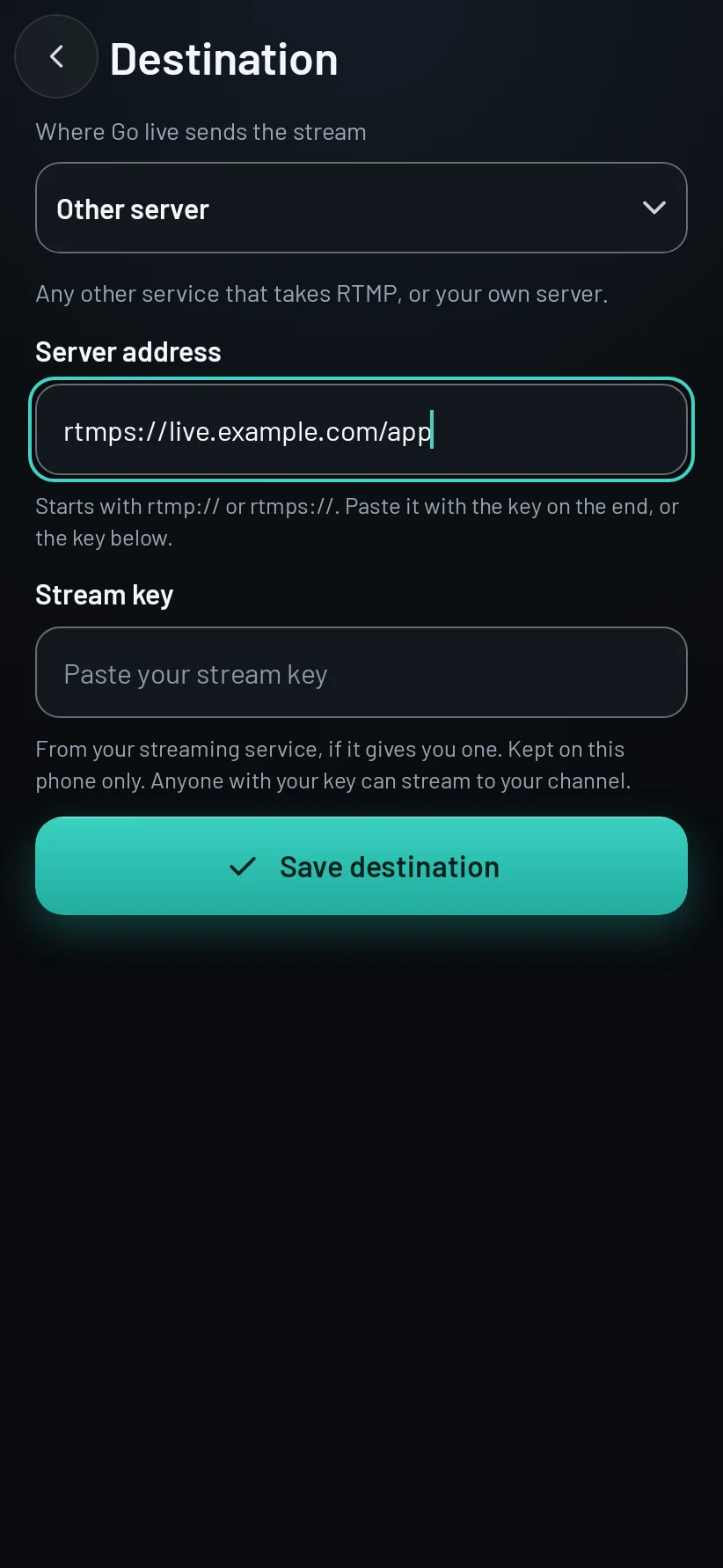
Tap Use a stream key (or Set up destination), choose the Platform, YouTube or Other server, and paste the stream key. For YouTube: in YouTube Studio, Create › Go live › Stream, then copy the stream key, and turn on Auto-start there so each broadcast starts when the video arrives. For another server, paste its
rtmp://orrtmps://address too. Tap Save destination.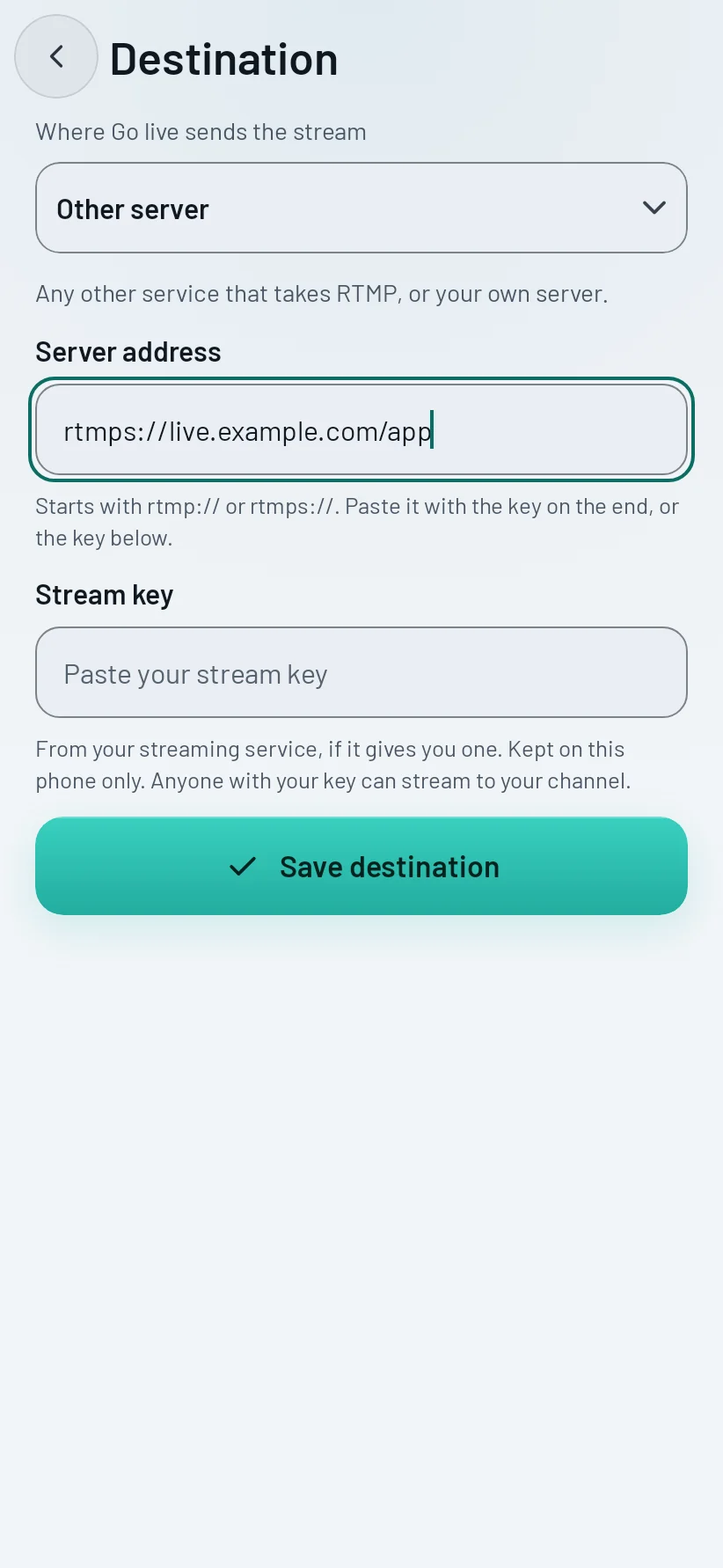
-
Platform.
-
The stream key. It’s kept on this phone only, and sent only to the server it’s for.
-
Save destination.
rtmp://sends your stream key unencrypted. Usertmps://if your server offers it. -
-
Step 3 of 6: Check who can watch, the quality and the sound
- Who can watch (signed in to YouTube): Public, Unlisted or Private. It starts at Unlisted. With a stream key, choose it in YouTube Studio. Anyone watching sees where you drive.
- Title and description (signed in to YouTube): what each broadcast is called, with chips for the date, the car and more.
- Quality: 720p or 1080p, with about how much mobile data an hour each uses.
- Sound: off unless you choose your comma’s microphone or this phone’s. Everyone in the car is heard, passengers too. It goes only into your stream and your live copies, never to CommaView.
Before you go live sums it all up: data use, the driver camera and when the stream stops.
-
Title and description.
-
Sound.
-
Step 4 of 6: Tap Go live in Live View
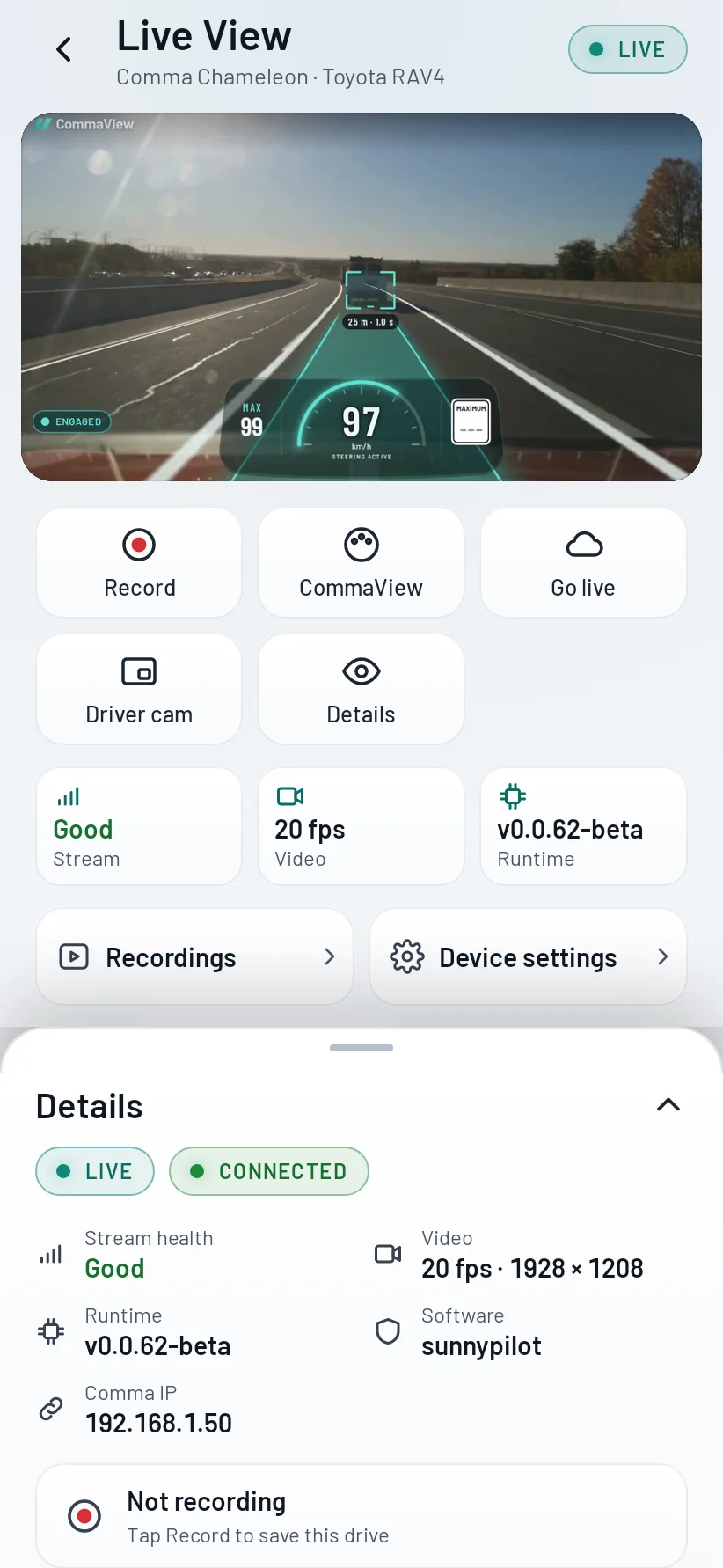
Open Live View and tap Go live. It says Starting…, then shows how long you’ve been live. Start it before you set off, then leave it alone.
-
Go live. Where it doesn’t fit, it’s in More.
The stream shows the driver camera whenever Driver cam is on, and Driver cam then says Live. Turn Driver cam off to keep the driver camera out of the stream.
-
-
Step 5 of 6: Share the watch link
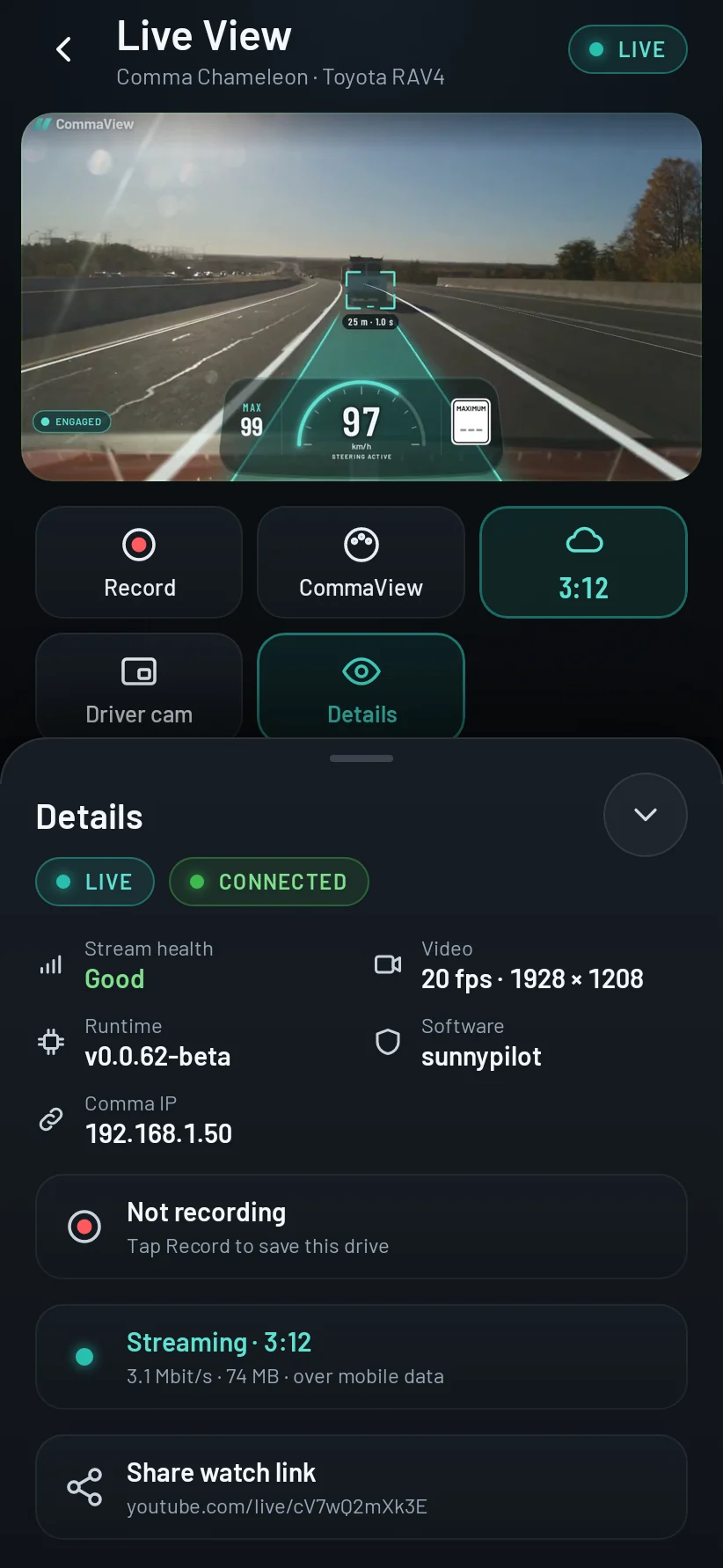
In Details, the stream’s row says Streaming and how long, with the rate it sends, the data used and the network. Signed in to YouTube, Share watch link under it shares your broadcast’s
youtu.belink.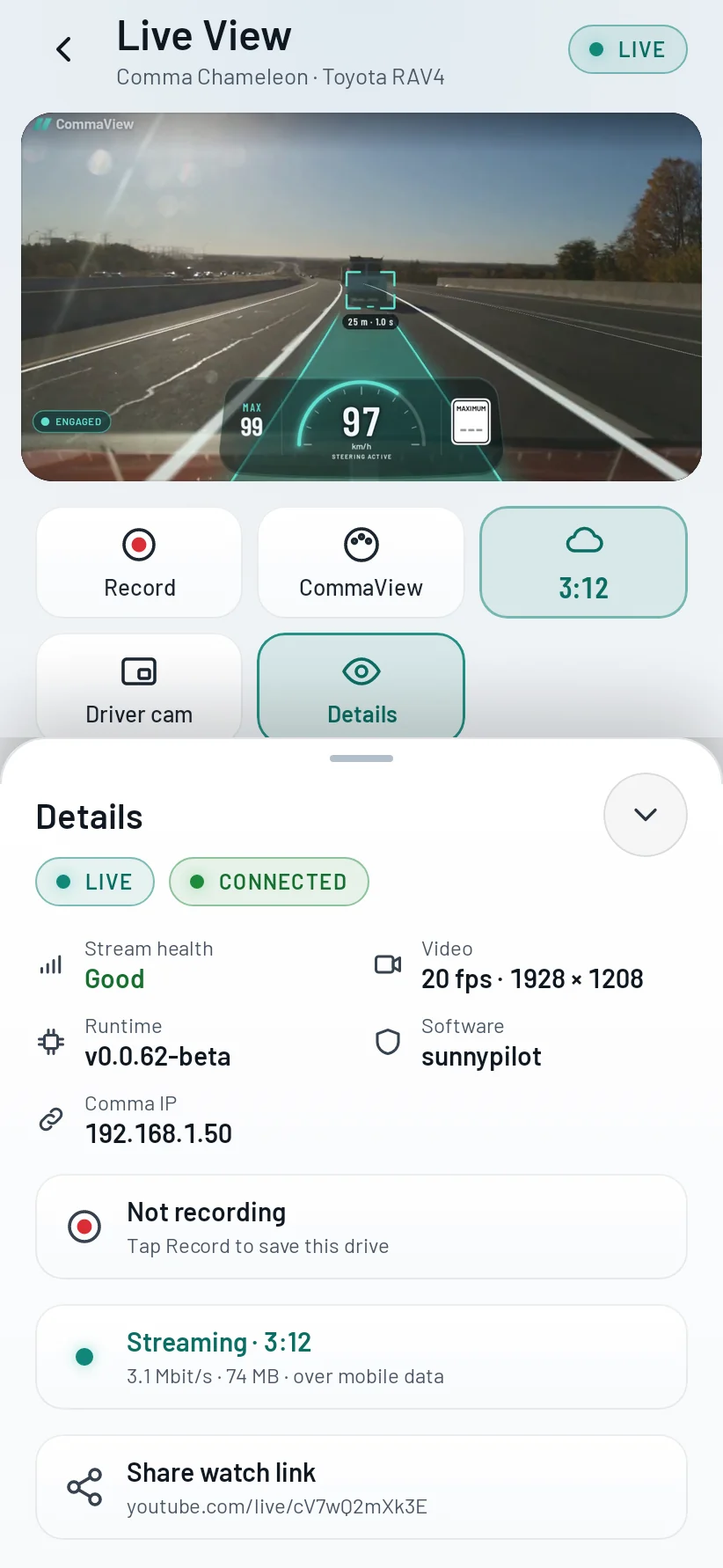
-
Go live, live, with its timer.
-
Streaming and how long.
-
Share watch link.
-
-
Step 6 of 6: Stop the stream once you’ve parked
Tap Go live again to stop. The stream also stops when you leave Live View, from its notification’s Stop, and by itself a minute after its video does. It keeps going when you switch apps or lock the phone.
How you know it worked
Live View’s Go live shows a running timer in the live colours, Details says Streaming, and your broadcast plays on YouTube or your server.
Keep a copy of each stream
Settings › Recordings › Save each live stream saves an MP4 of every Go live in Recordings, as it was sent, at the stream’s quality. It stays on your phone. See Keep a live copy.
What’s in the stream, and what isn’t
- In it: the road and the onroad screen drawn over it, and the driver camera while Driver cam is on.
- Not in it: Live View’s controls, Details and messages. Navigation’s map only with Map in the stream on, where Settings offers it, and only the map in CommaView’s corner.
- Record and Go live are independent: you can record and stream a drive at once.
Safety
Set up and start Go live parked, then leave it alone. Don’t operate CommaView while driving: keep your eyes on the road and your hands on the wheel, as openpilot asks. Anyone watching sees where you drive.
If it doesn’t work
There’s no Go live in Live View
Live streaming isn’t set up yet: Details says Set up live streaming in Settings to go live from here. Or it’s in More, where the controls don’t all fit.
“Add your stream key in Settings › Live streaming”
Go live has nowhere to stream to. Sign in with YouTube, or add a stream key, in Settings › Live streaming.
The YouTube broadcast doesn’t start with a stream key
With a stream key, start each broadcast with Go live in YouTube Studio, or turn on Auto-start there. Signed in with YouTube, it starts by itself.
“That key has a space in it”
Copy the key again from your streaming service and paste it.
“No sound: Browser View is running without it”
Go live shares Browser View’s picture, which has no sound. Stop Browser View before going live for sound. The same goes for a recording that started without sound.
The stream stops by itself
Live View says why in a message every time. A stream also stops a minute after its video does, and when you leave Live View.
Did this guide get you there?
Tell us what’s missing