
All guides · Live View and screens
Guide · Live View and screens
Watch your comma in Live View
Live View shows your comma’s road camera, live, with the onroad screen drawn over it: the comma four’s, the comma 3X’s or CommaView’s own. It comes straight from the comma over your own network, not the internet.
Before you start
- CommaView is set up
CommaView on an Android phone, paired with your comma. Not yet? Set up CommaView.
- The car is on
openpilot sends video only onroad. With the car off, Live View waits and starts by itself once the car starts.
- One network
Your phone and your comma on the same Wi‑Fi or hotspot. In the car, see Connect in the car.
Steps
Tick each step off as you go. The first time, do it parked.
-
Step 1 of 6: Open Live View from Home
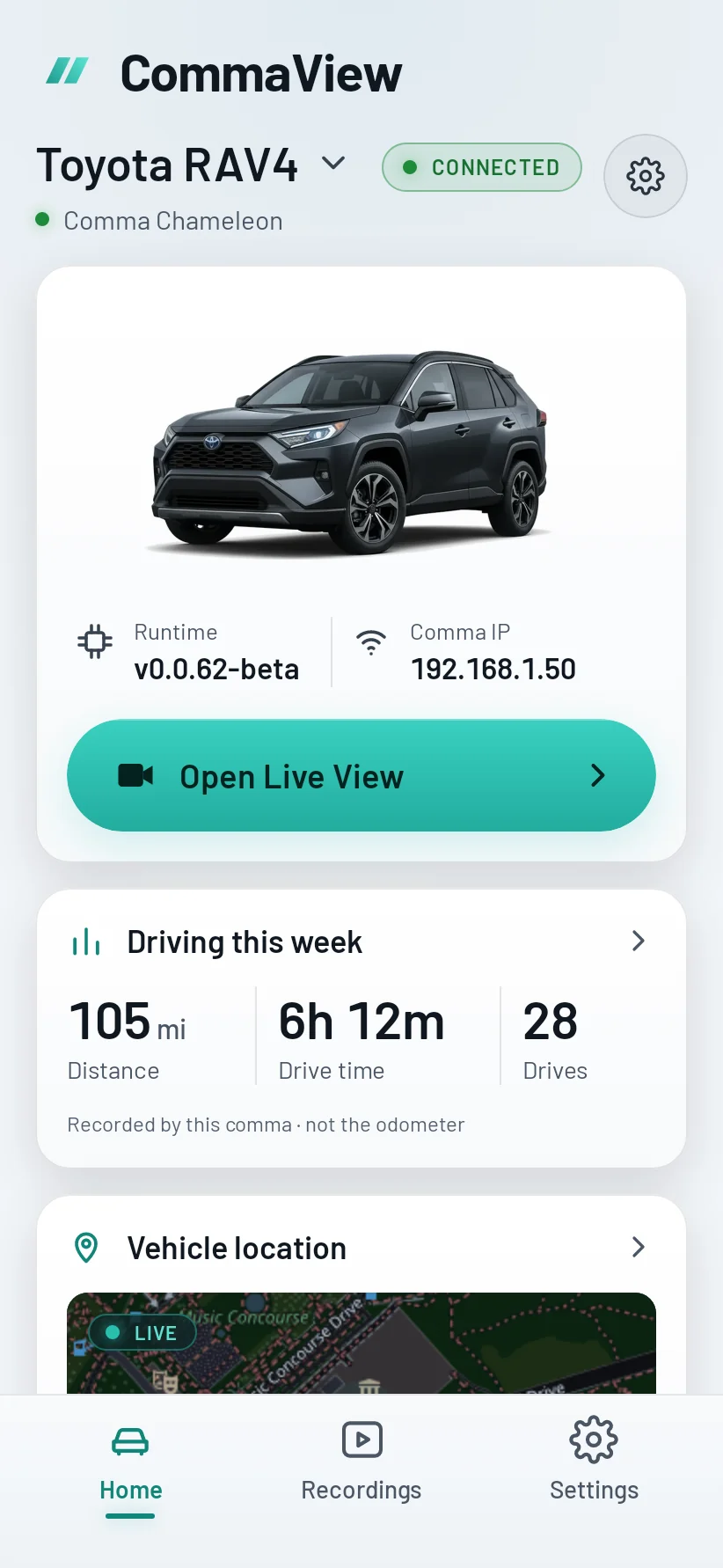
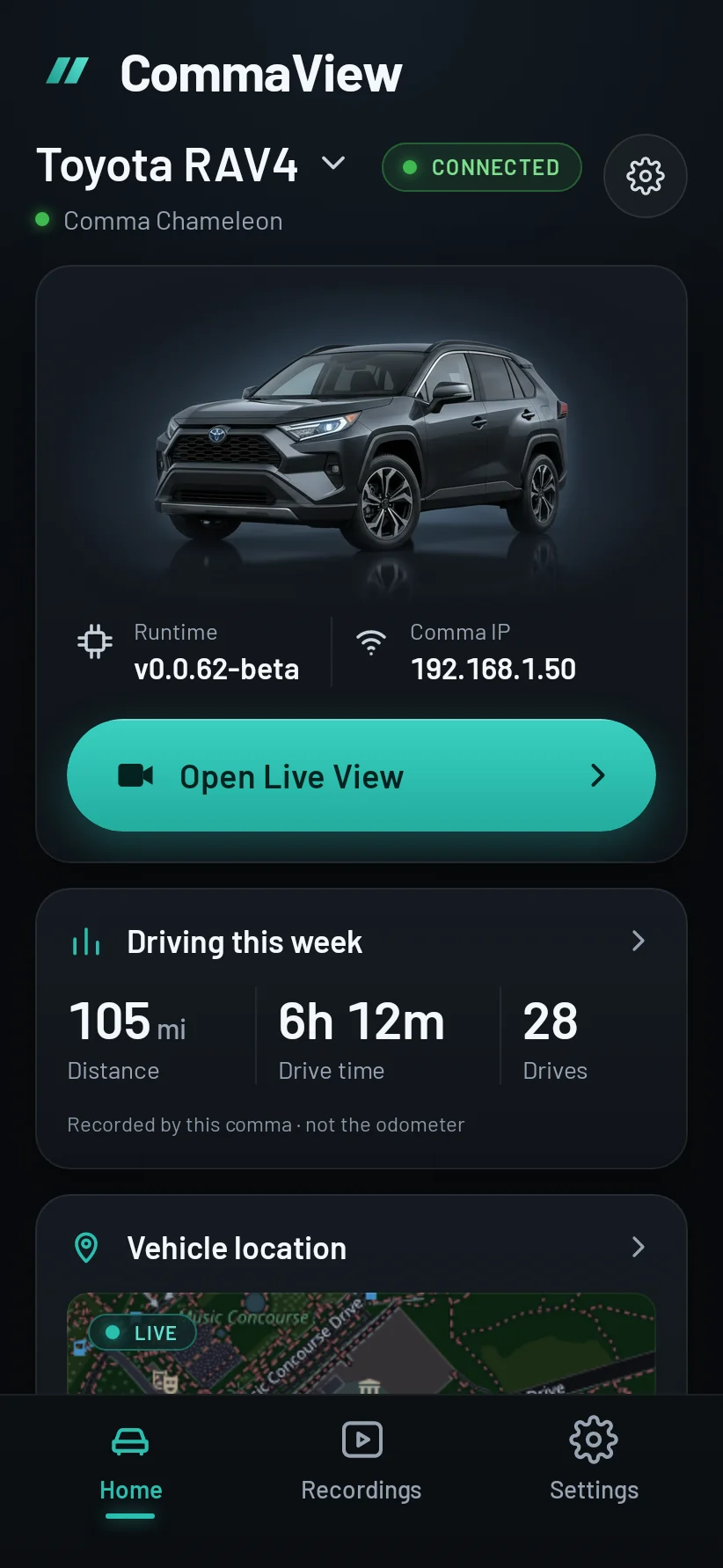
On Home, with your comma connected and the car on, tap Open Live View. The road shows within a few seconds, with the stream pill saying Live.
-
Open Live View, Home’s main button.
With the car off, Live View says Your comma is online but not driving. It starts by itself when the car does, or at once with Refresh.
-
-
Step 2 of 6: Learn the controls under the picture
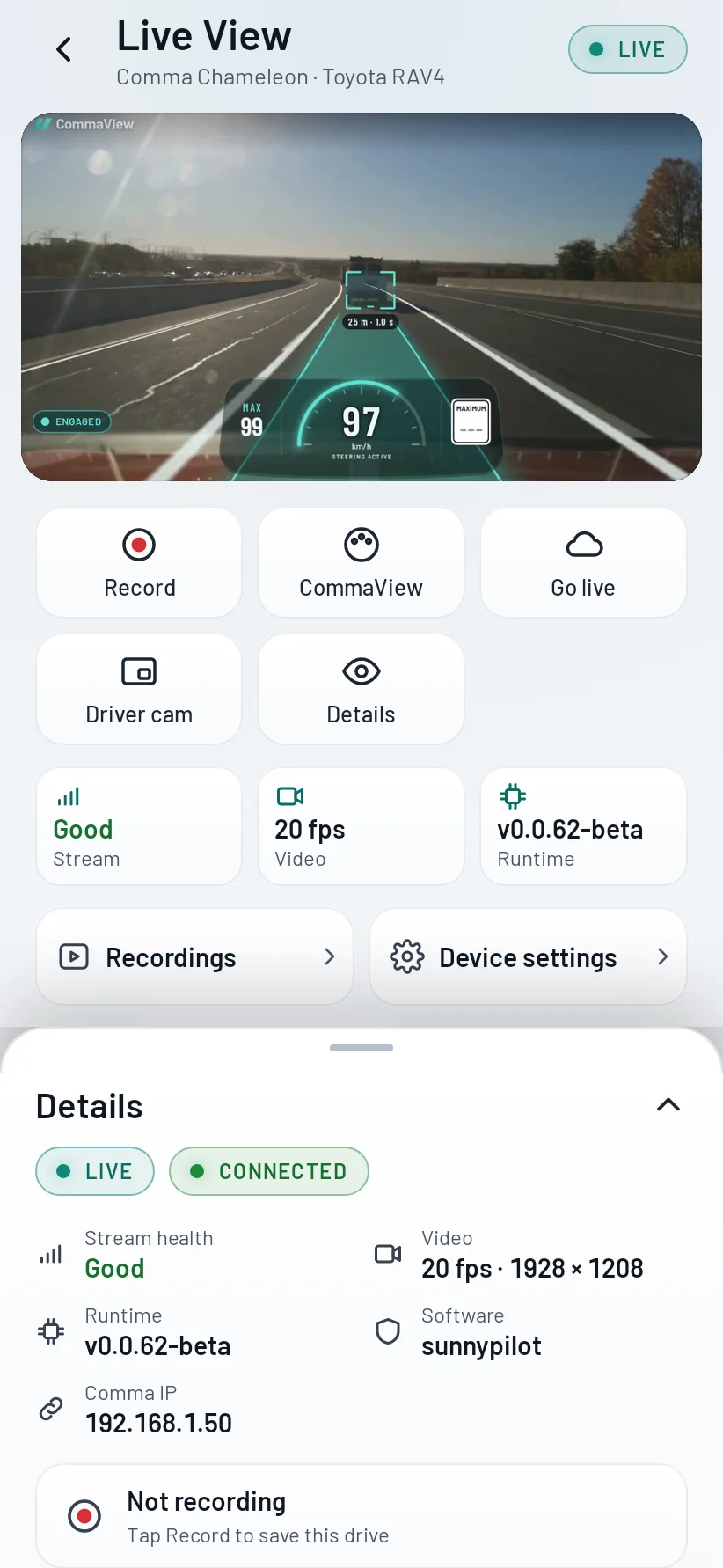
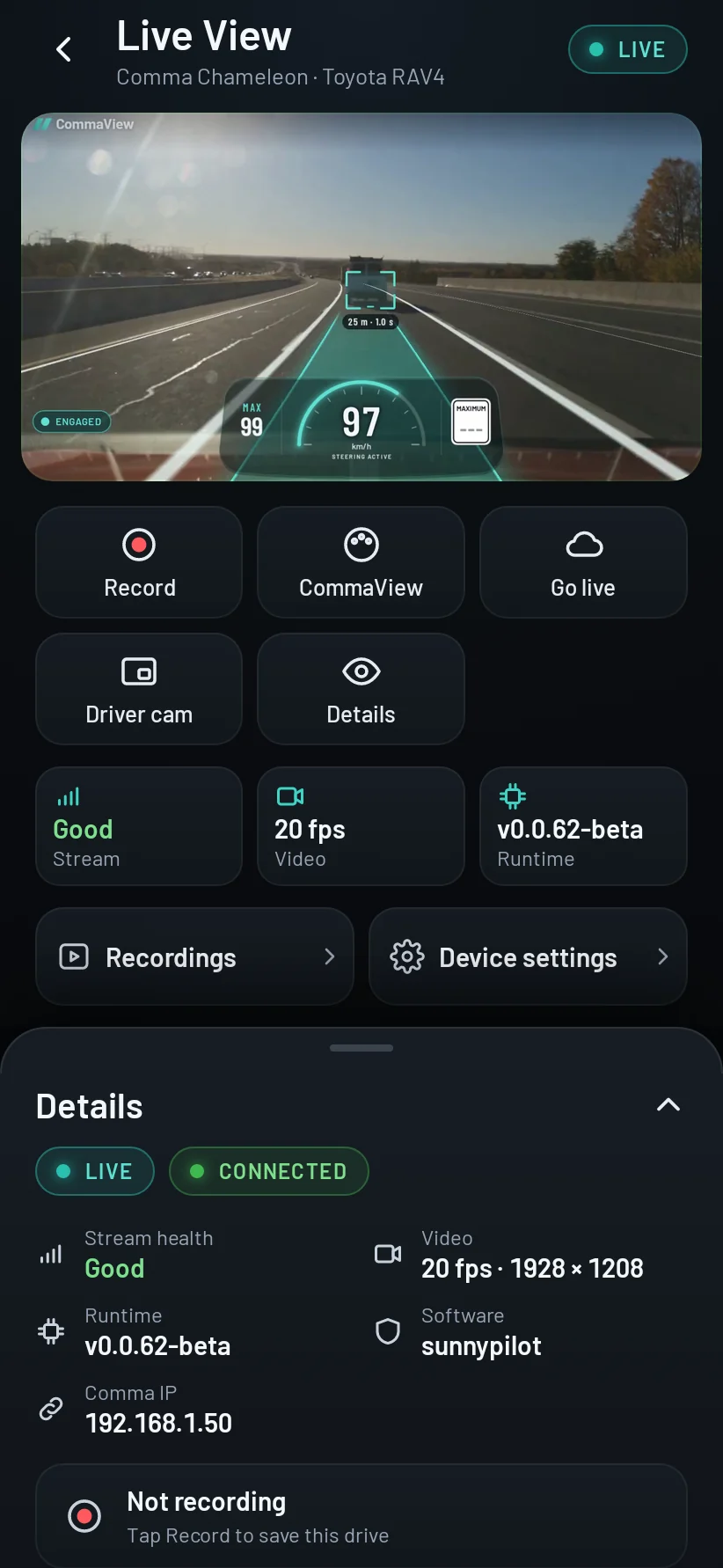
Held upright, the controls sit under the video:
- Record saves this stretch of the drive. See Record a drive.
- Save keeps the last 3 minutes and the next minute of the drive.
- The onroad screen switch, named for the screen it shows (CommaView, comma 4, comma 3X), moves to the next one with each tap. See Choose the onroad screen.
- Go live streams what Live View shows, once you’ve set it up. See Go live.
- Driver cam shows the driver camera in a corner of the picture.
- Details opens Live View’s facts and cards.
What doesn’t fit at your phone’s width and text size goes into More. Nothing is shrunk or cut off.
-
Record.
-
The onroad screen switch.
-
Driver cam.
-
Go live, once live streaming is set up.
-
More holds what doesn’t fit.
While a recording runs, the onroad screen switch and Driver cam are dimmed: choose them before you tap Record.
-
Step 3 of 6: Open Details
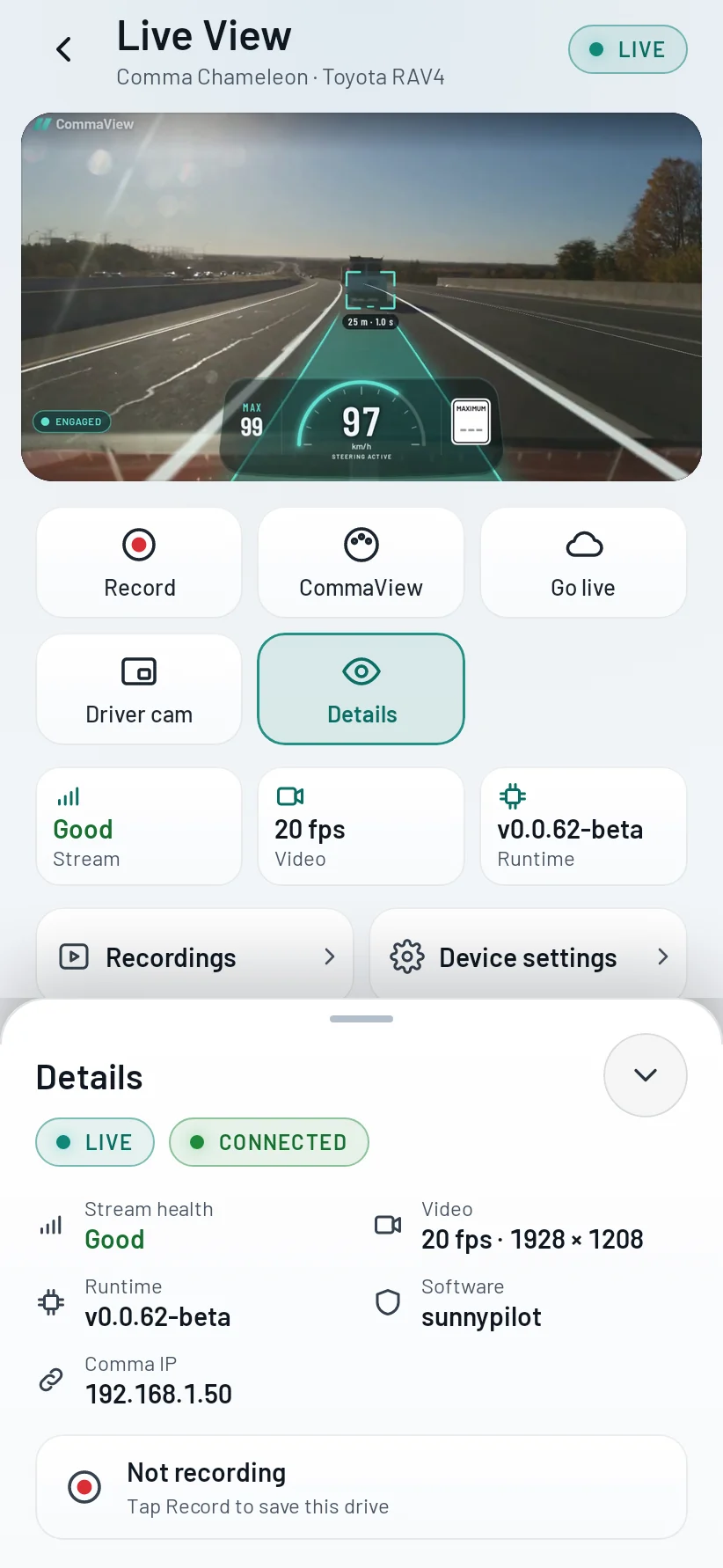
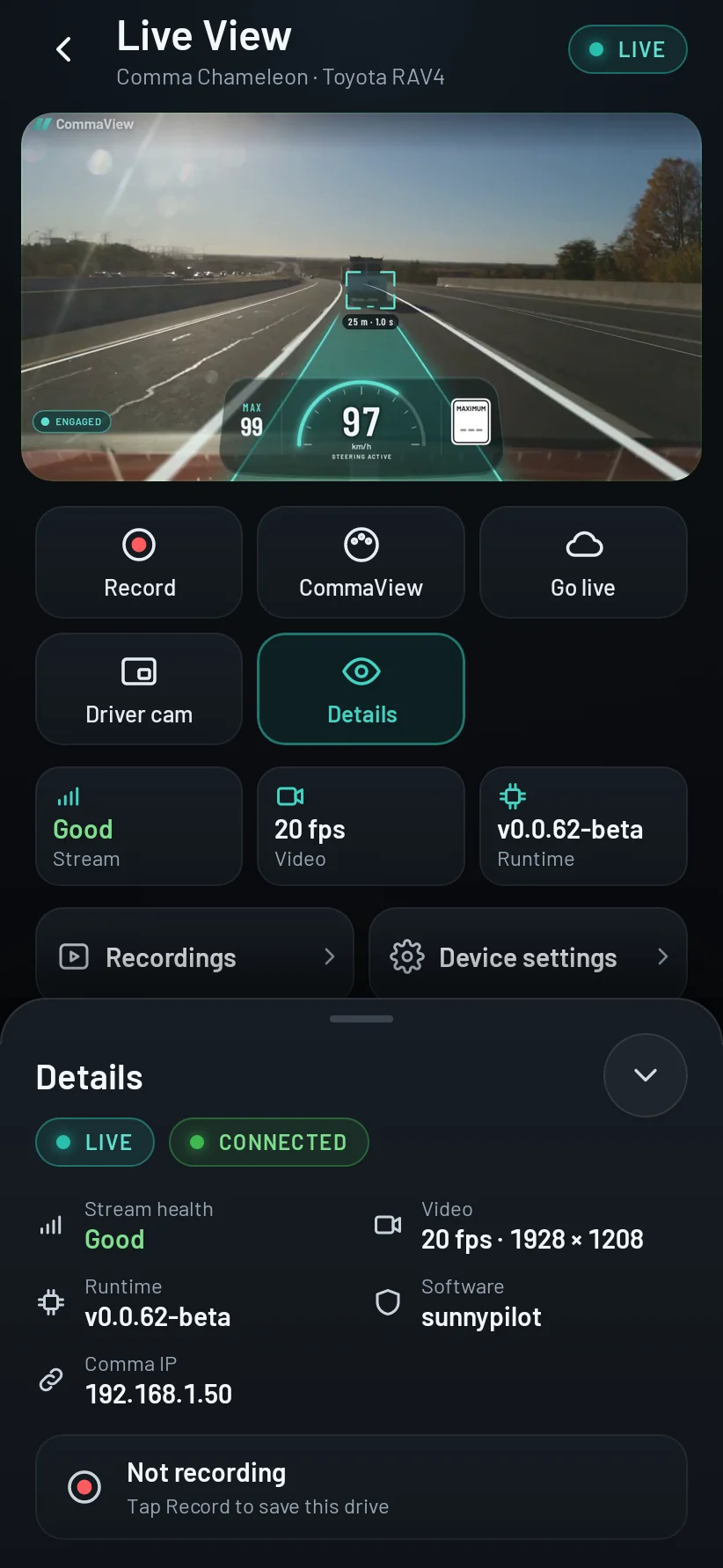
Tap Details, or lift the sheet at the foot of the screen. It shows how the stream is doing, the video, the runtime, your comma’s software and its address, whether you’re recording or streaming, and the Browser View card. Its links open Recordings and your comma’s Device settings.
-
The Details sheet.
-
The summary: the stream’s health, the video and the runtime.
-
Recordings.
-
Device settings for this comma.
-
-
Step 4 of 6: Turn the phone, or use a bigger screen
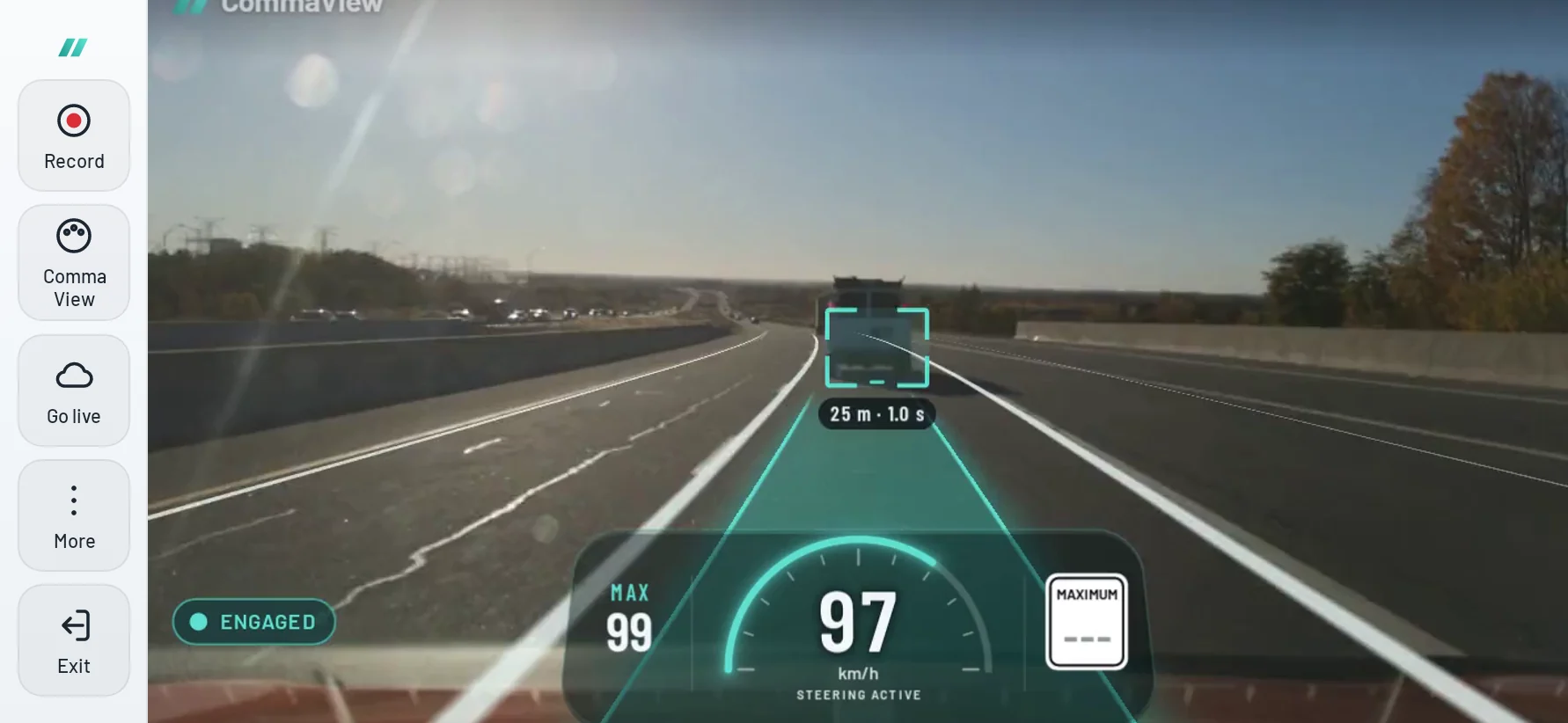
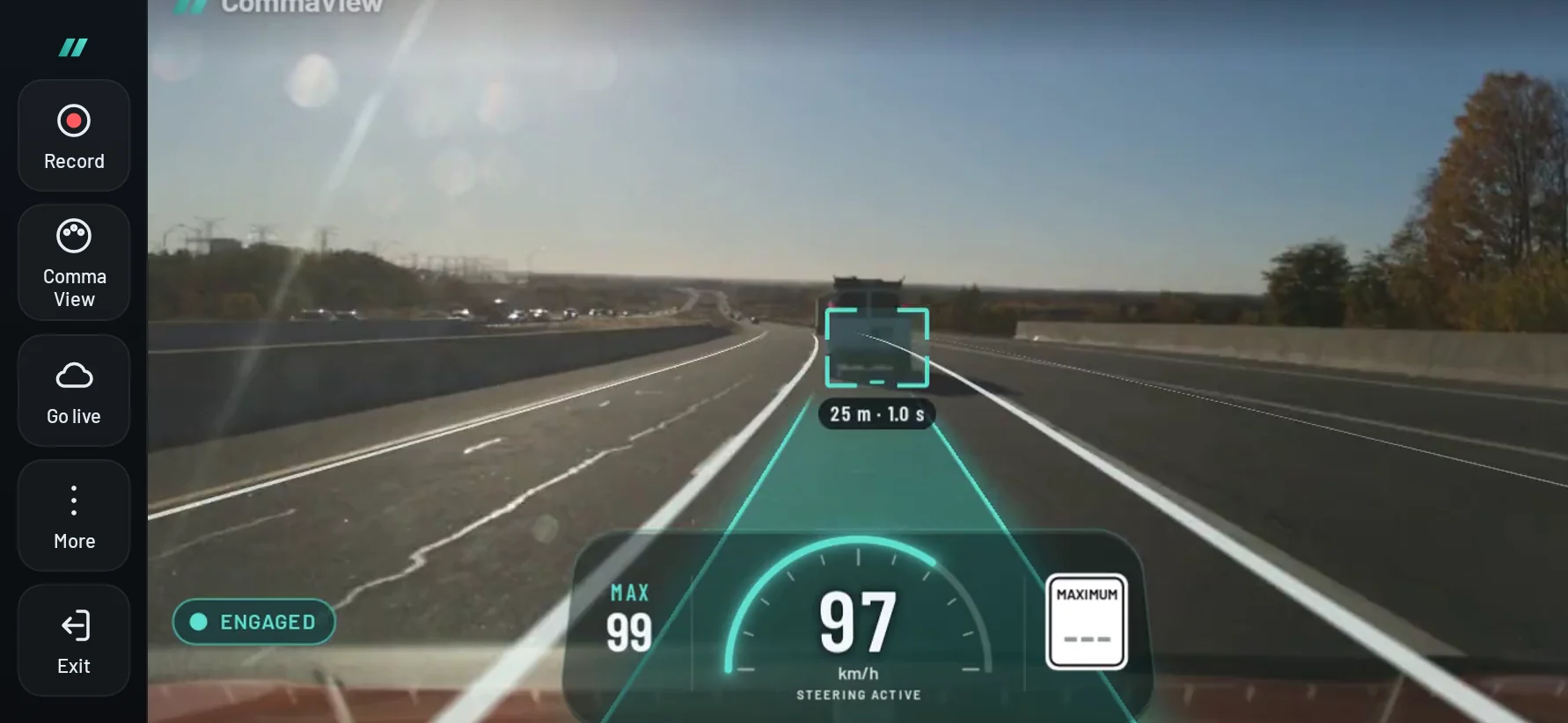
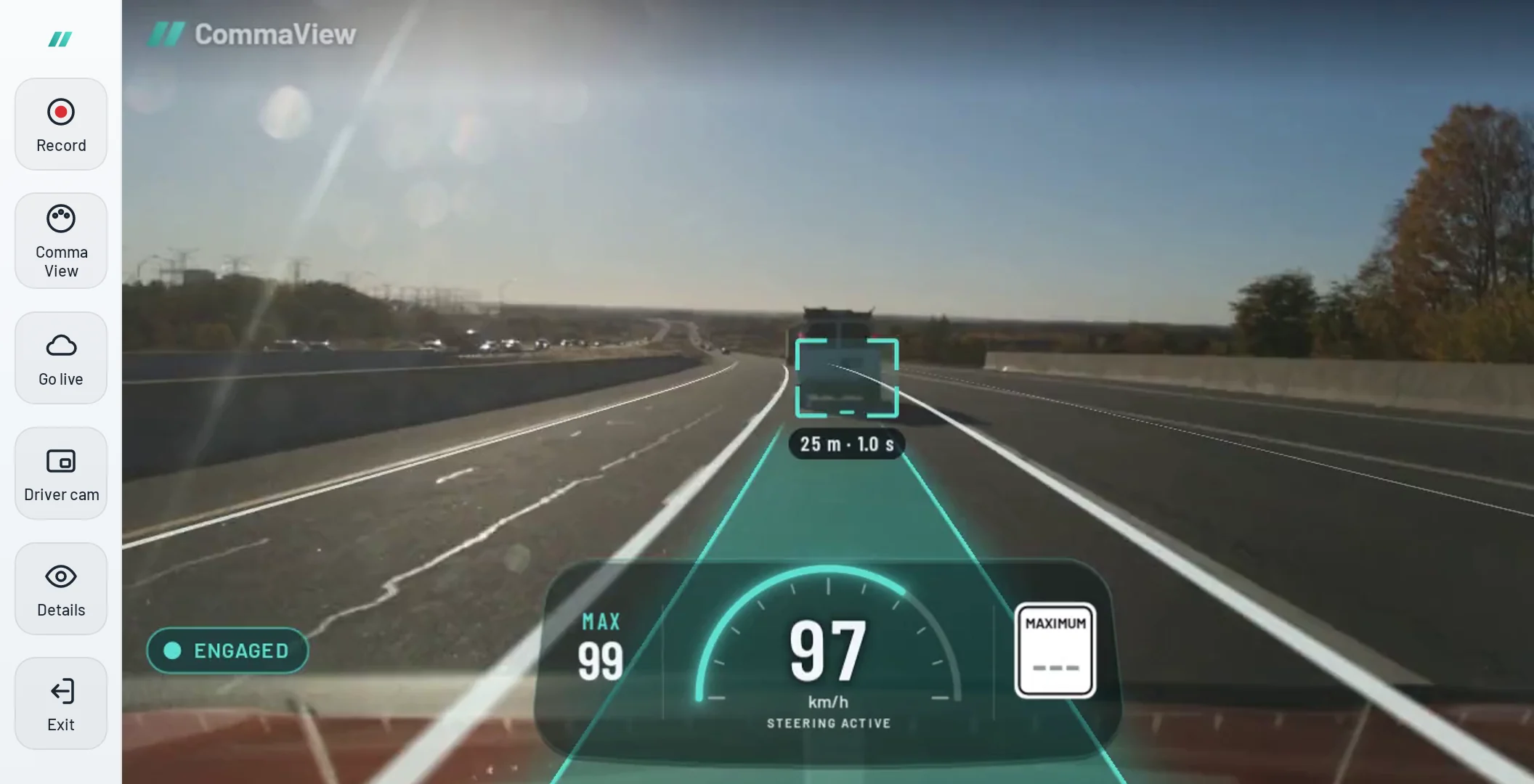
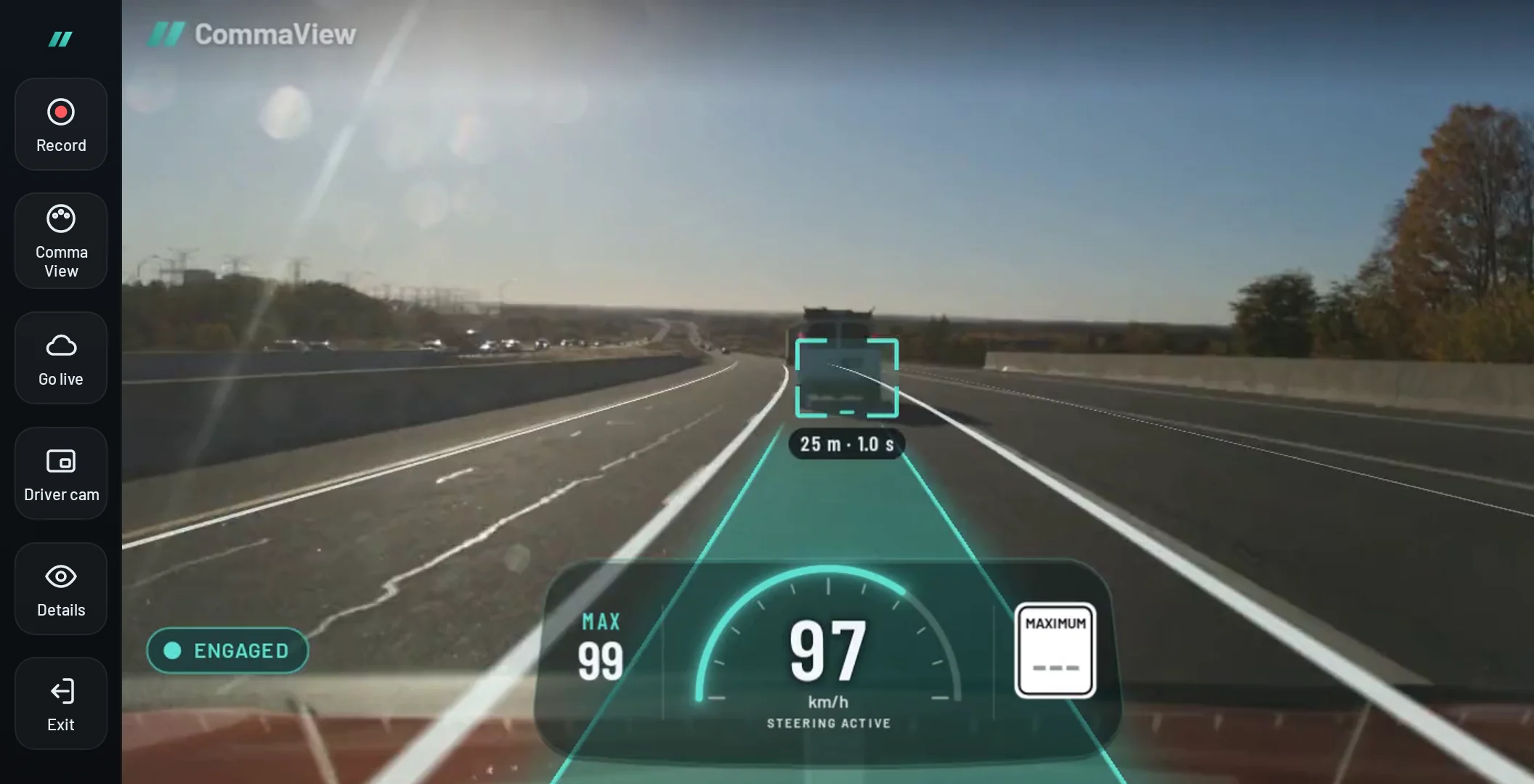
Turn the phone on its side and the video takes the screen, with the controls in a rail on the driver’s side. Details opens beside the picture, and Exit leaves Live View.
Phone on its side
The rail holds the same controls. On a short screen it turns compact.
-
Record, at the top of the rail.
-
More holds Driver cam and Details.
-
Exit leaves Live View.
Tablet or car screen
On a wide screen the rail stays on the driver’s side. See Use CommaView on a car screen.
-
Record.
-
The onroad screen switch.
-
Driver cam.
-
Details.
-
Exit.
-
-
Step 5 of 6: Let Live View open by itself
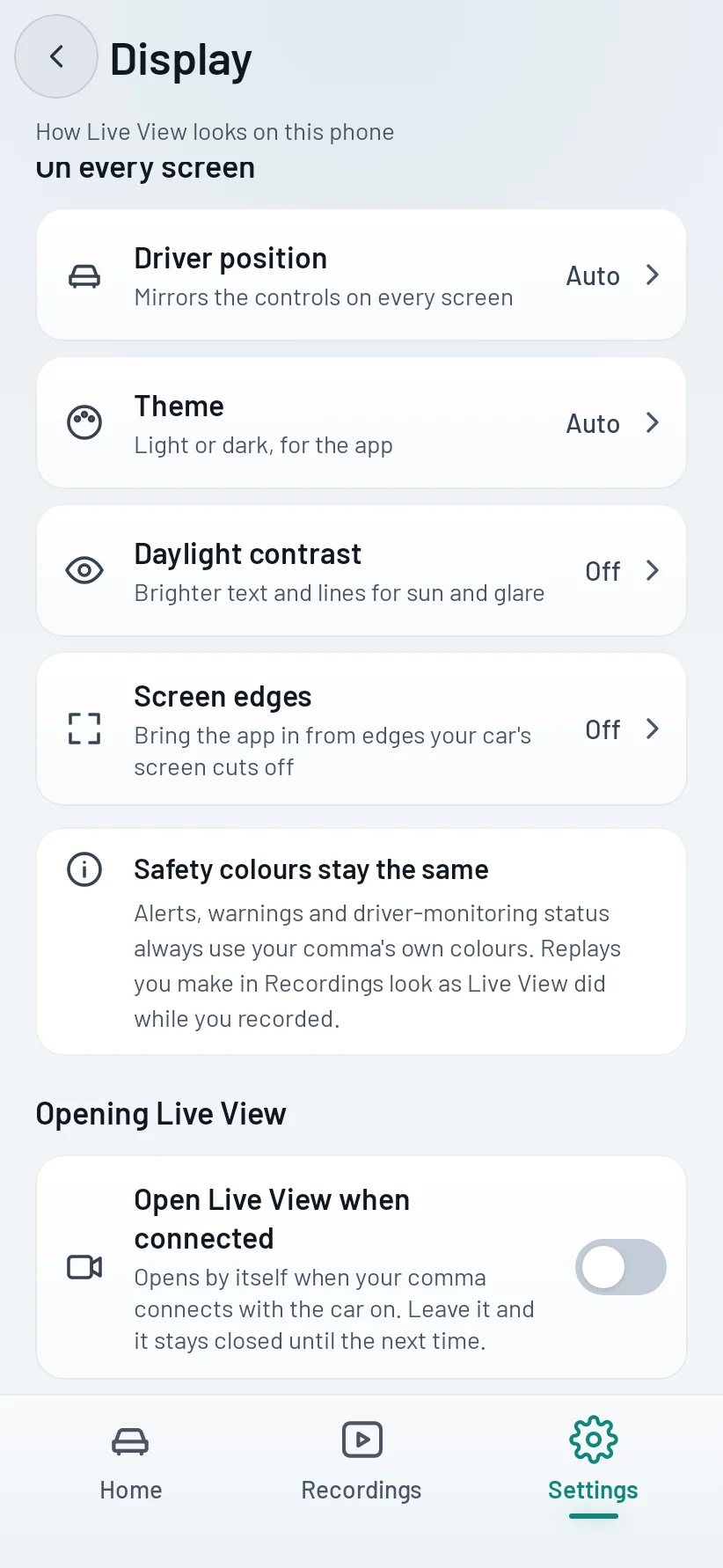
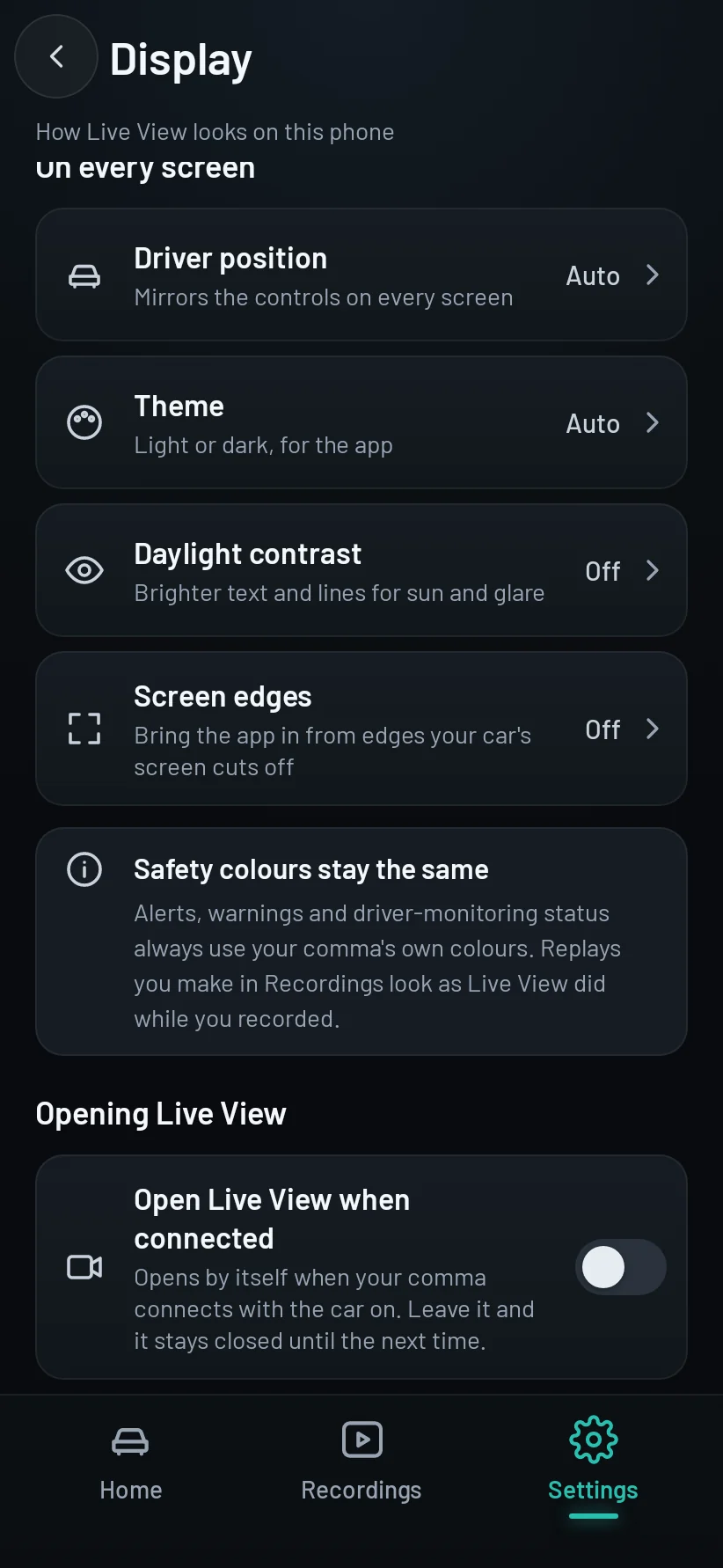
For a phone or head unit that’s there only to show Live View, open Settings › Display and turn on Open Live View when connected, under Opening Live View. Live View then opens by itself when your comma connects with the car on. Leave it and it stays closed until the next time.
Keep the status bar, just below it, shows the system’s clock above Live View instead of using the whole screen.
-
Open Live View when connected.
-
-
Step 6 of 6: Leave Live View when you’re done
Tap Exit, or back, once you’ve parked. Leaving Live View ends Go live, Browser View and live copies too. Live View is open on one phone or head unit at a time, so leave it on one before you open it on another.
How you know it worked
The stream pill says Live, the road moves, and Details’ stream health says Good.
Safety
Open Live View parked, then leave it alone. Don’t operate CommaView while driving: keep your eyes on the road and your hands on the wheel, as openpilot asks. Your comma’s own alerts and your car’s instruments come first. CommaView only shows what the comma sees.
If it doesn’t work
“Your comma is online but not driving”
The car is off, or openpilot hasn’t started. Live View comes back by itself within 30 seconds of the car starting, or tap Refresh.
“Can’t reach this comma”
Your phone must be on the same Wi‑Fi as the comma, or on its hotspot. Live View reconnects when the comma answers, or tap Retry. Still nothing? See CommaView can’t find your comma.
“Live View is open on another device”
Your comma streams to one phone or head unit at a time. Go back to Home in CommaView on the other one, and Live View starts here by itself.
“Car data isn’t coming through”
The video arrives, but the car’s speed, signals and alerts don’t. Reboot the comma to fix it.
“Video delayed”
No new frame has arrived for a second. Live View says so beside the picture, and reconnects by itself if the video doesn’t come back.
“Can’t play this comma’s video”
None of the phone’s video decoders could play it. CommaView keeps trying. Send a support report from Settings so CommaView can look into it: see Send a support report.
Did this guide get you there?
Tell us what’s missing