
All guides · Updates and your account
Guide · Updates and your account
Update your comma’s runtime
The CommaView runtime on your comma updates from the app, never on its own. Update CommaView first, then the runtime when the app offers it. If the car is being driven, Safe Update queues the update on the comma and installs it once the car is in Park with openpilot disengaged.
Before you start
- The phone and the comma together
On the same Wi‑Fi as the comma, or on its hotspot.
- The car on
Keep the car on, in Park. Without a power harness, switching it off switches the comma off too.
How it works
CommaView
Each app release names the runtime it was tested with, and offers exactly that one.
Your comma
Downloads it, checks it and installs it, once the car is in Park.
Live View
Starts again once the comma reboots.
Steps
Tick each step off as you go.
-
Step 1 of 6: Update CommaView first
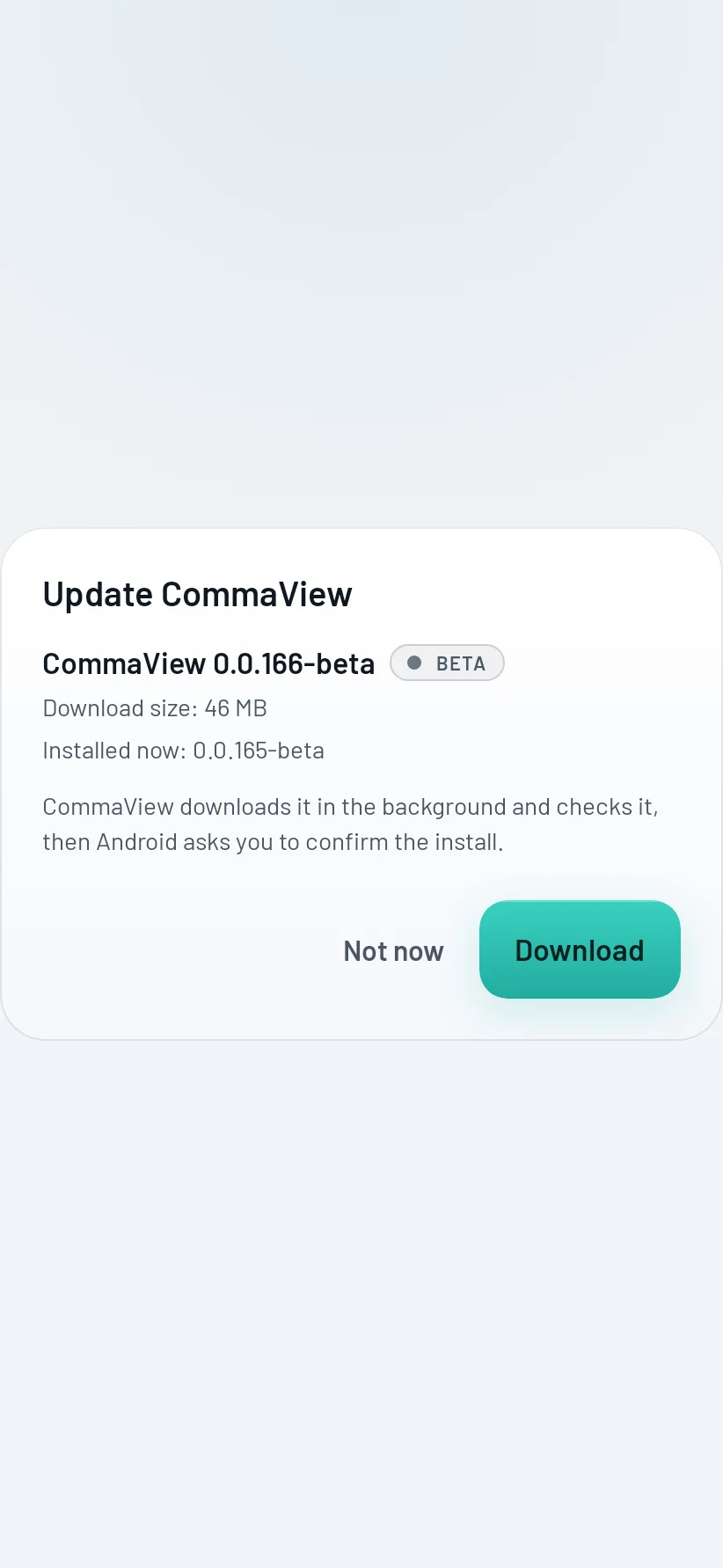
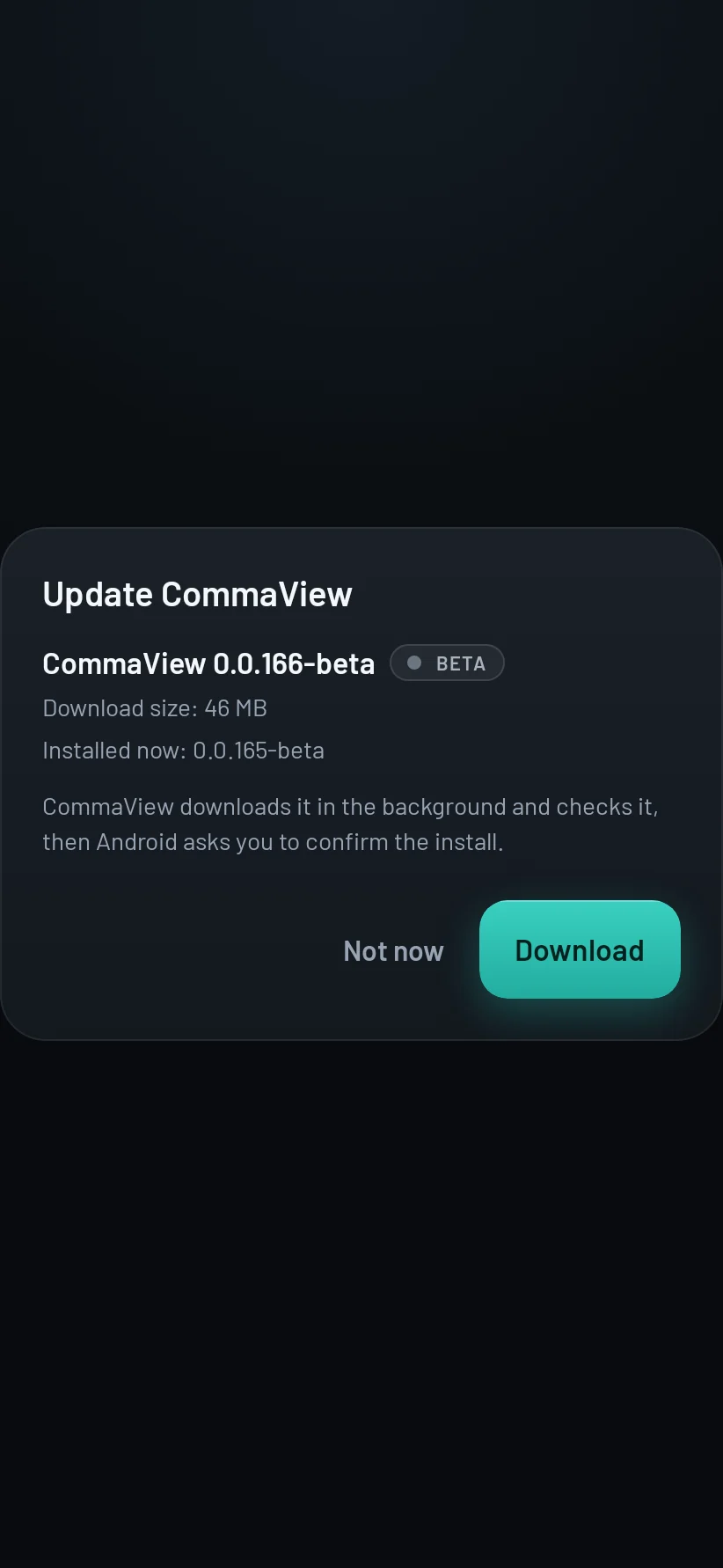
The app installs the runtime it was tested with, so update the app before the runtime. When an update is ready, Update shows at the top of Home and in Settings › About. Tap it: Update CommaView says the version, its channel and size. Tap Download; CommaView downloads it in the background and checks it, then Android asks you to confirm the install.
-
Download.
-
The release’s channel: Beta, or Alpha for testers.
Update CommaView on every phone, tablet and car screen that watches this comma before you update its runtime.
-
-
Step 2 of 6: Open the runtime update
From Home
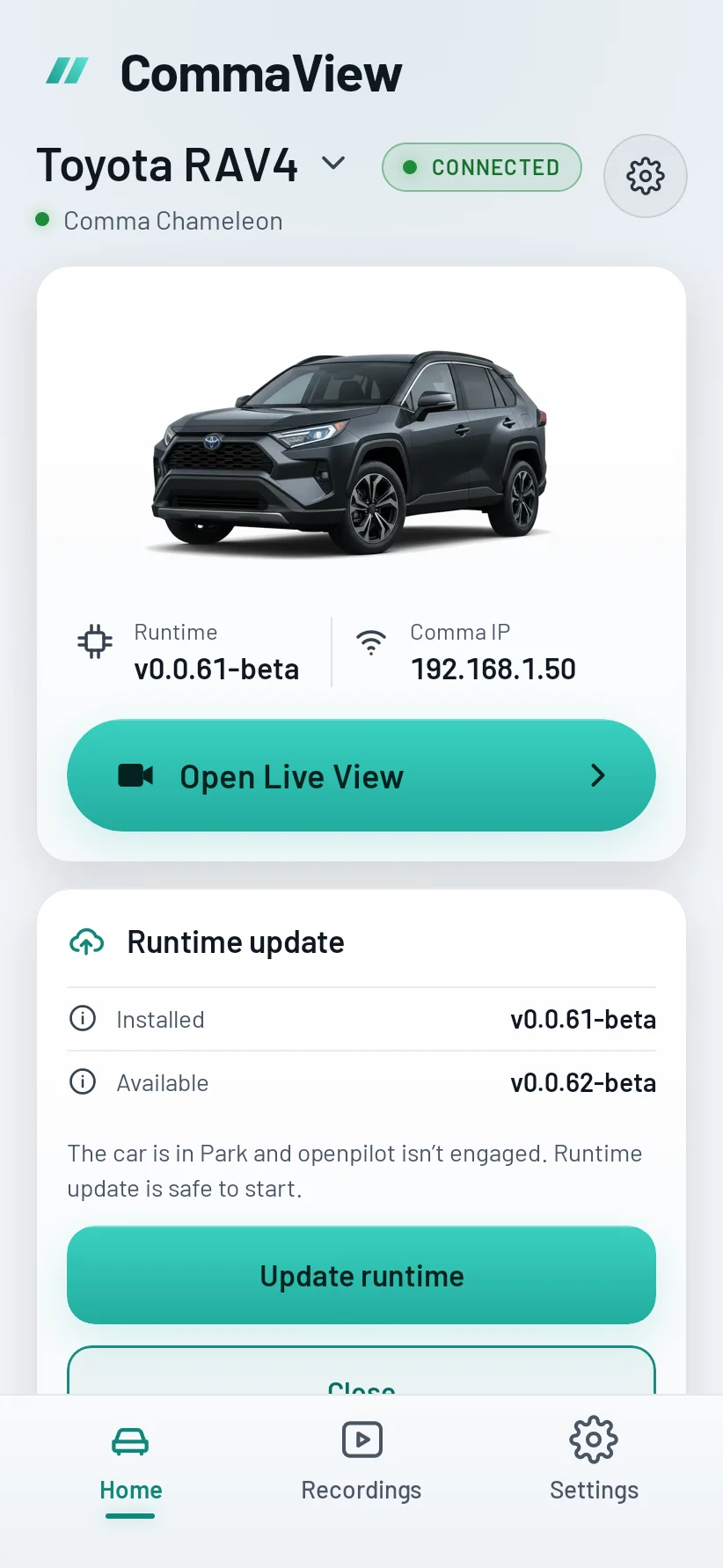
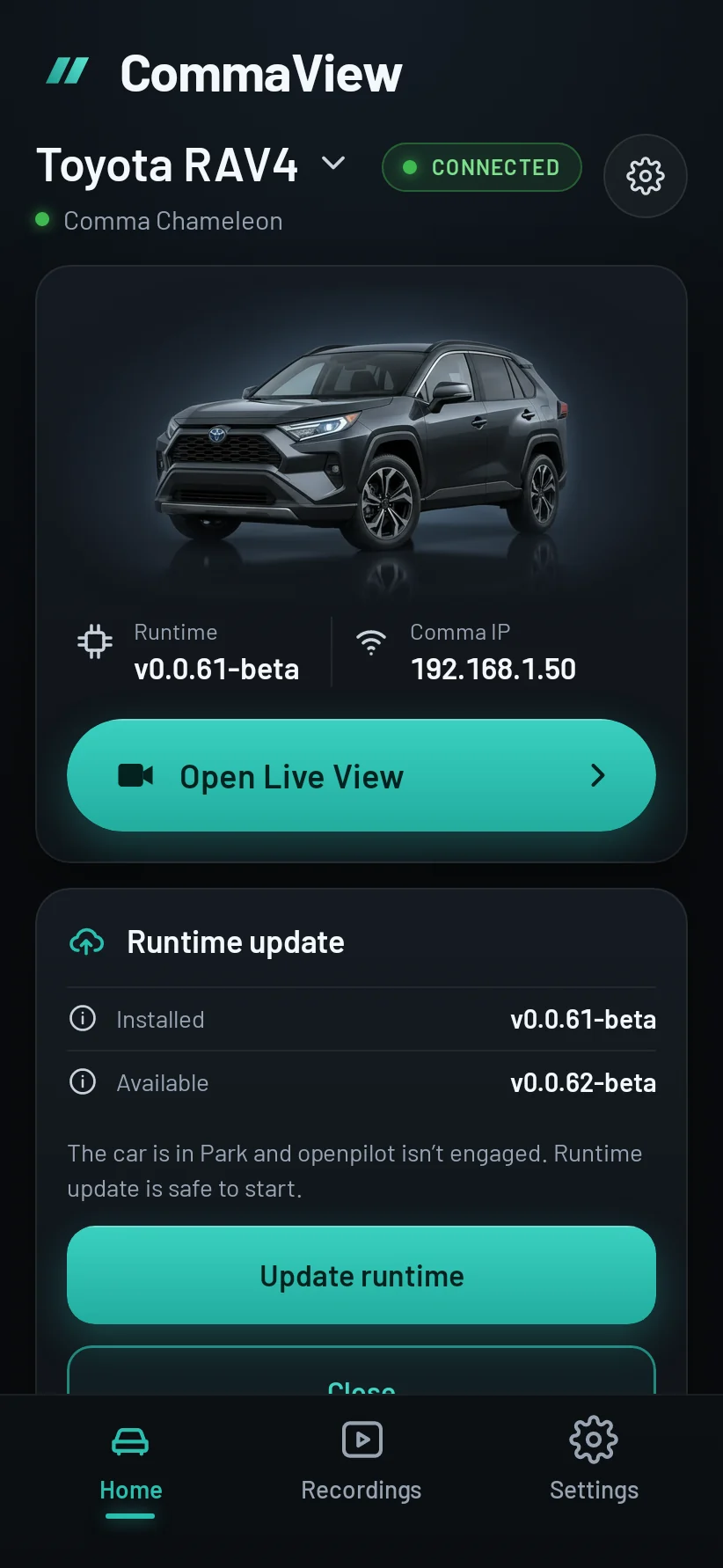
Home shows Runtime update ready when a new runtime is ready for this comma. Tap Review update: the Runtime update card shows the Installed and Available versions and whether the car is ready. Tap Update runtime, or Queue update while the car is being driven.
-
Runtime update: Installed, Available and whether the car is ready.
-
Update runtime (Queue update while the car is driven).
From Device settings
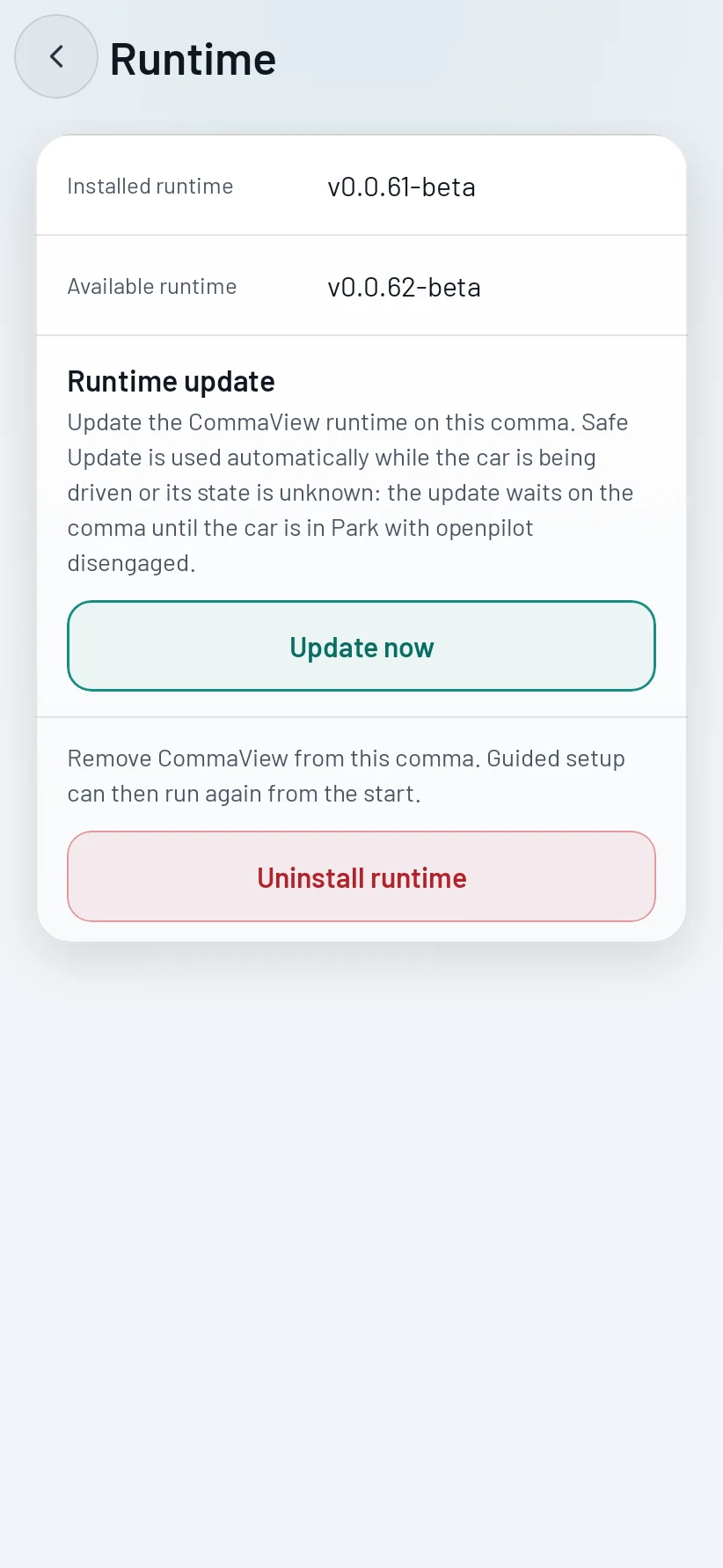
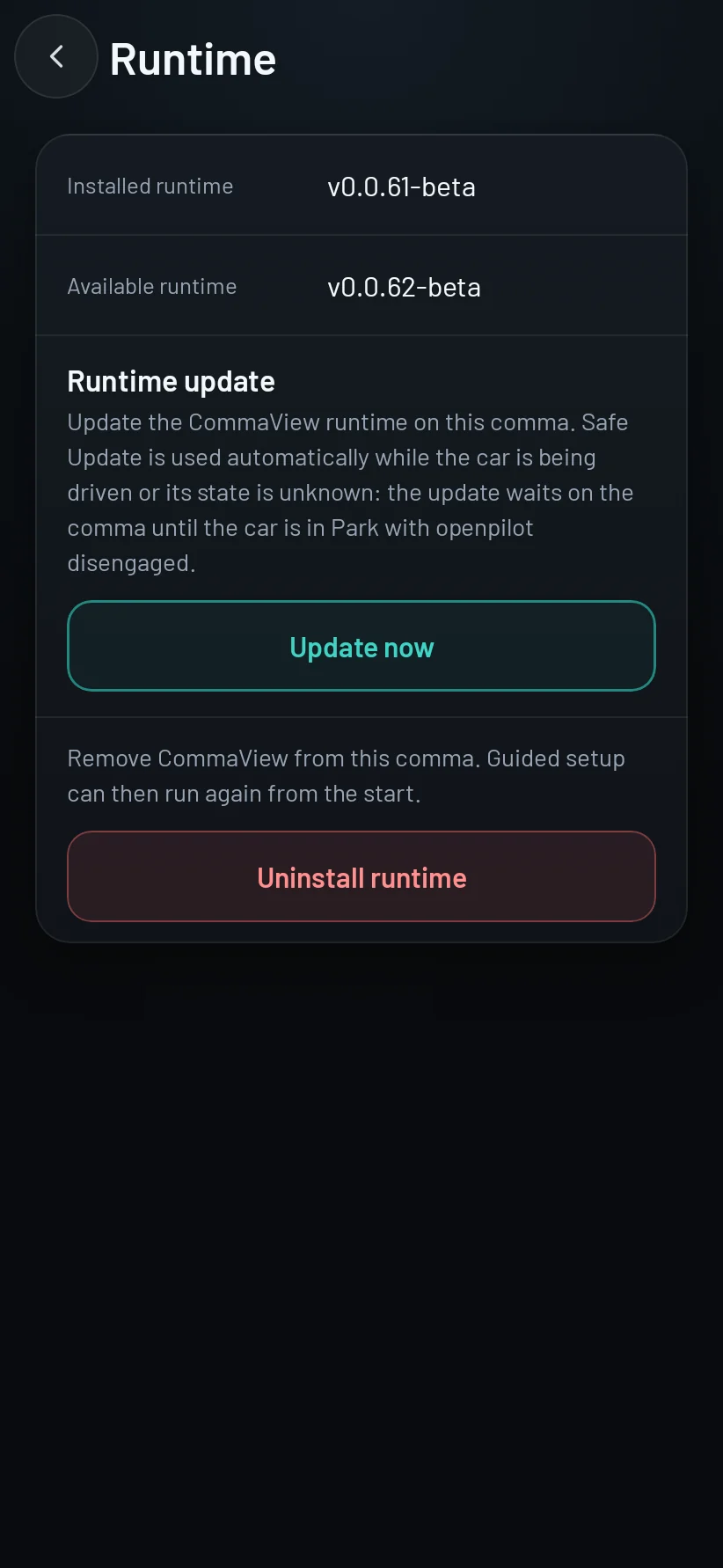
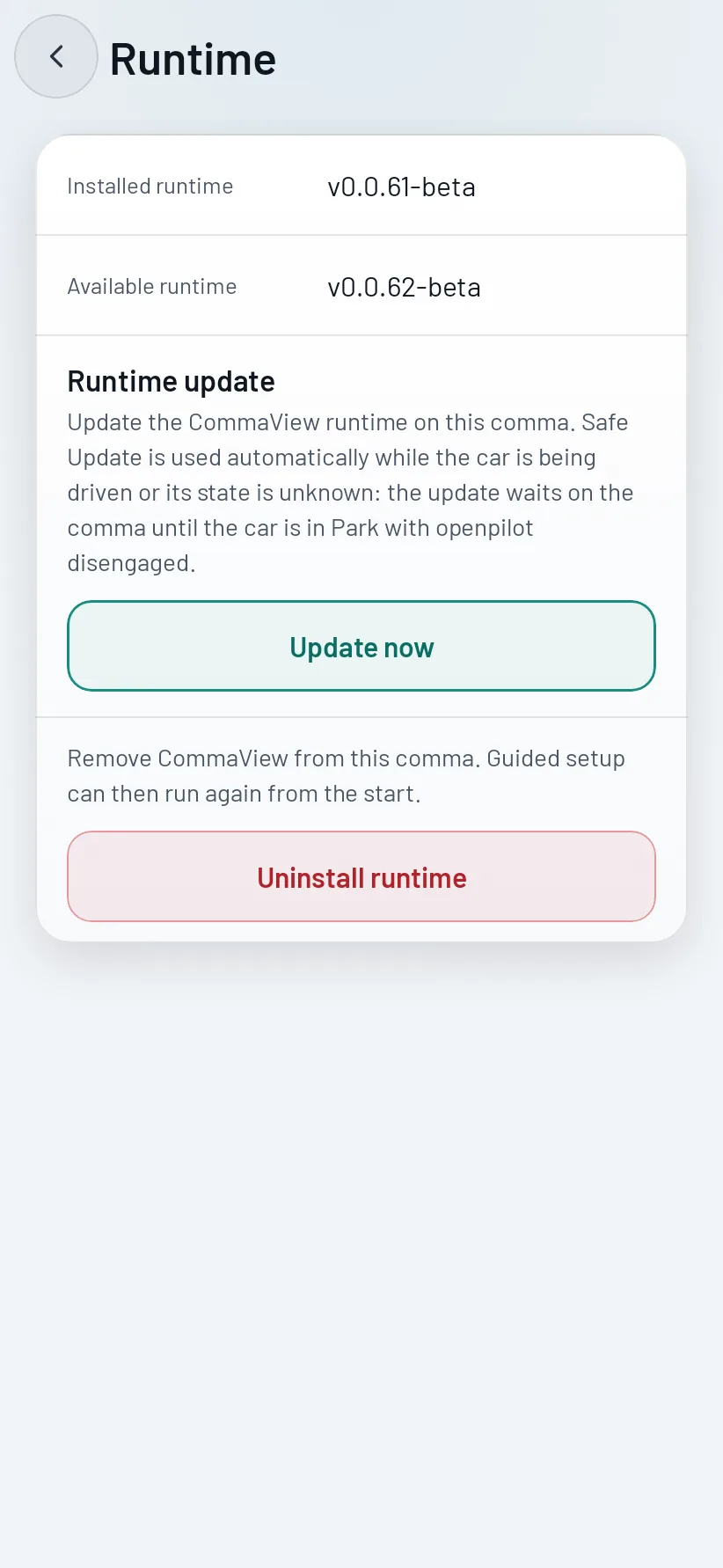
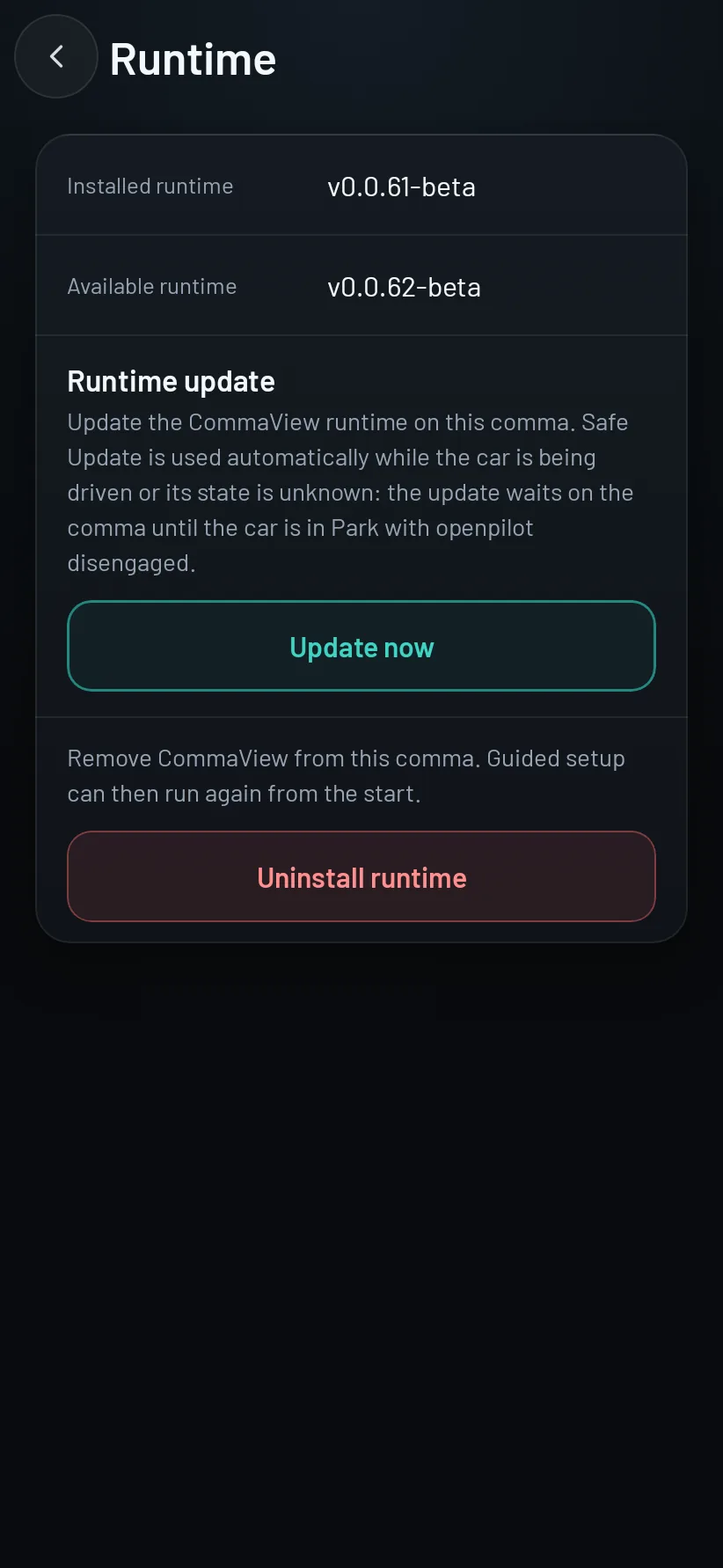
Open the comma’s Device settings, then Runtime (it shows Update when one is ready). The page shows the installed and available runtime. Tap Update now.
-
Update now.
-
-
Step 3 of 6: Install it, or let Safe Update queue it
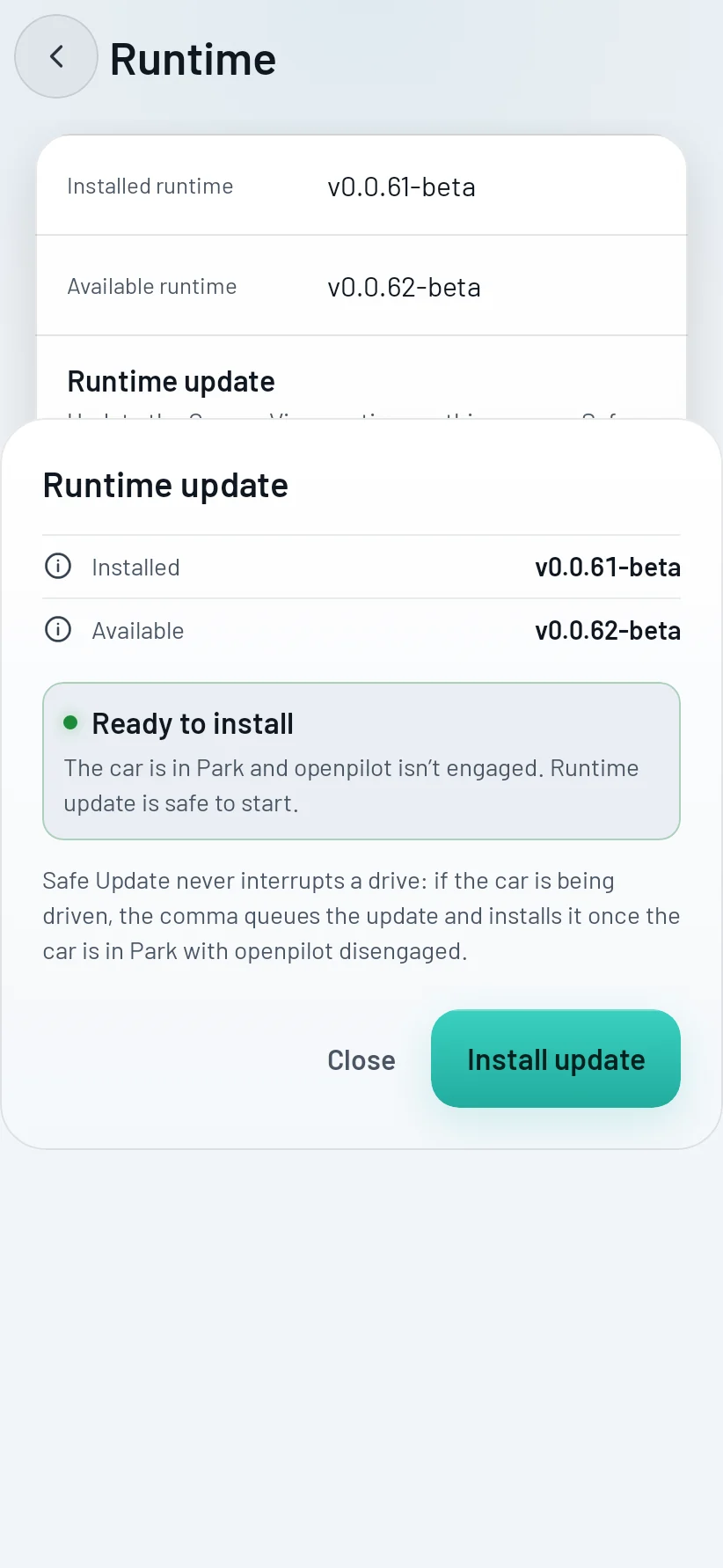
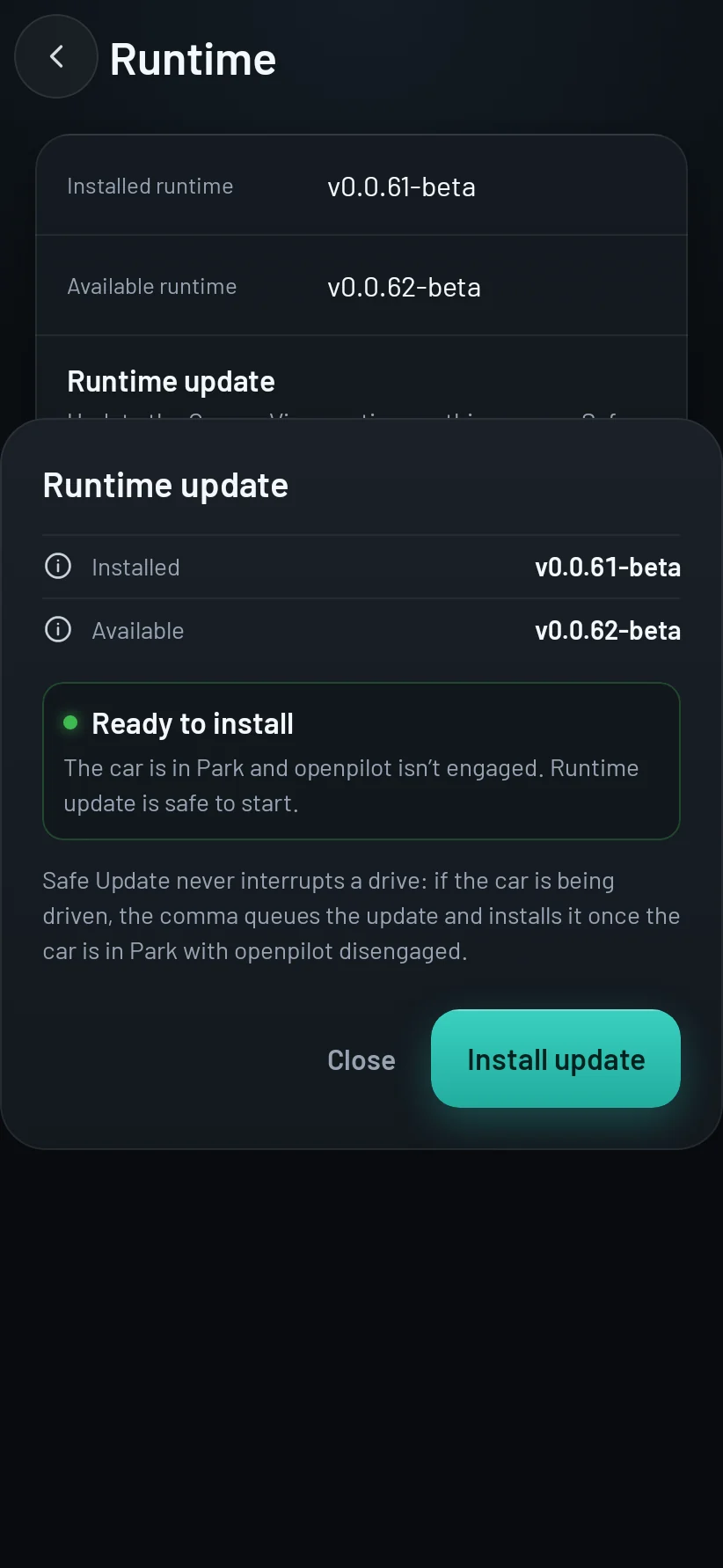
From Device settings, the Runtime update dialog says whether the car is ready.
The car is in Park
It says “The car is in Park and openpilot isn’t engaged. Runtime update is safe to start.” Tap Install update.
-
Install update.
-
Close leaves it for later.
The car is being driven
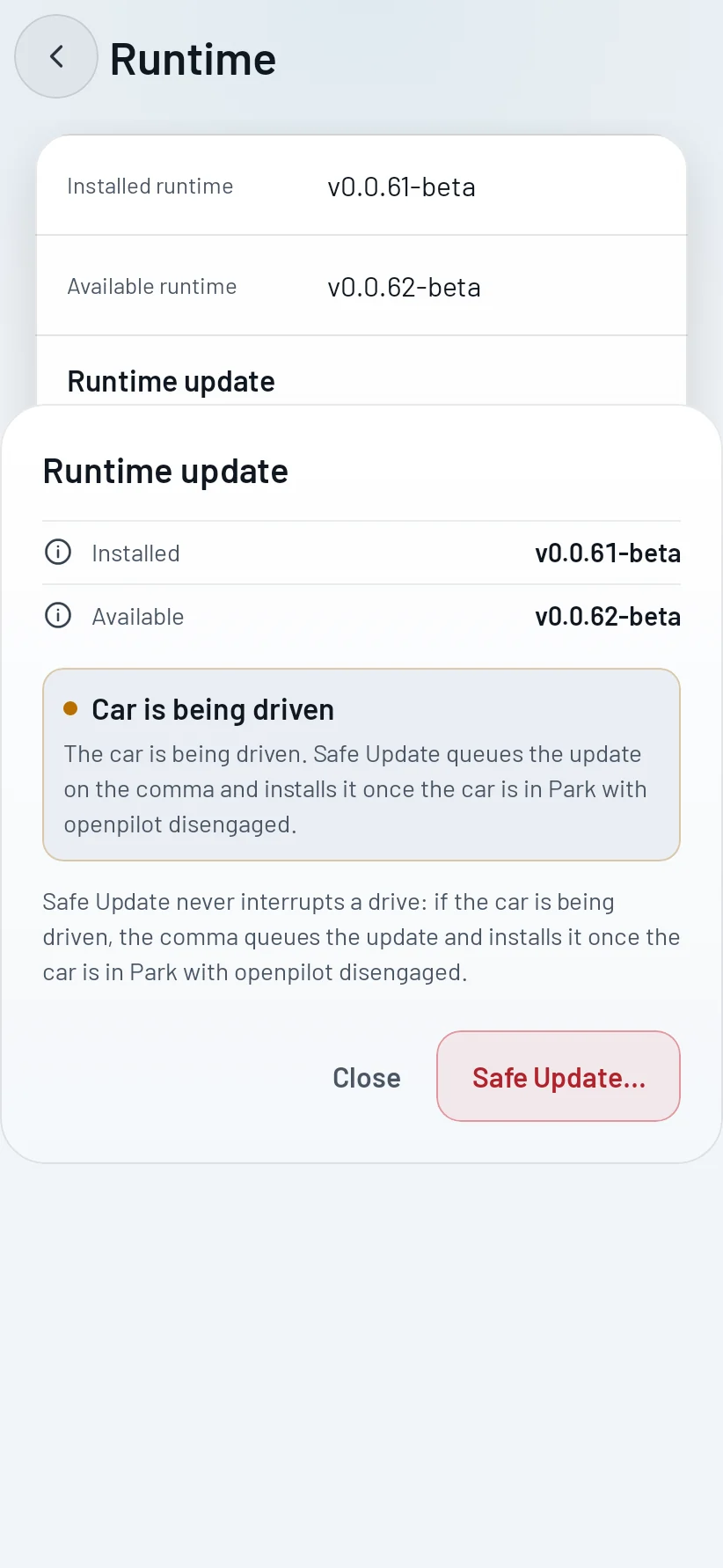
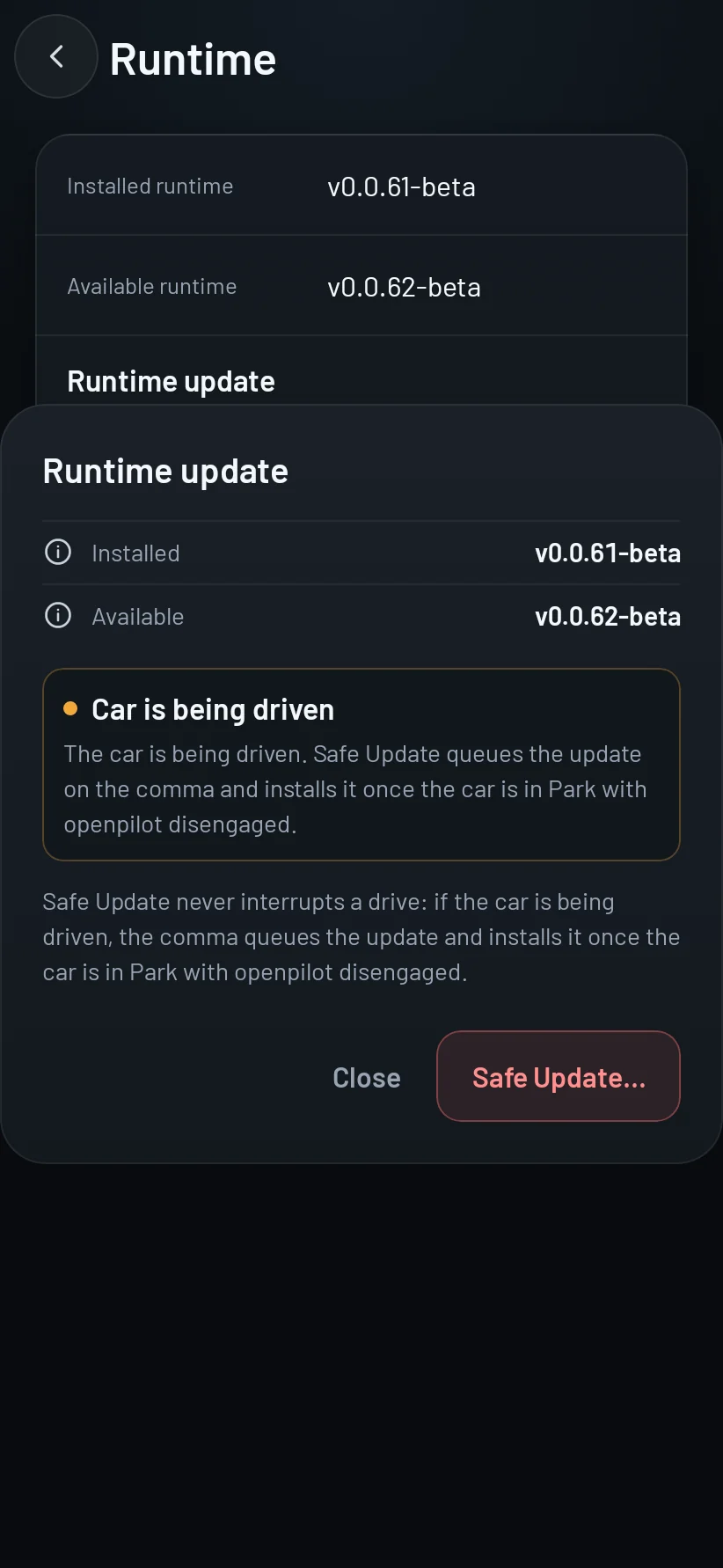
It says “The car is being driven. Safe Update queues the update on the comma and installs it once the car is in Park with openpilot disengaged.” Tap Safe Update…, read the note, and tap Start Safe Update once its short countdown ends. The same happens when CommaView couldn’t confirm whether the car is being driven.
-
Safe Update…, then Start Safe Update.
CommaView never stops openpilot or your fork: a queued update waits for Park, and a drive is never interrupted.
-
-
Step 4 of 6: Let it run
The comma downloads the release, checks it is complete and unaltered, installs it and restarts CommaView, and the app shows each step. You can switch apps or lock your phone: the update carries on, and its notification shows how far it is.
Until the comma starts installing, Cancel update stops it, and nothing on your comma changes.
-
The steps: Downloading, Verifying, Installing, Restarting CommaView, Reconnecting.
-
-
Step 5 of 6: A queued update waits for Park
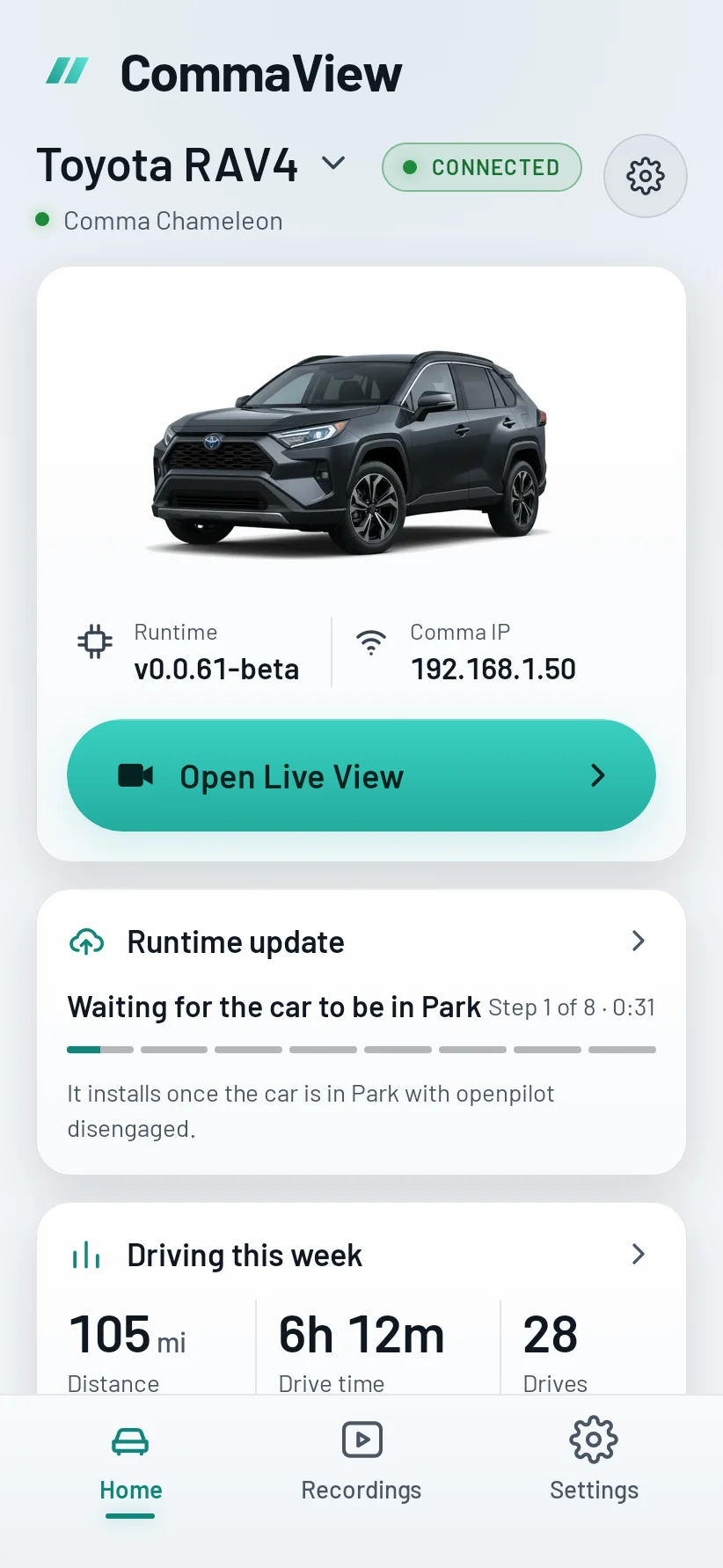
A queued update shows on Home’s Runtime update card as Waiting for the car to be in Park. It installs once the car has been in Park a few seconds with openpilot disengaged. Leave the car on while it installs.
-
Waiting for the car to be in Park, with its step.
-
-
Step 6 of 6: Reboot the comma to finish
After a runtime update, the comma needs a reboot before CommaView streams from it again: openpilot loads CommaView’s new screen code only when the comma restarts. The app never reboots it by itself.
Tap Reboot comma on Home’s card, or Reboot comma now in the dialog, with the car off or in Park. openpilot stops for about a minute. You can also reboot it from the comma itself: Settings → Device → Reboot.
How you know it worked
The update’s last step says Updated, and Device settings shows the new runtime Up to date. After the reboot, Live View plays with its overlay.
Why updates wait for Park
Installing the runtime stops CommaView on the comma while its files are replaced and restarts its services, so the comma does it only with the car in Park and openpilot disengaged. Safe Update doesn’t ask openpilot to go offroad: it queues the work on the comma, which runs it once the car is in Park. You don’t need to switch the car off; keep it on, in Park.
Before anything on the comma changes, it downloads the release and checks it is complete and unaltered. If an install fails after that, the comma puts back the runtime it had.
If it doesn’t work
“This comma’s runtime is newer than this app installs”
Update CommaView, then try again. Nothing on the comma was changed.
“Update needed”
This app and this comma’s runtime aren’t new enough for each other. Update CommaView first, then the runtime.
“The comma didn’t install …: it runs …, which CommaView doesn’t list”
The comma changed nothing and kept the runtime it had. To add CommaView to that fork as best effort, run setup for this comma again: it checks the fork and asks you first.
“The car came back on each time it started, so the comma stopped trying”
Put the car in Park with openpilot disengaged, then try again.
“Runtime update rolled back”
The comma put back the runtime it had. Try again, and if it fails again, send a support bundle.
“CommaView is already updating or uninstalling a runtime”
One runtime job runs at a time. Try again when it has finished.
No overlays or telemetry after the update
The comma hasn’t restarted yet. Reboot it with the car off or in Park.
Did this guide get you there?
Tell us what’s missing