
All guides · Recordings
Guide · Recordings
Record a live copy of what Live View shows
A live copy saves what Live View shows, the road and its onroad screen, on your phone as you drive. It’s ready in Recordings the moment you stop: no replay to make and no 10-minute limit. Live copies stay on your phone and are never uploaded.
Before you start
- Live View works
CommaView on your phone, paired with your comma. Not yet? Set up CommaView.
- Room on your phone
About 1.4 GB an hour at 720p, or 2.3 GB an hour at 1080p. A live copy always leaves 500 MB free.
How it works
Live View
Draws the road and the onroad screen, as always.
Your phone
Encodes what Live View draws into an MP4, at 20 frames a second.
Recordings
The copy is ready the moment you stop.
Steps
Tick each step off as you go. The first time, do it parked.
-
Step 1 of 5: Choose Live copy or Both
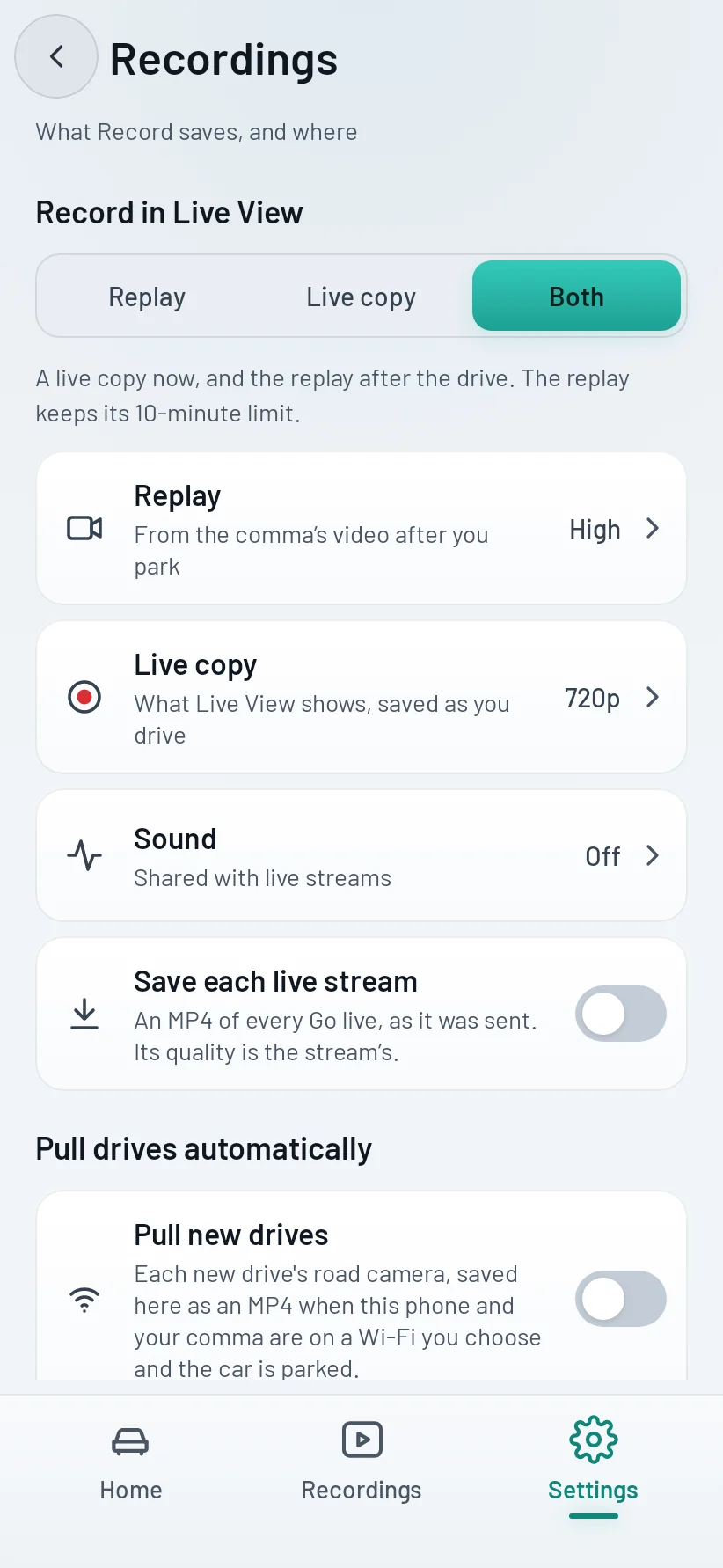
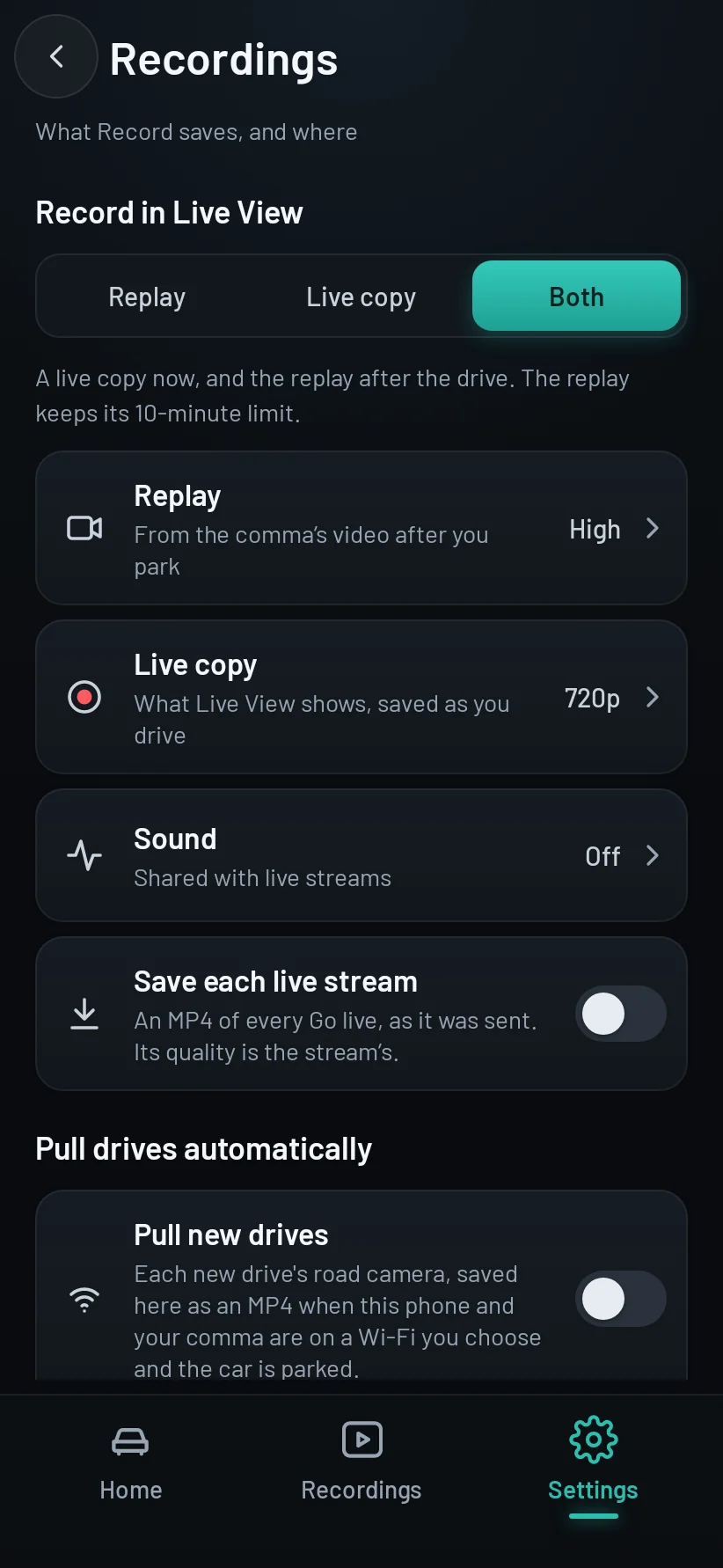
Tap Settings, then Recordings. Under Record in Live View, choose what Record makes. It’s kept as soon as you choose.
Live copy
“What Live View shows, ready the moment you stop. No replay to make and no time limit.”
Both
“A live copy now, and the replay after the drive. The replay keeps its 10-minute limit.” The replay is made once you park, as Record a drive shows.
-
Step 2 of 5: Pick its quality and sound
With a live copy chosen, the page adds its rows. Live copy quality is 720p until you choose 1080p. Sound is off unless you choose a microphone: the comma’s, or this phone’s. It’s the same Sound as Settings › Live streaming.
-
Live copy quality: 720p (about 1.4 GB an hour) or 1080p (about 2.3 GB an hour).
-
Sound: off, the comma’s microphone or this phone’s.
A live copy shows what Live View shows, the driver camera inset too while Driver cam is on. Turn Driver cam off in Live View to keep the driver camera out.
-
-
Step 3 of 5: Tap Record in Live View
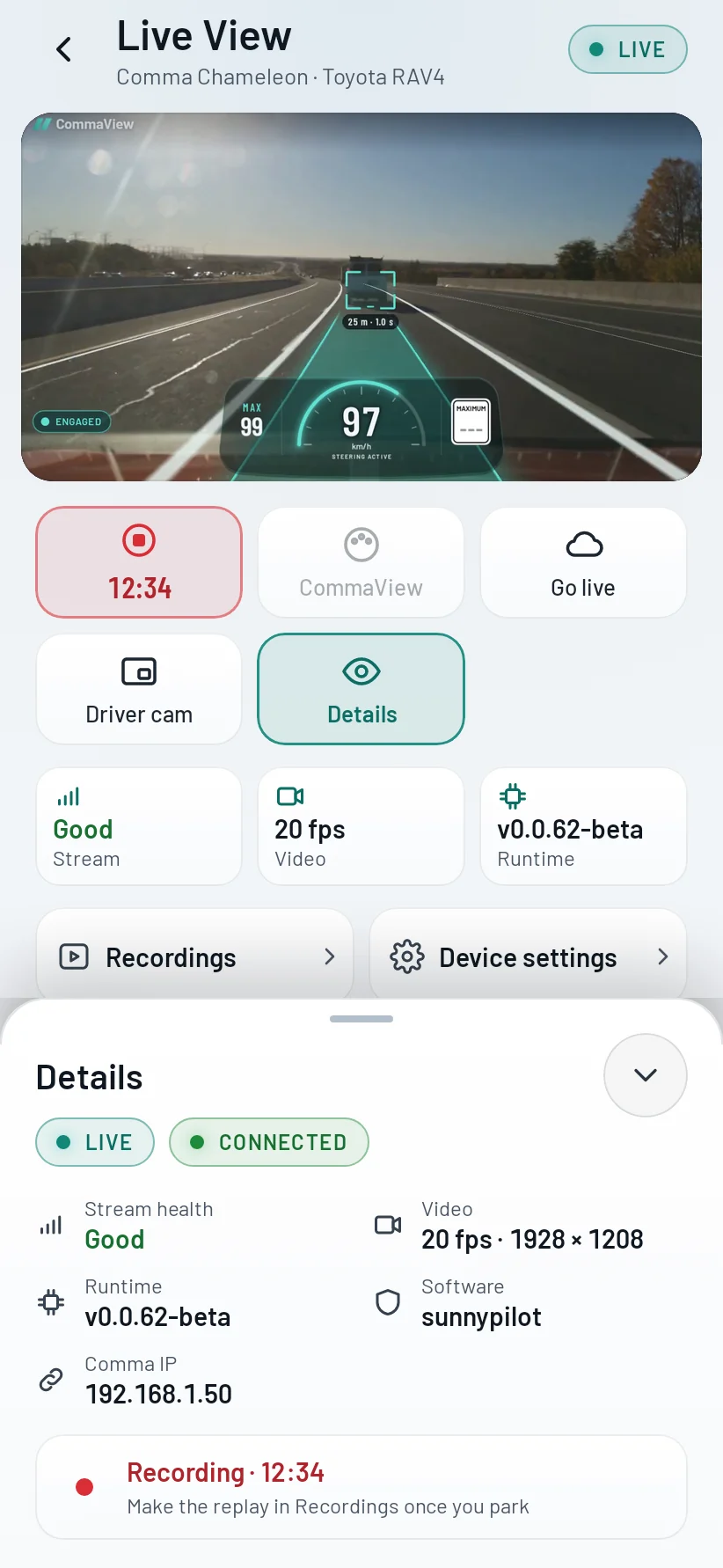
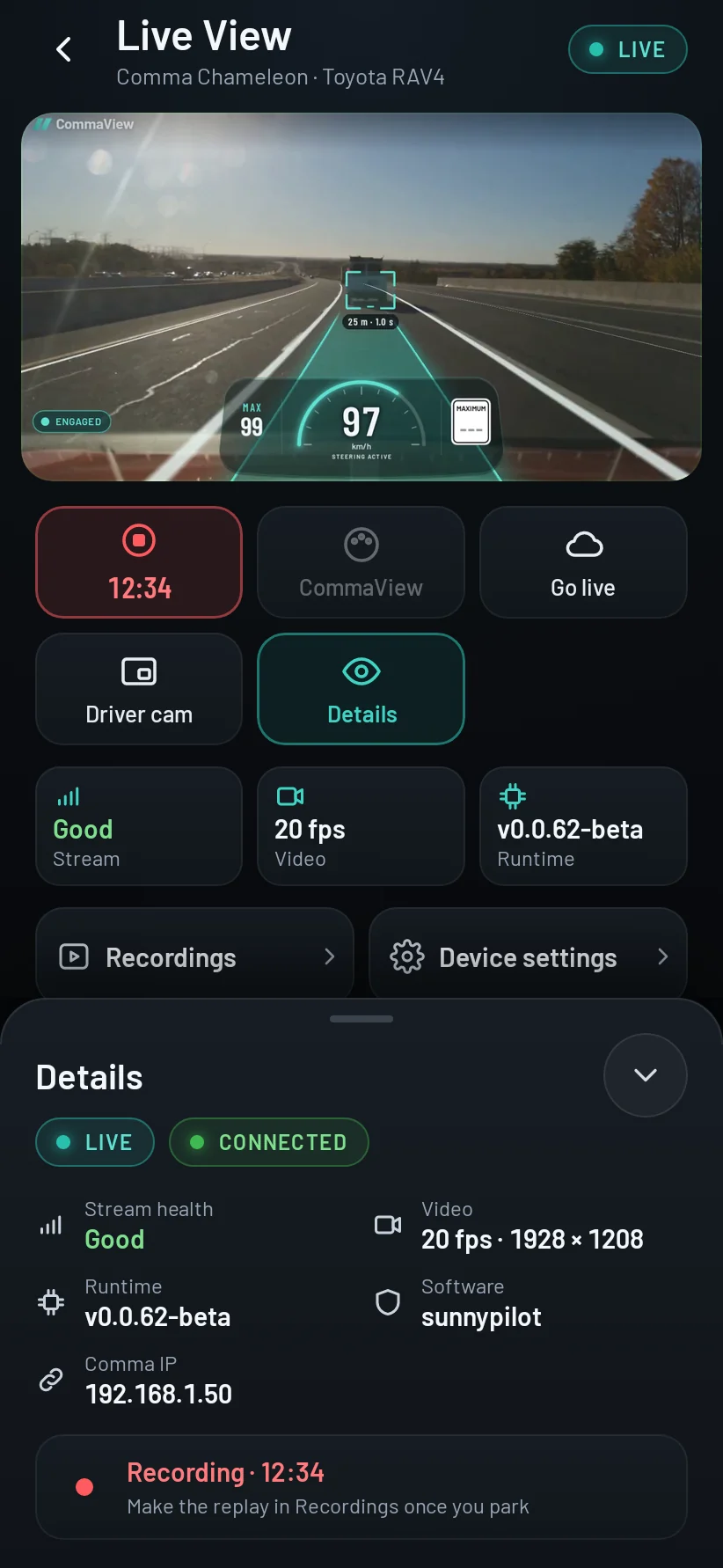
With the car on and still in Park, open Live View and tap Record. Its timer runs, and Details says Recording · and the time, as for any recording. Tap Record again to stop.
It keeps recording while you switch apps or lock the phone, with a notification, Recording a live copy, that has its timer and Stop. Closing Live View ends it.
-
Record, with its timer. Tap it again to stop.
-
Recording · the time, in Details.
Start recording before you drive off, or let a passenger handle it. Don’t tap through CommaView while you drive.
-
-
Step 4 of 5: Find it in Recordings
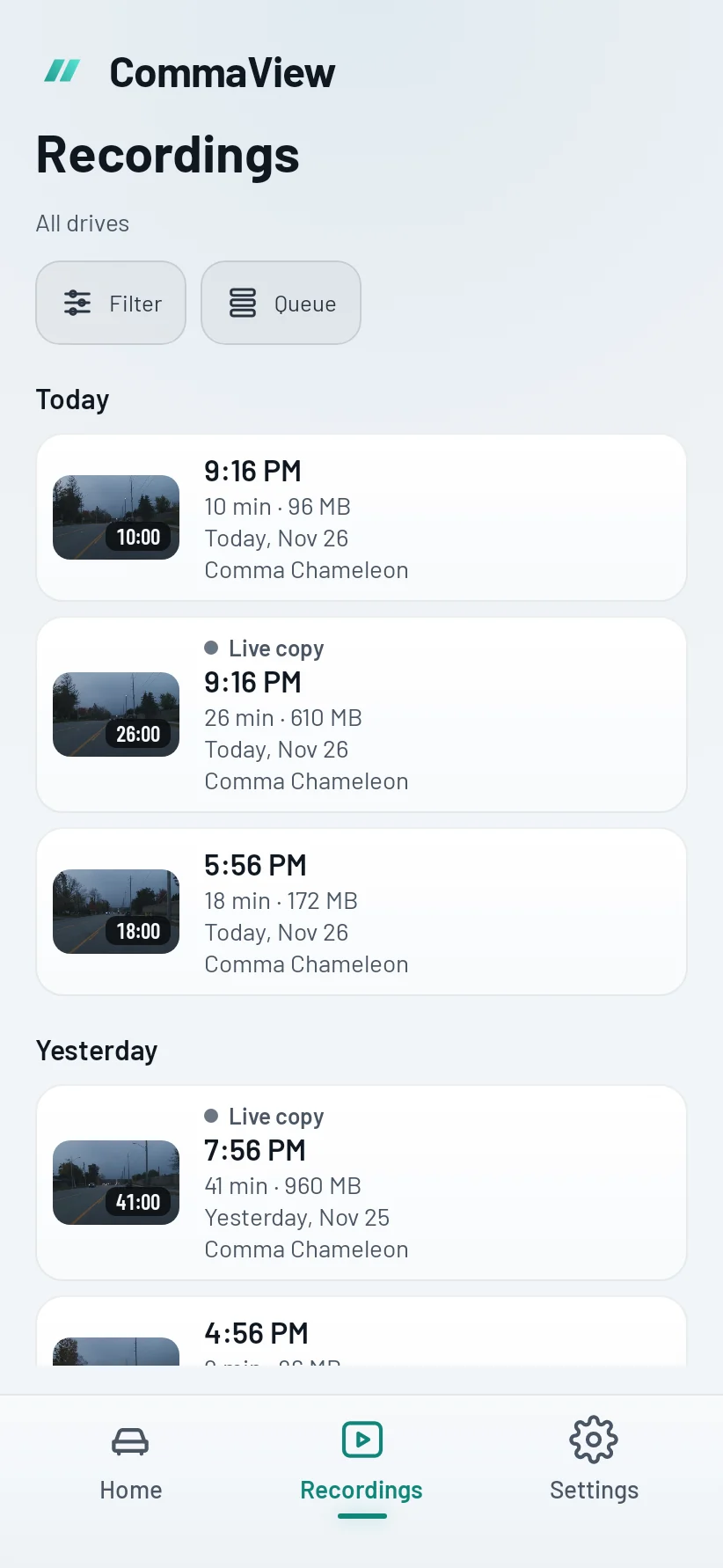
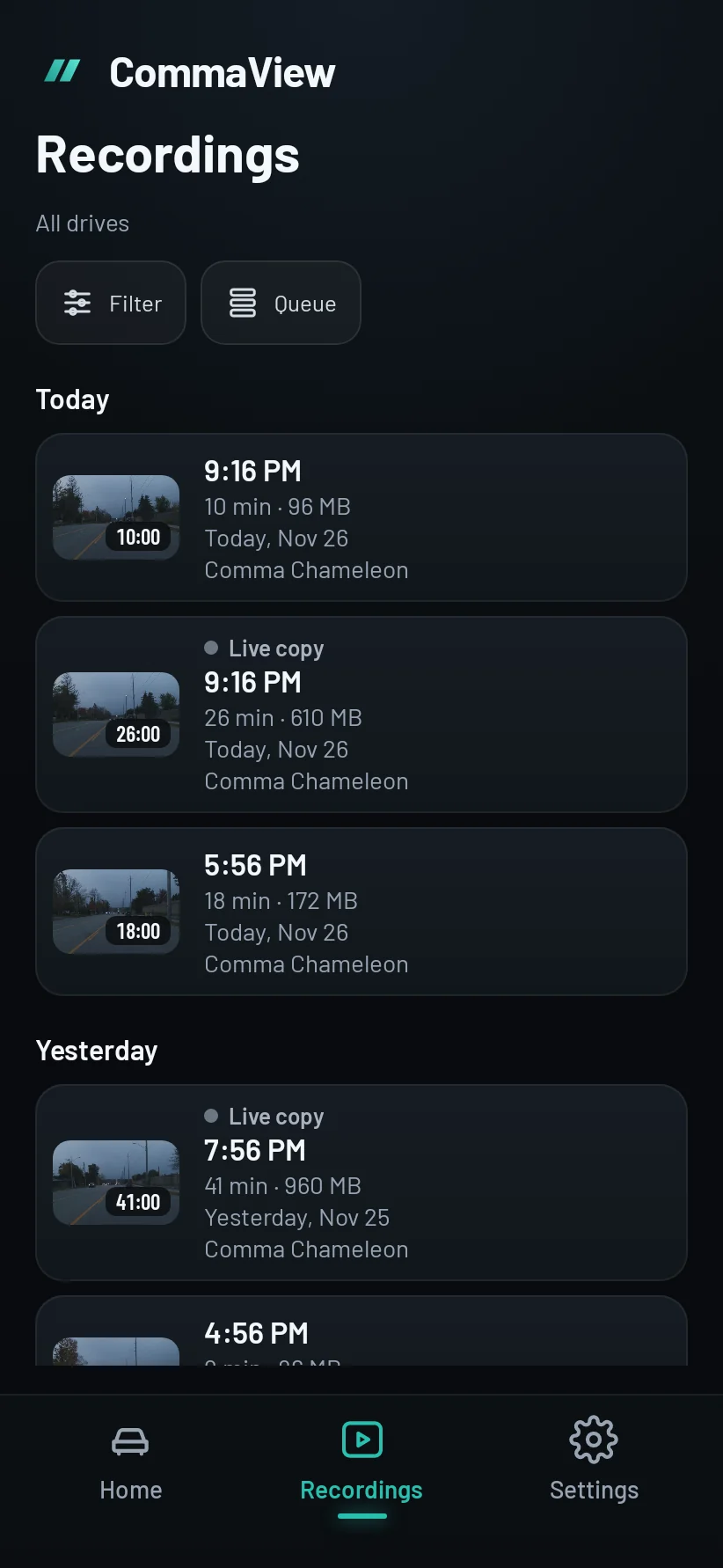
Open Recordings. The copy is flagged Live copy, under the day, with its length and size. For a moment after you stop it says Saving the live copy with how far along it is; then it plays.
With Both, the drive has two rows: the live copy, and the replay, which waits until you make it after you park.
-
The row flagged Live copy.
-
With Both, the drive’s replay, a row of its own.
-
-
Step 5 of 5: Watch, share or delete it
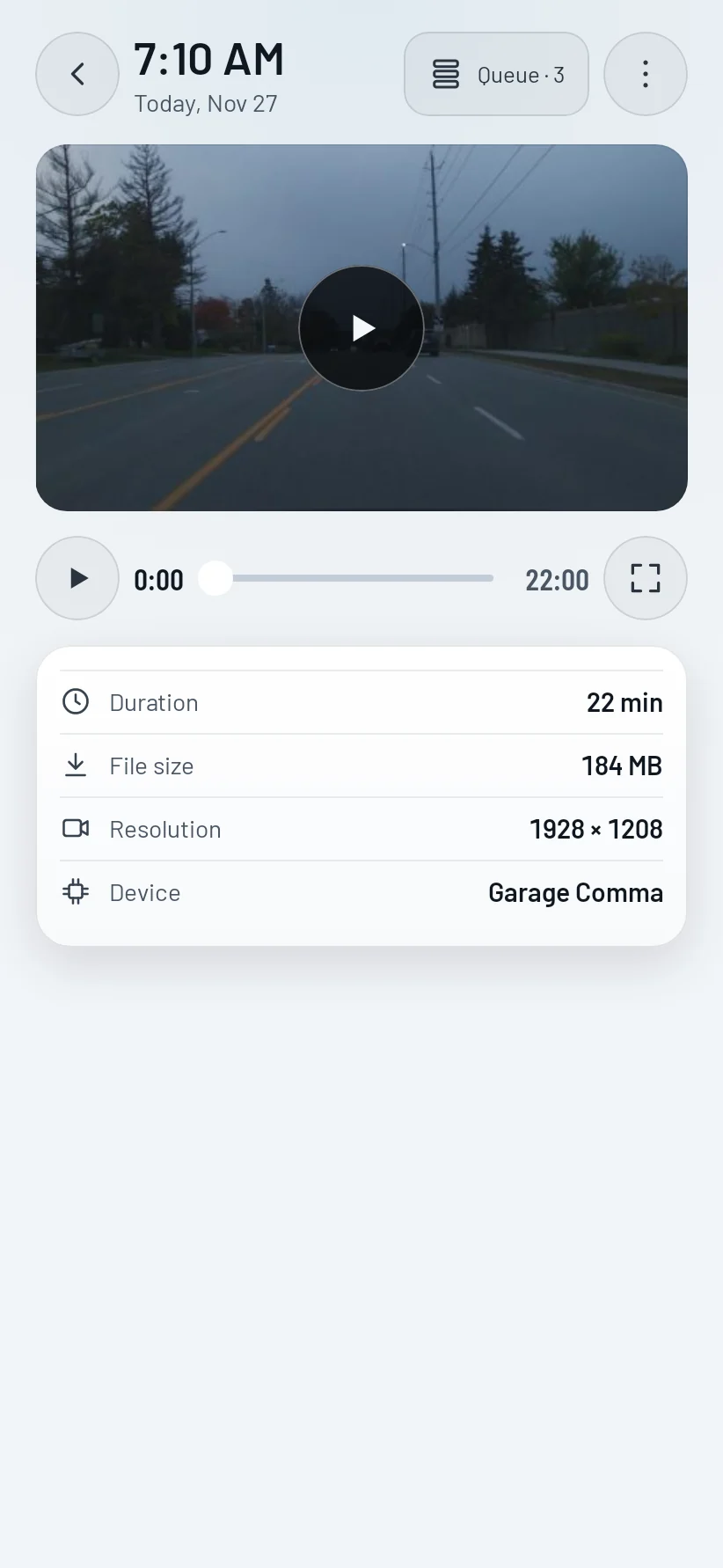
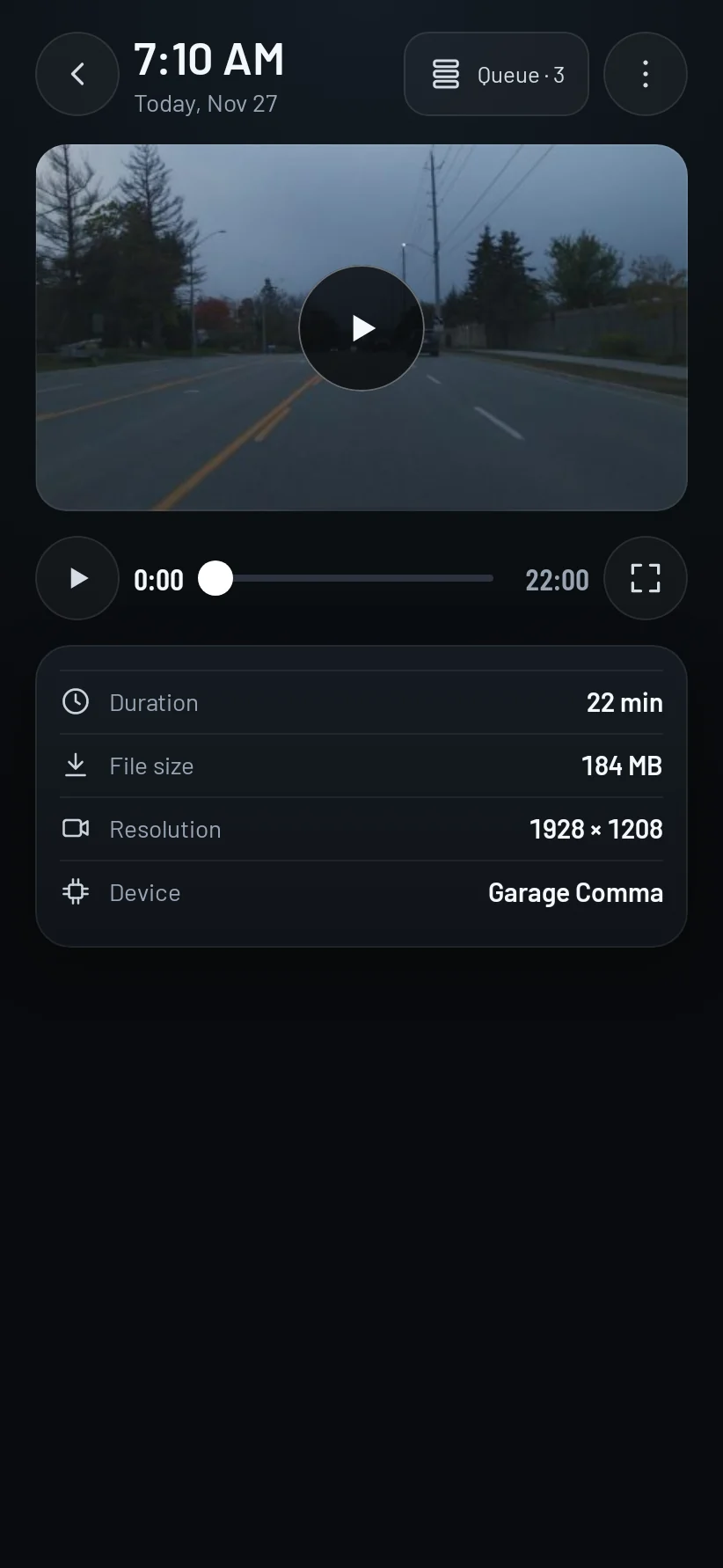
Tap the copy to watch it. Its facts add Version (Live copy, or Live copy · a replay too with Both), Quality and Sound. Recording actions has Share, Open in another app, Select and Delete.
-
Recording actions: Share, Open in another app, Select and Delete.
-
Full screen.
-
How you know it worked
The copy plays in Recordings as soon as it’s saved, and Watch’s Version reads Live copy.
Live copy or replay
| Live copy | Replay | |
|---|---|---|
| What it shows | What Live View showed, as it showed it | The comma’s own video, with the onroad screen drawn over it |
| When it’s ready | The moment you stop | After you park and tap Make replay |
| How long | No limit but storage | Up to 10 minutes a recording |
| Picture | 720p or 1080p, 20 frames a second | The best picture: Balanced, High or Max |
While you’re live
A live copy and Go live share one encoder. A copy started while you stream has the stream’s quality. Settings › Recordings’ Save each live stream keeps an MP4 of every Go live, as it was sent, without Record.
Privacy
Live copies stay on your phone. They’re never uploaded, and never shared with the comma’s other paired phones. Send to CommaView sends the comma’s own data for a drive, never a live copy. Sound is in a copy only when you chose a microphone, and the driver camera only while Driver cam is on.
Safety
Choose your settings and start Record parked. Don’t operate CommaView while driving: keep your eyes on the road and your hands on the wheel, as openpilot asks.
If it doesn’t work
“Not enough space for a live copy: it always leaves 500 MB free on this phone. Delete drives you no longer need in Recordings.”
Delete drives you no longer need, or choose another storage in Settings › Recordings › Storage. The Storage card says about how many hours of live copies fit.
“Live copy stopped: this phone is nearly full. It’s saved in Recordings; it always leaves 500 MB free.”
What was recorded is kept. Free some space before the next drive.
“Live copy stopped: no video from the comma for a minute. What was recorded is saved in Recordings.”
The phone lost the comma for a minute, so the copy ended. Check your phone stays on the comma’s Wi‑Fi or hotspot. See CommaView can’t find your comma.
“This live copy reached 3.5 GB, the most one file holds: it goes on in a new one in Recordings.”
Nothing is lost: the drive goes on in a second live copy, its own row in Recordings.
“The replay stopped at its 10-minute limit. The live copy keeps recording.”
With Both, only the replay stops at 10 minutes. The live copy goes on until you stop it.
“Recording a live copy only. The replay couldn’t start: …”
With Both, the copy records while the replay half can’t, for example while the comma needs a reboot or this phone isn’t paired with it. The message says why.
The row says “Needs 1.2 GB free to save”
The copy’s pieces are kept until there’s room to join them into one video. Delete drives you no longer need, and it saves by itself.
Its Saved fact says “Recovered after the app closed: its last minute may be missing”
The app closed while it recorded, so the copy was put together from what was written: everything but up to the last minute.
“CommaView can keep streaming and recording only while it’s on screen: Android didn’t let it run in the background.”
Android stopped CommaView from running in the background. Keep Live View on screen while you record.
Did this guide get you there?
Tell us what’s missing