
All guides · Troubleshooting
Guide · Troubleshooting
CommaView can’t find your comma
CommaView talks to your comma directly over your local network, with no cloud service in between. When it can’t find it, your phone and the comma are almost always on different networks, the comma is asleep with the car off, or its address changed. Check those first, then its pairing.
Before you start
- The car on
The comma sleeps when the car is off. Switch the car on, in Park.
- One network
Your phone on the same Wi‑Fi as the comma, or on its hotspot. In the car: connect in the car.
Steps
Tick each step off as you go. The first time, do it parked.
-
Step 1 of 6: See what Home says
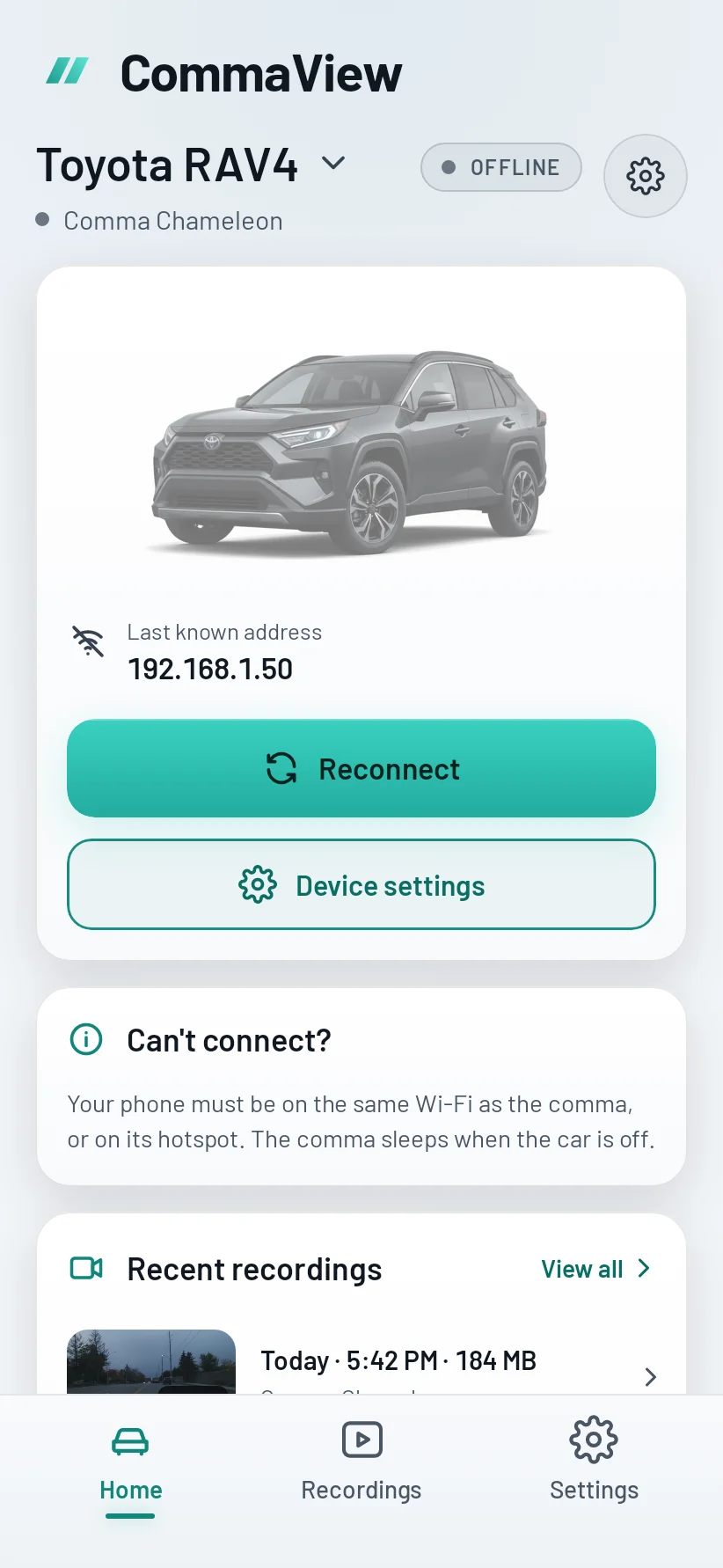
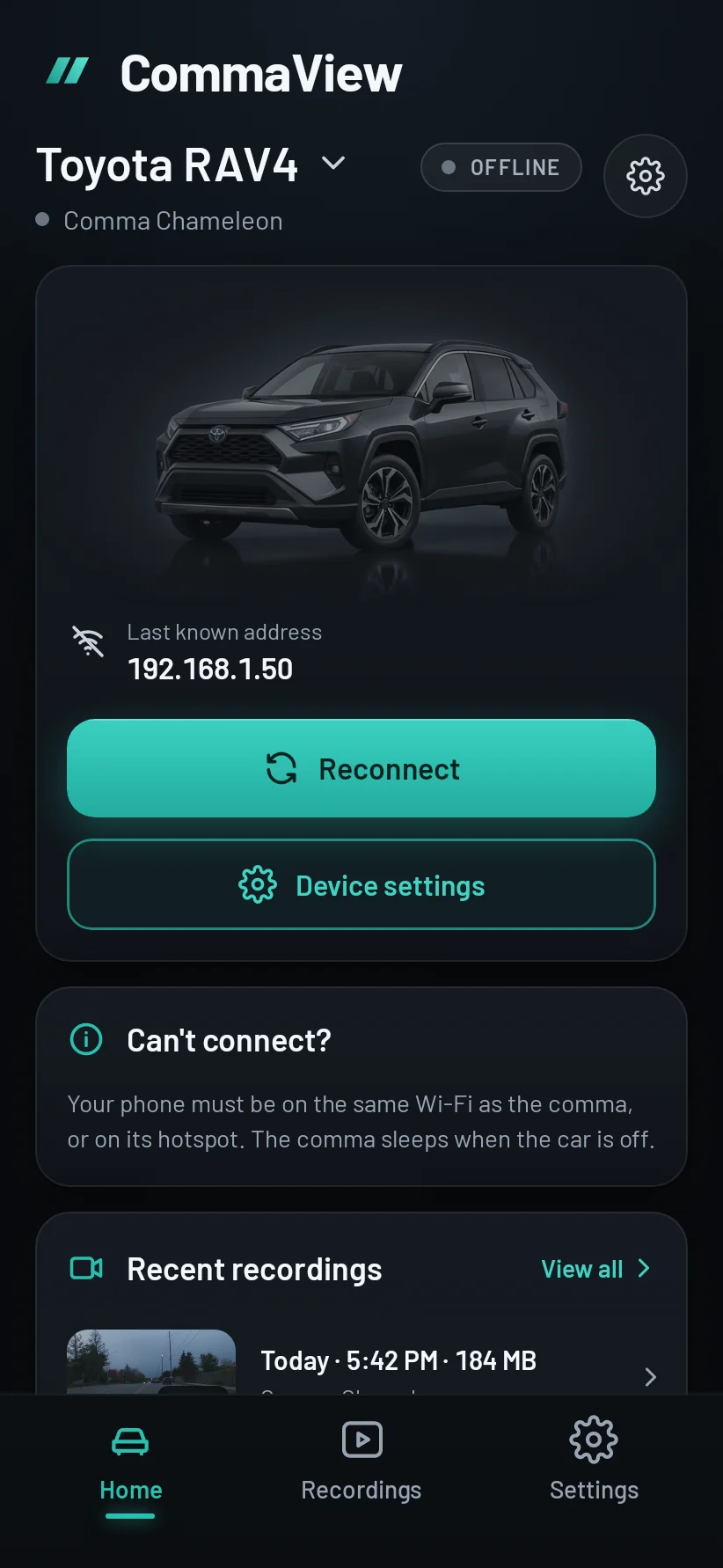
When your phone can’t reach the comma, Home shows it Offline, with Reconnect, and a Can’t connect? card: “Your phone must be on the same Wi-Fi as the comma, or on its hotspot. The comma sleeps when the car is off.”
Check both, then tap Reconnect.
-
Reconnect.
-
The Can’t connect? card.
-
-
Step 2 of 6: In Live View: wait, or retry
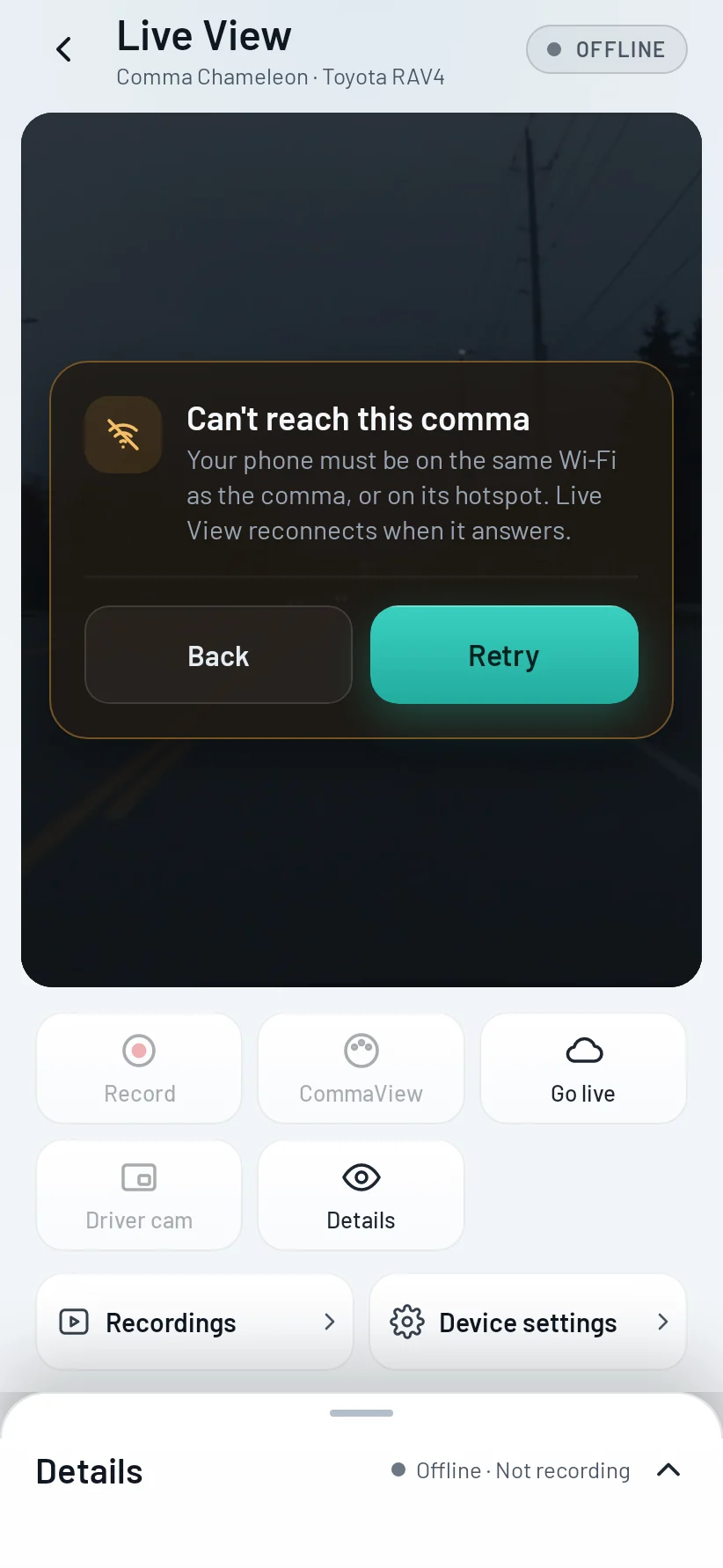
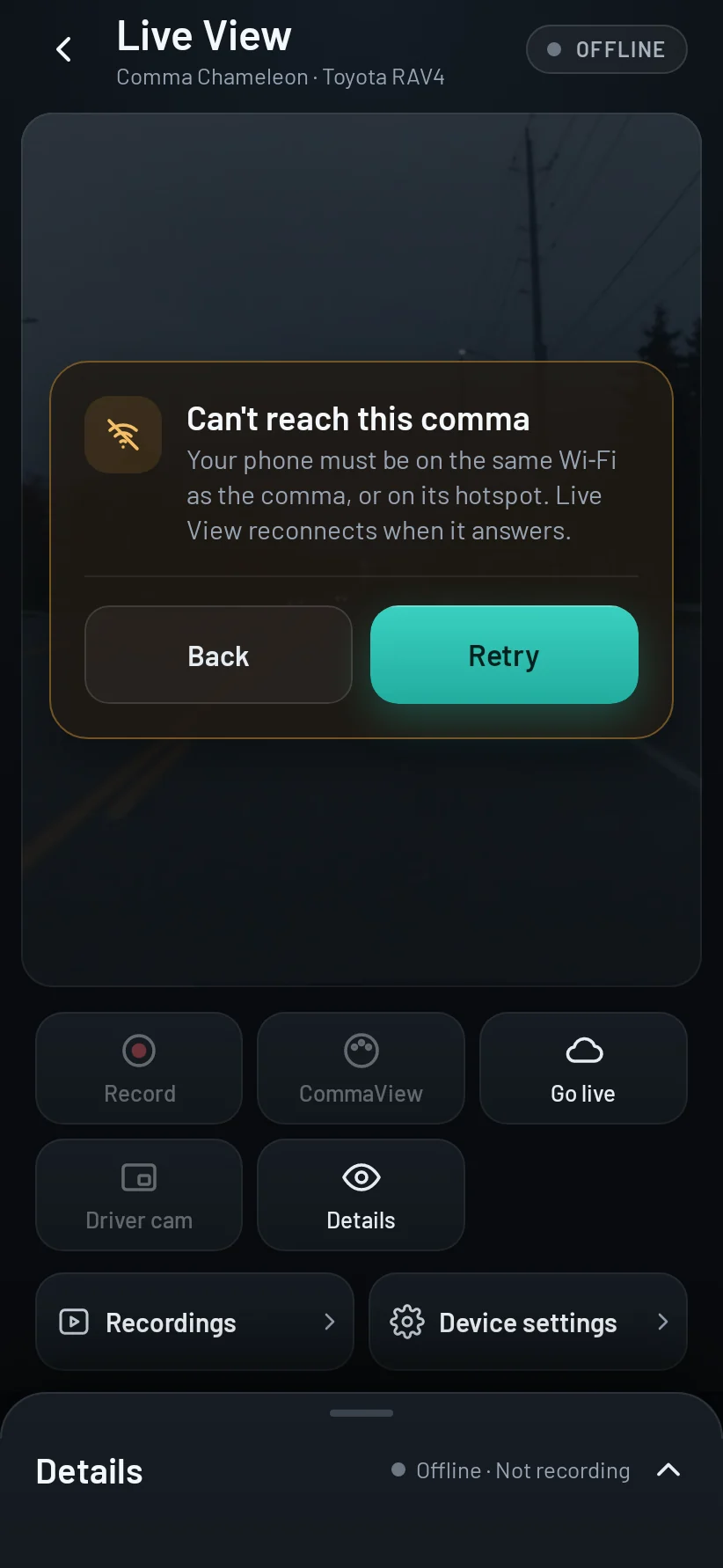
Live View says why it stopped. Can’t reach this comma means your phone can’t reach it on the network. It reconnects by itself when the comma answers; Retry tries again now.
-
Can’t reach this comma: why Live View stopped.
-
Retry.
-
-
Step 3 of 6: Check your phone’s network
Open your phone’s Wi‑Fi settings and check it’s joined to the network the comma is on: the same home Wi‑Fi, your phone’s hotspot with the comma joined to it, or the comma’s own hotspot.
- A phone that left a Wi‑Fi without internet for mobile data can’t reach the comma. Join it again.
- A VPN on your phone can send its traffic elsewhere. Turn it off and try again.
- Some hotspots keep the devices on them from reaching each other. Try another network, such as the comma’s own hotspot.
Android’s Wi‑Fi and hotspot settings aren’t pictured: they look different on each phone.
-
Step 4 of 6: Check the comma’s address
The comma gets a new address when it joins another network, or a router gives it a new one. CommaView finds it again by itself when it sees it on the network; if it doesn’t, save its address yourself.
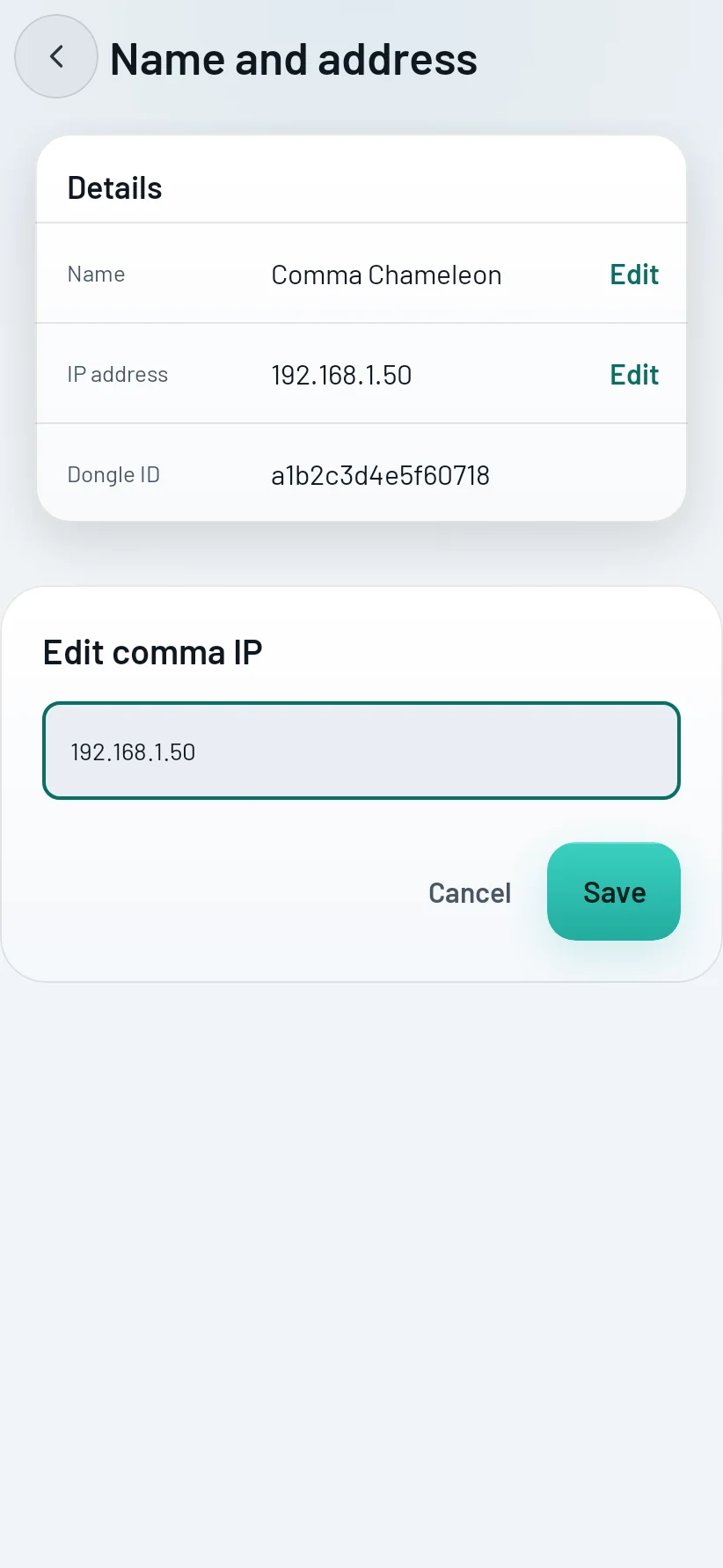
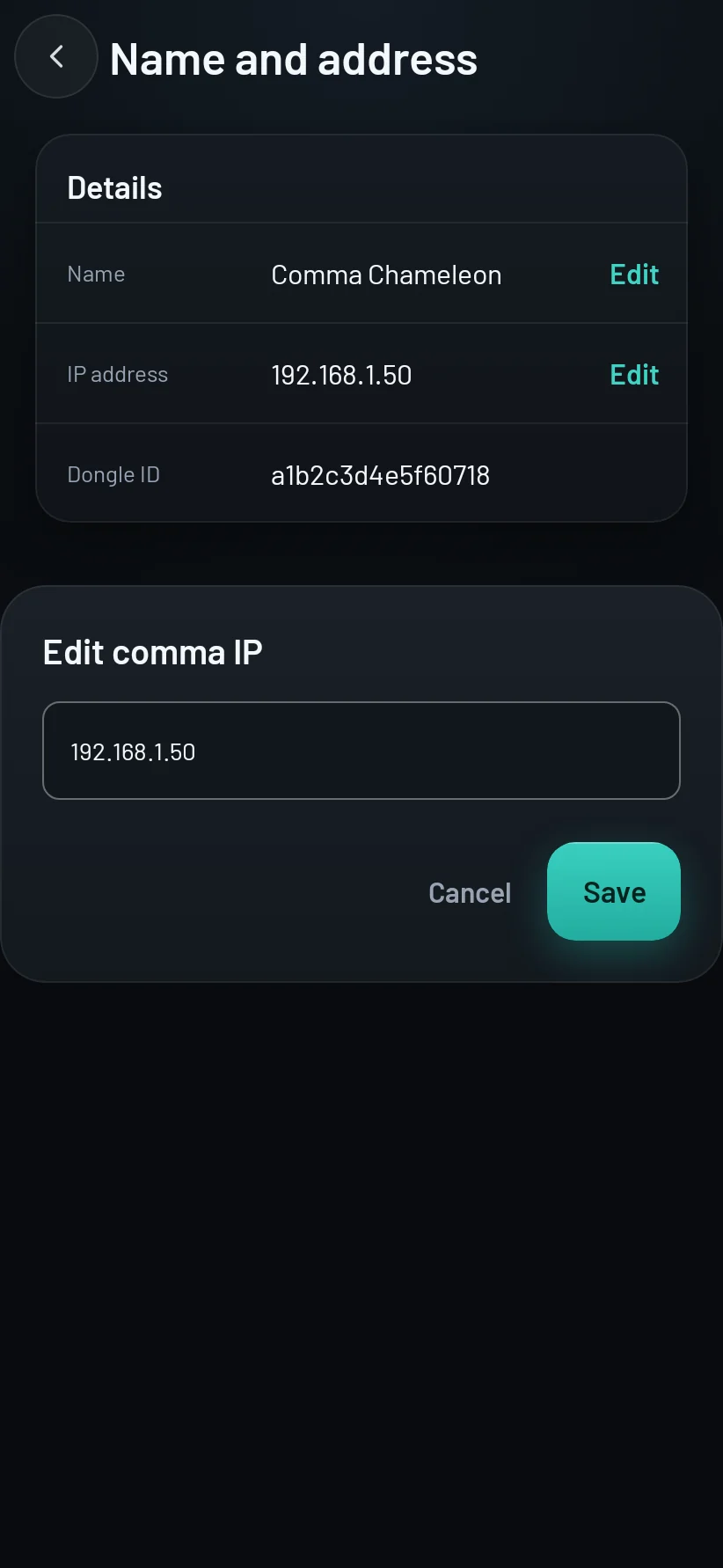
On the comma, find its IP address under Settings → Network. In CommaView, open Device settings from Home, tap Change the name or address, then edit IP address, type the comma’s address and tap Save.
-
The comma’s IP address.
-
Save.
-
-
Step 5 of 6: Still not found? Add it again
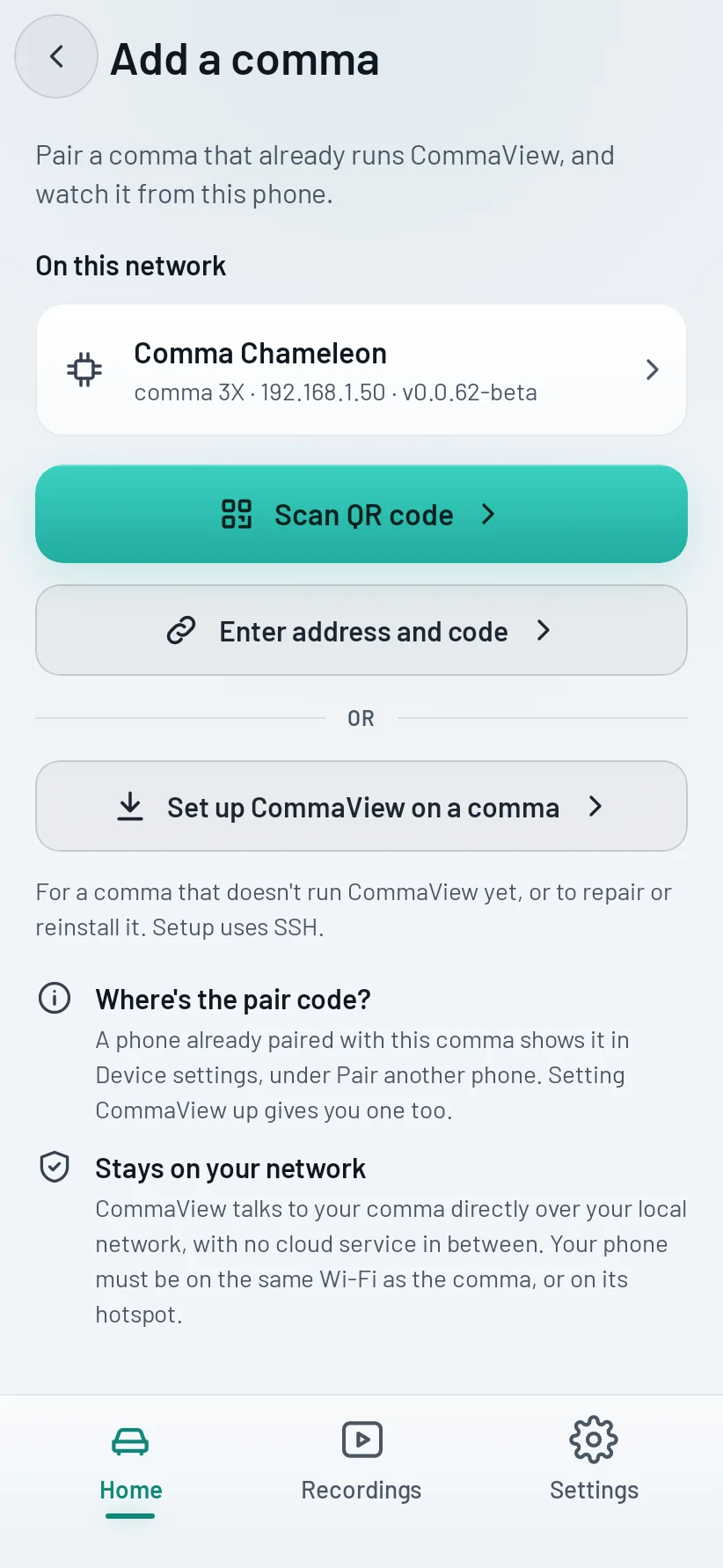
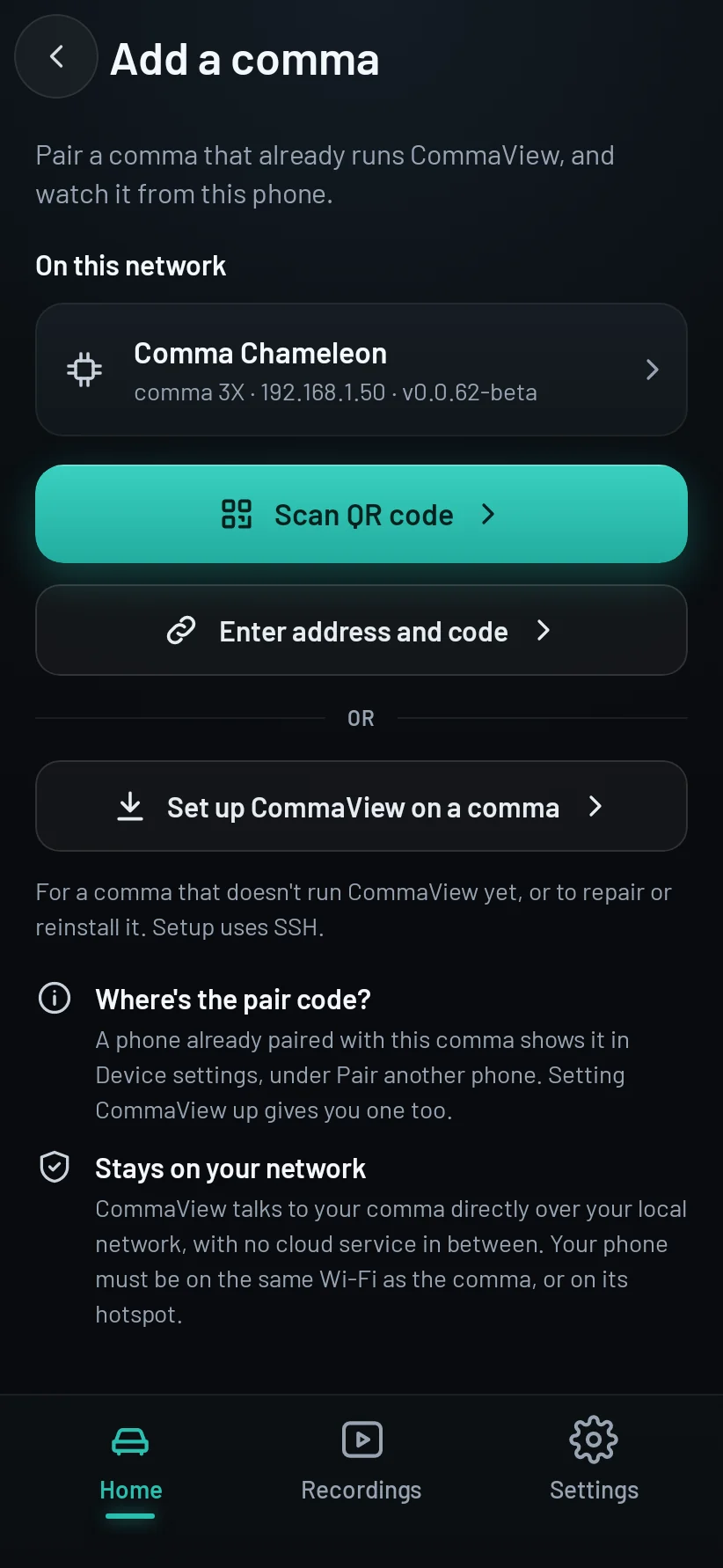
On Home, tap Add a comma. On this network lists commas that run CommaView on your phone’s network: tap yours. If it isn’t there, tap Enter address and code, or Scan QR code on a phone already paired with it.
-
On this network: a comma found nearby.
-
Enter address and code.
-
Scan QR code.
-
-
Step 6 of 6: Pair with its address and a fresh code
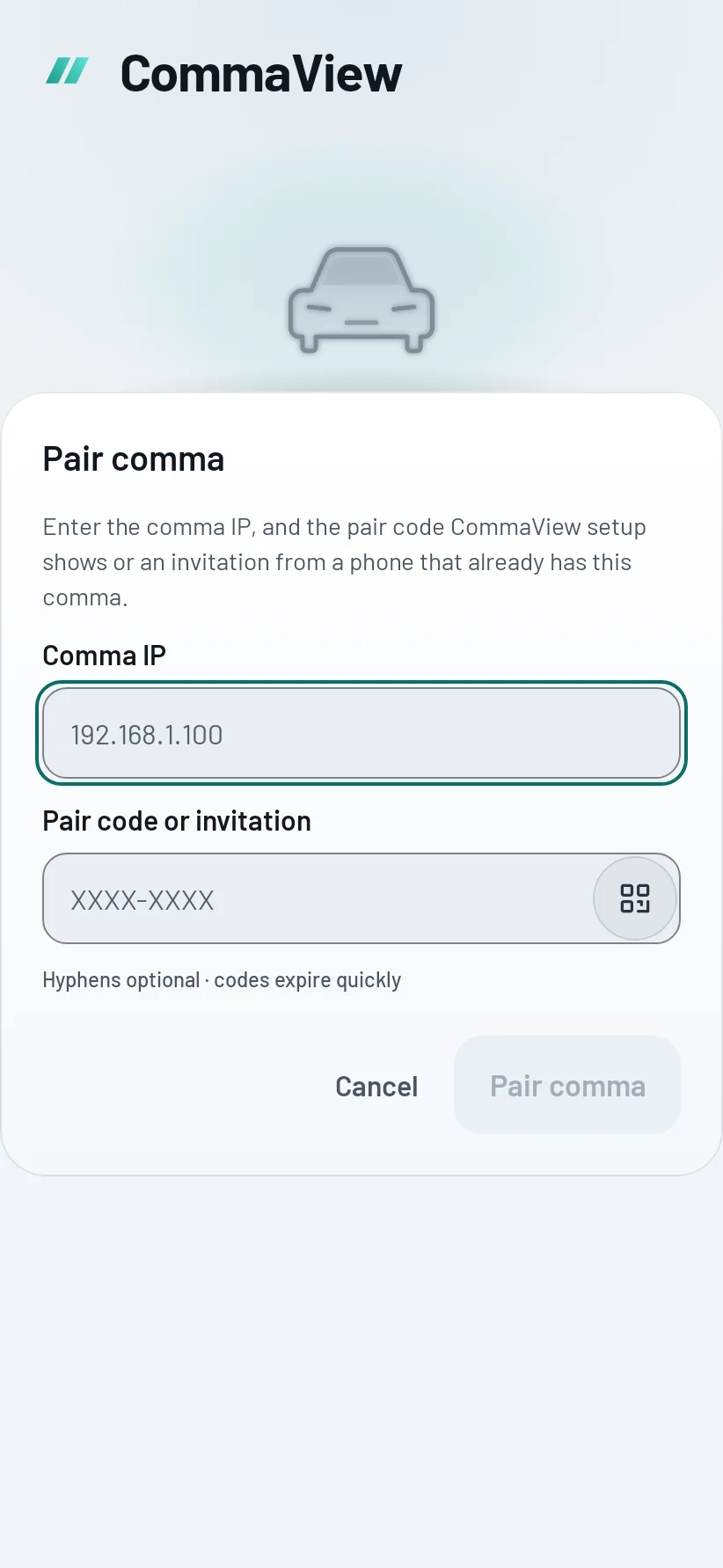
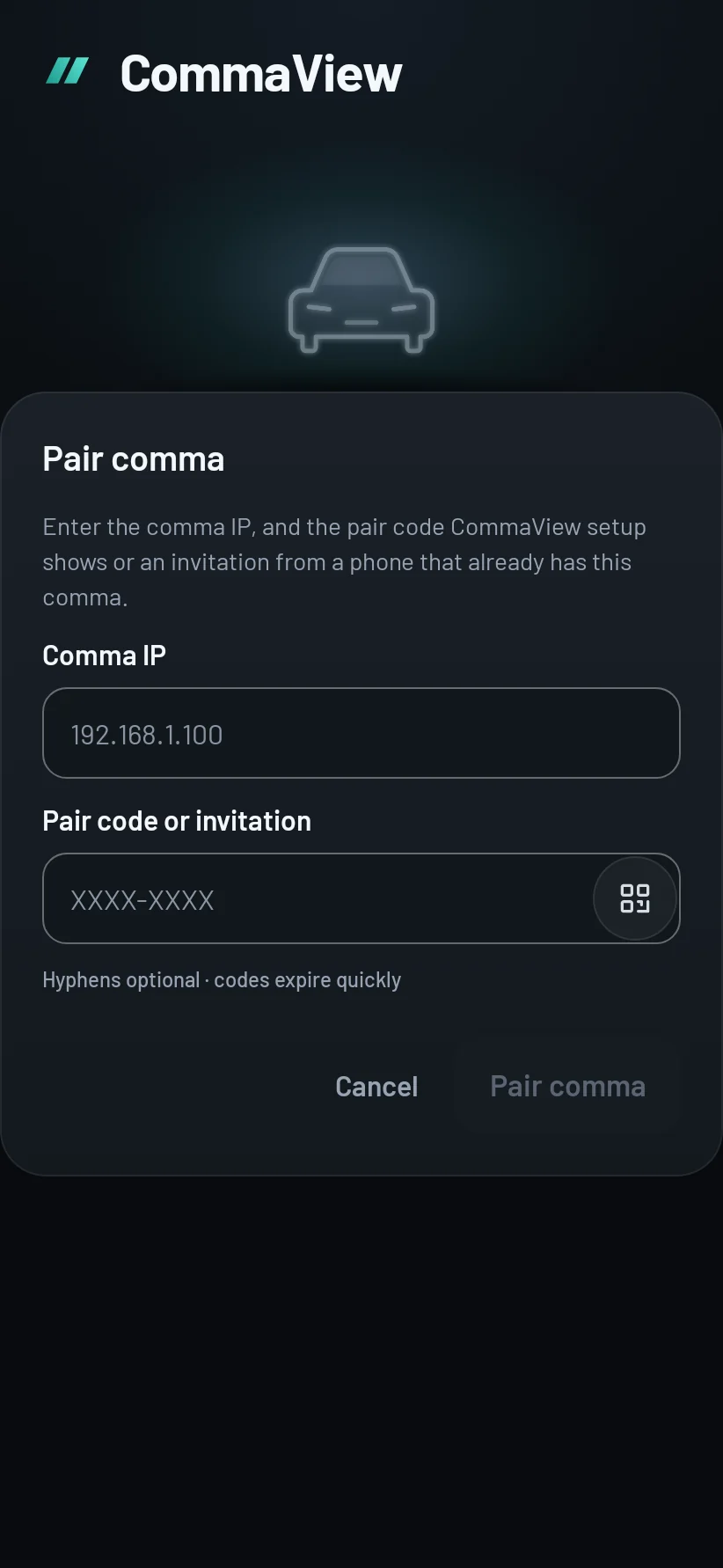
Type the comma’s IP and a pair code or an invitation, then tap Pair comma. Codes expire quickly: a phone already paired with the comma shows a fresh one in Device settings, under Pair another phone or tablet.
-
The comma’s IP.
-
Pair code or invitation.
-
Pair comma.
If typing its address works but the comma never shows up by itself, the network is hiding CommaView’s discovery. That’s fine: the address is what matters.
-
How you know it worked
Home shows your comma Connected, and Open Live View opens the picture.
How CommaView finds a comma
- Discovery finds commas that run CommaView on your phone’s network, so you don’t type addresses. Some networks block it.
- The address is what CommaView connects to. Typing it works whether discovery does or not.
- Pairing gives your phone a key of its own for the comma, with a short-lived code. Discovery and pairing are separate: a comma your phone can reach still needs to be paired.
- A saved comma is known by its identity, not only its address, so when it shows up at a new address CommaView updates the saved one.
Safety
Check networks and pair parked. Don’t tap through CommaView while driving.
If it doesn’t work
“Can’t reach this comma”
“CommaView isn’t answering”
The comma answers, but CommaView on it doesn’t. It may be restarting on the comma: Live View reconnects when it’s back. If it stays, reboot the comma, parked.
“No video from this comma”
It answers, but its video didn’t come back. Retry, or go back and check the comma: openpilot may still be starting.
“Live View is open on another device”
This comma streams to one phone or head unit at a time. Go back to Home in CommaView on the other one, and Live View starts here by itself.
“The comma didn’t answer in time.”
A weak or busy link. Check your phone is on the comma’s Wi‑Fi or hotspot, closer to it if you can, then retry.
“The comma refused the connection. CommaView may be restarting on it.”
Wait a moment for it to come back, then retry.
“Car data isn’t coming through”
The video arrives, but the car’s speed, signals and alerts don’t. Reboot the comma to fix it.
“Pairing failed: pair code expired. Generate a new code and try again.”
Get a fresh code from a phone already paired with the comma, under Device settings › Pair another phone or tablet, and pair again.
“Pairing failed: invalid pair code. Check the code or scan the QR.”
Check the code you typed (hyphens are optional), or scan its QR code instead.
“Update this comma’s runtime” or “Update CommaView”
This app and the comma’s runtime are too far apart to talk. Update whichever it names: the runtime from Device settings (Update the runtime), or the app.
“Can’t read your saved commas”
The commas saved on this phone couldn’t be read, so none are shown. They haven’t been deleted. Try again, or Start over and pair each comma again: the old list is kept for at least 90 days.
Did this guide get you there?
Tell us what’s missing