
All guides · Navigation
Guide · Navigation
Navigate with your own Stadia Maps key
Navigation guides you to a place in Live View. Search for it on Home with Where to?, pick a route, tap Start, then follow the turn card and spoken prompts. Routes come from Stadia Maps on your own key, which stays sealed on your phone. Guidance is display only and never controls the car.
Before you start
- Signed in
CommaView 0.0.167 or later, signed in with your beta account. Navigation isn’t offered signed out.
- A Stadia Maps key
An API key from your own Stadia Maps account. Routes are asked for under your account and its terms.
- Vehicle location on
Guidance follows your comma’s GPS. Turn on Vehicle location for your comma on Home.
- Internet on your phone
For searches and routes. They go over mobile data when the comma’s Wi‑Fi has no internet.
How it works
Where to?
Finds places near your comma, from OpenStreetMap’s data (Photon).
Stadia Maps
Plans the routes, asked by your phone with your key. Nothing goes through CommaView.
Live View
Guides you from your comma’s position: the turn card, the map and spoken prompts.
Steps
Tick each step off as you go. The first time, do it parked.
-
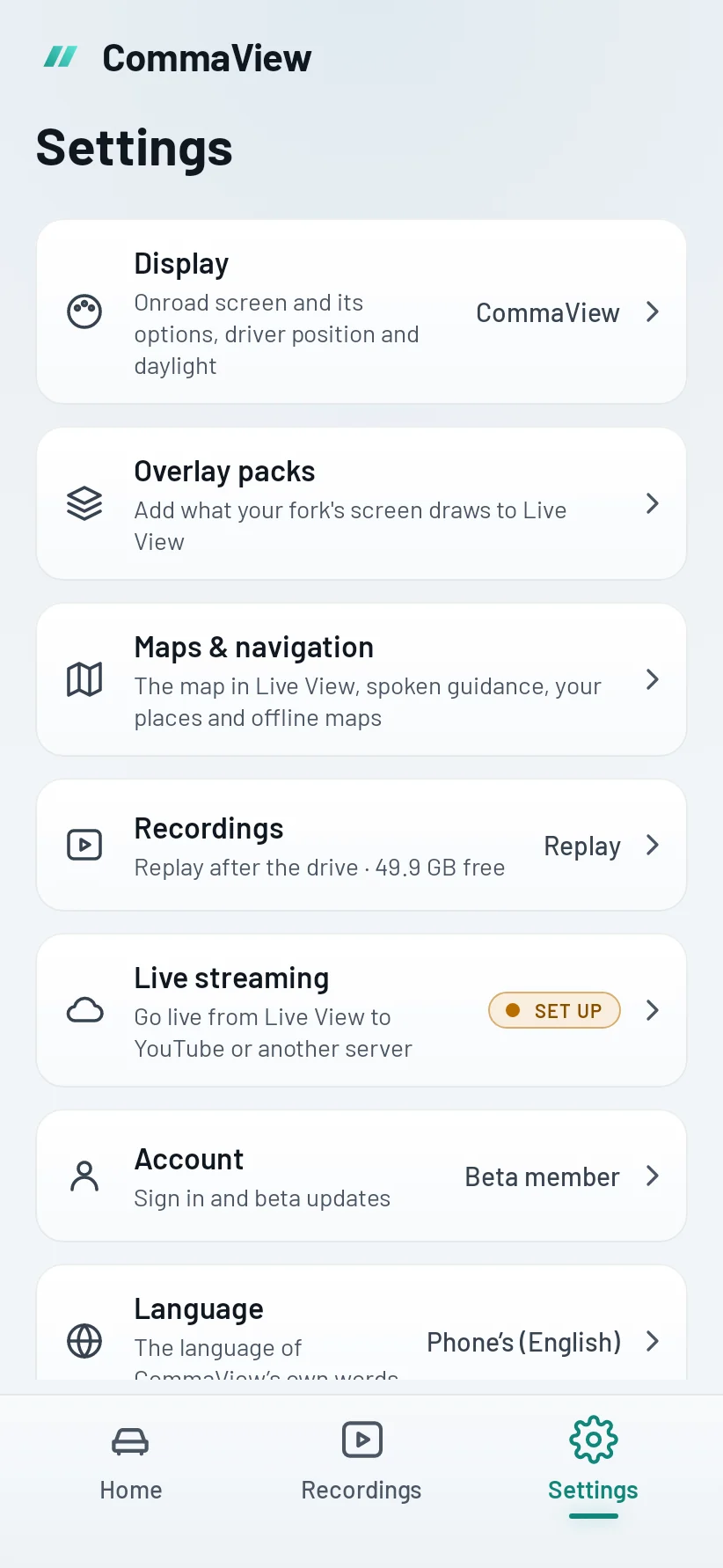
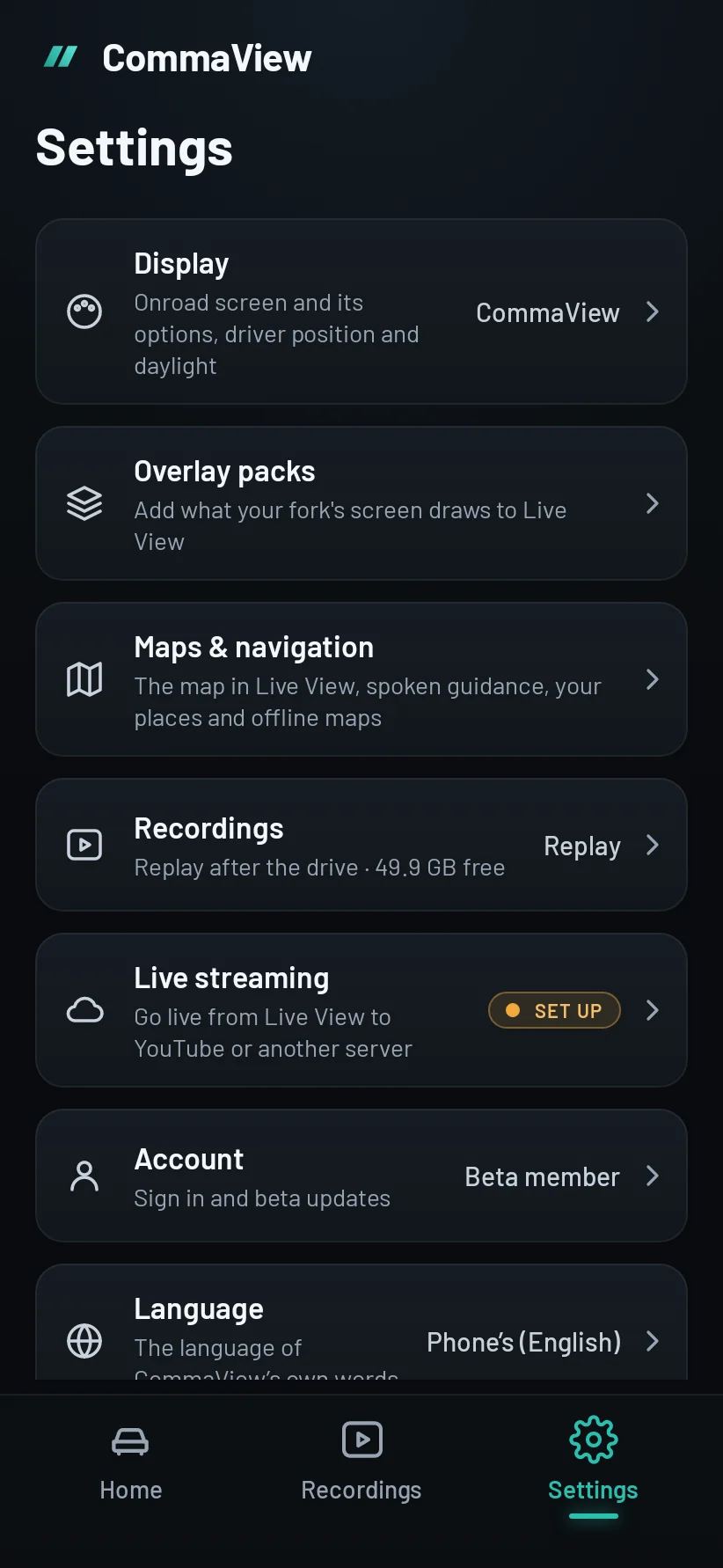
Step 1 of 8: Open Maps & navigation
Tap Settings, then Maps & navigation. Signed in, it’s the row where Offline maps used to be.
-
Maps & navigation.
-
-
Step 2 of 8: Get a key from Stadia Maps
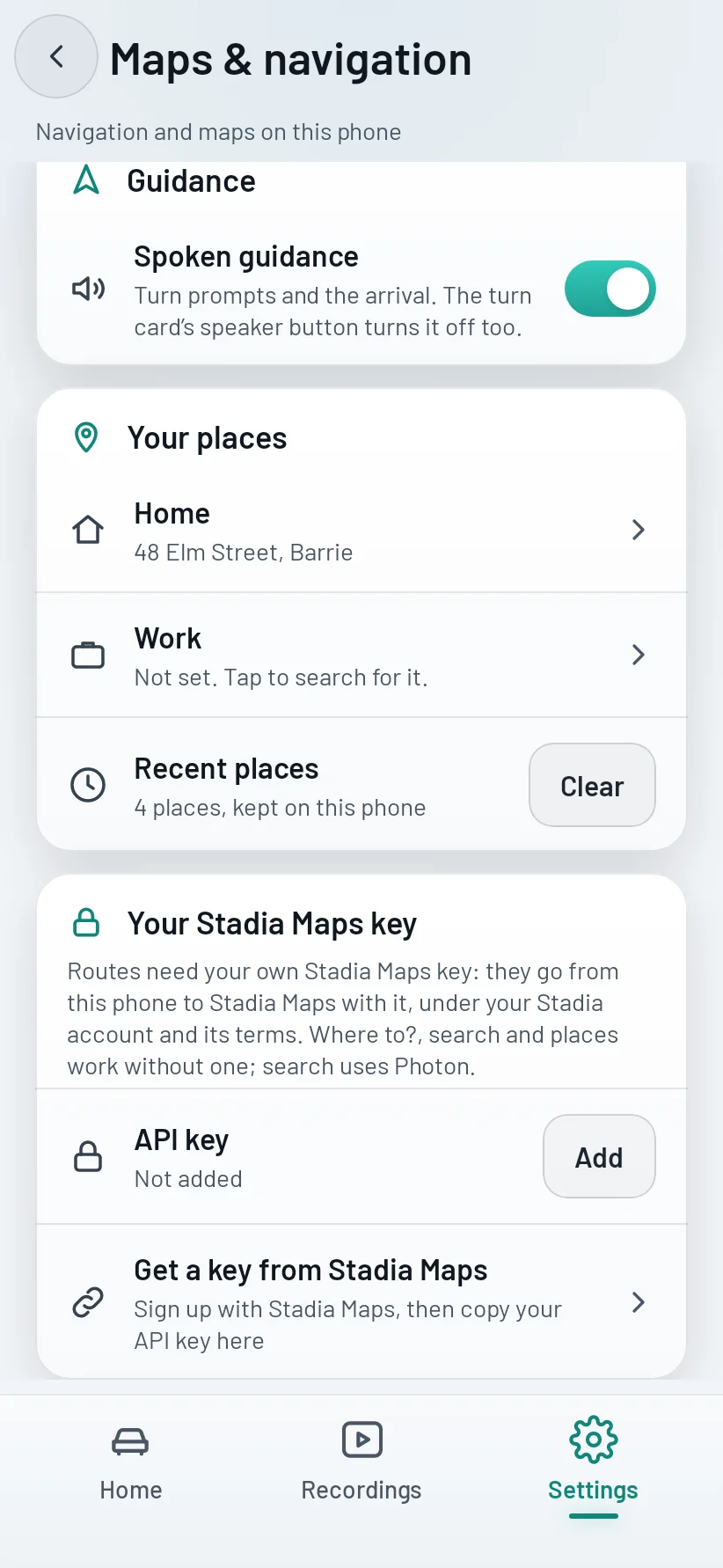
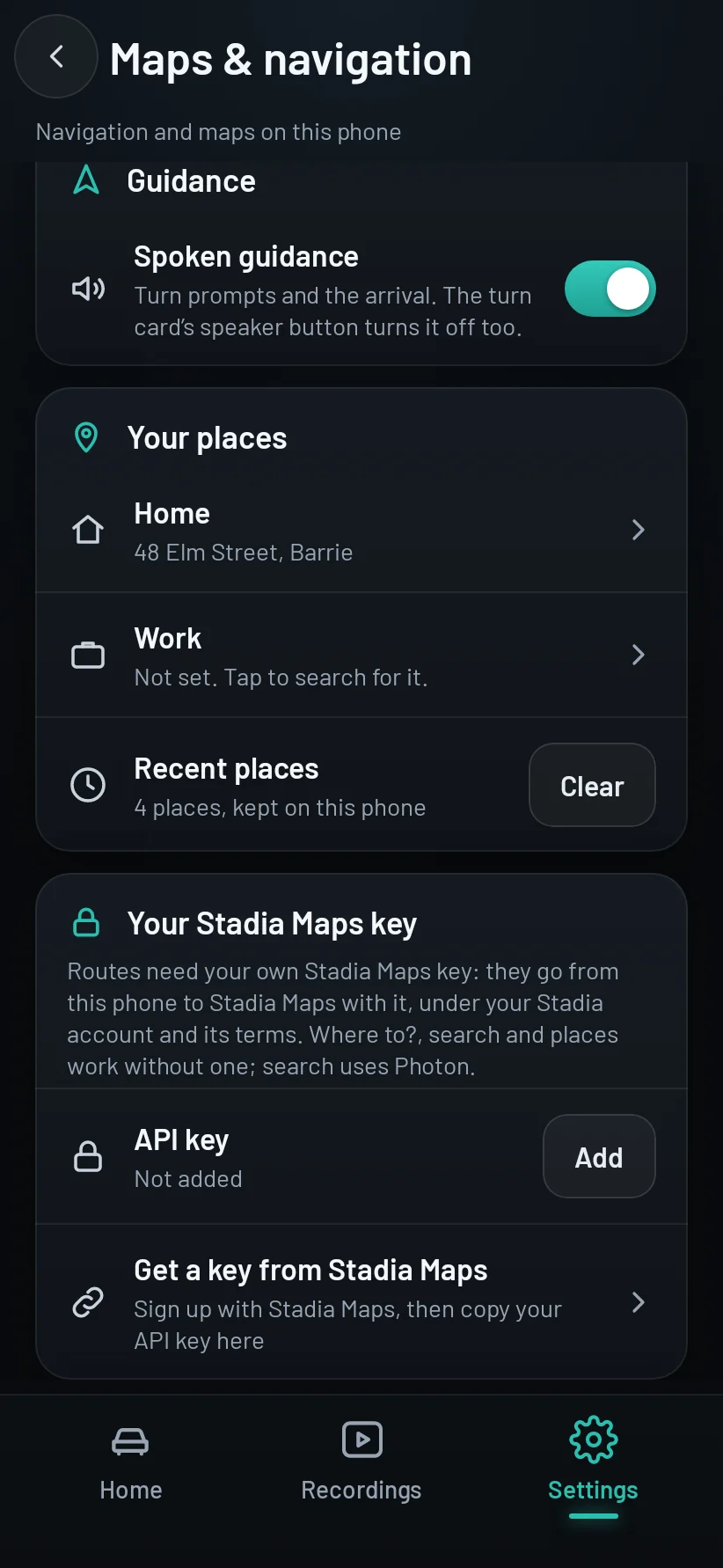
Under Your Stadia Maps key, API key says Not added. Tap Get a key from Stadia Maps: it opens Stadia’s sign-up in your browser. Sign up, then copy your API key from your Stadia Maps dashboard.
-
Your Stadia Maps key: “Routes need your own Stadia Maps key…”
-
Get a key from Stadia Maps opens Stadia’s sign-up.
-
Add, once you’ve copied your key.
Stadia’s site isn’t pictured: it’s theirs. Its dashboard shows your key’s use, plan and limits.
-
-
Step 3 of 8: Paste it, then Check and save
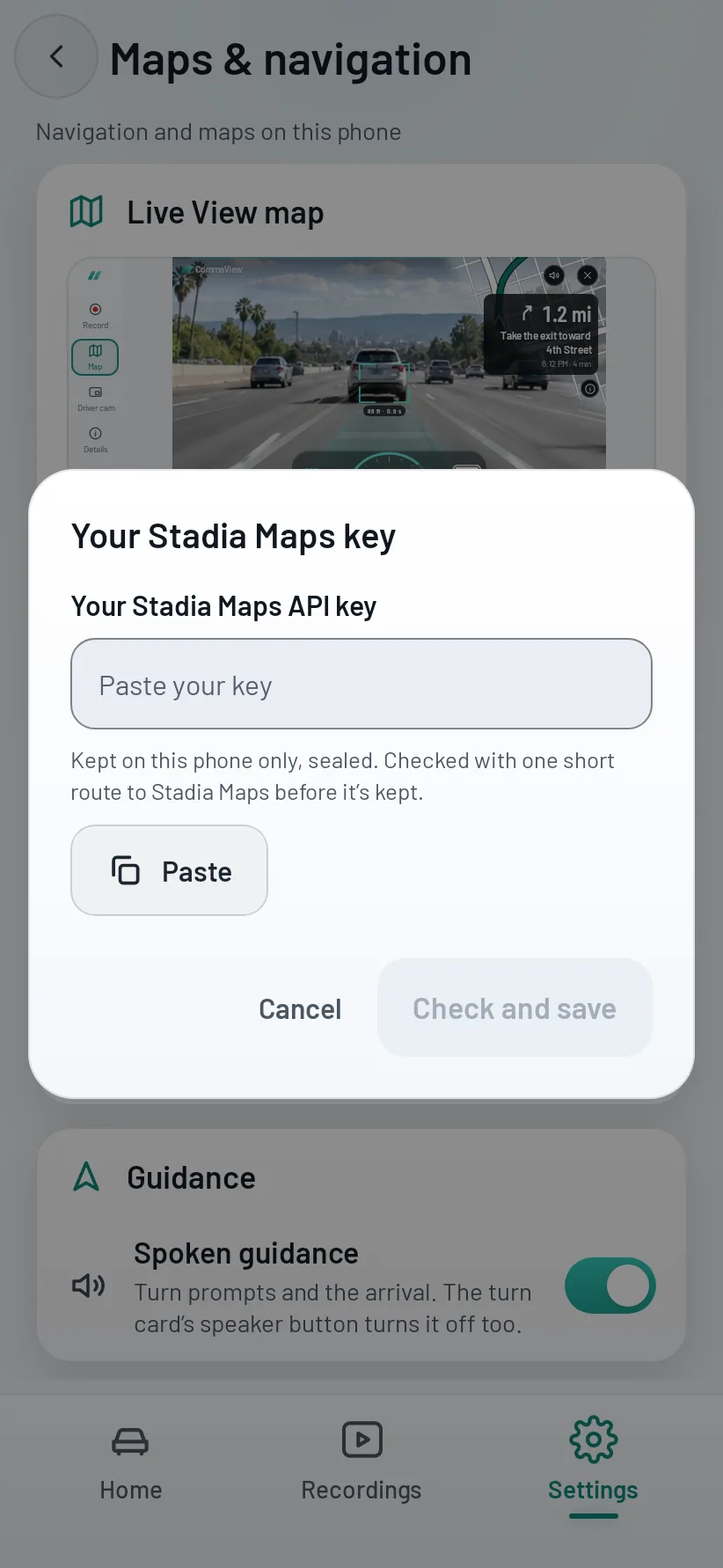
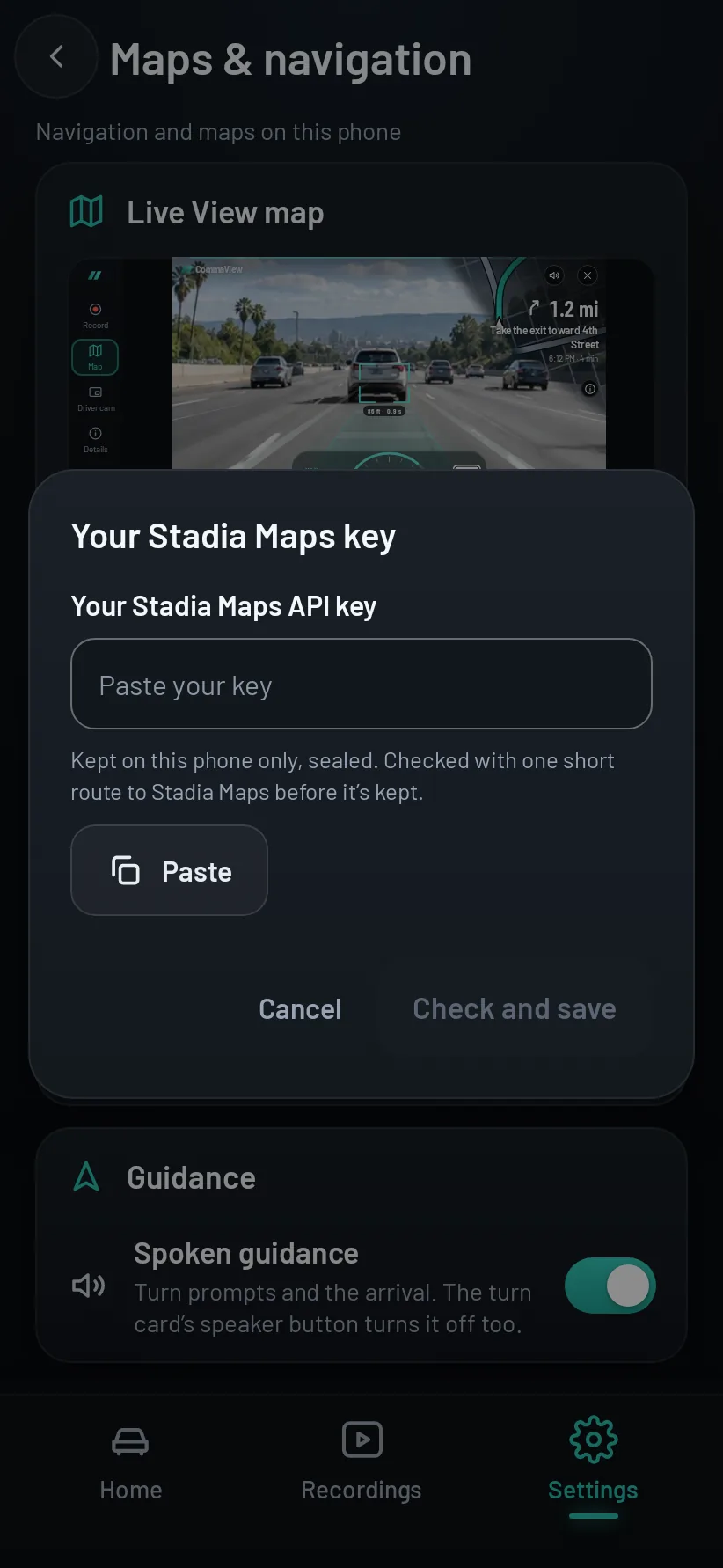
Back in CommaView, tap Add. Tap Paste to put your key in the field, then Check and save. CommaView asks Stadia Maps for one short route between two fixed points, nothing of yours, to check the key: Checking with Stadia Maps…. Once it’s taken, API key shows it masked, such as •••• e1f0.
-
Your Stadia Maps API key, masked.
-
Paste from the clipboard.
-
Check and save.
“Kept on this phone only, sealed. Checked with one short route to Stadia Maps before it’s kept.” It’s never in a support bundle or a crash report.
-
-
Step 4 of 8: Tap Where to? on Home
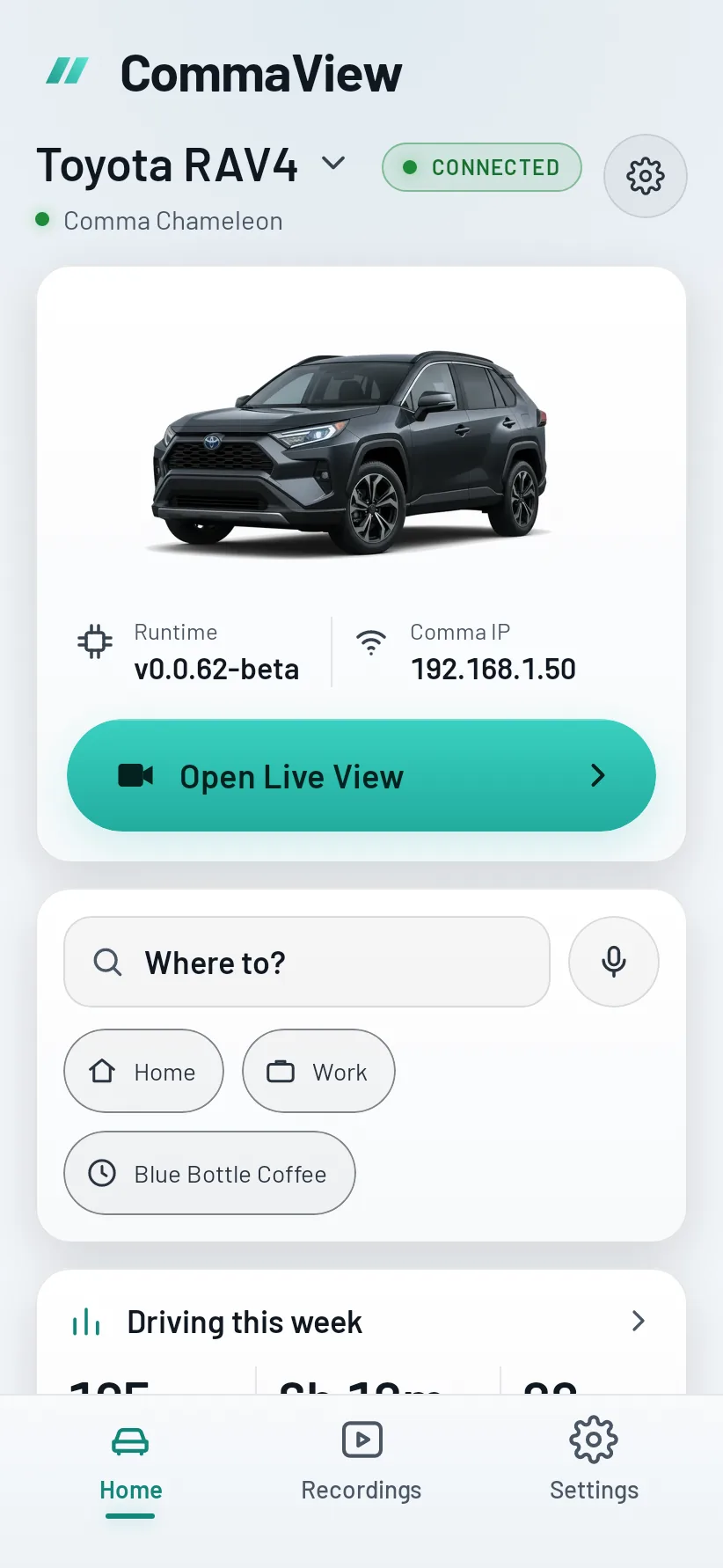
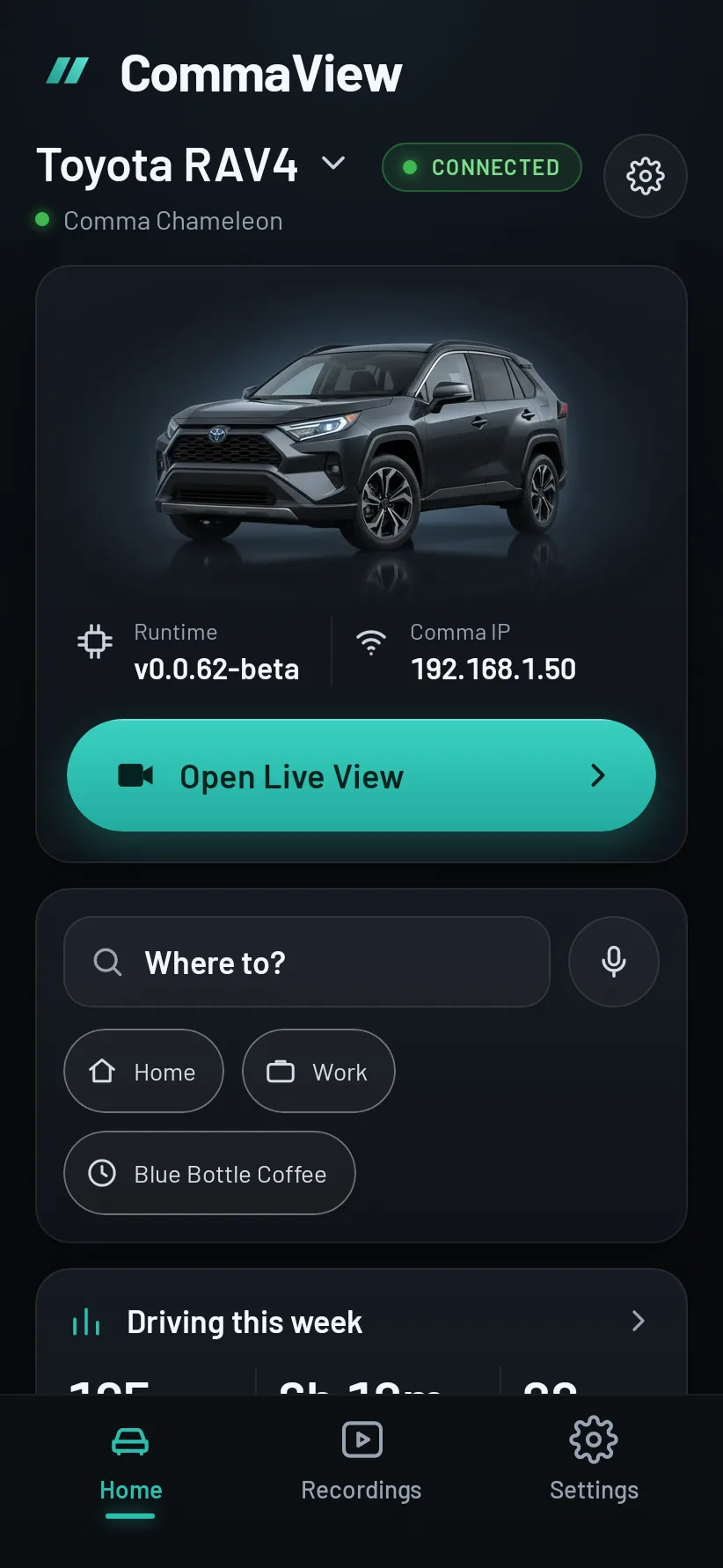
Parked, tap Where to? on Home, under your comma’s card. Type a place or an address, or tap the microphone to say it. Once you’ve saved them, Home and Work are one tap away on the card.
-
Where to? opens the search.
-
Where to? by voice.
-
Home, once you’ve saved it.
-
-
Step 5 of 8: Pick the place
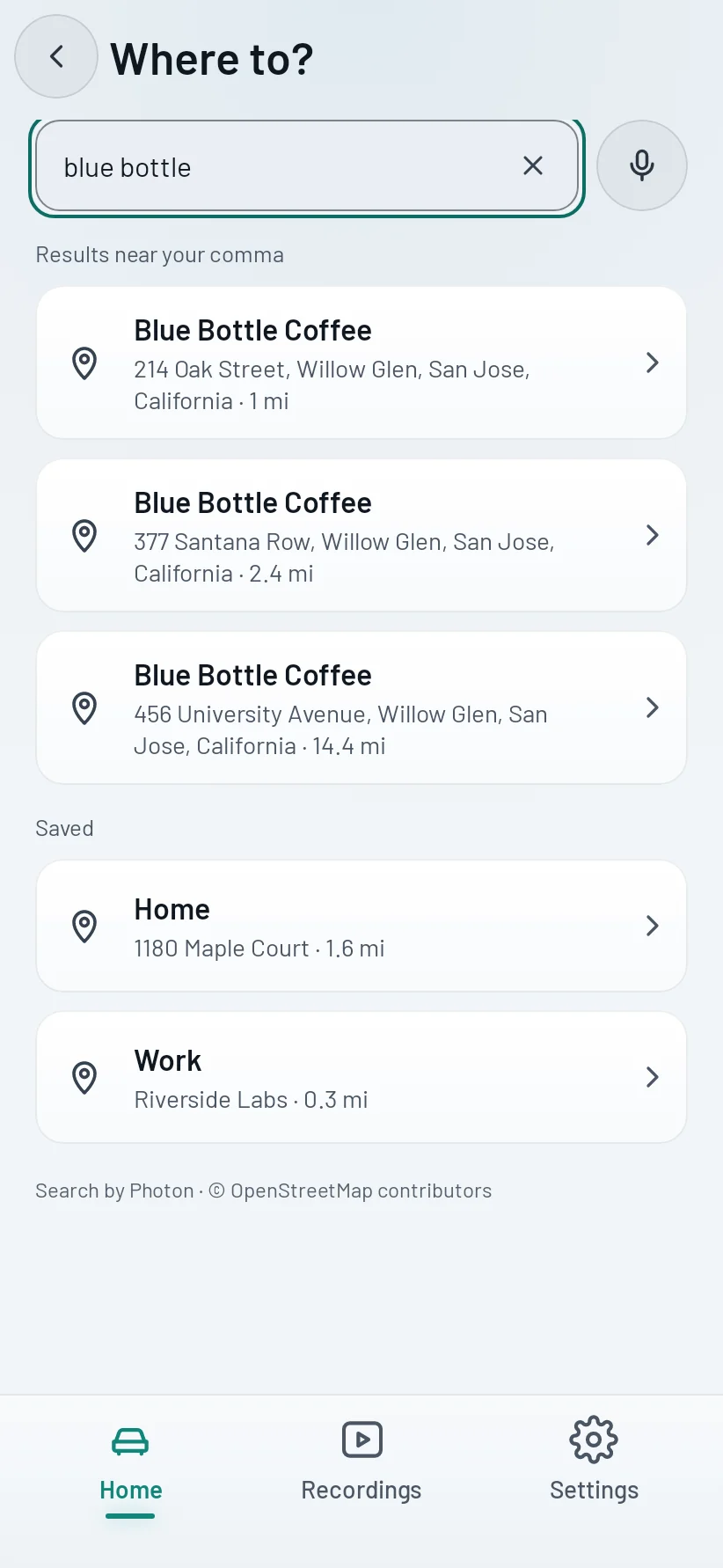
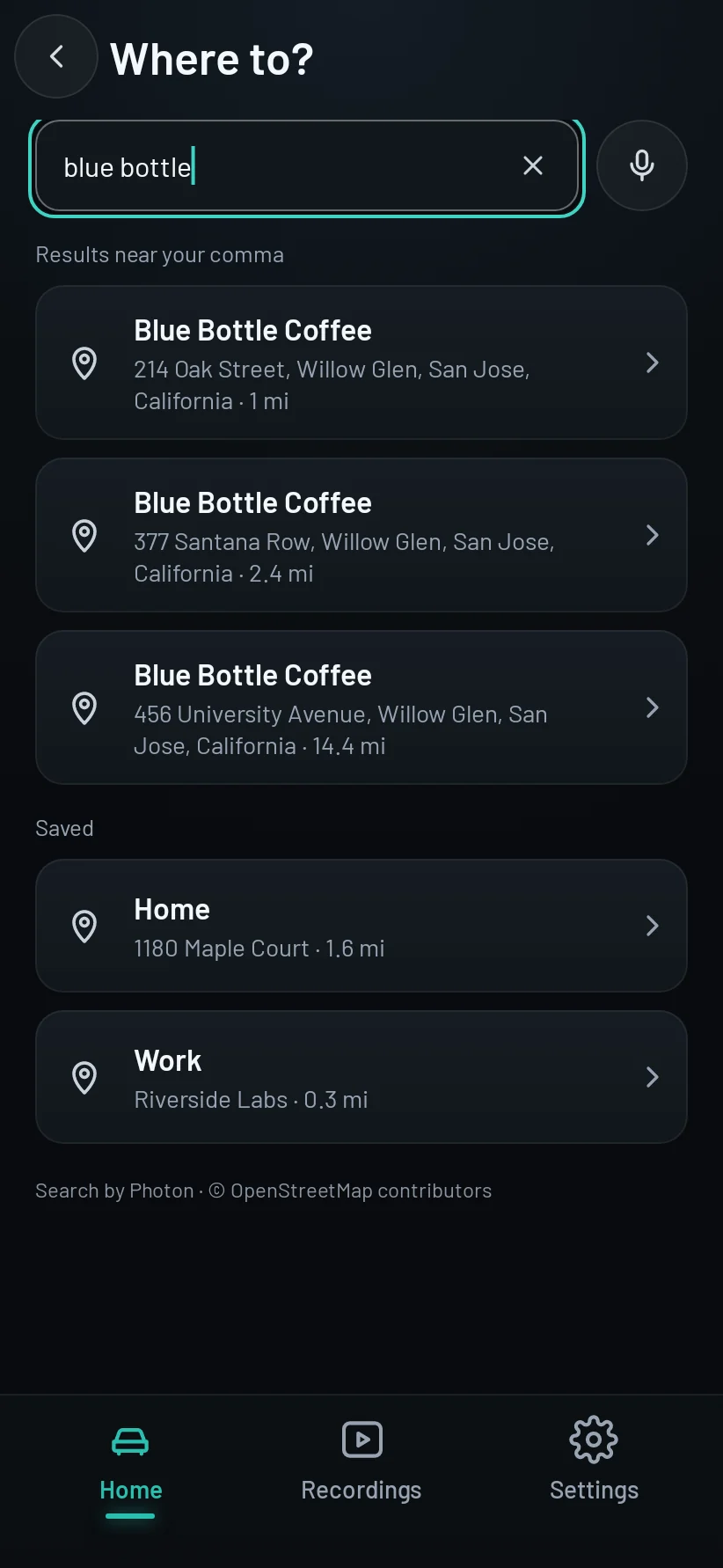
Results are near your comma, each with its address and distance, then your saved and recent places. Tap the one you want.
-
Search places or addresses.
-
A result, with its address and distance from your comma.
Typing is off while the car moves: “Typing is off while the car moves. Use voice or a saved place.”
-
-
Step 6 of 8: Choose a route and tap Start
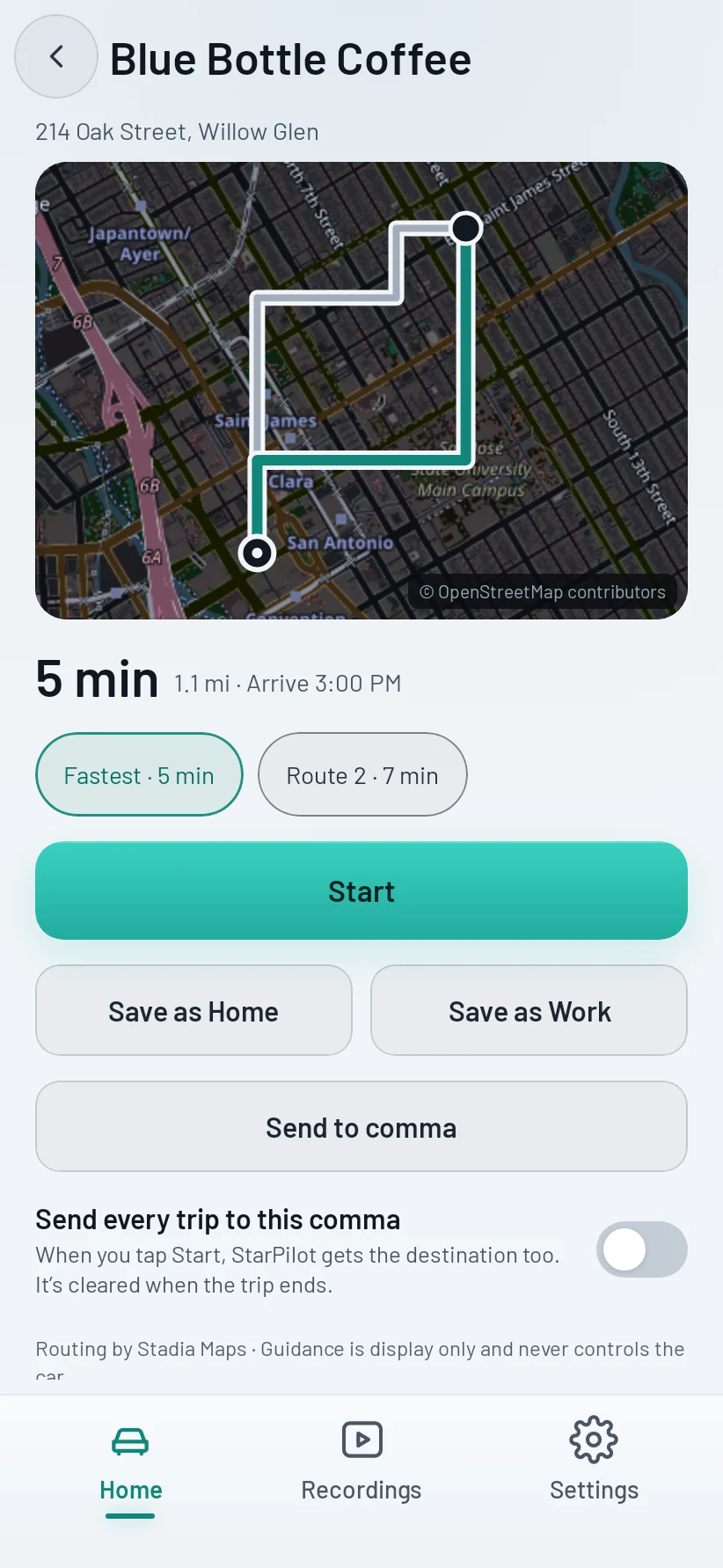
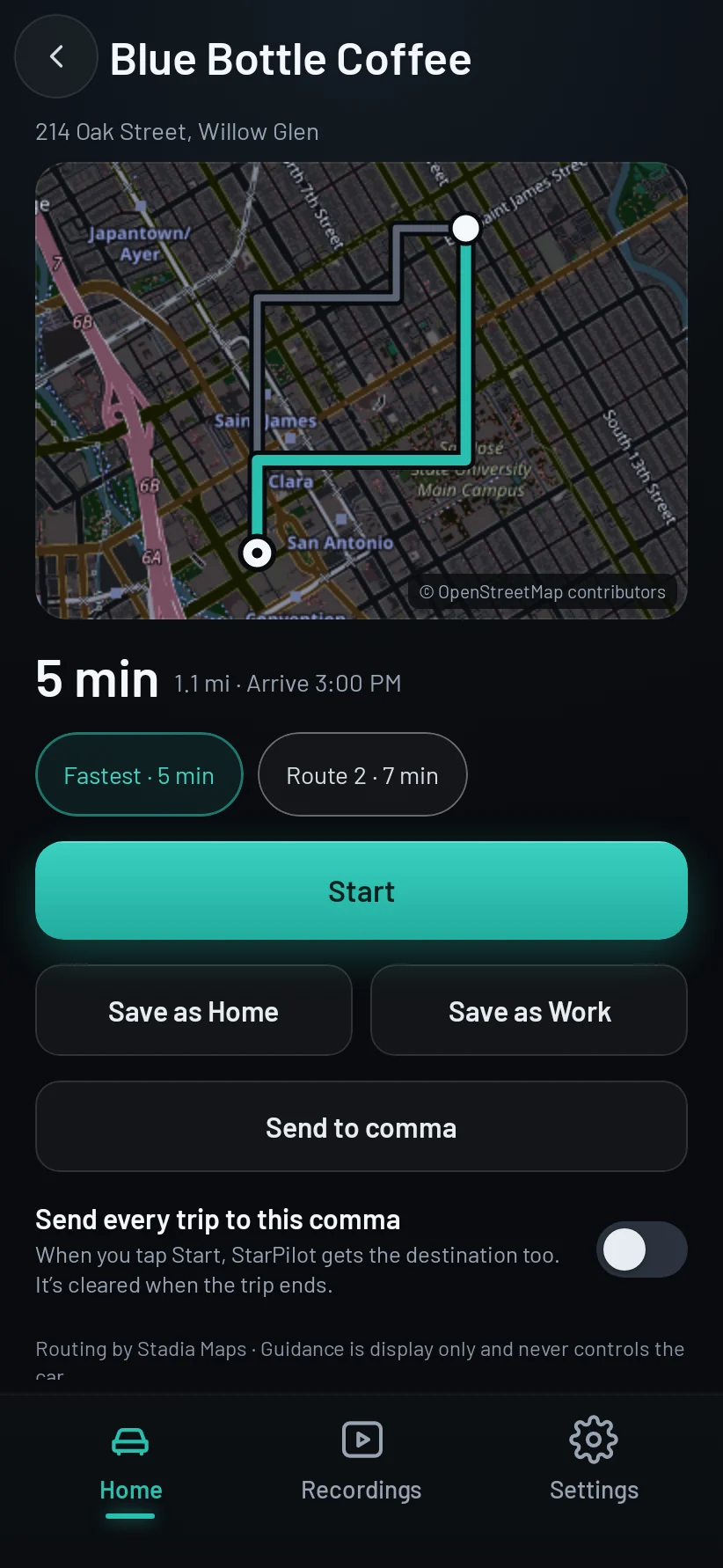
The route preview shows the route on a map, the time, the distance and when you’d arrive. Each route has a chip: Fastest, Route 2 and so on. Tap Start: guidance begins and Live View opens.
Save as Home and Save as Work keep the place for one tap on Home.
-
The routes: Fastest, Route 2…
-
Start.
-
Save as Home, and Save as Work beside it.
-
-
Step 7 of 8: Follow it in Live View
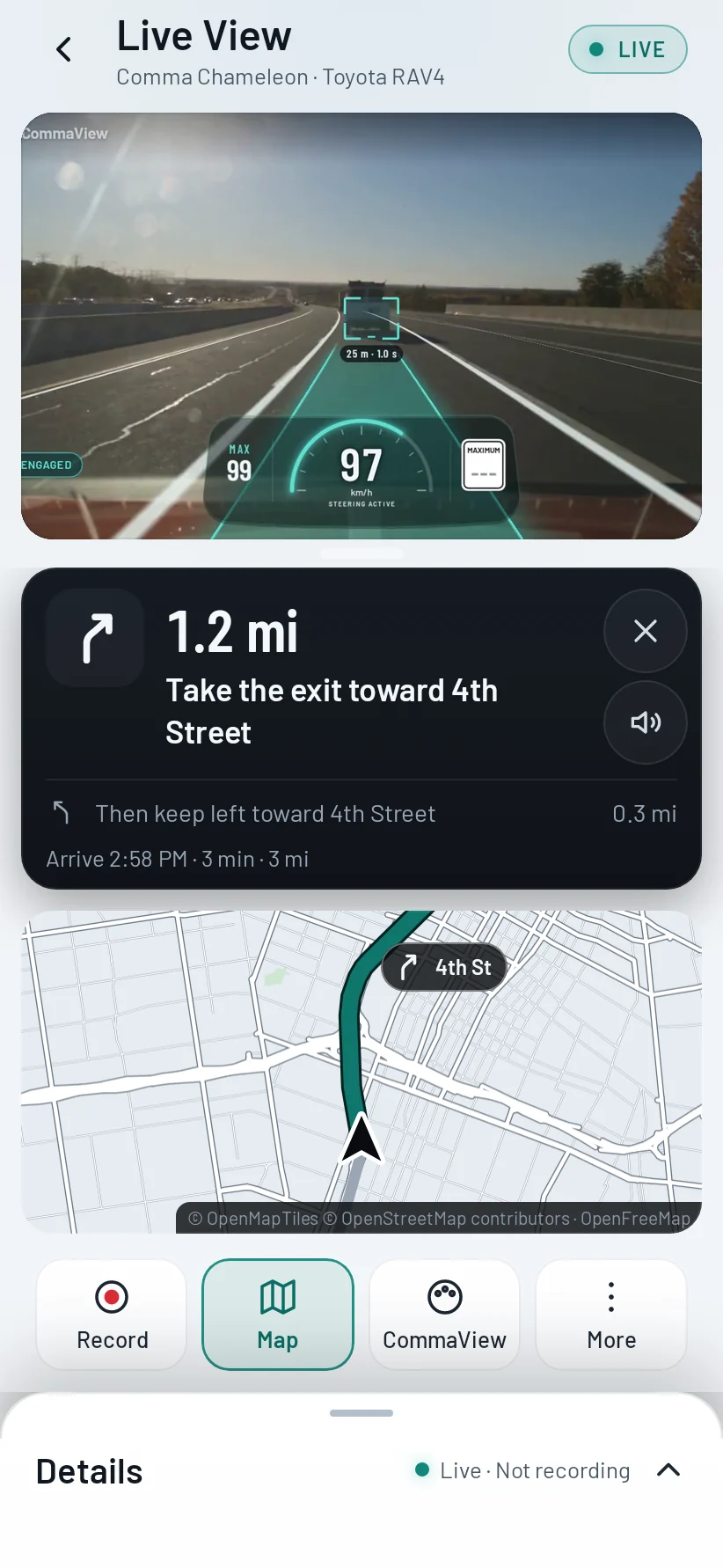
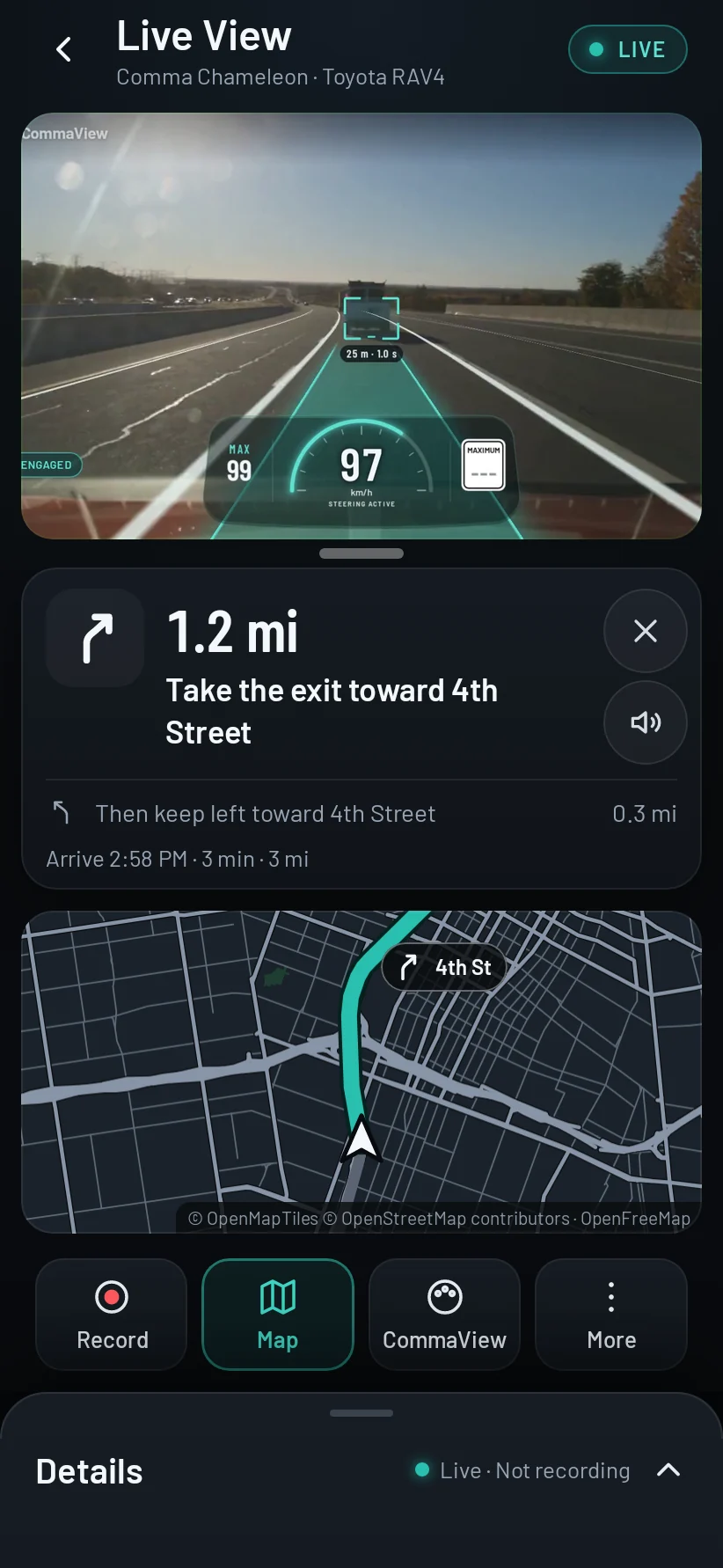
The turn card shows the next turn: its arrow, the distance, the instruction and the step after it, and when you’ll arrive. A spoken prompt comes about 20 seconds before each turn, another just before it, and one as you arrive. In CommaView’s own onroad screen, chevrons are painted in your lane, and across the turn’s exit.
Miss a turn and a new route comes within seconds. The trip ends by itself once you’ve arrived and switched off.
Phone
Upright, the turn card and the map sit under the video.
-
The turn card.
-
End navigation.
-
Mute guidance voice.
-
Map hides the map for the trip, and brings it back.
Car screen
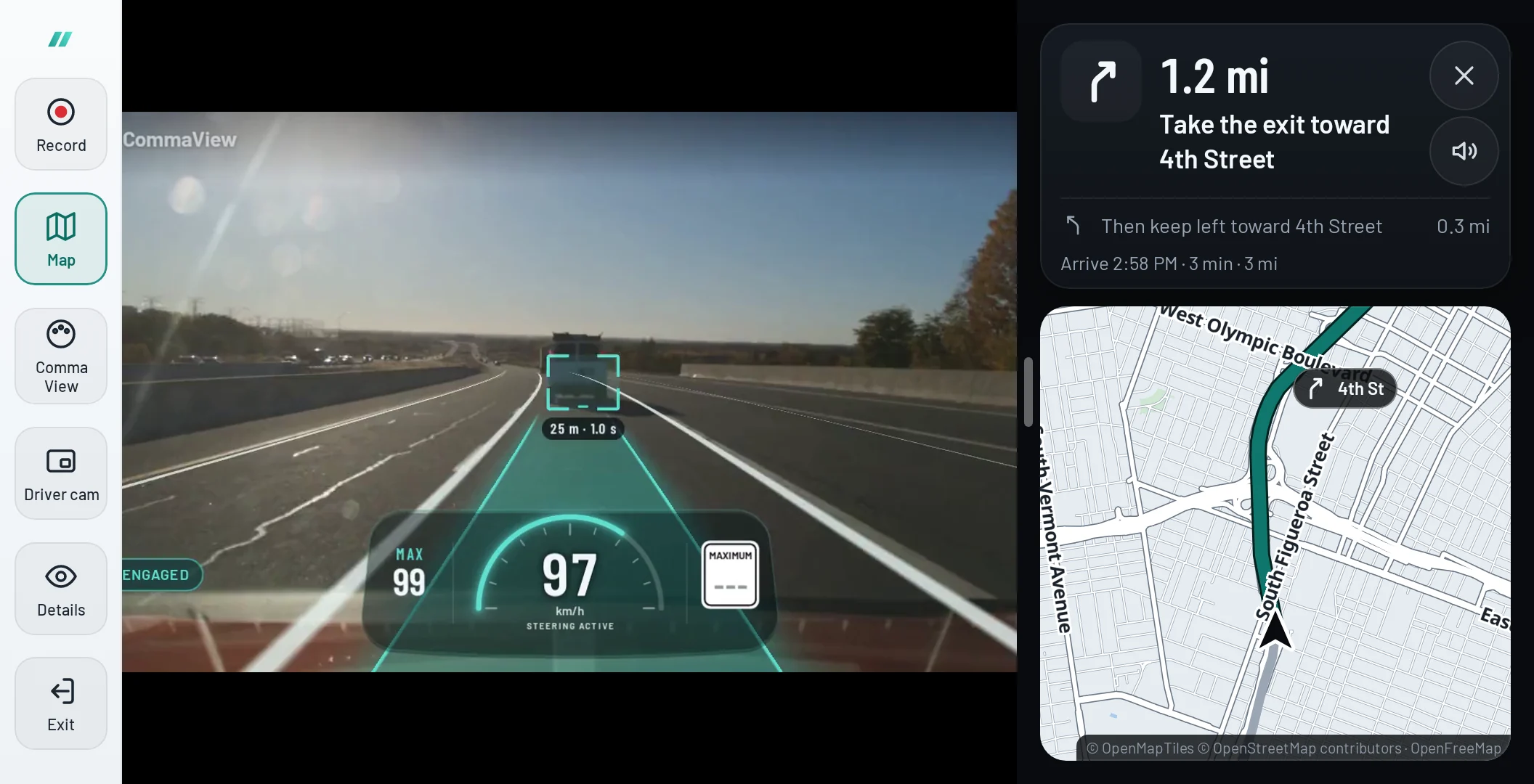
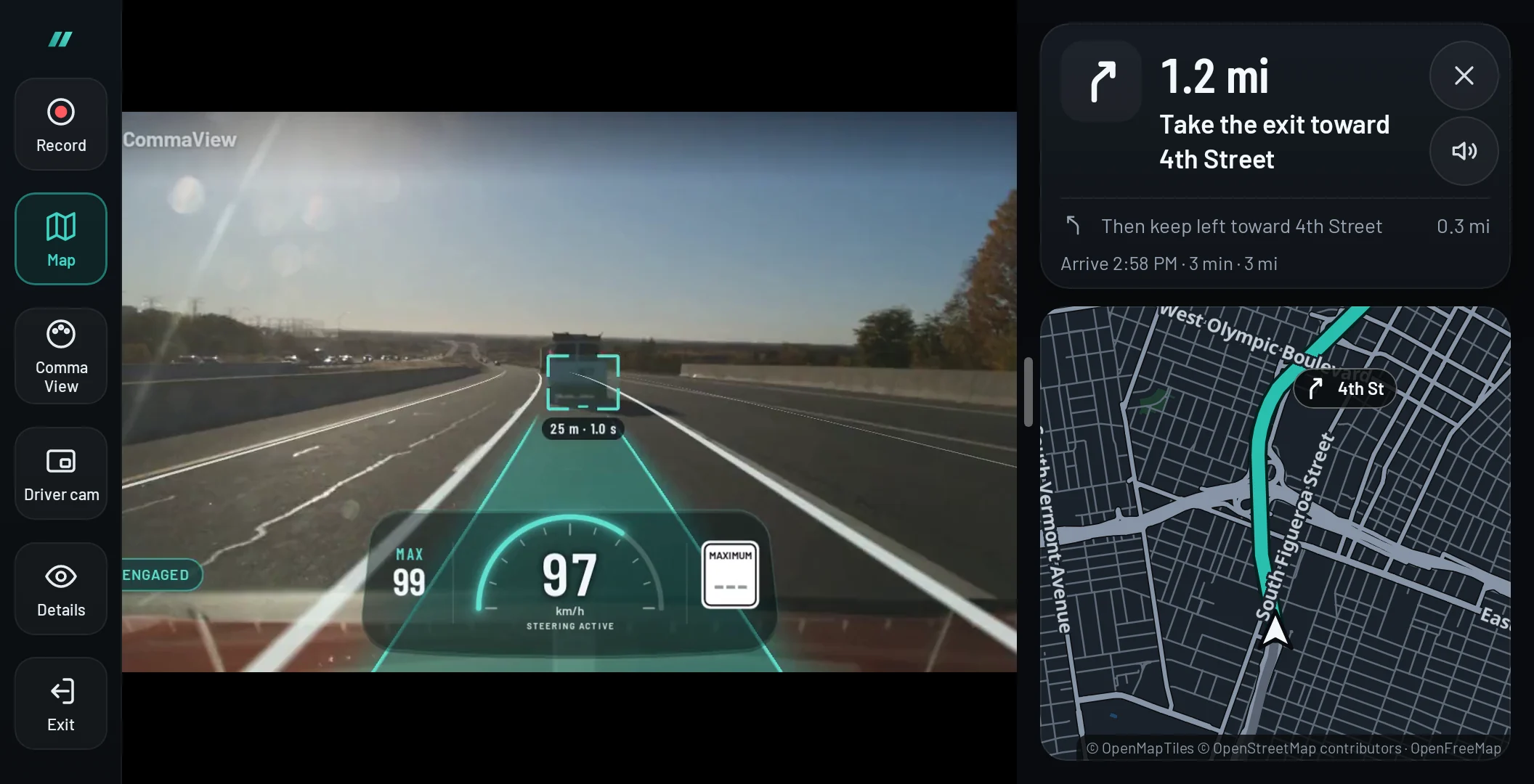
On a head unit, where there’s room beside the video, the map and the turn card sit there in a panel of their own. Where there isn’t, CommaView’s screen blends the map into the video’s corner. Drag the divider to change the panel’s width.
-
The turn card.
-
The divider, to change the map’s width.
-
Map.
Set the trip up parked. Don’t tap through CommaView while you drive: the turn card and the voice are there so you don’t have to, and openpilot’s and your car’s own alerts come first.
-
-
Step 8 of 8: Send the place to your comma, if your fork takes one
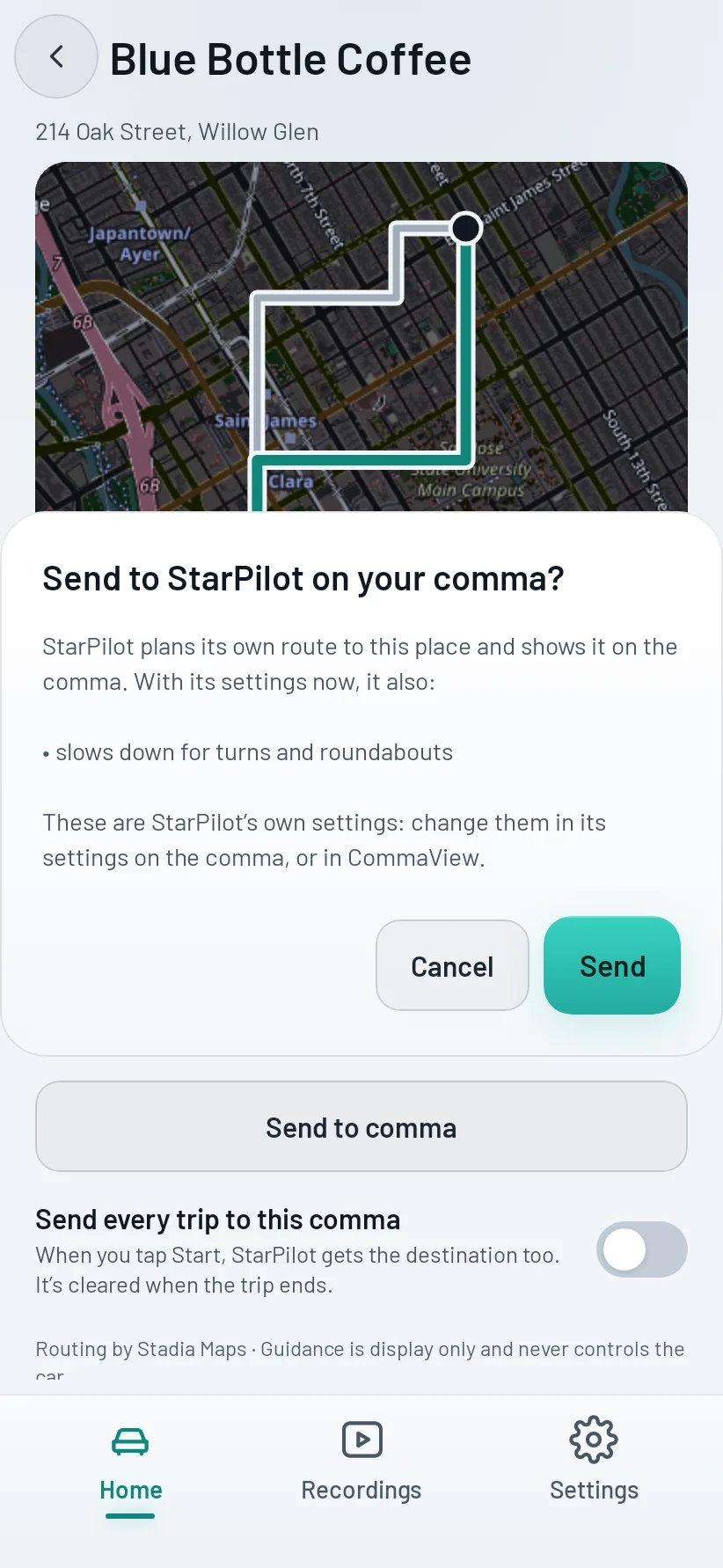
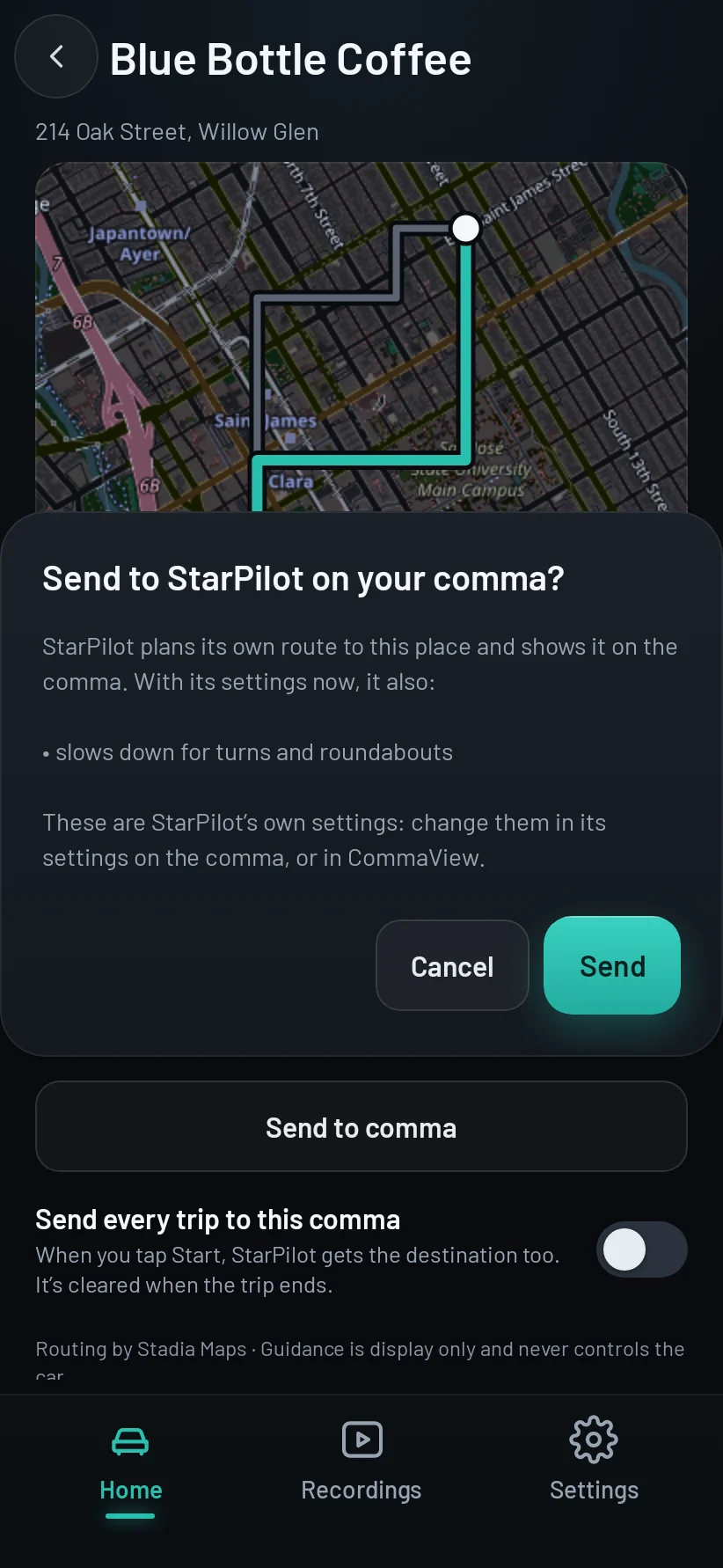
Under Start, the route preview has Send to comma for forks whose own navigation takes a destination: StarPilot, carrotpilot, and openpilot’s navigation (alpha), with sunnypilot’s from it. Other forks don’t show it.
Tap it. CommaView asks first and says what the fork does to driving with its settings now, such as slowing down for turns. Tap Send: “Sent to your comma. StarPilot plans its own route there.” The fork routes with its own service, so its route may differ from CommaView’s. Clear from comma takes it off again, and ending the trip clears it too.
-
Send.
Send every trip to this comma, under Send to comma, sends each trip when you tap Start. It pauses by itself if the fork’s driving settings change, until you agree again.
-
How you know it worked
In Maps & navigation, API key shows your key masked, and the route preview says Routing by Stadia Maps · Guidance is display only and never controls the car.
The map in Live View
Settings › Maps & navigation › Live View map chooses where it goes:
- Layout: Automatic (beside the video where there’s room, else in the corner), Beside the video, or In the corner. The comma 3X, comma four, StarPilot and Surround screens always show the map beside the video.
- Width beside the video is set by dragging the divider in Live View. Reset puts it back.
- Map theme: Auto (light from sunrise to sunset where your comma is), Same as the phone, Light or Dark.
Spoken guidance and your places
- Spoken guidance turns the prompts off and on. The turn card’s speaker, Mute guidance voice, is the same setting.
- Your places: Home and Work, and Recent places, kept on this phone. Clear takes the recent ones off.
A place from another app
In Google Maps or another maps app, share a place and choose Navigate with CommaView. Its route preview opens on Home, as a saved place’s does.
Mapbox
If your account offers it, Settings › Maps & navigation can route with your own Mapbox token instead of Stadia Maps.
Privacy
Your Stadia Maps key is kept on this phone only, sealed, and is never logged or put in a support bundle. Routes go from your phone to Stadia Maps with it; nothing goes to CommaView’s account service. Searches go to Photon, near your comma’s position. Clearing your key, or signing out, takes it off the phone.
Safety
Set up a trip parked, and let the turn card and the voice guide you. Navigation is display only: it never steers, brakes or changes what openpilot does. Don’t operate CommaView while driving: keep your eyes on the road and your hands on the wheel, as openpilot asks.
If it doesn’t work
“Add your own Stadia Maps key to get routes: Settings › Maps & navigation.”
No key is kept yet. Tap Add your key in the route preview, or follow steps 2 and 3. Where to?, search and places work without one.
“Stadia Maps didn’t accept this key (401). Check that it’s copied whole from your dashboard.”
Copy the key again from your Stadia Maps dashboard, whole, and paste it once more.
“That isn’t a Stadia Maps key.”
What you pasted isn’t shaped like an API key, so nothing was sent. Copy the API key from your Stadia Maps dashboard: letters, digits and hyphens.
“Stadia Maps refused this key (403): its plan may not include routing.”
Check your plan in your Stadia Maps dashboard.
“Your Stadia Maps key is over its limit (429)”
Its credits for this month are used up, or it asked too often just now. Check it in your Stadia Maps dashboard. The app doesn’t ask with it again for five minutes.
“Couldn’t reach Stadia Maps to check the key. Check this phone’s internet connection and try again.”
Your phone has no internet just now. Try again with mobile data or a Wi‑Fi that reaches the internet.
There’s no Where to? on Home
Navigation is for signed-in members from CommaView 0.0.167. Signed out, or with a pass that doesn’t check out, it isn’t offered. It’s off in mainland China.
The turn card says “Vehicle location is off”
Guidance needs your comma’s position. Turn on Vehicle location for this comma on Home.
The turn card says “Waiting for GPS”
Guidance starts with your comma’s first fix. Give it a moment under open sky.
“That’s too far for one trip”
Navigation plans routes to places up to 1,500 km (930 miles) away. Choose a stop on the way, then carry on from there.
Send to comma isn’t there
It shows only in the route preview, and only for a fork whose navigation takes a destination: StarPilot, carrotpilot, or openpilot’s or sunnypilot’s navigation (alpha).
“Can’t reach your comma to send it this trip.”
Connect this phone to the same network as your comma, then tap Try again.
“openpilot’s navigation (alpha) is off on your comma.”
Tap Turn on navigation (alpha), parked. On release builds that turn it off each time they start, it can’t be kept on yet.
Did this guide get you there?
Tell us what’s missing