
All guides · Recordings
Guide · Recordings
Share and export recordings
Every recording on your phone is an MP4 you can share, save to your files or open in another app, from its Recording actions menu in Recordings. Export whole drive… copies a whole drive’s road video from your comma to your phone too, as the comma recorded it.
Before you start
- A recording on your phone
A replay or a live copy in Recordings. Not yet? Record a drive or record a live copy.
- For a whole drive
The comma that recorded it, paired with this phone, parked and in reach, and a runtime that lists its drives.
Steps
Tick each step off as you go. The first time, do it parked.
-
Step 1 of 6: Open the recording
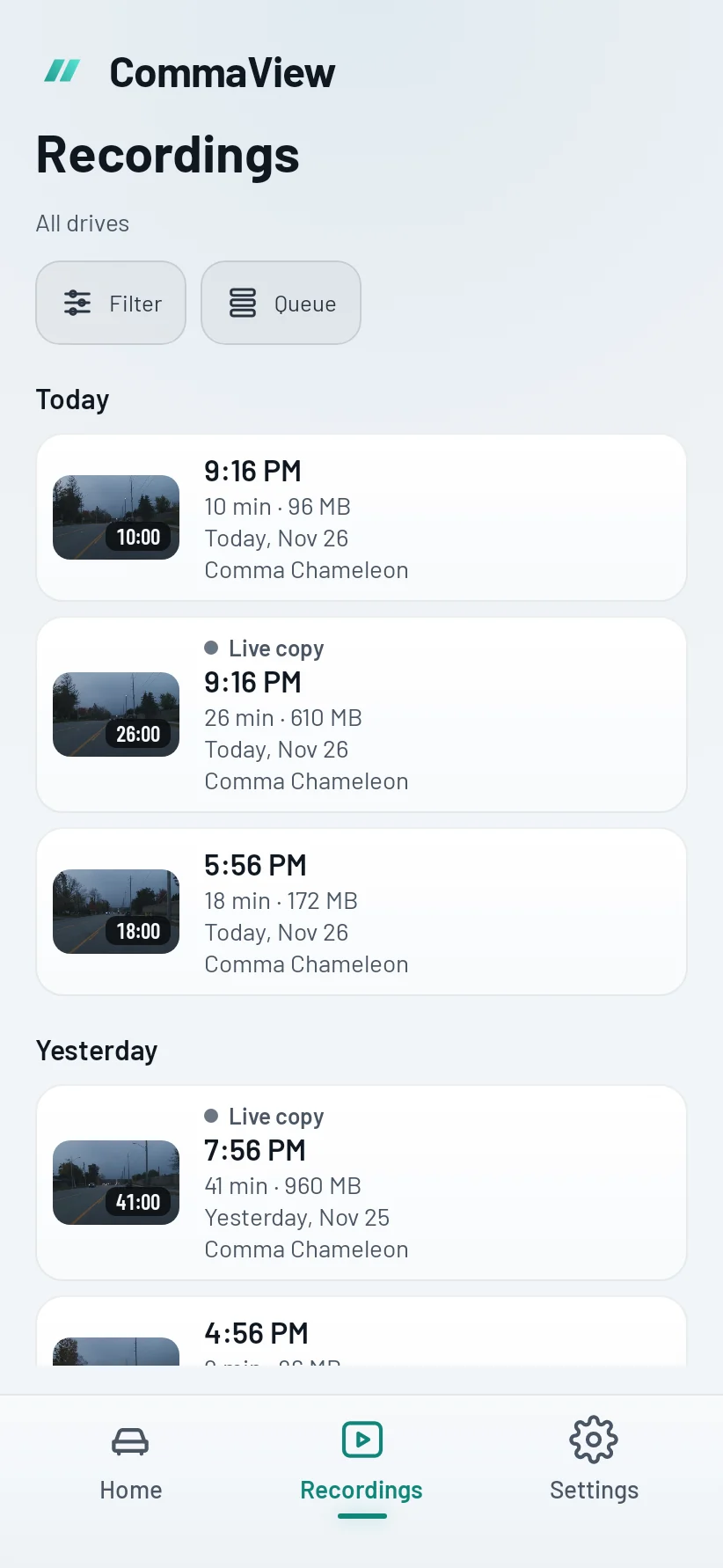
Open Recordings from the bar at the bottom (the rail on a bigger screen) and tap the drive. It opens in Watch, with its player and its facts.
-
A replay. Tap any drive to open it.
-
A live copy, flagged Live copy.
-
Filter: Ready shows only drives with a video to share.
-
-
Step 2 of 6: Open Recording actions
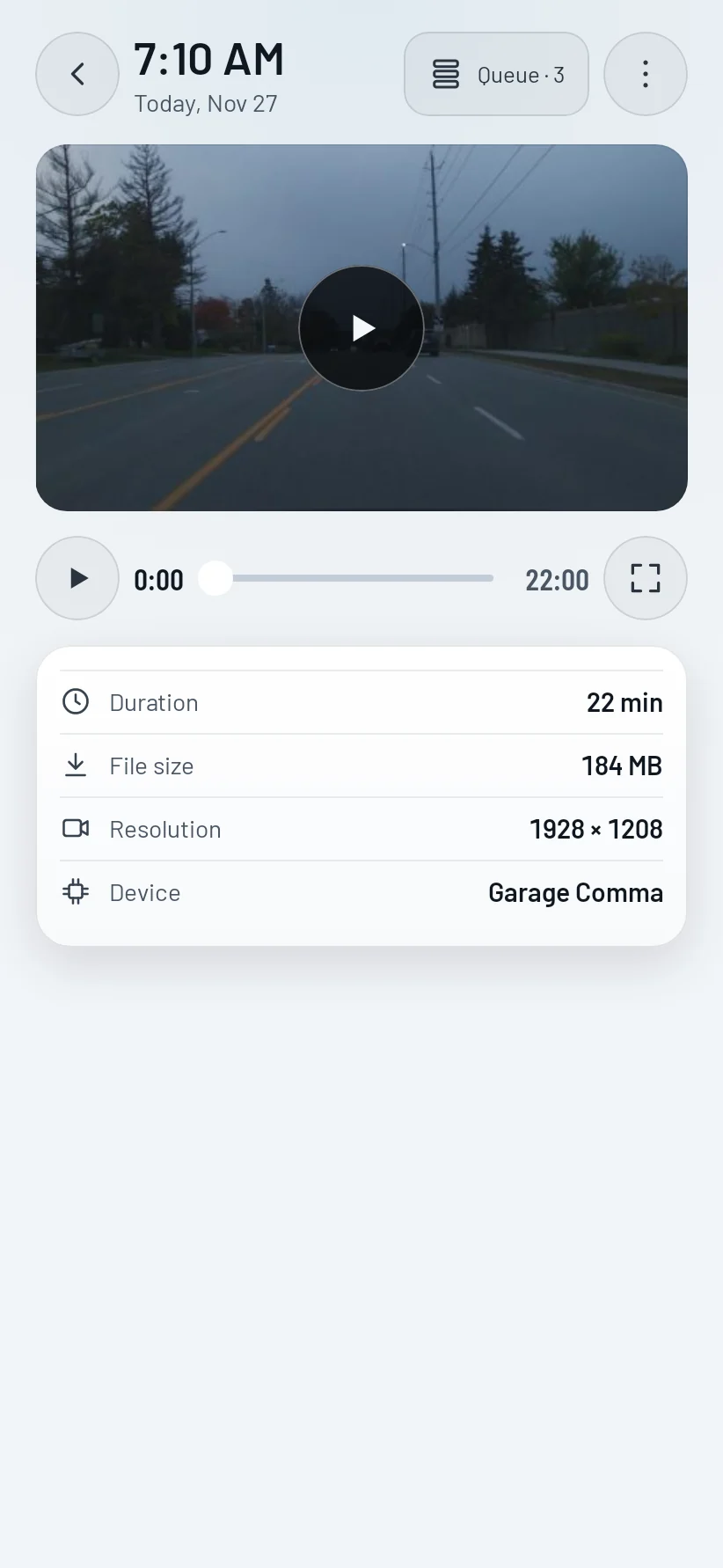
In Watch, tap Recording actions, the More button beside the time and date.
-
Recording actions.
-
Full screen plays it across the screen.
-
-
Step 3 of 6: Share it, or open it in another app
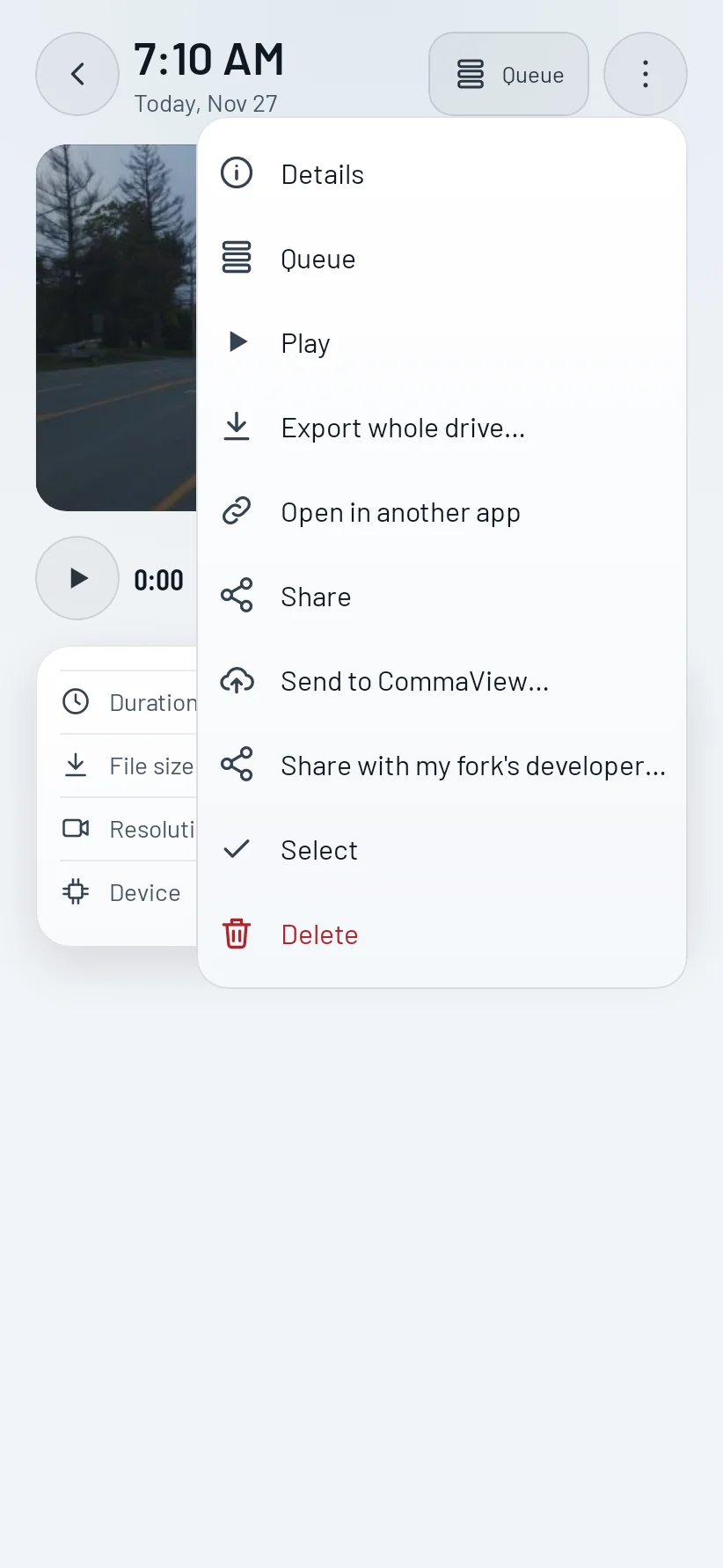
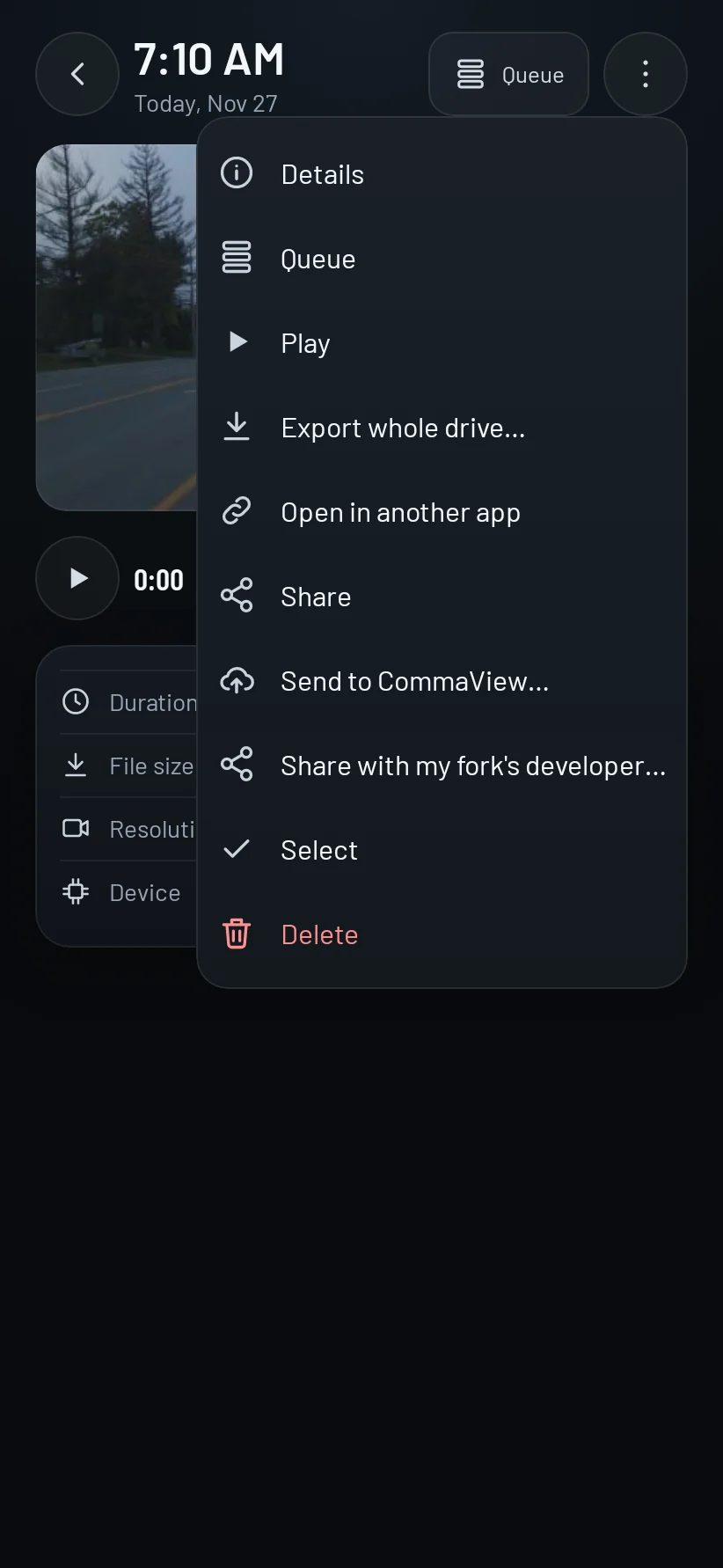
Share hands the video to Android’s share sheet, where you can send it or save it to your files. Open in another app plays it in another video player.
Files, where a drive has several, lists each file to share on its own, such as each part of a long whole drive.
-
Share: Android’s share sheet.
-
Open in another app.
-
Send to CommaView… sends a problem with this drive to CommaView instead: Send a support bundle.
Android’s share sheet isn’t pictured: it’s Android’s, and looks different on each phone.
A video can show more than the road: where and when you drove, number plates, faces and places, and the driver camera in a live copy made with Driver cam on. Check it before you share it.
-
-
Step 4 of 6: Export a whole drive
For a drive your comma recorded, Recording actions has Export whole drive…. It copies the comma’s road camera for the whole drive into one MP4 on your phone, exactly as the comma recorded it. It has no HUD: Make replay draws the onroad screen over the parts you recorded.
-
Export whole drive…
-
-
Step 5 of 6: Check the size, then tap Export
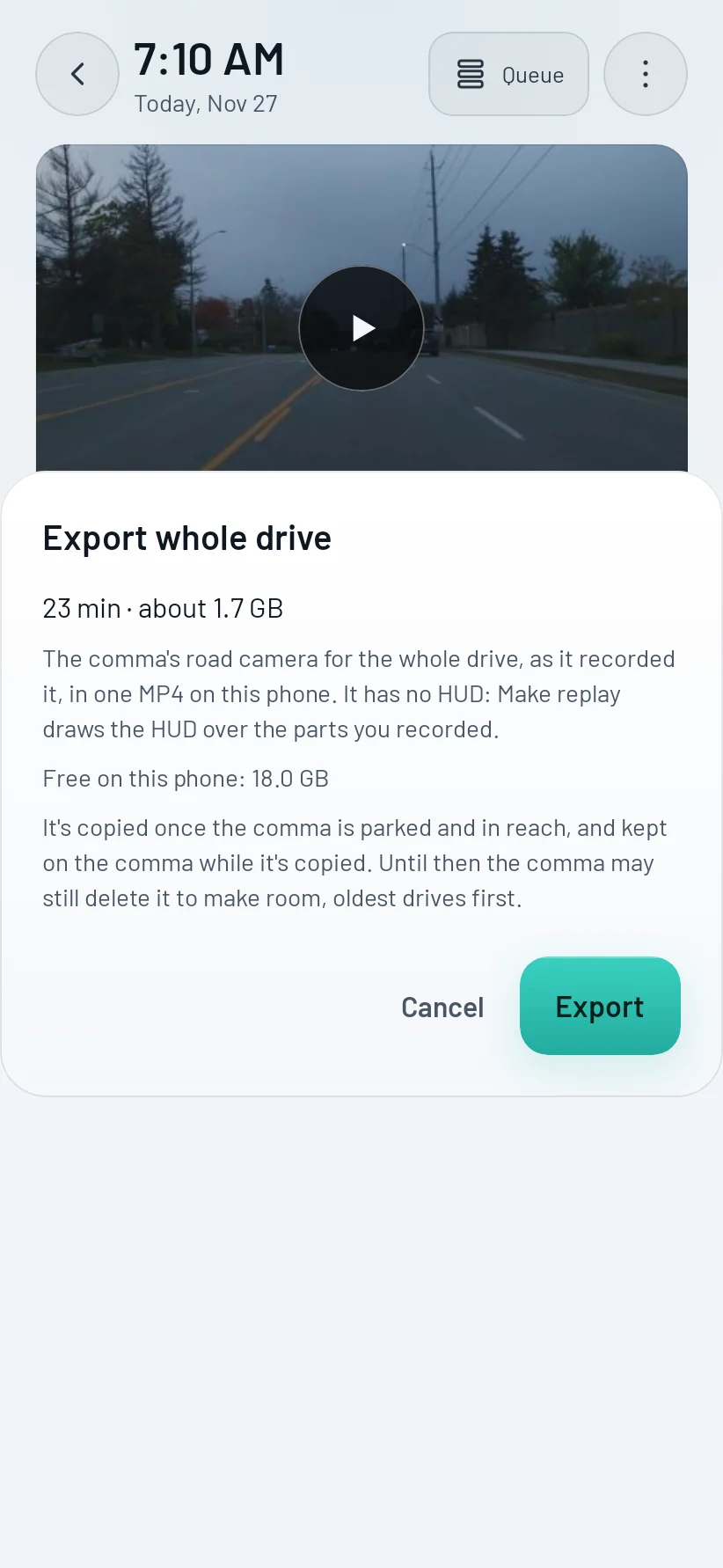
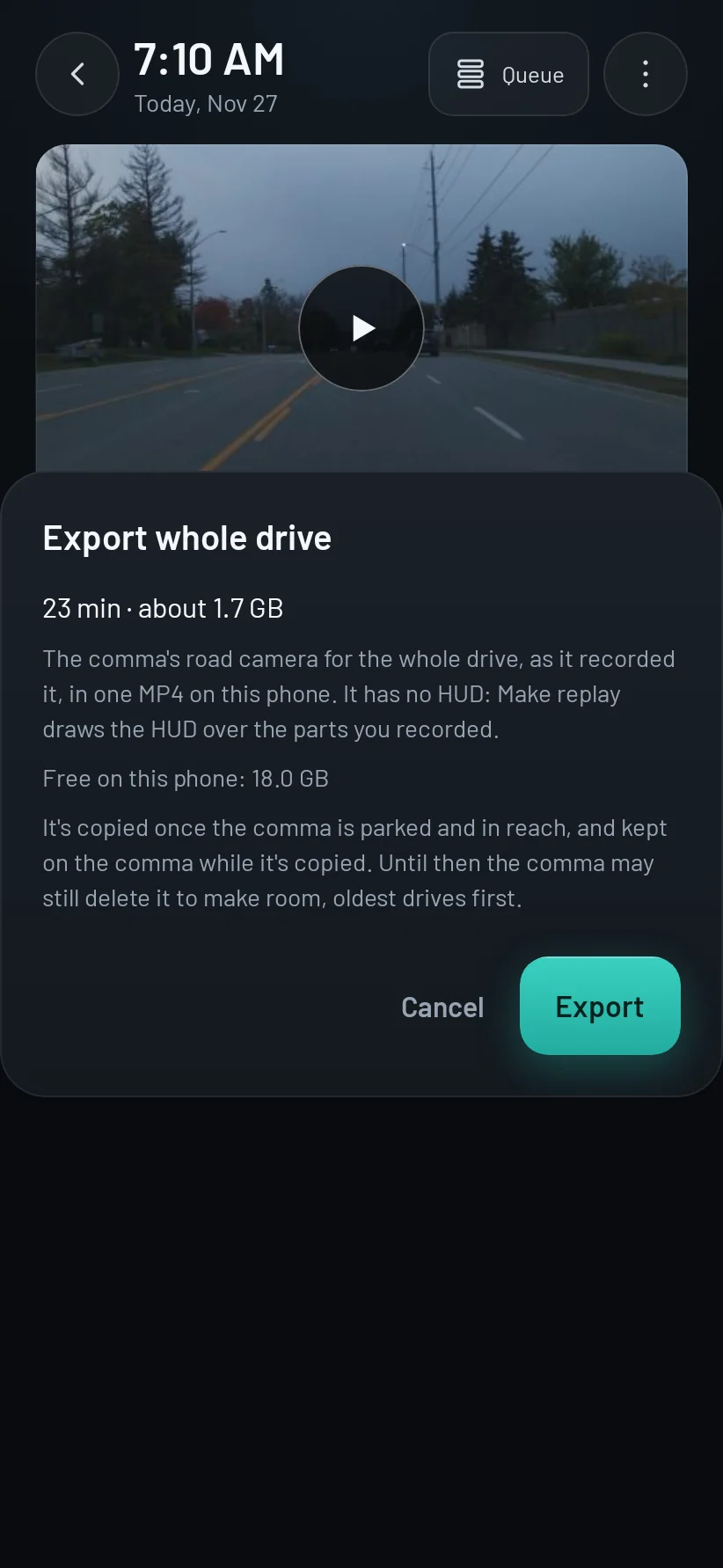
The sheet says how much of the drive the comma has, such as 23 min · about 1.7 GB, and what’s free on your phone. Tap Export: “Exporting the whole drive. It’s saved in Recordings once the comma is parked.”
Nothing downloads until you tap Export. From then on the comma keeps the drive while it’s copied; until then it may still delete it to make room, oldest drives first.
-
Export.
-
Cancel leaves it.
-
-
Step 6 of 6: Find the whole drive in Recordings
The export is a row of its own, Whole drive, beside the recording you asked from. While it waits it says why, such as Waiting until you park, then Saving from the comma with how far along it is. Once it’s saved, it plays and shares like any recording.
-
The Whole drive row, titled by when the drive started.
A drive longer than about 45 minutes of road video is saved in parts of 3.5 GB: Files lists each.
-
How you know it worked
Android’s share sheet opens with the video. For a whole drive, its row plays, and Watch’s Saved fact says The whole drive · on this phone.
Share several at once
Press and hold a drive to select it, then tap others to add them. The bar at the bottom says how many are selected. Its More menu has Share, which hands every selected video to Android’s share sheet together, and the bar has Delete. A drive without a video on your phone yet is left out, and the action says how many it takes.
Pull new drives automatically
Settings › Recordings › Pull new drives brings each new drive’s road camera home without a tap: about every half hour, while your phone and your comma are on a Wi‑Fi you choose under Wi-Fi networks and the car is parked. Each pulled drive is a From the comma row in Recordings, with no HUD, like a whole drive. Room for pulled drives caps the space they take: 10, 20 or 50 GB, or No limit. They’re never deleted to make room.
Where they go
Shared files go only where you send them. Recordings stay on your phone, and Android’s backup and a transfer to a new phone leave them out.
If it doesn’t work
Export whole drive… isn’t in the menu
It’s offered for a drive your comma recorded, while that comma is paired with this phone and its runtime lists its drives. Update the comma’s runtime if it’s older. A live copy has no comma drive to export.
Export whole drive… is greyed out: “Exported already”, “Being exported” or “Its copy stopped: Retry saving on its row”
The drive was exported before, or its export is on its way. If it stopped, open the Whole drive row and choose Retry saving in its menu.
“The comma doesn’t have this drive, so it can’t be exported.”
The comma deleted it to make room for newer drives. Nothing can bring it back.
“This drive is older than the 50 the comma lists, so it can’t be found to copy.”
Your comma lists its 50 newest drives, and this one is older, so the export can’t find it.
“Needs about 2.2 GB free. Free up some space first.”
Delete drives you no longer need, or choose another storage in Settings › Recordings, then open the sheet again.
The whole drive says “Waiting until you park”, “Waiting to reach the comma” or “Waiting while Live View is open”
It’s copied only while the comma is parked, in reach of your phone, and not showing Live View. It goes on by itself once it can.
“No video player found”
There’s no other video app on this device for Open in another app. Play it in Recordings, or use Share to save it to your files.
“This replay can’t play here. Try another app.”
Use Open in another app, or share it to an app that plays it.
Did this guide get you there?
Tell us what’s missing