
All guides · Live View and screens
Guide · Live View and screens
Show Live View in your car’s browser
Browser View shows what Live View shows in your car’s own web browser. Your phone serves it to the car over its hotspot or Wi‑Fi, so there’s nothing to install in the car. It was made for cars like a Tesla, which have a browser but no CarPlay or Android Auto, and it works in any browser that can reach your phone.
Before you start
- Live View works
CommaView on an Android phone, paired with your comma. Not yet? Set up CommaView.
- A browser in the car
A Tesla, another car with a web browser, or a tablet or laptop in the car.
- One network
The car and your comma on your phone’s hotspot, or any network all three share.
How it works
Your comma
Sends Live View to your phone, as usual.
Your phone
Serves the picture as a web page, behind an eight-digit code.
The car’s browser
Opens the page: 20 frames a second, 720p or 1080p, up to four browsers.
Steps
Tick each step off as you go. The first time, do it parked.
-
Step 1 of 5: Join the car to your phone’s hotspot
Turn on your phone’s hotspot, then join the car to it from the car’s Wi‑Fi settings. Check the car joined your phone, not a Wi‑Fi it already knows. Join your comma to the hotspot too if it isn’t on it already: your phone still needs your comma, as usual.
In a Tesla, turn your phone’s Wi‑Fi off first, so the hotspot shares mobile data.
-
Step 2 of 5: Start Browser View from Live View’s Details
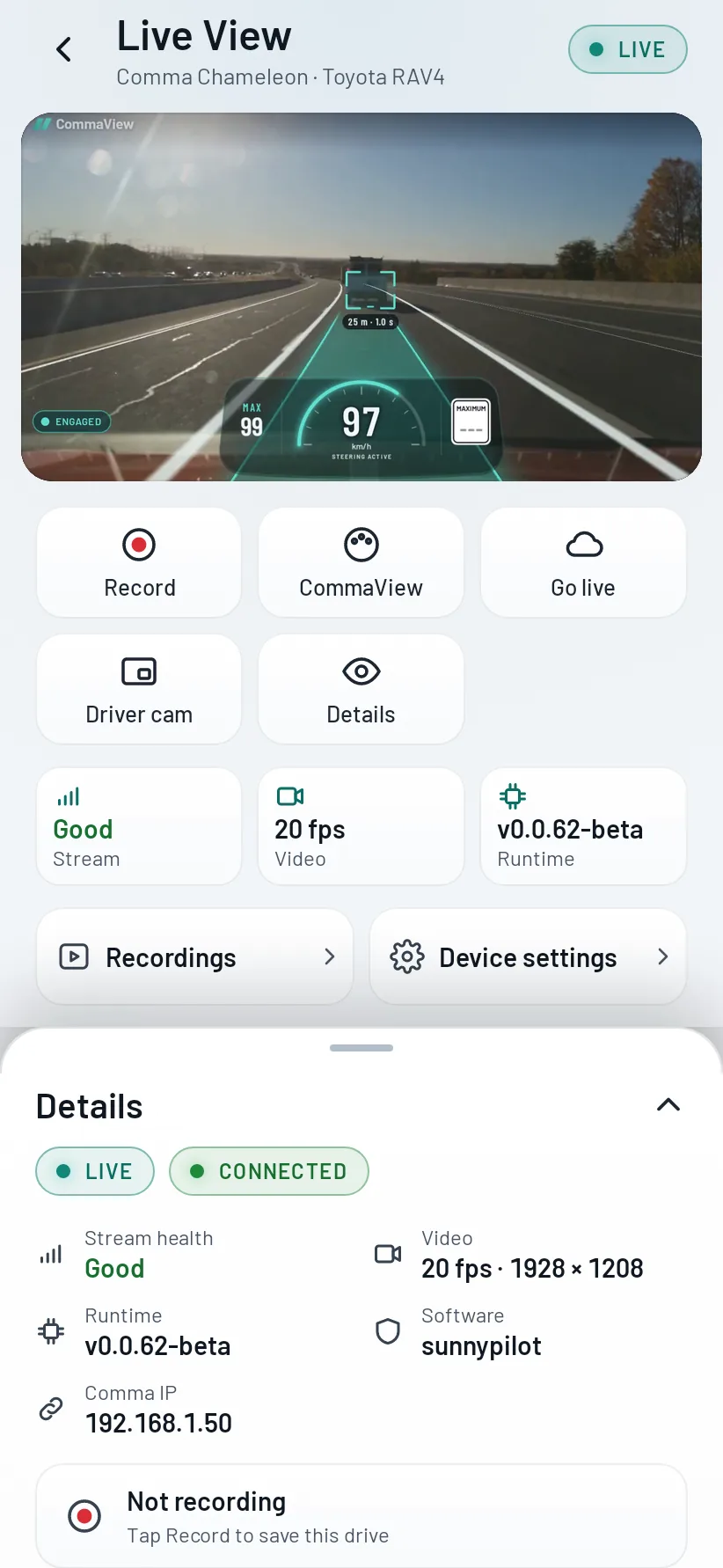
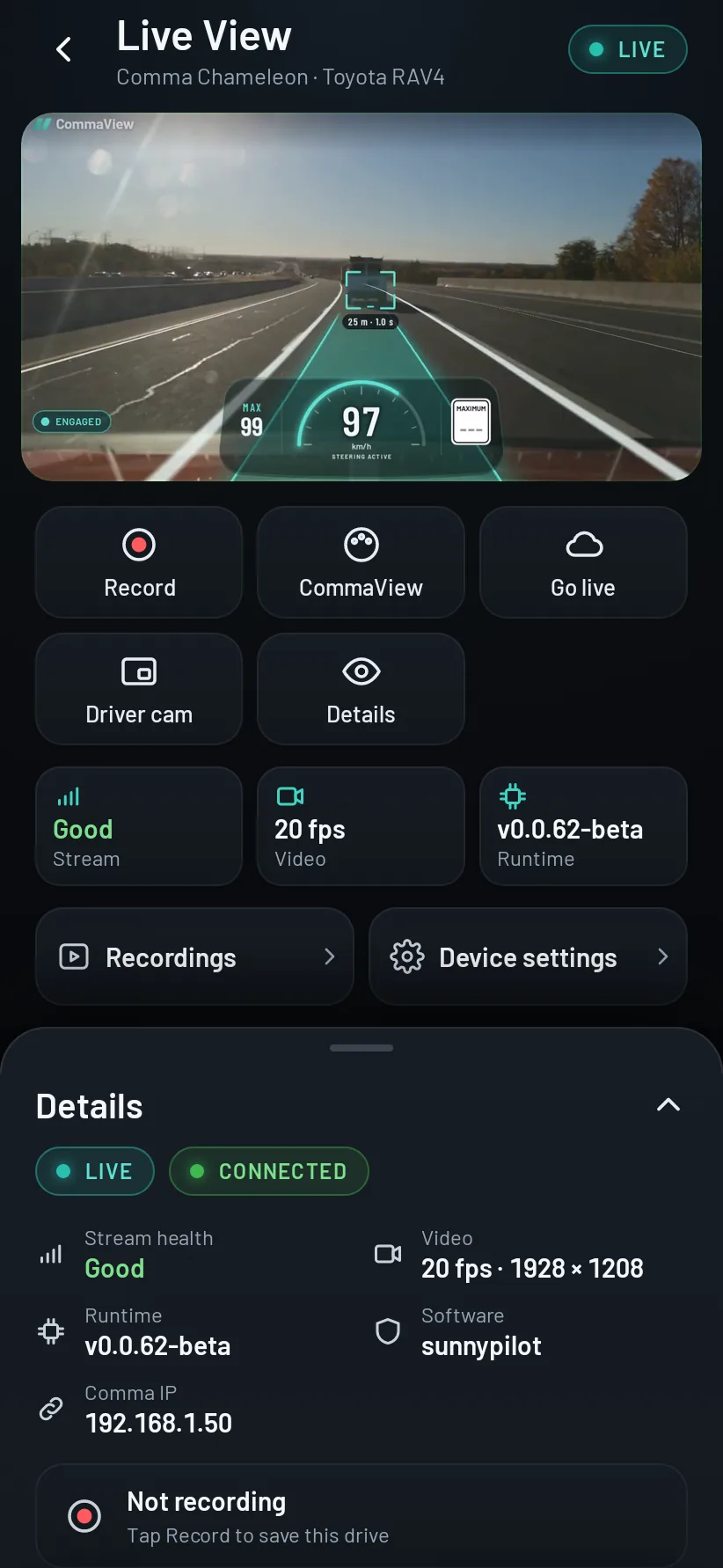
Open Live View on the phone, then Details. Near the end, the Browser View card says what it does and what it tells CommaView. Tap Start.
-
The Browser View card, near the end of Details.
-
Start. The first time, give the phone a few seconds to get its certificate.
-
What Browser View tells CommaView while it runs, and the Privacy policy.
-
-
Step 3 of 5: In a Tesla, turn on the VPN address
Tesla
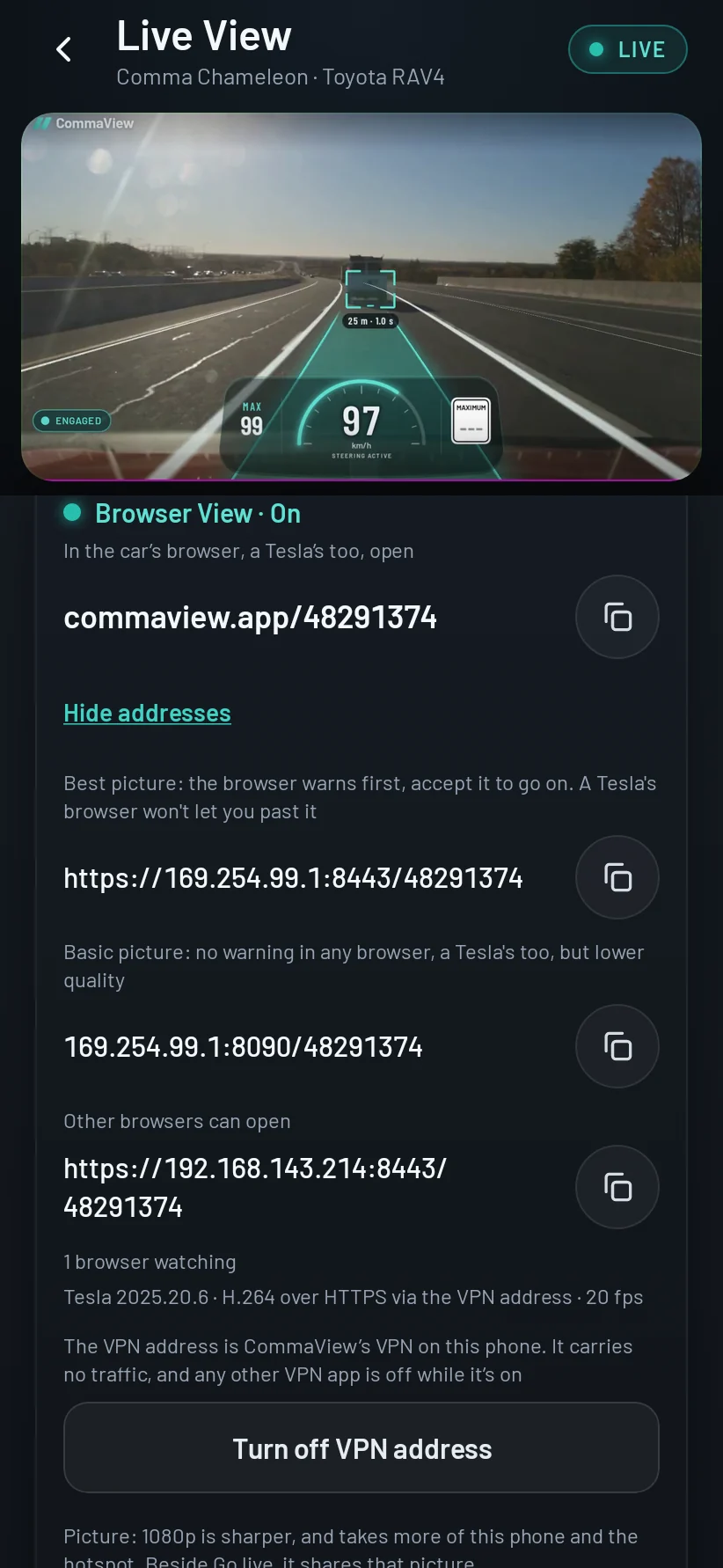
A Tesla’s browser won’t open the addresses a hotspot gives out. On the card, tap Turn on VPN address, and allow it when Android asks to let CommaView set up a VPN. Your phone gets an address the Tesla will open,
169.254.99.1. It carries no traffic, and any other VPN app is off while it’s on.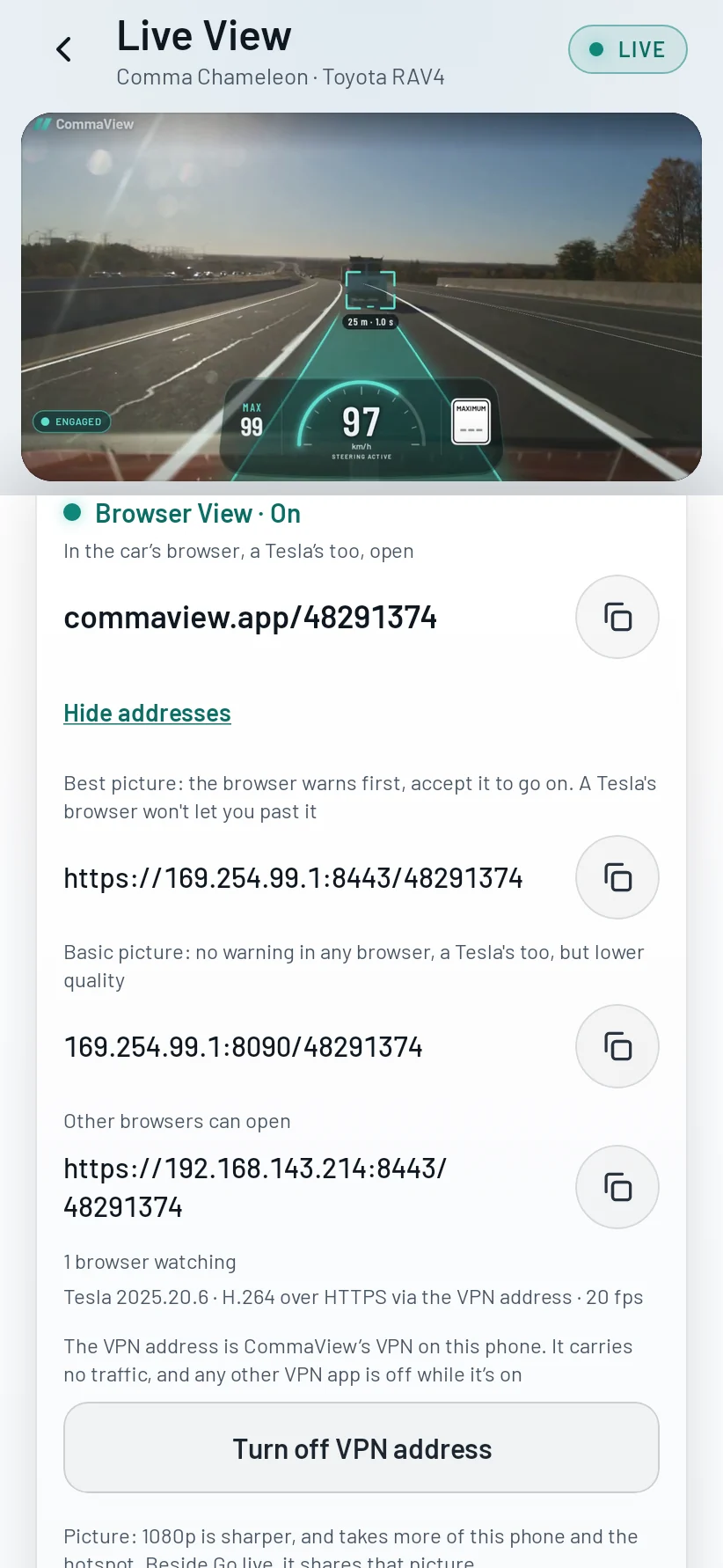
-
The short link, for the Tesla too: In the car’s browser, a Tesla’s too, open.
-
The phone’s addresses on the VPN address,
169.254.99.1.
Android’s own question about the VPN isn’t pictured: it’s Android’s, and looks different on each phone.
Another car
Nothing to do here: other cars’ browsers open the hotspot’s address. Go on to the next step.
-
-
Step 4 of 5: Type the short link in the car’s browser
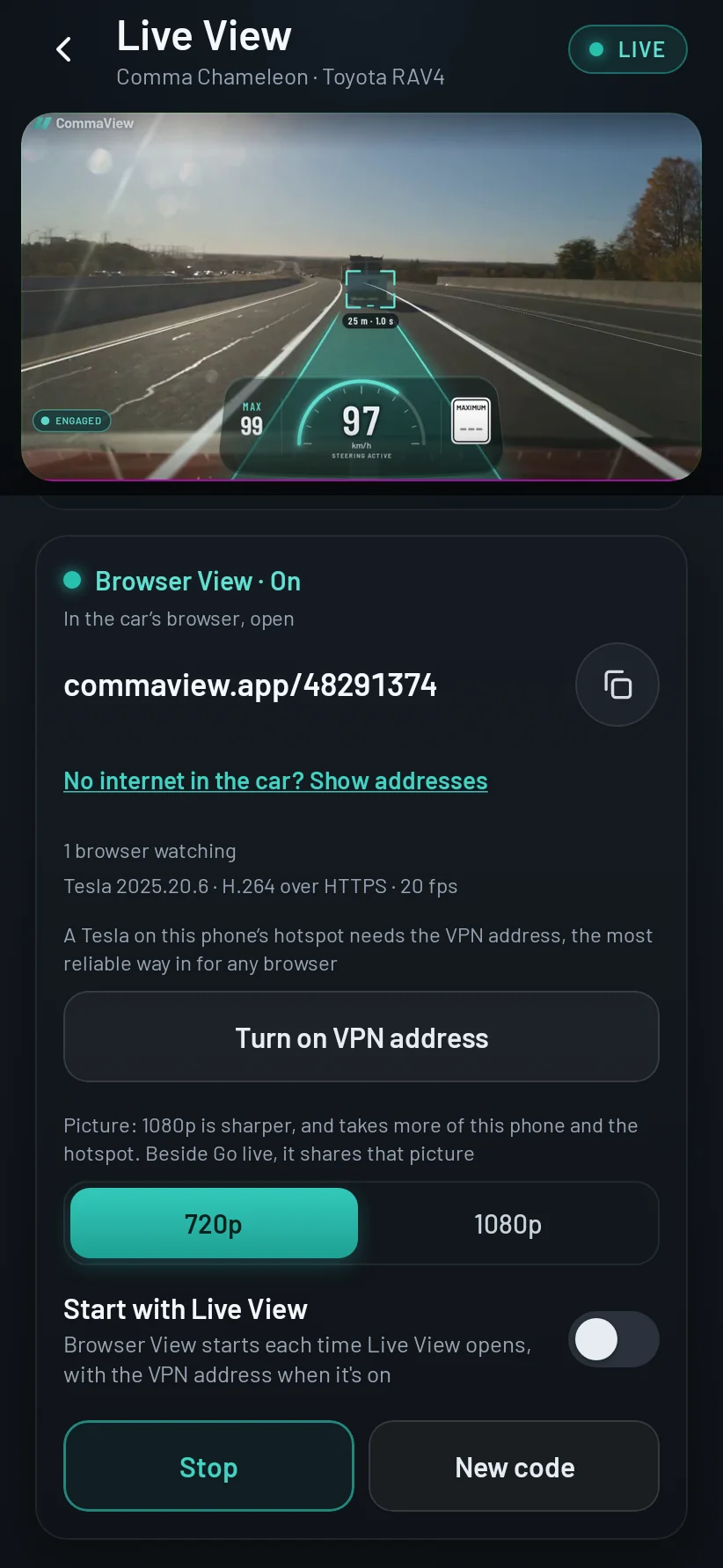
The card shows a short link with your eight-digit code, such as
commaview.app/48291374. Type it in the car’s browser and tap Open. With the car online and CommaView signed in, the page finds your phone and opens Live View over a secure connection: a padlock, no warning, and the smoothest picture.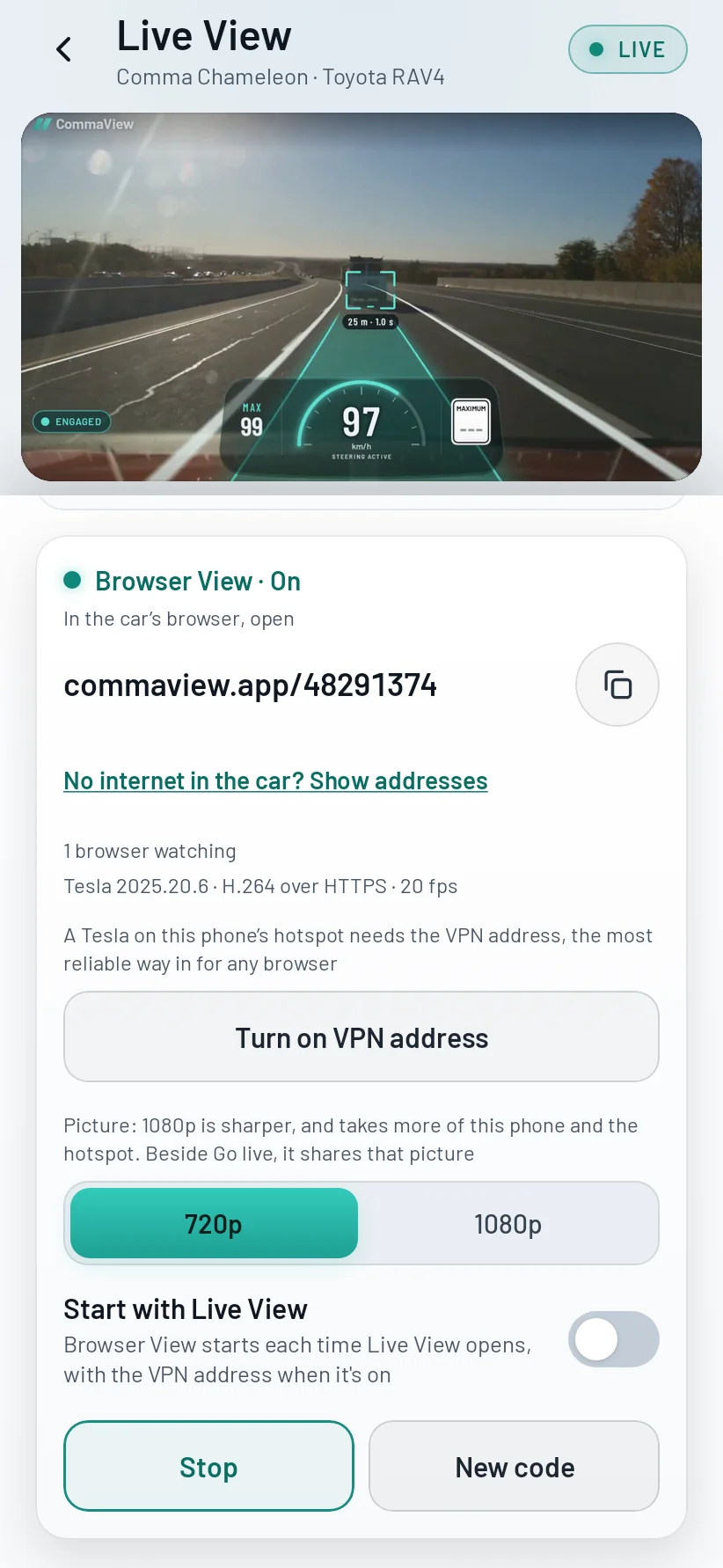
-
The short link to type in the car, with your code.
-
No internet in the car? Show addresses: the phone’s own addresses.
-
Browser View picture: 720p or 1080p.
-
Stop ends Browser View.
No internet in the car? The short link needs it. Use the phone’s own address instead: see No internet in the car.
-
-
Step 5 of 5: Bookmark the page
The page’s address stays the same, so next time, with the car online, open the bookmark instead of typing the short link.
How you know it worked
The card on the phone says who’s watching and what the car’s browser draws, such as 1 browser watching and Tesla 2025.20.6 · H.264 over HTTPS via the VPN name · 20 fps.
No internet in the car
The short link needs the car online for its page, through the hotspot’s mobile data or the car’s own connection. Without it, open the phone’s address itself. On the card, tap No internet in the car? Show addresses:
- Best picture, an HTTPS address such as
https://192.168.43.1:8443/48291374. The browser warns first, because the phone signs this address itself: accept the warning to go on. A Tesla’s browser won’t let you past it. - Basic picture, the same address over HTTP, such as
192.168.43.1:8090/48291374. No warning in any browser, a Tesla’s too, but a lower-quality, less smooth picture.
With the VPN address on, the card shows its addresses instead, https://169.254.99.1:8443/<code> and 169.254.99.1:8090/<code>. In a Tesla with no internet, use the basic one.
Your phone’s hotspot address may differ from the example; the card always shows the right one, with a Copy button beside each.
Choices on the card
- Browser View picture: 720p or 1080p. 1080p is sharper, and takes more of the phone and the hotspot. 720p until you choose.
- Start with Live View. Browser View starts each time Live View opens, with the VPN address if it’s on. Stop it and it stays stopped until Live View opens again.
- New code. Makes a new eight-digit code, so an address someone else saw stops working. Open the new address in the car.
- Controls in the car. Record, Save moment and Live View’s other controls sit under the picture or beside it on the driver’s side, never over it. Controls in the car on the card turns them off.
- The driver camera shows in the car too while Live View’s Driver cam is on.
While it runs
- Browser View keeps going with the phone locked or in another app. Its notification says “Showing Live View in Browser View”, and its Stop ends it.
- Leaving Live View ends it, as it ends Go live and live copies.
- Go live beside Browser View shares its picture. Started while Browser View runs alone, a stream has no sound: stop Browser View first for sound.
Privacy and security
- The picture goes only to browsers on your phone’s hotspot or Wi‑Fi that have the code. Never over mobile data, and never through CommaView’s servers.
- Ten wrong codes in a minute from one device shuts it out for a minute, and a device already watching carries on.
- While Browser View runs, your phone sends CommaView’s account service its code, its ports, whether the VPN address is on and the hotspot’s or Wi‑Fi’s private address, so the short link can find your phone. Anyone who has the code can see them, and your phone’s
commaview.appname, while Browser View runs and for up to 2 hours after it stops unexpectedly; none of them opens anything without your phone’s hotspot or Wi‑Fi. They’re deleted 30 days after Browser View last ran. Your phone’scommaview.appname and its last certificate’s date stay while your account does. Certificates are public, so that name stays in Certificate Transparency logs; it says nothing about you, your car or your comma. The privacy policy has the details. - The VPN address is your choice, never turned on by itself, and carries no traffic.
Questions
Do I need an AI box or a new head unit? No. Browser View uses the browser your car already has. If your car has CarPlay or Android Auto instead, an Android AI box can run CommaView on the car’s screen itself.
Does it use my mobile data? The picture doesn’t: it goes from the phone to the car over the hotspot. The short link’s page and the car’s own use of the hotspot do.
Can my comma’s hotspot do this instead of my phone’s? For most browsers, yes: put the phone and the car on the comma’s hotspot and open the address the card shows. A Tesla needs the VPN address, which works only for a car on the phone’s own hotspot.
Safety
Set Browser View up parked, then leave it alone. Don’t operate CommaView while driving: keep your eyes on the road and your hands on the wheel, as openpilot asks. Your comma’s own alerts and your car’s instruments come first. CommaView only shows what the comma sees.
If it doesn’t work
“Waiting for the car’s browser” and nothing opens
Check the car joined your phone’s hotspot, not another Wi‑Fi. In a Tesla, turn on the VPN address (step 3).
“Turn on this phone’s hotspot”
The phone is on neither Wi‑Fi nor a hotspot the car could share. The address appears within 5 seconds of either coming on.
The short link says the VPN address is off
Turn it on in the card, then reload the page.
A warning you can’t get past
Use the short link with the car online, or the basic picture (No internet in the car).
The picture stops in Drive
Whether a car’s browser keeps drawing while you drive is up to the car maker. The card’s report line says what the car draws (“0 fps · hidden” is a picture the car stopped). Tell us your car and its software version: turn on Keep diagnostics on this phone before you drive, then send Report a problem or send an idea from Settings afterwards.
Did this guide get you there?
Tell us what’s missing