
All guides · Recordings
Guide · Recordings
Record a drive from Live View
Record in Live View saves a drive. Unless you choose otherwise, it makes a replay: once you park, CommaView downloads the comma’s own video for what you recorded, up to 10 minutes, and draws the onroad screen over it on your phone. Nothing is uploaded: recordings stay on your phone until you delete them.
Before you start
- Live View works
CommaView on your phone, paired with your comma. Not yet? Set up CommaView, then open Live View.
- The car on
Record starts once the comma has started a drive, so switch the car on first. Start recording in Park, before you pull away.
- Room on your phone
A replay is made on your phone, from the comma’s video. Settings › Recordings shows the storage it uses and what’s free.
How it works
Record in Live View
Opens the comma’s capture window: it keeps the onroad screen’s data while you record.
Make replay
The phone downloads the comma’s video for that stretch, one drive at a time.
Recordings
The replay plays on your phone, with the screen drawn over the video.
Steps
Tick each step off as you go. The first time, do it parked.
-
Step 1 of 5: Choose what Record makes
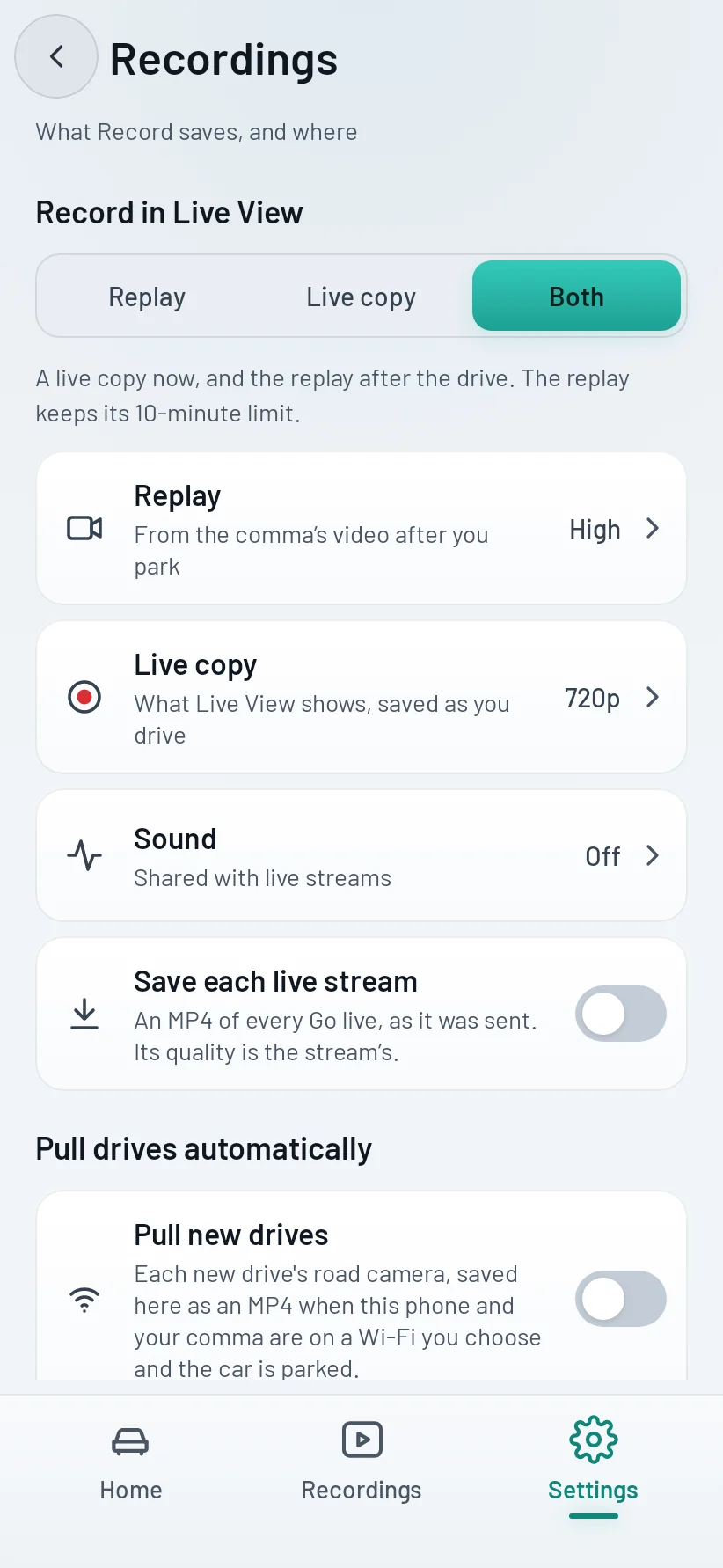
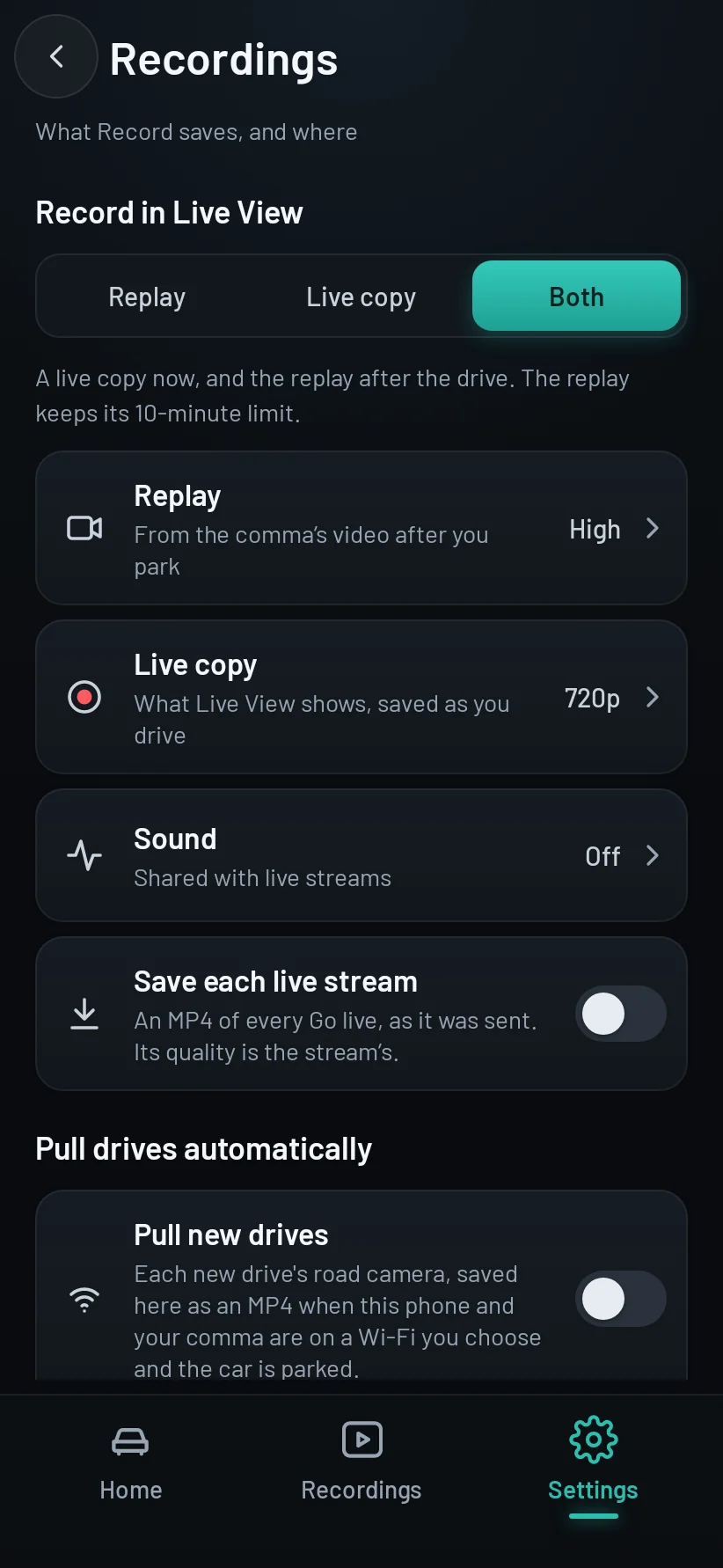
Tap Settings, then Recordings. Under Record in Live View, Replay is chosen until you change it: “The best picture: the comma’s own video with the HUD drawn over it, made after you park. Up to 10 minutes a recording.”
Live copy saves what Live View shows instead, with no time limit, and Both makes the two. They have a guide of their own.
-
Record in Live View: Replay, Live copy or Both.
-
Replay opens its quality: Balanced, High or Max. Higher quality takes longer to make and makes larger files.
-
-
Step 2 of 5: Tap Record in Live View
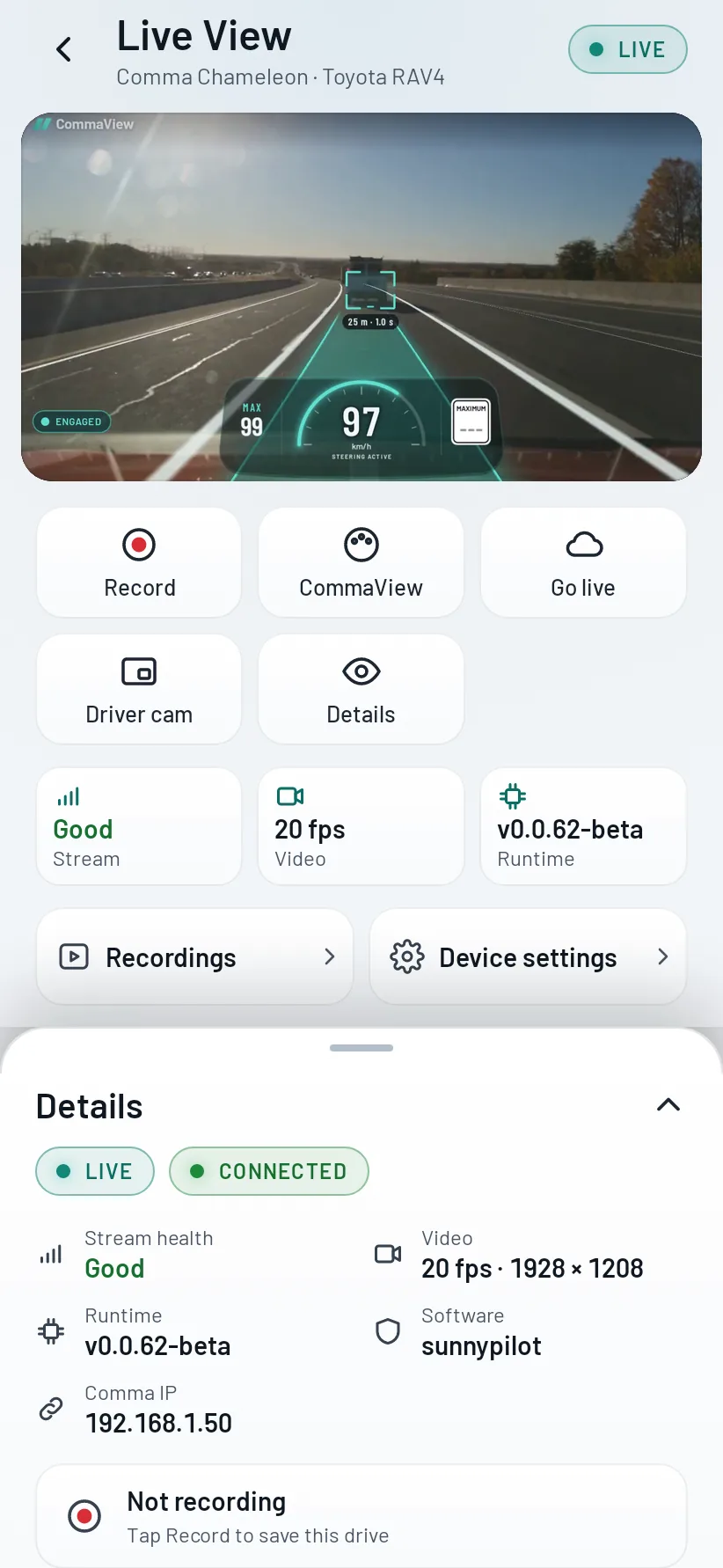
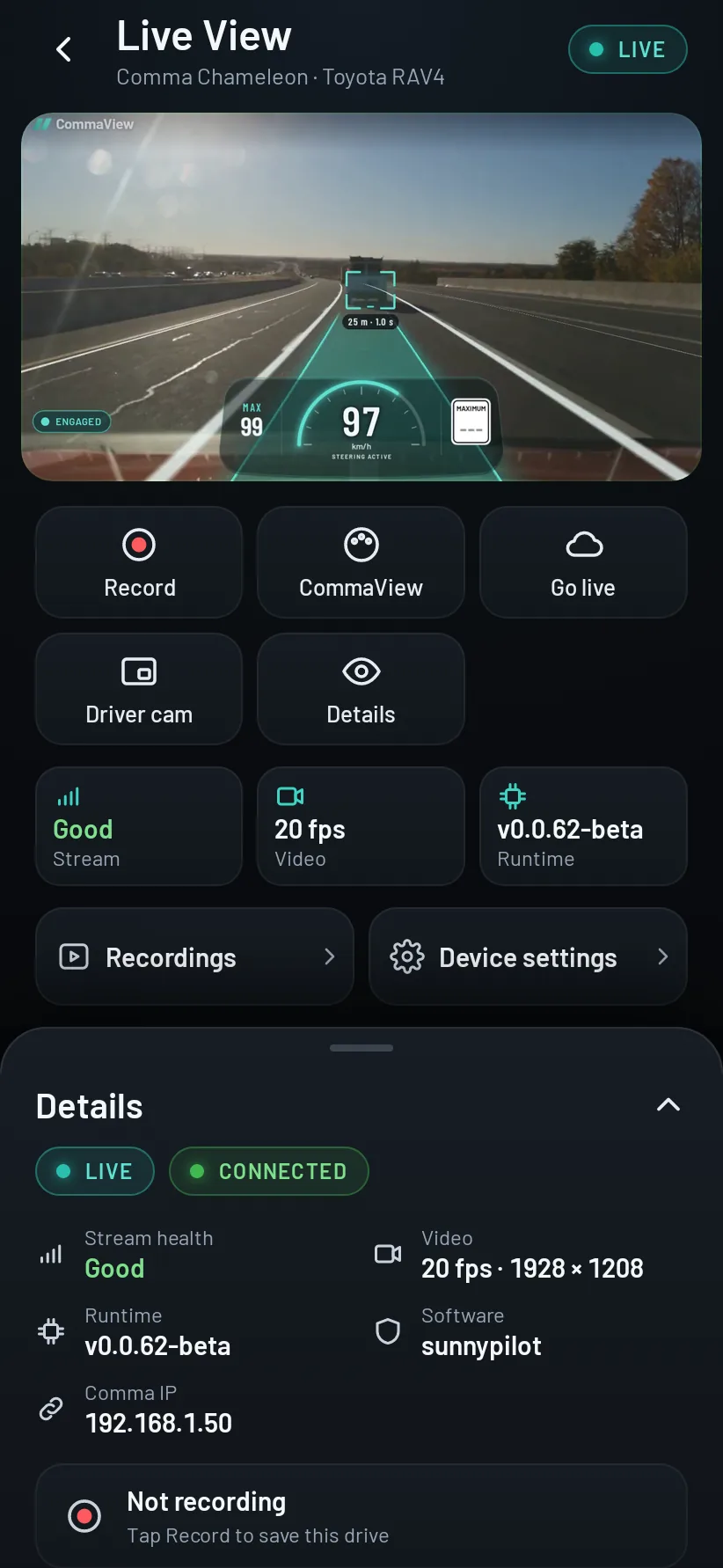
With the car on and still in Park, open Live View and tap Record. It reads Starting… for a moment while CommaView syncs with the drive, then its timer runs.
-
Record. On a tablet, a head unit or a phone on its side, it’s in the rail.
Start recording before you drive off, or let a passenger handle it. Don’t tap through CommaView while you drive.
-
-
Step 3 of 5: Let it record
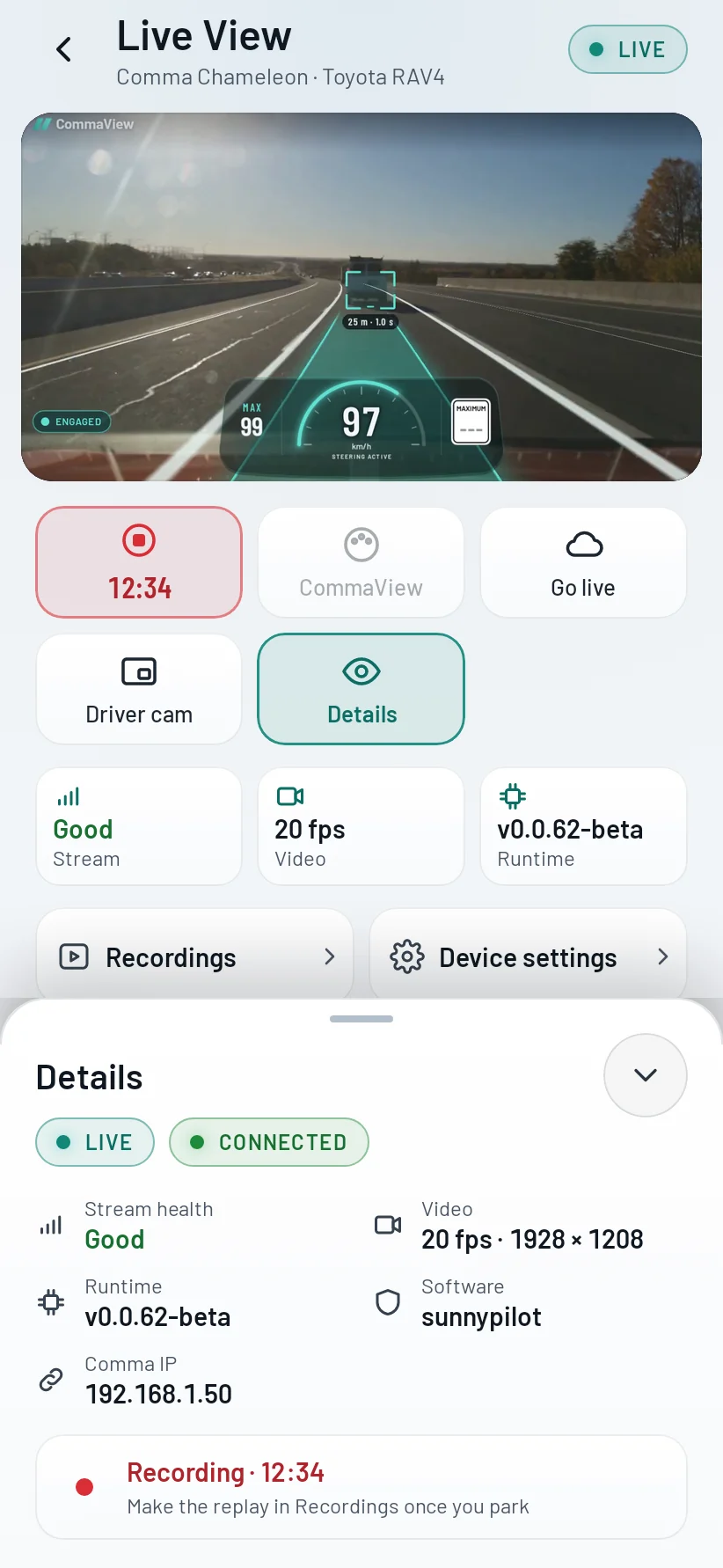
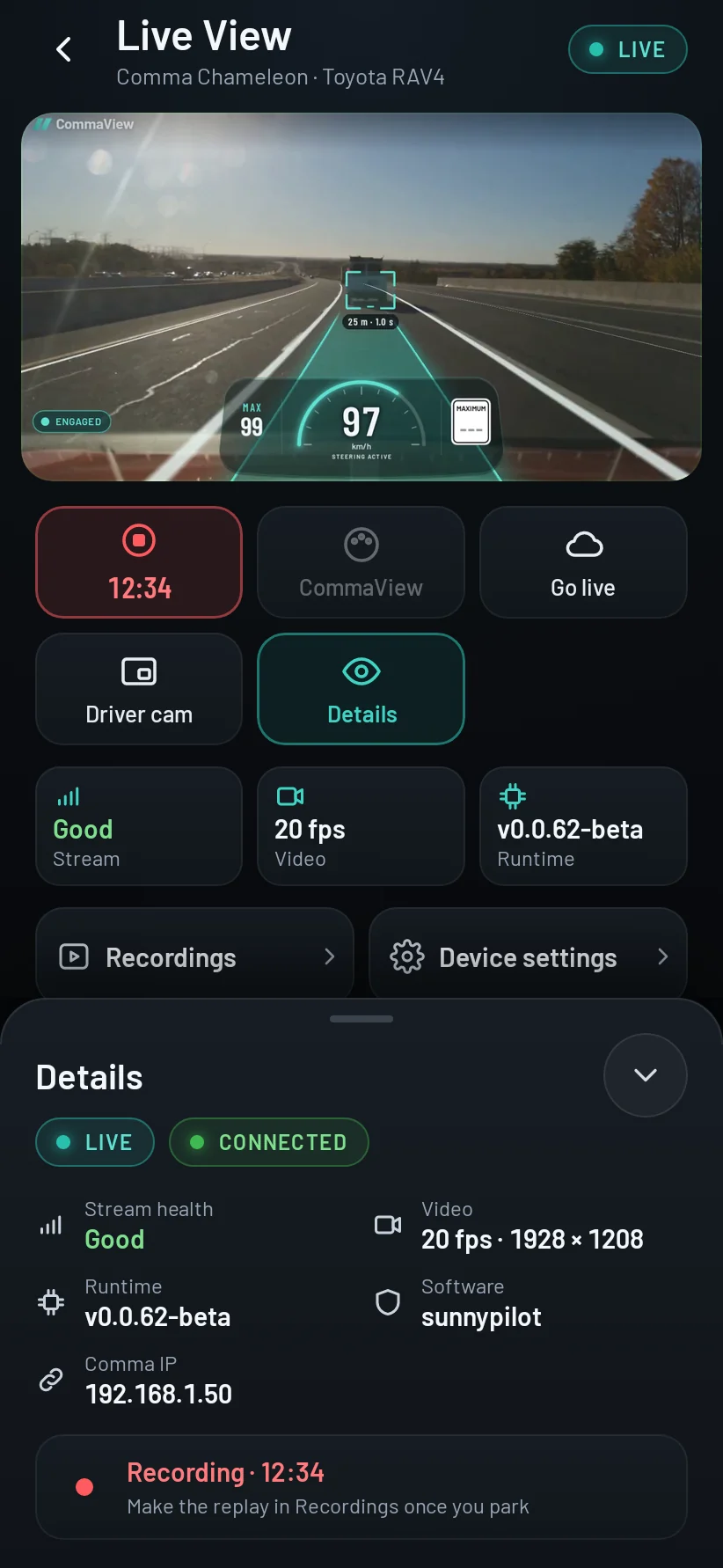
While it records, Record shows the time and Details says Recording · and the time. Tap Record again to stop. A replay also stops by itself at 10 minutes, and when Live View closes.
-
Record, with its timer. Tap it again to stop.
-
Recording · the time, in Details.
-
Save keeps the last 3 minutes and the next minute, without Record. It’s copied to your phone once you park.
Save shows only where your comma’s runtime lists its drives. A tap within that next minute keeps another minute, up to 10 minutes. Leave it to a passenger while you drive.
-
-
Step 4 of 5: Park, then make the replay
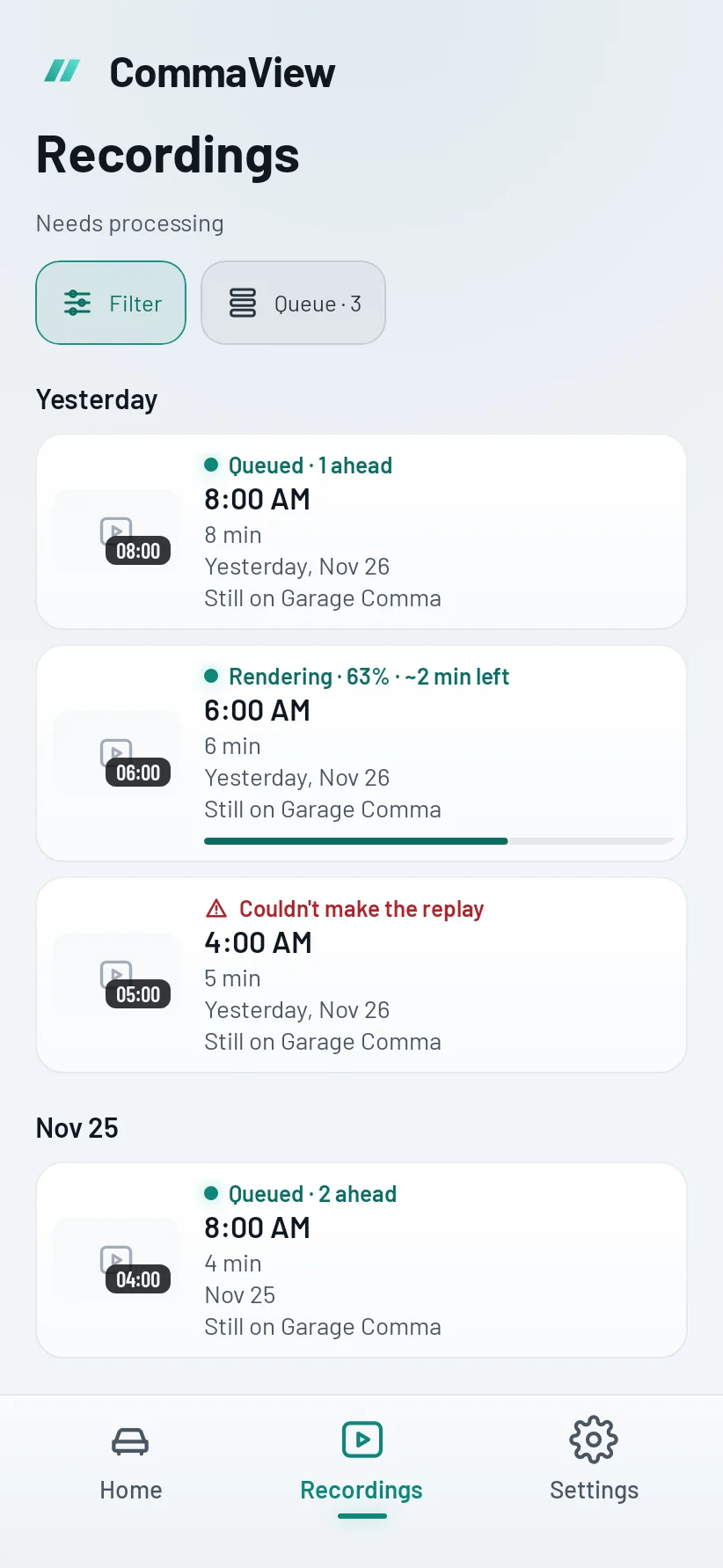
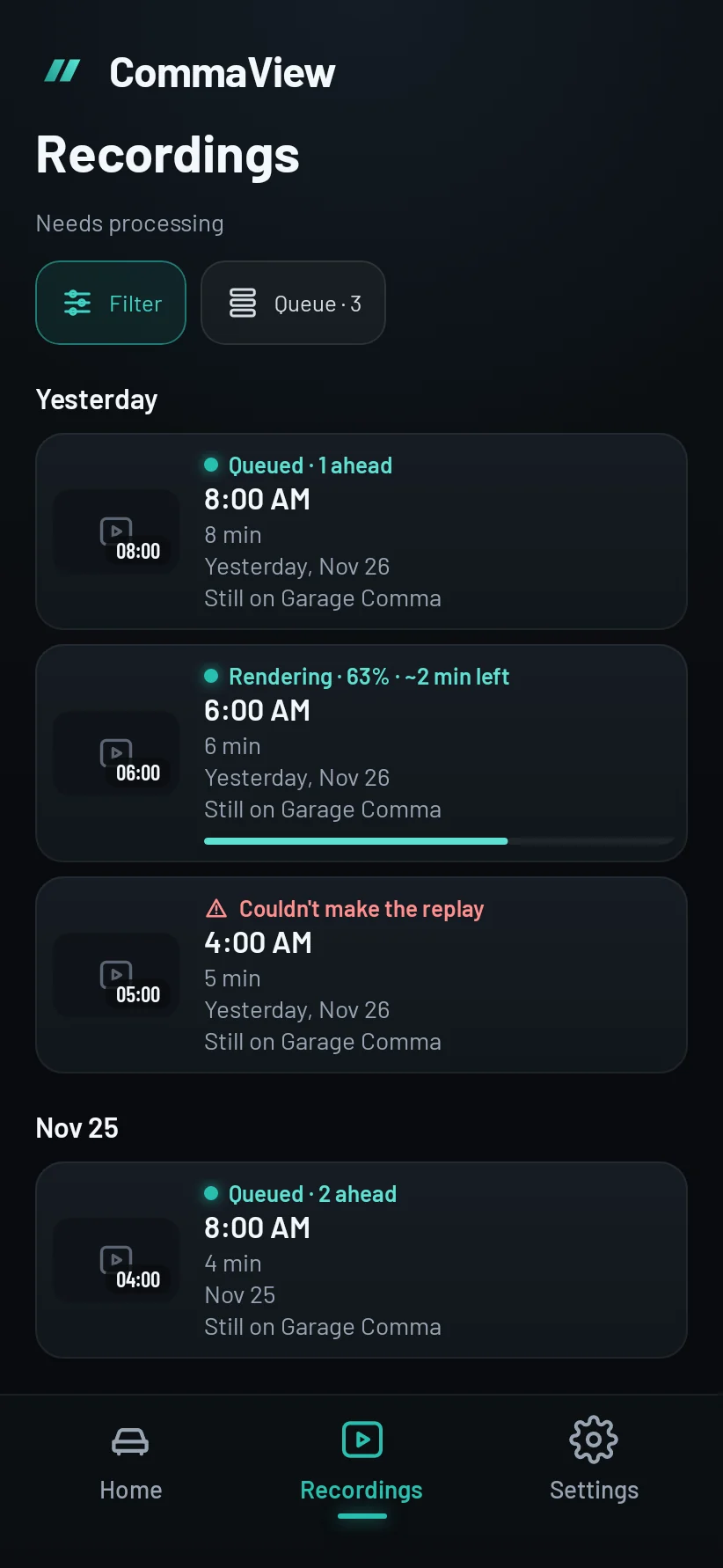
Once you’ve parked, open Recordings from the bar at the bottom (the rail on a bigger screen). The drive you recorded says Needs processing. Open it and tap Make replay: the app says “Replay queued. Follow it in Queue.”
The comma shares a drive only while the car is in Park with openpilot disengaged, so keep the car on and your phone on the comma’s network until the replay is made. Without a power harness, switching the car off switches the comma off too.
-
Make replay.
-
Queue shows each replay being made, one at a time, with Pause, Retry and Remove.
Make replay can take up to a minute to appear after you park: a comma that said it was being driven is asked again a minute later.
-
-
Step 5 of 5: Watch it in Recordings
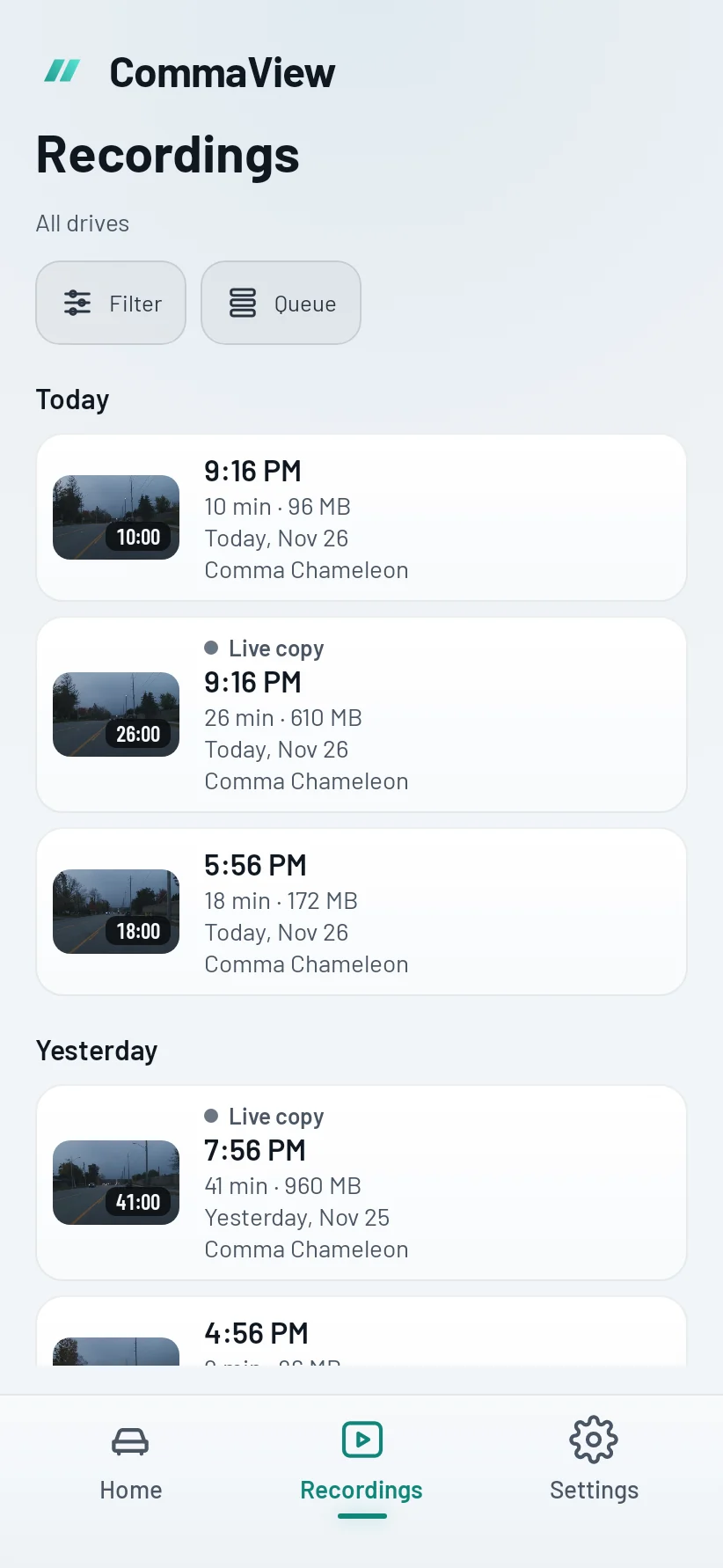
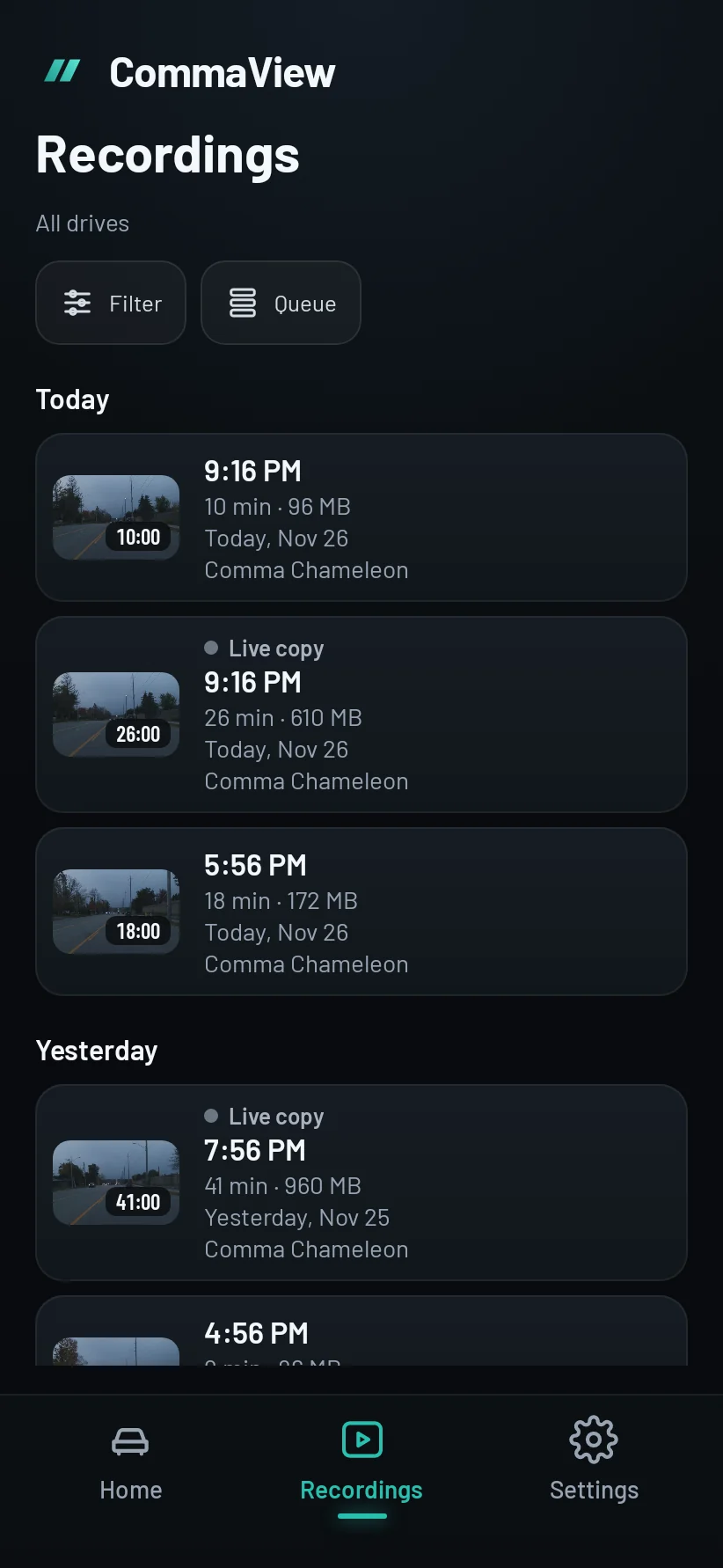
When it’s made, the app says Replay made with its number of frames, and the drive plays in Recordings. Tap it to watch, full screen if you like.
-
The drive’s replay, grouped under the day.
-
Filter: All drives, Ready or Needs processing, and which comma.
-
How you know it worked
The drive’s row no longer says Needs processing, and it plays when you tap it. To share it or save it elsewhere, see Share and export recordings.
Replay, live copy or both
| Record makes | What you get |
|---|---|
| Replay (the default) | The comma’s own video with the onroad screen drawn over it, made after you park. The best picture, up to 10 minutes a recording, while the comma still has the drive. The road and wide cameras only: there’s no driver camera in a replay. |
| Live copy | What Live View shows, saved on your phone as you drive and ready the moment you stop. No replay to make and no time limit. Record a live copy. |
| Both | A live copy now, and the replay after the drive. The replay keeps its 10-minute limit. |
Where recordings are kept
Recordings stay on your phone. Settings › Recordings › Storage shows the storage they use and what’s free, and Change picks another one when your phone has it. Android’s backup and a transfer to a new phone leave them out. Send to CommaView sends only the comma’s own data for a drive, and only when you send it.
Safety
Start Record before you pull away, and make replays once you’ve parked. Don’t operate CommaView while driving: keep your eyes on the road and your hands on the wheel, as openpilot asks. CommaView isn’t a dashcam or a safety system, and a recording can fail.
If it doesn’t work
“Recording can start once the comma has started a drive.”
The comma is offroad. Switch the car on and wait for openpilot to start, then tap Record again.
“CommaView is still syncing with this drive. Try Record again in a moment.”
Record needs the comma’s frame times, which come with its driving data. They hadn’t arrived within 5 seconds. Wait a moment and tap Record again.
“CommaView isn’t receiving driving data from the comma. Check the connection, then try Record again.”
The video may still play, but the driving data stopped. Check your phone is still on the comma’s Wi‑Fi or hotspot, then try again. If Live View says Car data isn’t coming through, reboot the comma.
“Reboot the comma first: CommaView was installed, updated or repaired, and records again after a reboot.”
Reboot the comma when the car is in Park, then record again.
“Recording storage is full. Free up some space, then try Record again.”
Delete drives you no longer need in Recordings, or choose another storage under Settings › Recordings › Storage with Change.
“The comma has no room left for this drive’s HUD data (about 55 minutes of recordings). Record again on your next drive.”
The comma keeps up to about 55 minutes of recordings’ HUD data for each drive. Make the replays of what you recorded, and record again on the next drive.
“Shift into Park to make this replay”, or the drive says “Waiting until you park”
The comma shares a drive only parked, with openpilot disengaged. Put the car in Park and keep it on. The replay waits and asks again every 15 seconds; after 30 minutes of driving it stops with “The car was still being driven, so the comma couldn’t share this drive. Retry once you’re parked.” Tap Retry in Queue once you’re parked.
“Connect to Comma Chameleon to make this replay”
Your phone couldn’t reach the comma that recorded the drive (it names yours). Join your phone to the comma’s Wi‑Fi or hotspot, then tap Retry in Queue. See CommaView can’t find your comma.
“Drive deleted from the comma”
The comma deleted this drive to make room for newer ones before its replay was made, so it can’t be made now. You can delete the recording. A drive that says Make the replay soon is close to that: make it while you can.
The replay says “HUD missing for 2 min”
The comma didn’t save the onroad screen’s data for part of the recording. The replay shows HUD data unavailable over that stretch, and Watch’s HUD data fact says how long.
“Replay made: 4,860 frames. It ends early, where the comma lost power.”
The comma lost power as the drive ended, so its last moments weren’t saved. Recordings may show Your comma may have lost power as a drive ended; its How to fix it explains comma power and the offroad time setting.
Did this guide get you there?
Tell us what’s missing