
All guides · Getting started
Guide · Getting started
Connect in the car without home Wi‑Fi
Live View goes straight from the comma to your phone over a local network, not the internet. CommaView doesn’t mind whose network it is: your phone and the comma only have to be on the same one. In the car, that’s usually a hotspot.
Before you start
- CommaView set up
Your comma paired with this phone. Not yet? Set up CommaView.
- No VPN
Turn off any VPN on the phone or car screen while you use CommaView.
How it works
Your comma
Serves Live View and recordings on the network it’s on.
Your phone
Finds the comma by itself on that network, even if its address changes.
Steps
Tick each step off as you go. The first time, do it parked.
-
Step 1 of 4: Put the phone and the comma on one network
Pick the one that suits your car: the one that starts by itself when the car does is usually the least fuss. You join the comma to a network on the comma’s own screen, under Settings › Network.
Your phone’s hotspot
Turn on your phone’s hotspot and join the comma to it. CommaView on the same phone reaches the comma over it, and the comma gets the internet through it too.
The comma’s hotspot
Turn on the comma’s hotspot (openpilot calls it tethering: on a comma four, Settings › Network › enable tethering; on a comma 3X, Settings › Network › Advanced › Enable Tethering) and join it from your phone’s Wi‑Fi settings. The comma’s hotspot gives no internet.
A car screen’s hotspot
If an AI box or head unit can share a hotspot (many with a SIM card can), turn it on and join the comma, and your phone if you use one, to it. Car screens has more.
Some hotspots keep the devices on them apart. If CommaView can’t find the comma on one, try another.
-
Step 2 of 4: Open CommaView
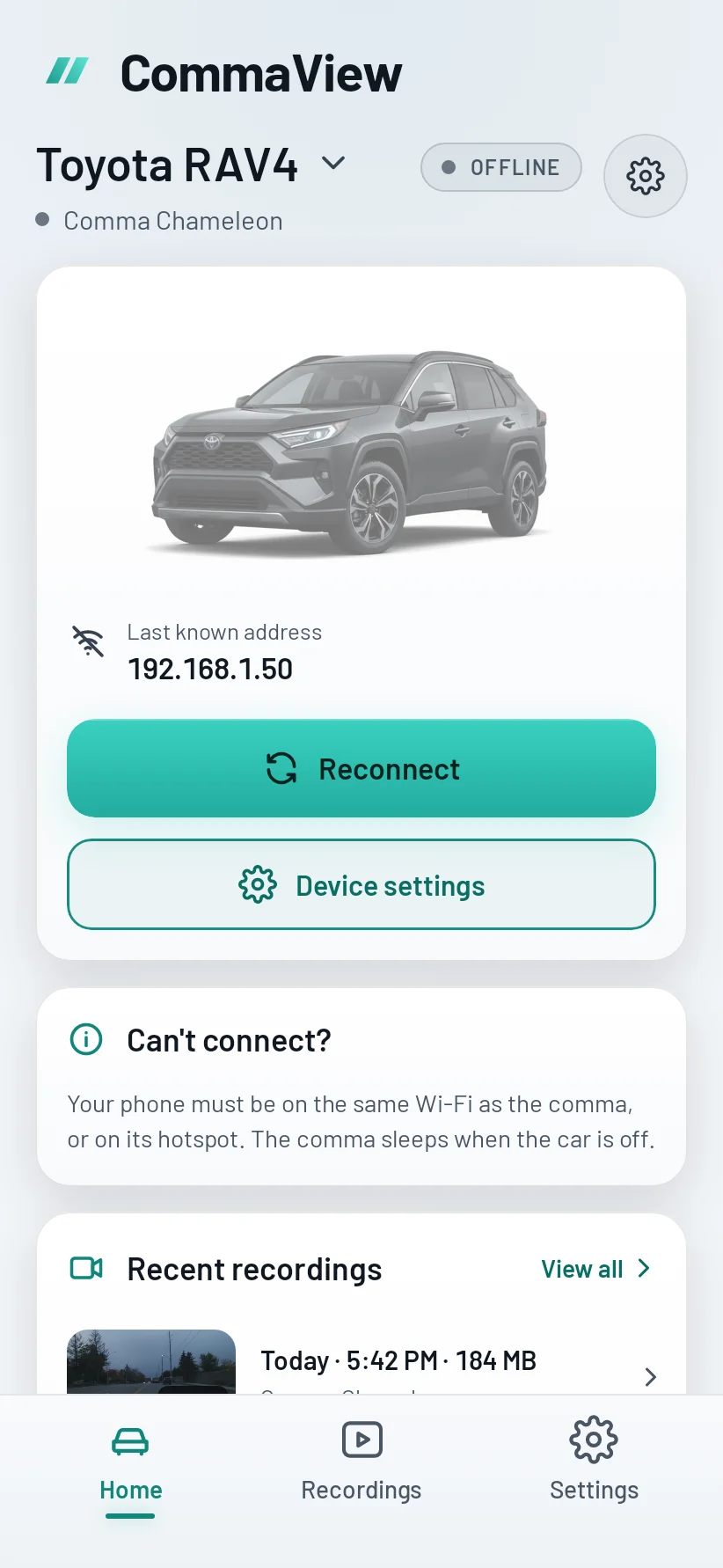
Home shows your comma Connected once it answers on the new network: CommaView finds it by itself, even at a new address. The comma sleeps when the car is off, so start the car first.
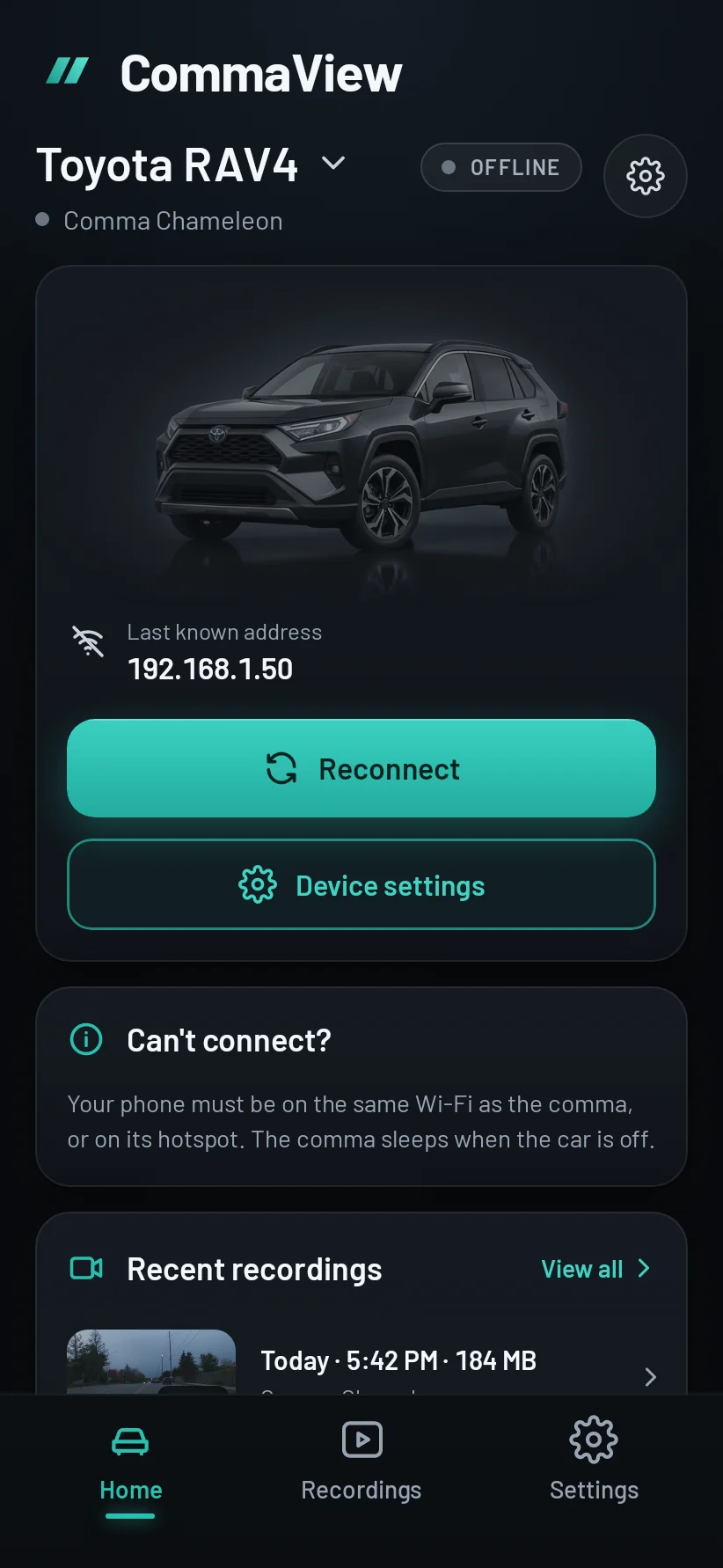
If Home shows the comma offline with Can’t connect?, check the phone is on the same Wi‑Fi as the comma, or on its hotspot, then tap Reconnect.
-
Reconnect tries the comma again.
-
Can’t connect? says what the phone needs: the same Wi‑Fi as the comma, or its hotspot.
-
-
Step 3 of 4: If it still isn’t found, enter its address
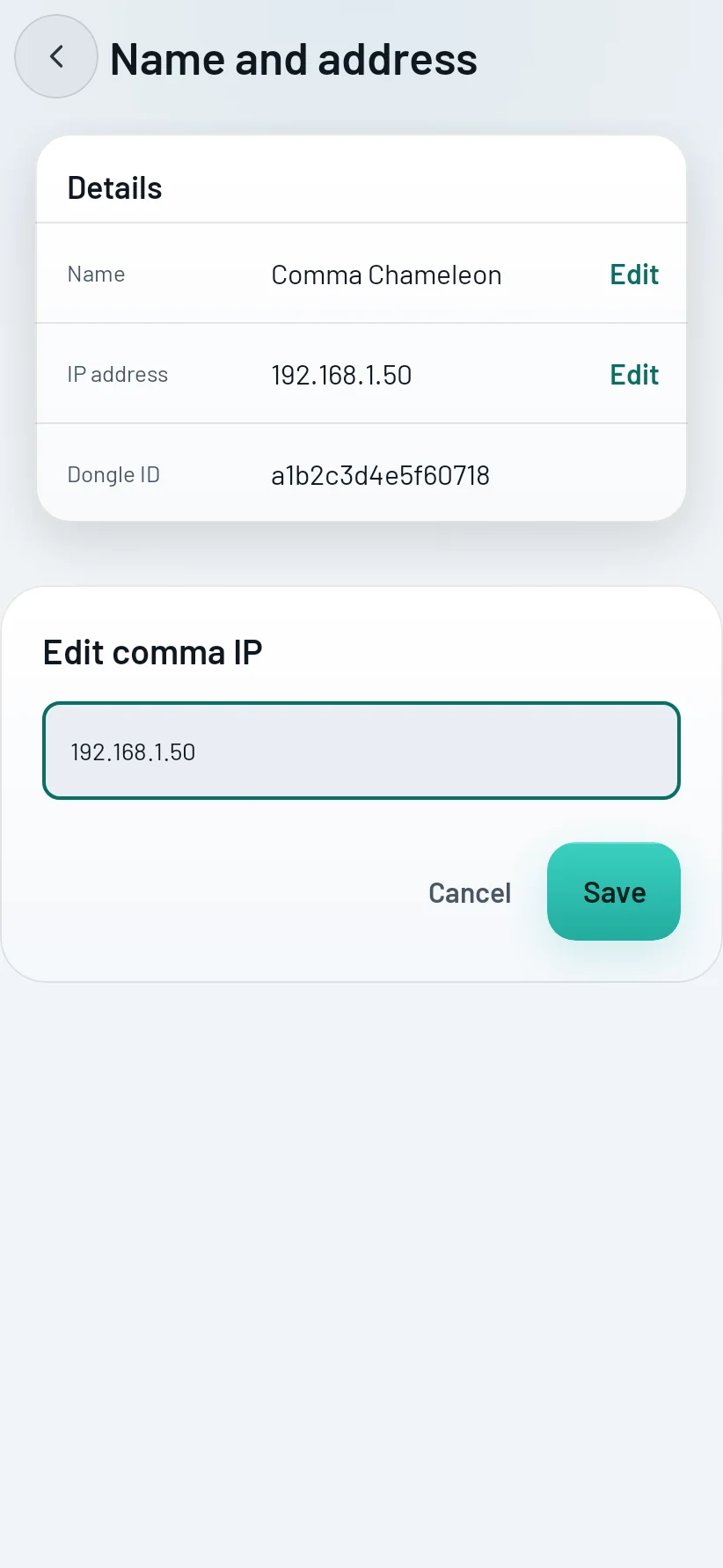
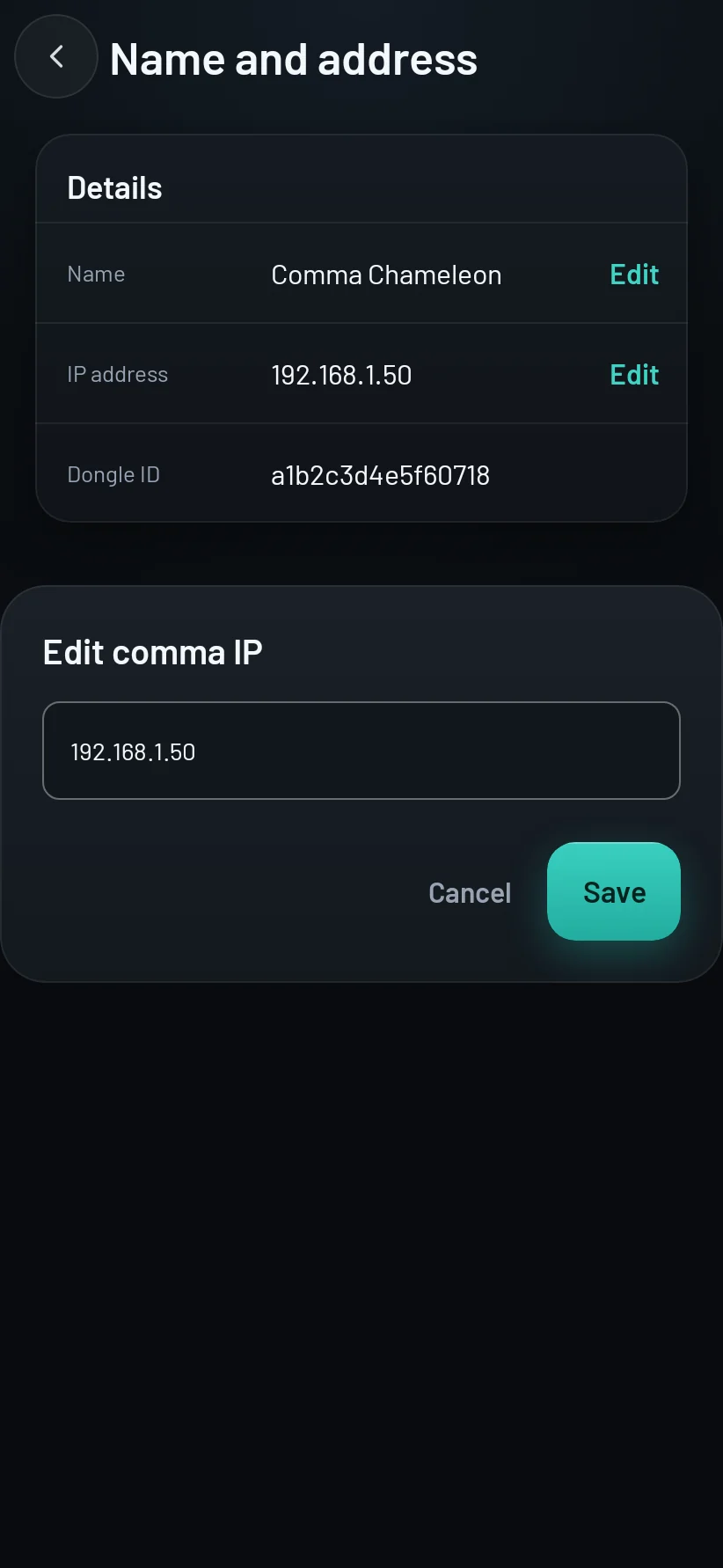
Open the comma’s Device settings, then Name and address, and edit its IP address. On the comma’s own hotspot it’s 192.168.43.1 (every comma’s is the same). On any other network, it’s the address the comma shows under Settings › Network: under the network’s name on the Wi‑Fi button on a comma four, or under Advanced on a comma 3X. Tap Save.
-
The comma’s IP address on this network.
-
Save.
-
-
Step 4 of 4: Open Live View
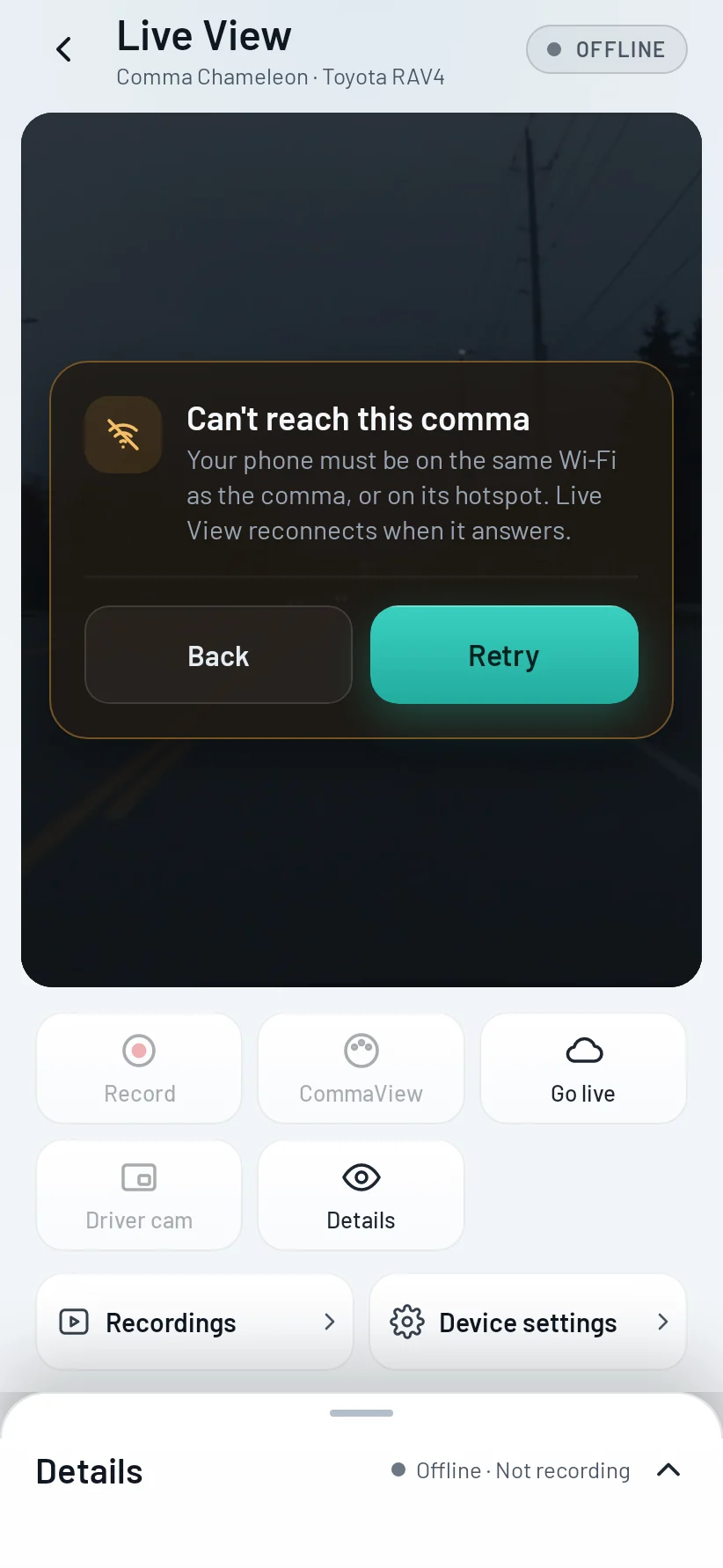
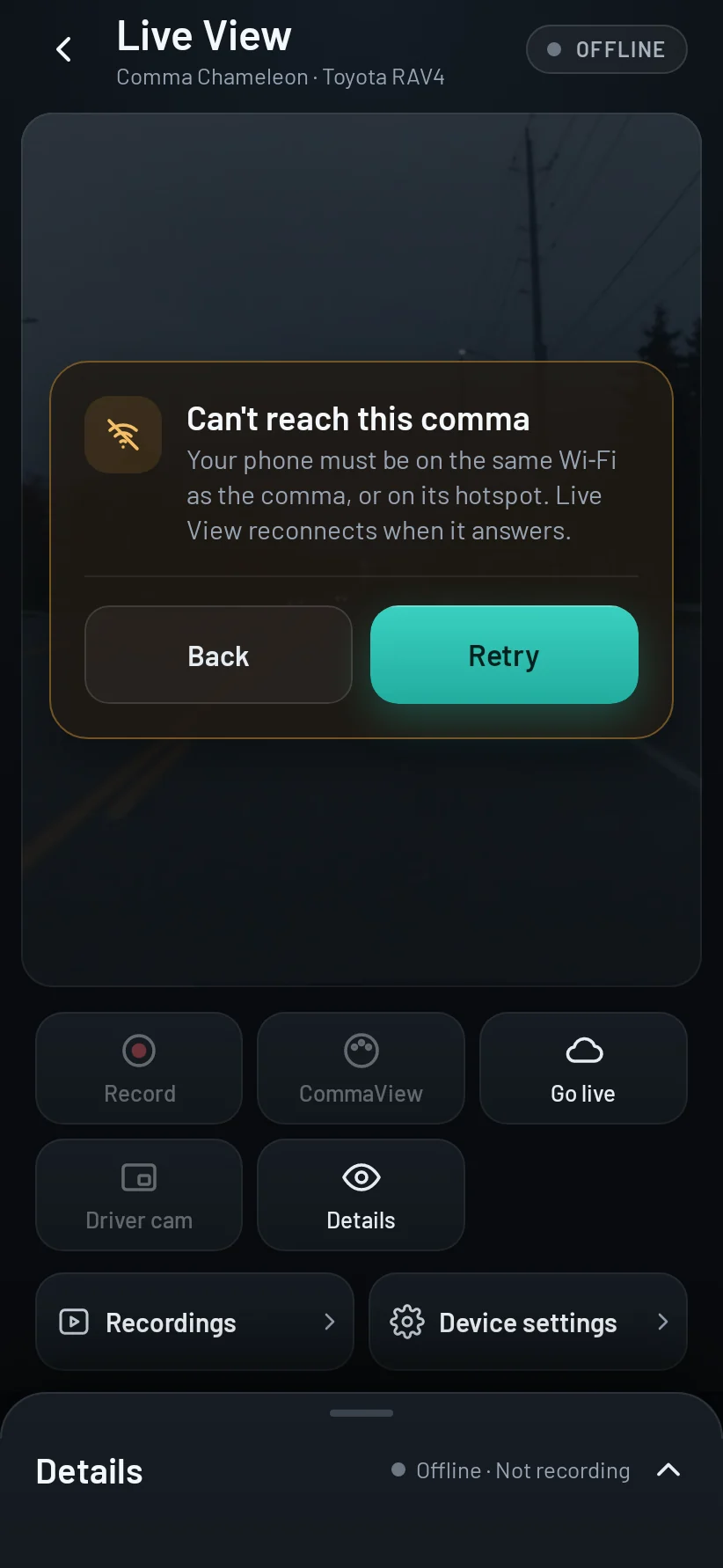
Tap Open Live View on Home. If the phone loses the comma, Live View says why and reconnects by itself when the comma answers. Can’t reach this comma means the phone isn’t on the comma’s network: fix that, then tap Retry.
-
Can’t reach this comma: why Live View stopped.
-
Retry, once the phone is back on the comma’s network.
-
How you know it worked
Home shows your comma Connected, and Live View plays the road with the path drawn over it.
Discovery, pairing and the address
Three separate things have to work, and knowing which one failed tells you what to fix:
- Finding the comma. CommaView looks for your comma on the network the phone is on, and updates the saved address when it finds the same comma somewhere new. Some networks block that search; entering the address (step 3) gets round it.
- Reaching it. The phone has to reach the comma on that network. A laptop that can SSH to the comma doesn’t prove the phone can.
- Pairing. Once reached, the phone uses the key it got when you paired. Moving networks doesn’t undo pairing: you don’t pair again.
If it doesn’t work
“Can’t reach this comma”
The phone must be on the same Wi‑Fi as the comma, or on its hotspot. Check which network the phone joined (it may have gone back to a Wi‑Fi it knows), turn off any VPN, and tap Retry.
“Live View is open on another device”
This comma streams to one phone or head unit at a time. Go back to Home in CommaView on the other one, and Live View starts here by itself.
“CommaView isn’t answering”
It may be restarting on the comma. Live View reconnects when it’s back.
CommaView says it needs the internet to renew
During the beta, CommaView renews its access pass now and then, and the comma’s hotspot doesn’t count as internet. Give the phone mobile data or Wi‑Fi with internet for a moment.
It worked on one hotspot and not on another
Some hotspots keep the devices on them apart, so the phone can’t see the comma. Try another of the networks in step 1.
Did this guide get you there?
Tell us what’s missing