
All guides · Getting started
Guide · Getting started
Set up CommaView
CommaView has two pieces: the app on your Android phone, tablet or head unit, and its small runtime on your comma. Install the app, then guided setup in the app puts the runtime on your comma, checks it and pairs it. It takes a few minutes, in Park with openpilot disengaged.
Before you start
- A comma 3X or comma four
On openpilot or a supported fork. The comma 3 isn’t supported: its openpilot release is frozen upstream and draws its screen differently, so CommaView can’t show its overlay. Why the comma 3 isn’t supported.
- An Android device and your invite
Android 8 or later, and the email your invite came to. CommaView is in beta: you sign in with the invited account.
- The same network
Your phone and the comma on one local network: your Wi‑Fi, your phone’s hotspot, the comma’s own hotspot or any other they can both join. In the car? Connect without home Wi‑Fi.
- A GitHub account
The comma lets in SSH keys from the GitHub username you give it. CommaView makes the key; you add it to GitHub during setup.
How it works
Your phone
Makes an SSH key, which you add to GitHub.
Your comma
Takes the key from your GitHub username. CommaView installs its runtime beside your fork.
CommaView
Checks the runtime answers and saves your comma. It reconnects by itself from then on.
Steps
Tick each step off as you go. The first time, do it parked.
-
Step 1 of 8: Get the app and sign in
On your Android device, sign in at my.commaview.com with the email your invite came to. Under Get the app, tap Download CommaView. Its SHA-256 checksum is shown beside it if you want to check the file.
Open the download. Android asks you to allow installs from your browser: allow it for this install, then turn it back off.
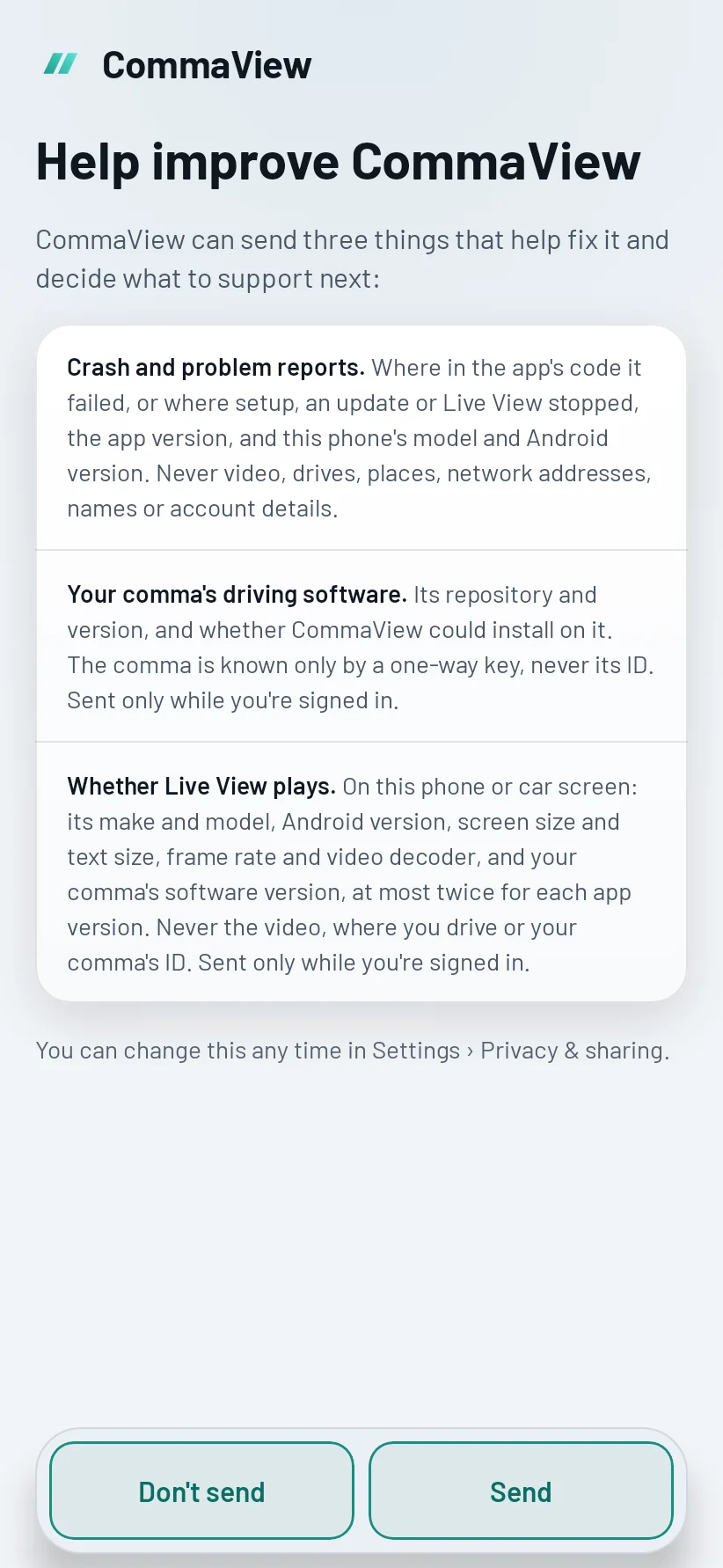
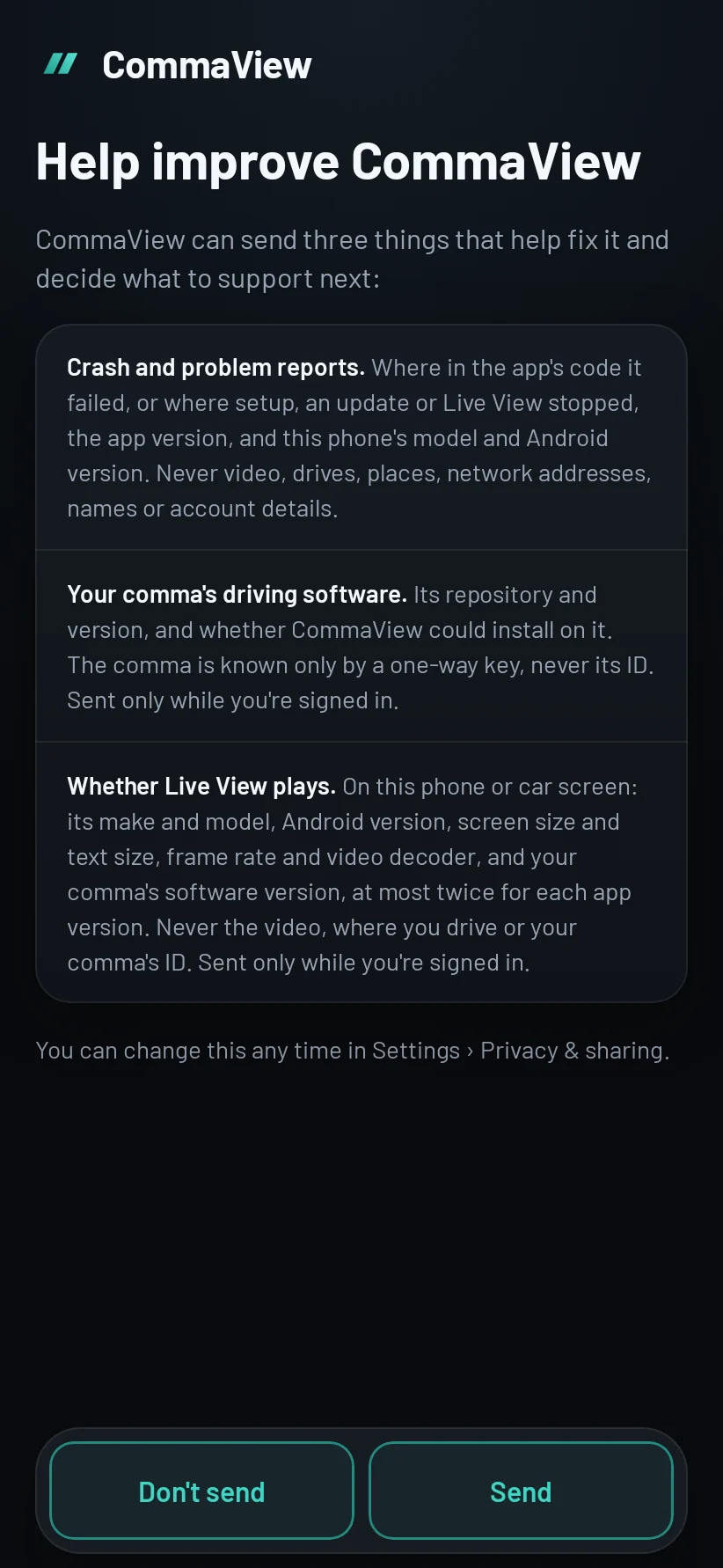
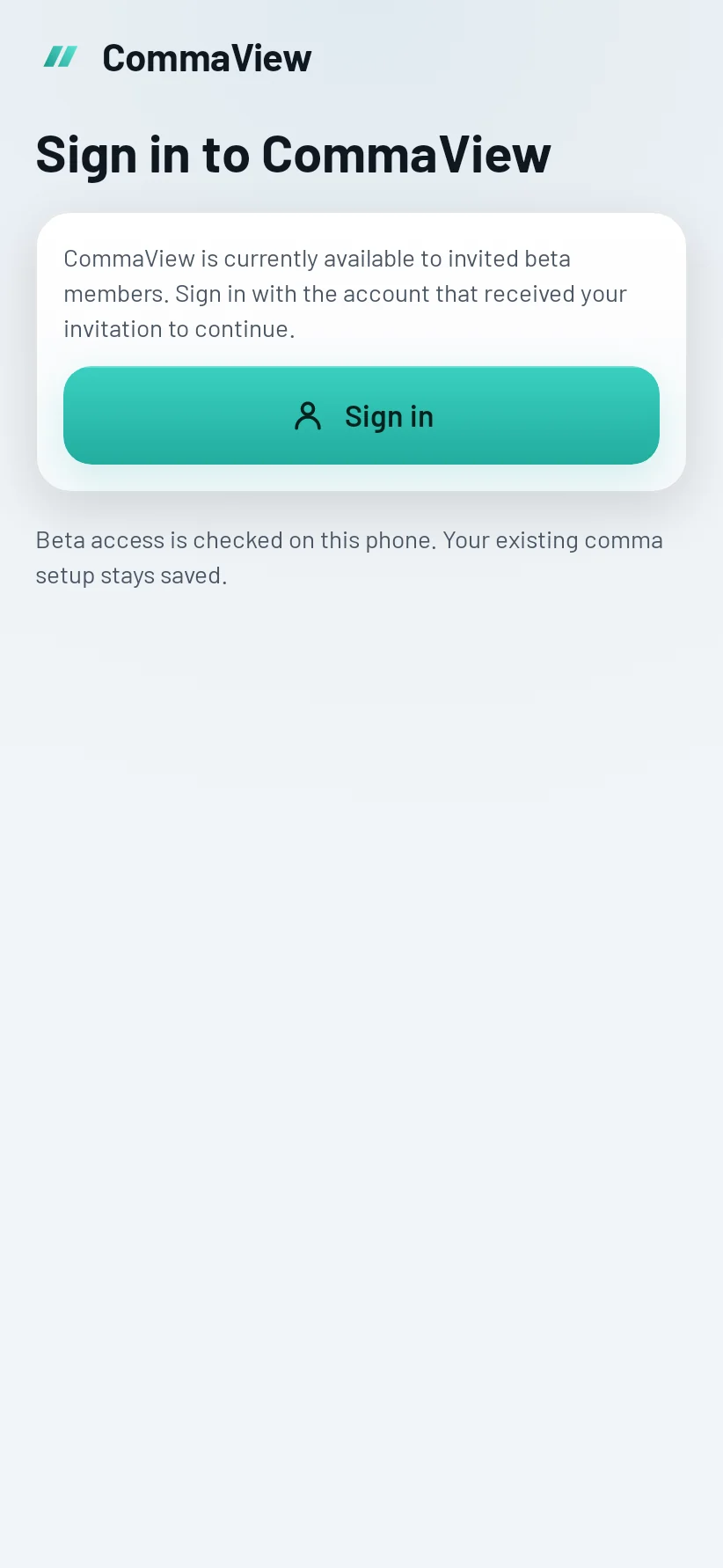
Open CommaView. It asks once whether to Help improve CommaView: Send or Don’t send. Then it asks you to sign in: tap Sign in and use the email your invite came to. After that it works offline while its access pass is valid.
Help improve CommaView
Crash reports and which driving software your comma runs, never video, drives, places or names. You can change it any time in Settings › Privacy & sharing.
-
Send crash reports to help fix problems.
-
Don’t send keeps them on the phone.
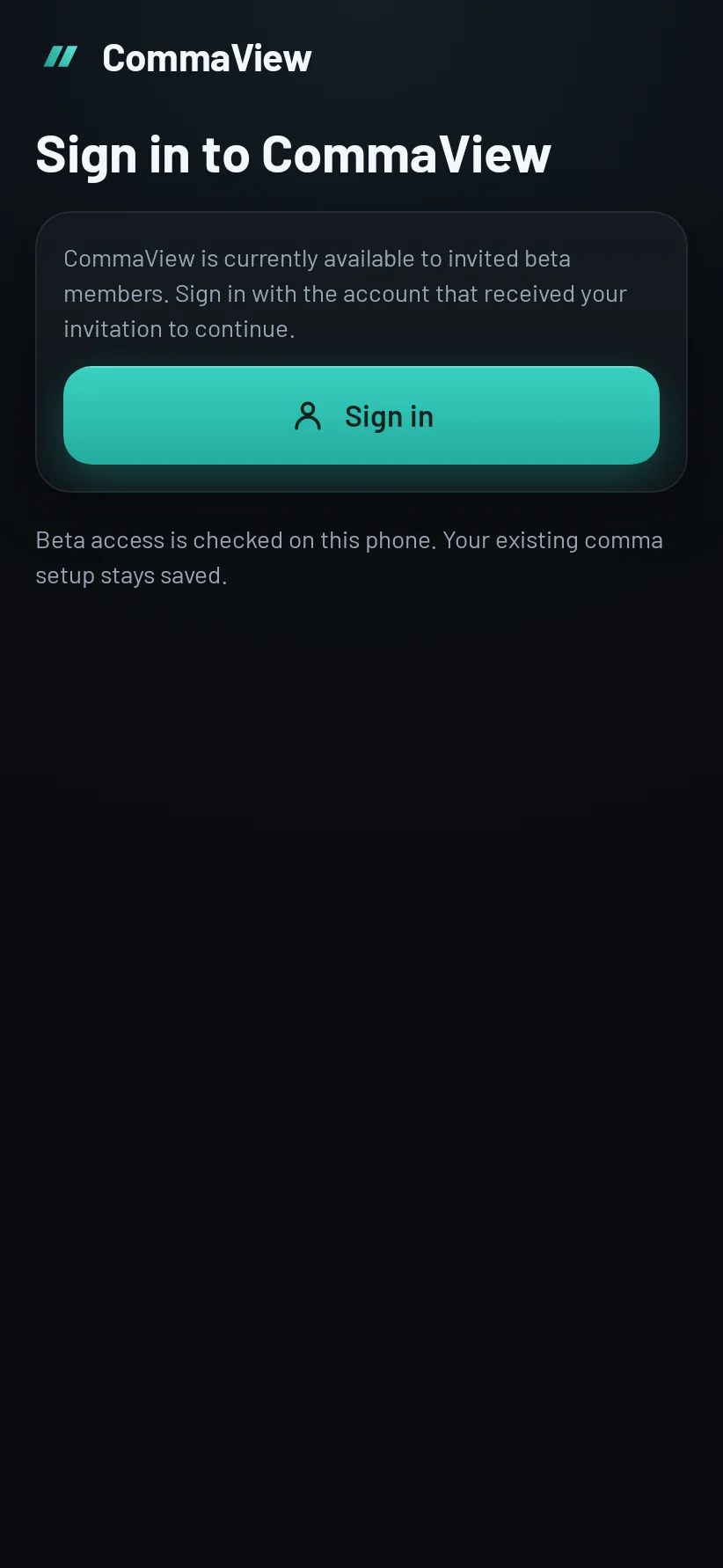
Sign in
During the beta, CommaView needs your invited account. Sign in opens your browser.
-
Sign in with the email your invite came to.
Installing on a head unit or an AI box on your car’s screen? Car screens covers its network and pairing it with your comma.
-
-
Step 2 of 8: Start setting up your comma
Read the notice, tick that you understand it’s unofficial software and you’re responsible for safe use, and tap I understand — continue.
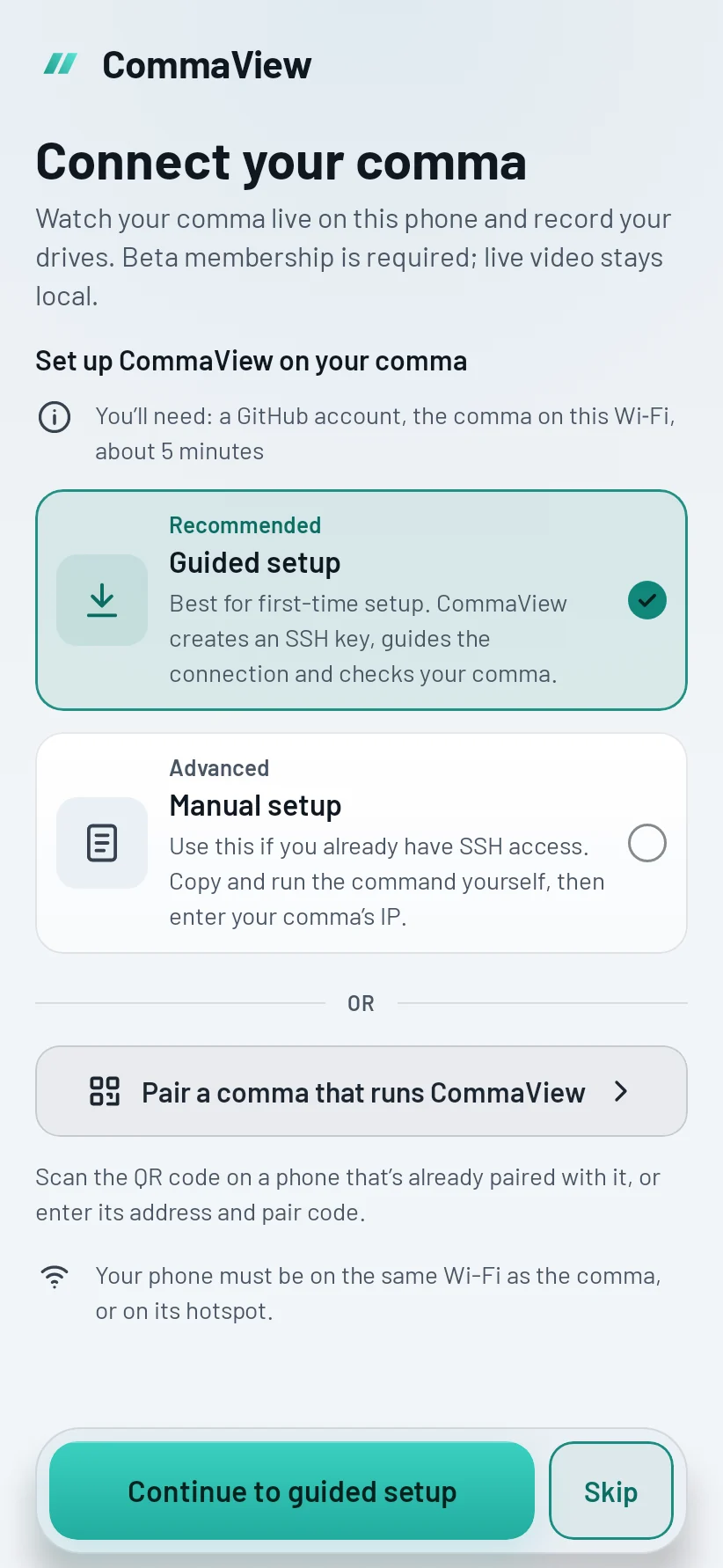
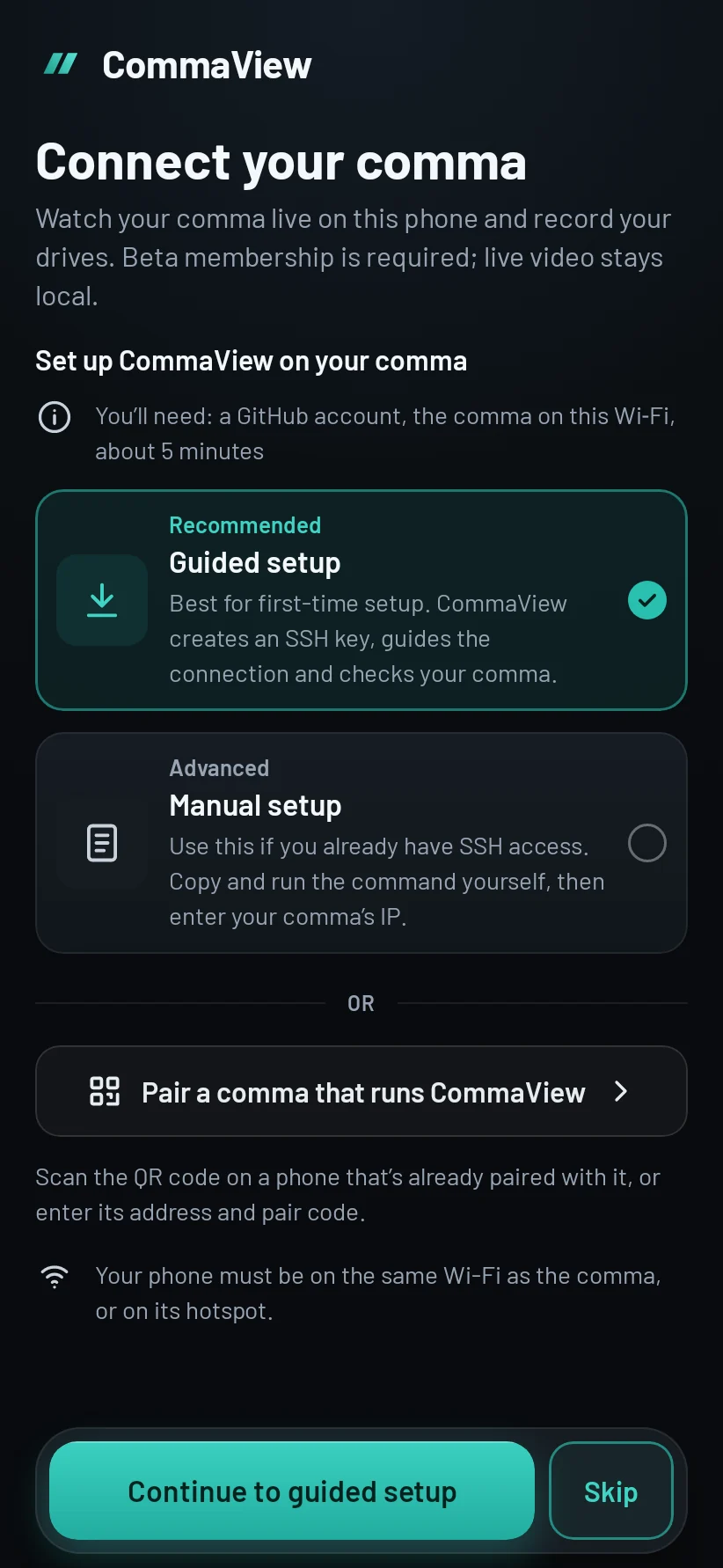
On Connect your comma, tap Set up CommaView on your comma.
-
Set up CommaView on your comma, for a comma that doesn’t run CommaView yet.
-
Already runs CommaView from another phone? Pair a comma that runs CommaView instead: Add another phone or tablet.
-
-
Step 3 of 8: Pick a setup path
Guided setup
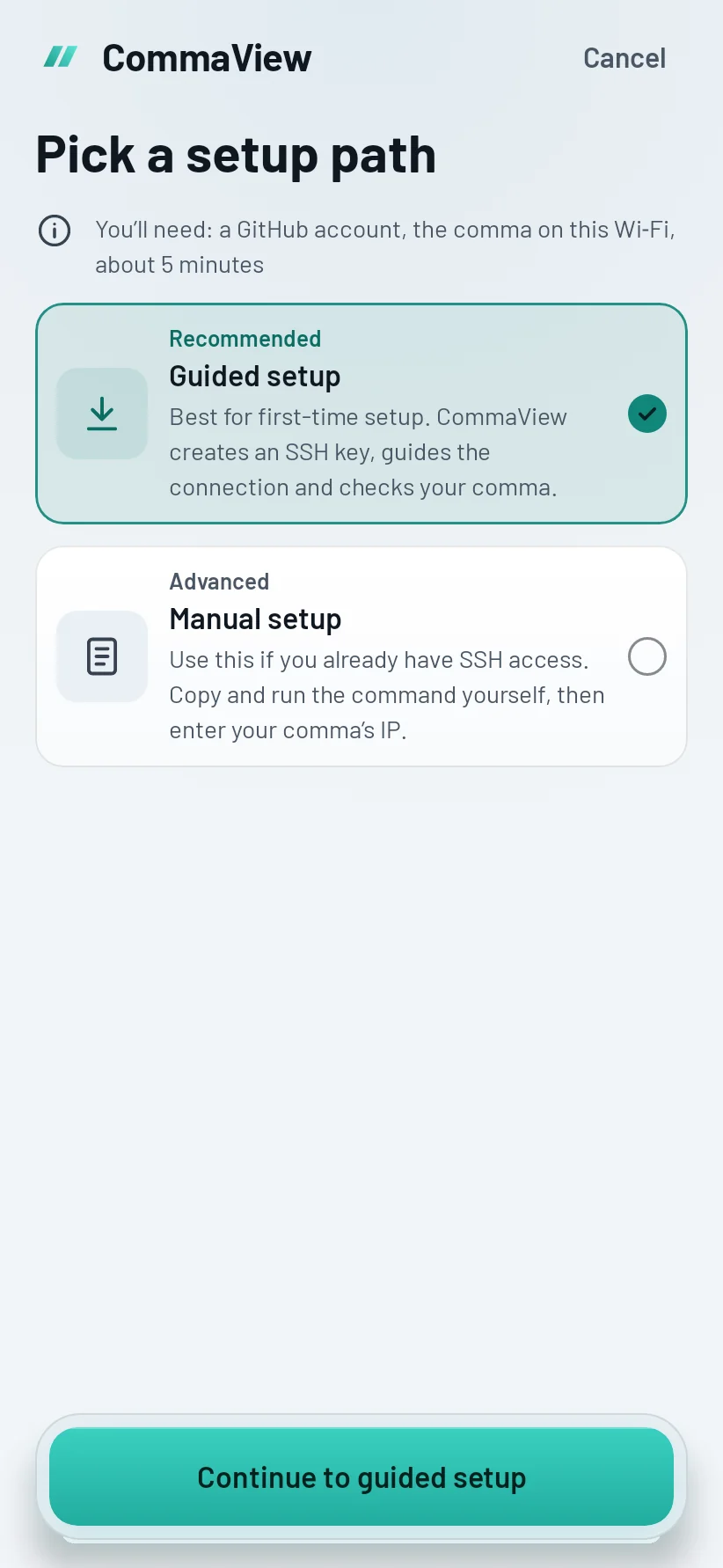
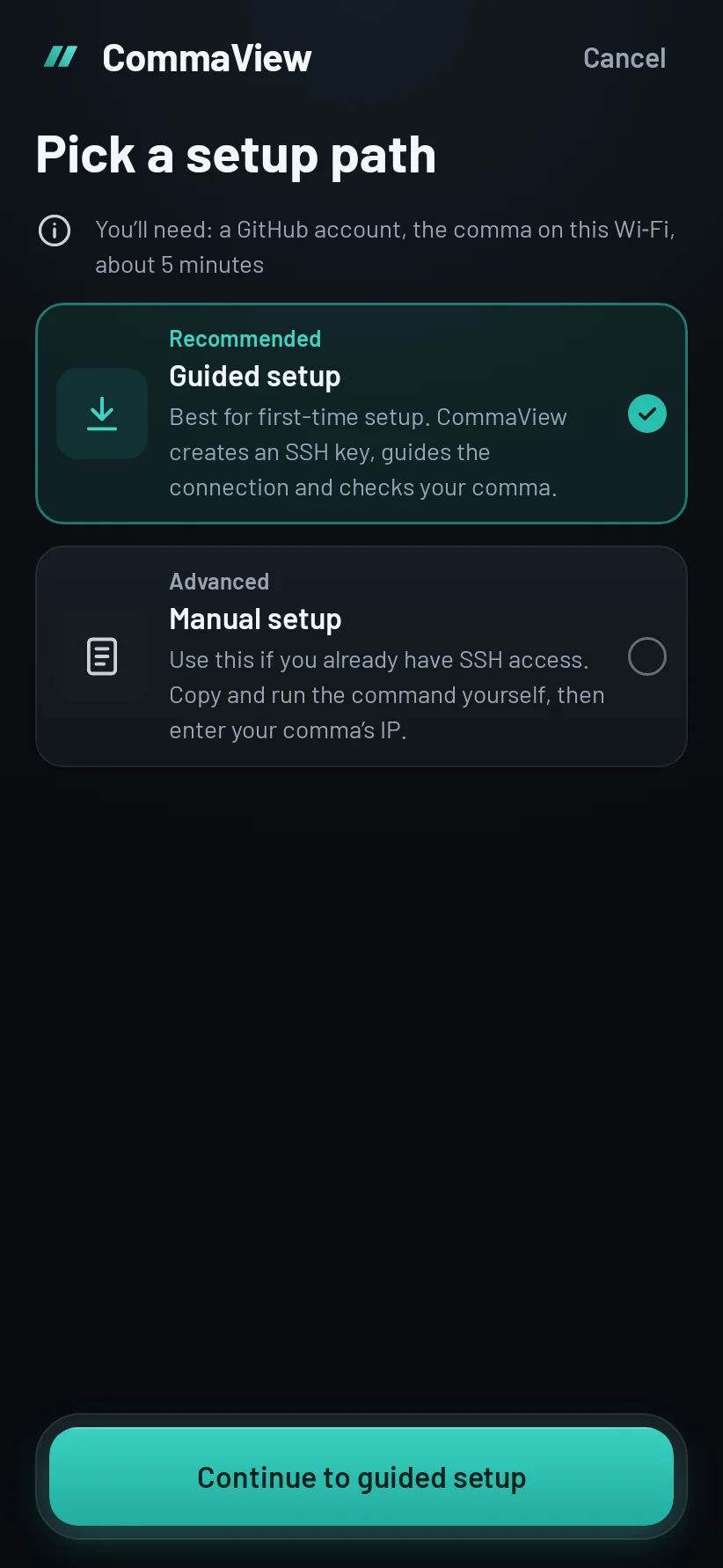
Choose Guided setup (it’s marked Recommended) and tap Continue to guided setup. CommaView makes an SSH key, guides the connection and checks your comma. The next steps follow it.
-
Guided setup, marked Recommended.
-
Continue to guided setup.
Manual setup
Only if SSH already works from your computer to the comma as user
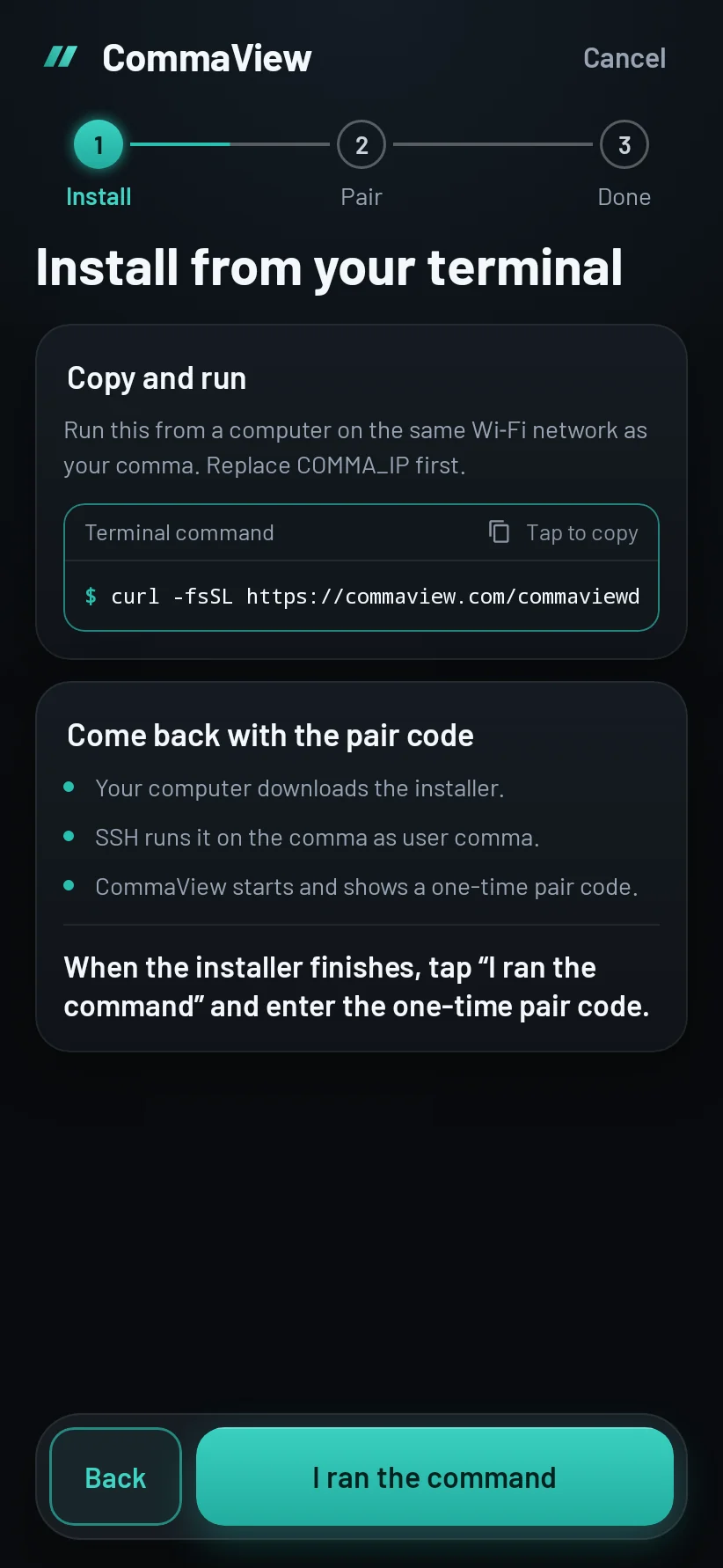
comma. Choose Manual setup, then Continue to manual setup, and run the command from your terminal. When the installer shows a one-time pair code, tap I ran the command, enter your comma’s IP and the code, and tap Add a comma. Manual setup from a terminal has each step.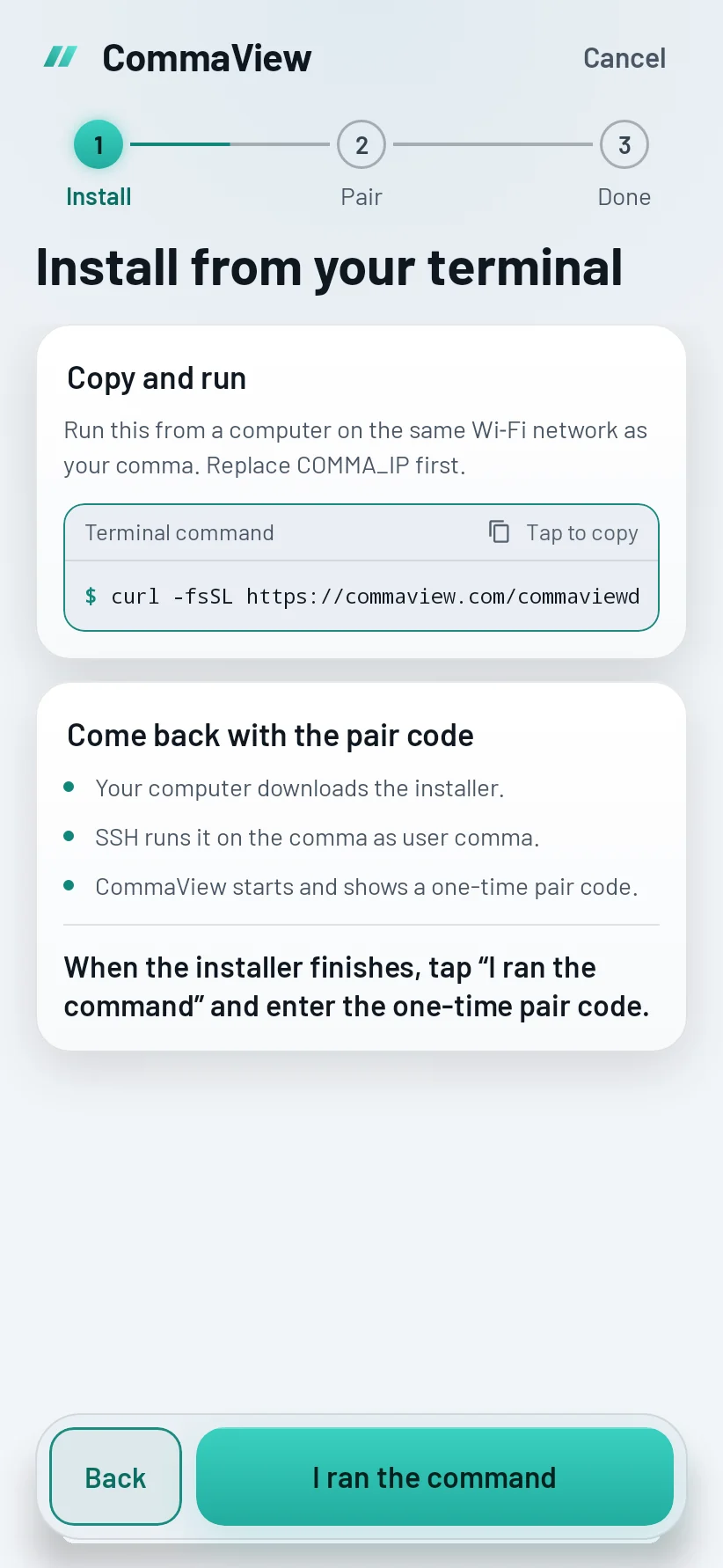
-
Tap to copy copies the command.
-
I ran the command, once the installer shows its pair code.
-
-
Step 4 of 8: Add the SSH key to GitHub
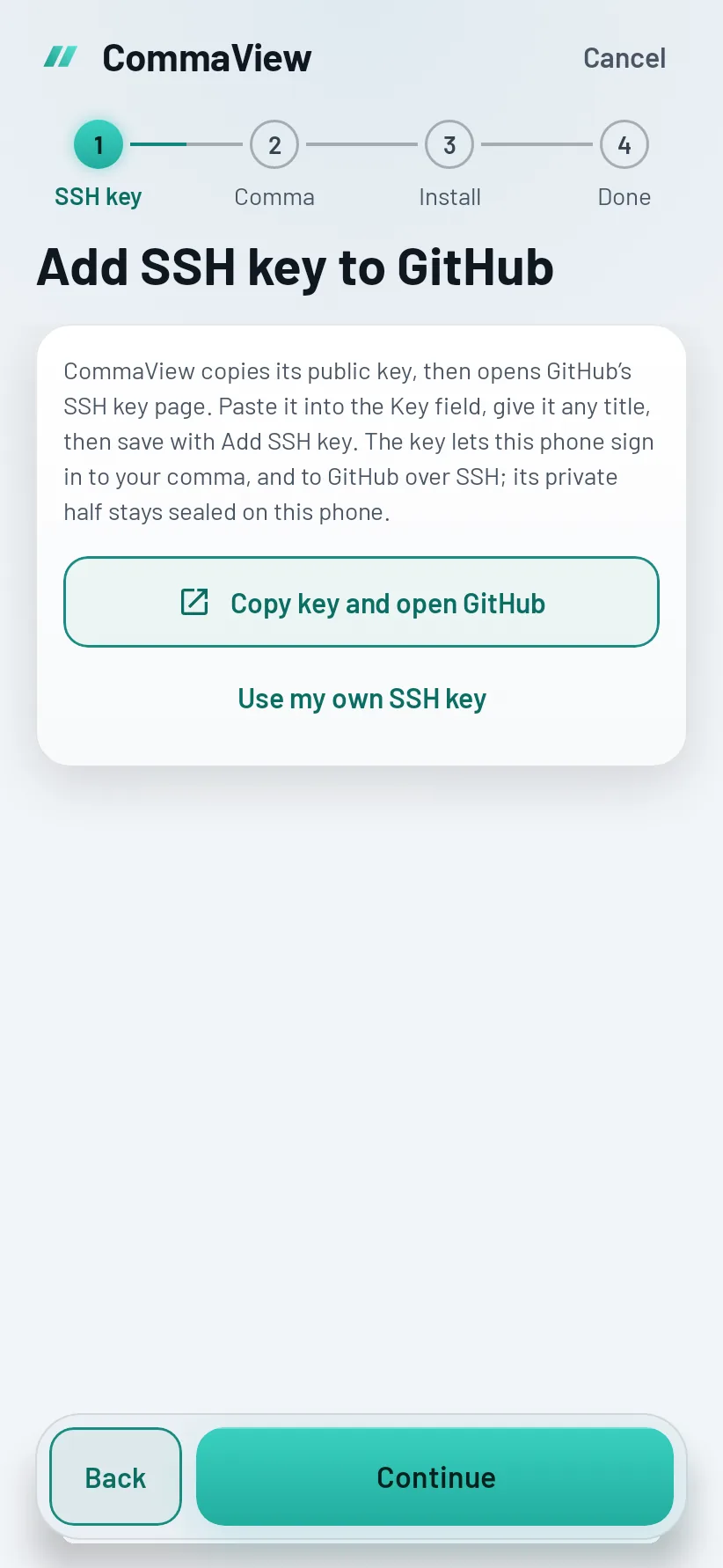
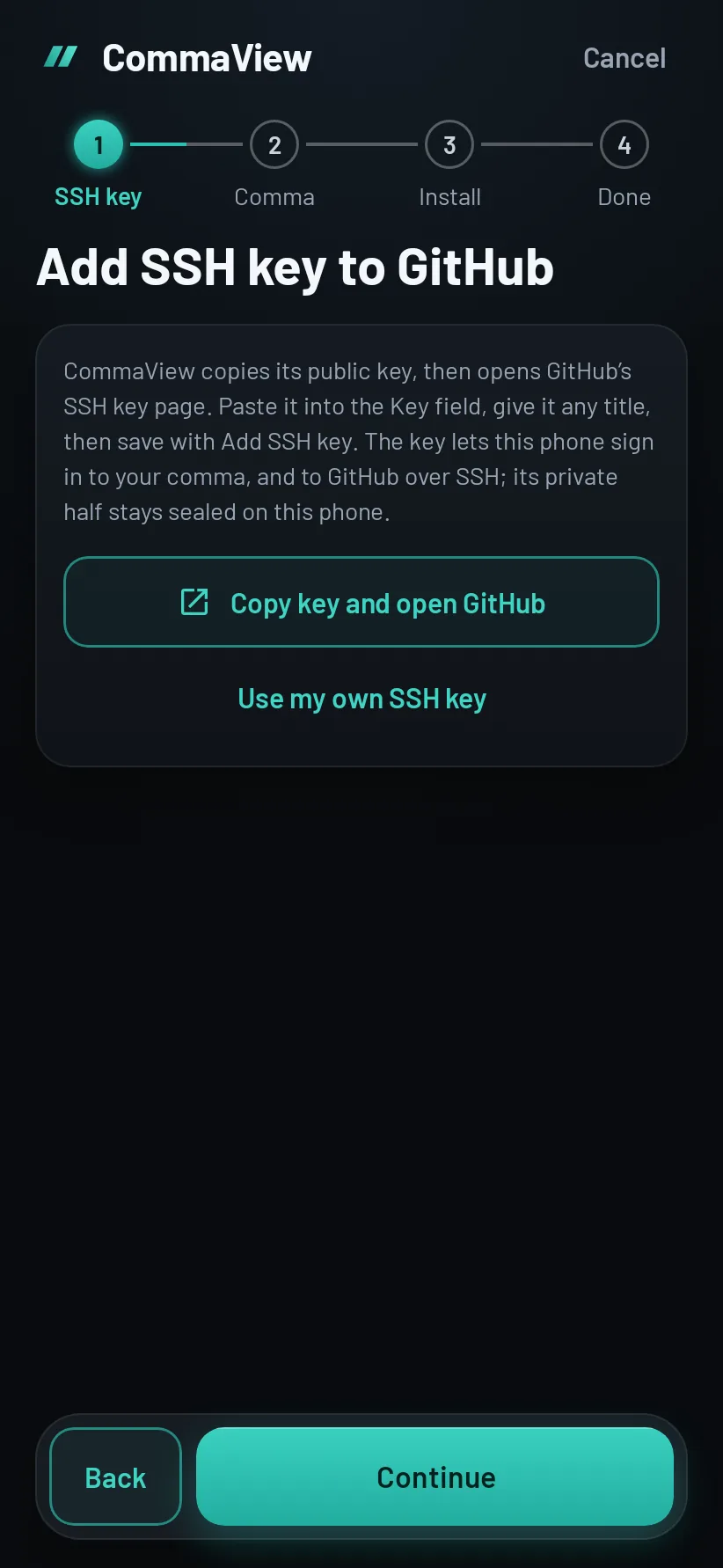
CommaView makes an SSH key for this phone. Tap Copy key and open GitHub: it copies the public key and opens GitHub’s new SSH key page.
On GitHub, paste the key into the Key field, give it any title (CommaView fills one in), then save with Add SSH key. Come back to CommaView and tap Continue.
-
Copy key and open GitHub. It says “SSH key copied. Opening GitHub…”
-
Use my own SSH key imports a key pair you already have on GitHub.
-
Continue, once the key is saved on GitHub.
Already have a key pair on GitHub? Use my own SSH key imports it instead. The private key stays on your phone.
-
-
Step 5 of 8: Turn on SSH on your comma
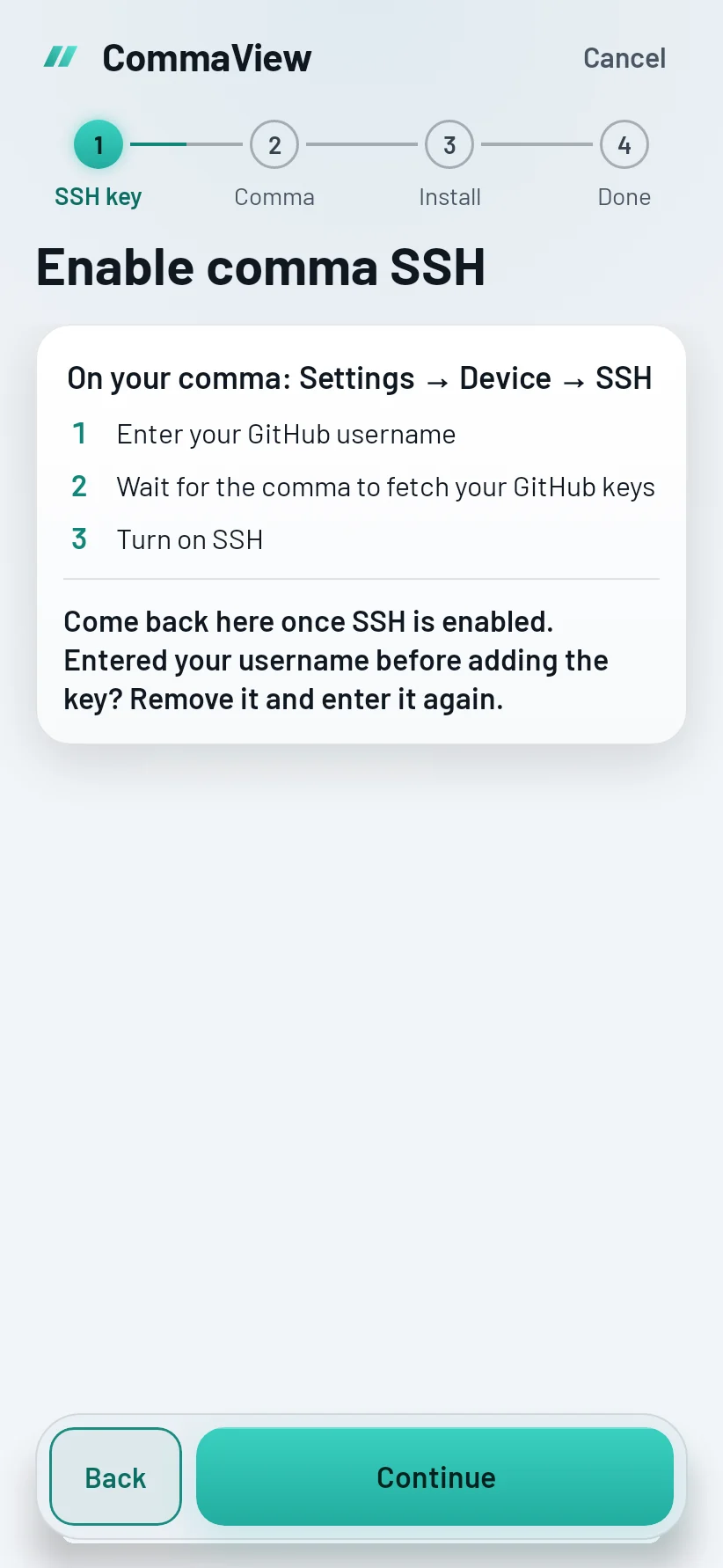
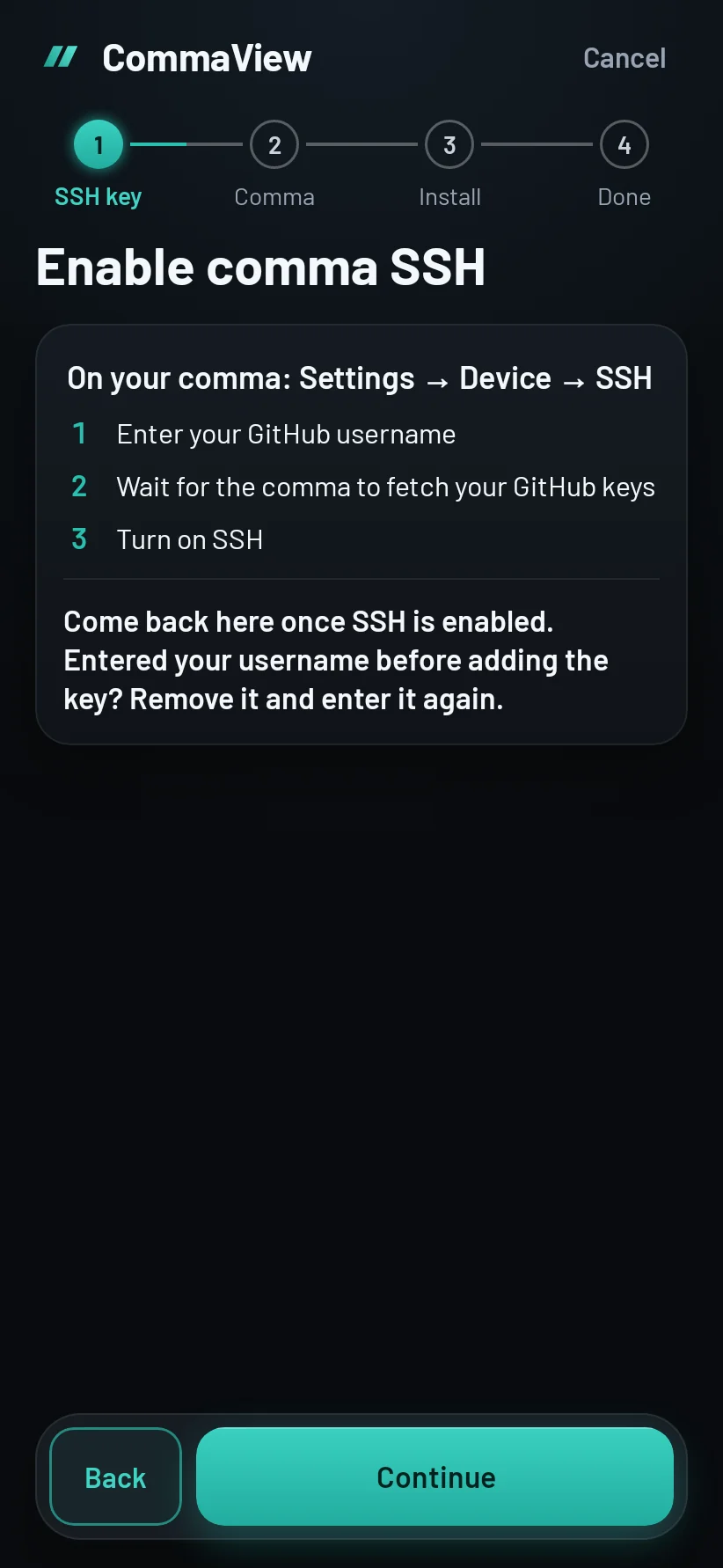
On the comma’s screen, go to Settings → Device → SSH:
- Enter your GitHub username.
- Wait for the comma to fetch your GitHub keys.
- Turn on SSH.
Then come back to CommaView and tap Continue.
-
Continue, once SSH is on.
The comma fetches your keys once, when you enter the username. Entered it before adding the key? Remove it and enter it again, so the comma fetches the keys again.
-
Step 6 of 8: Choose your comma
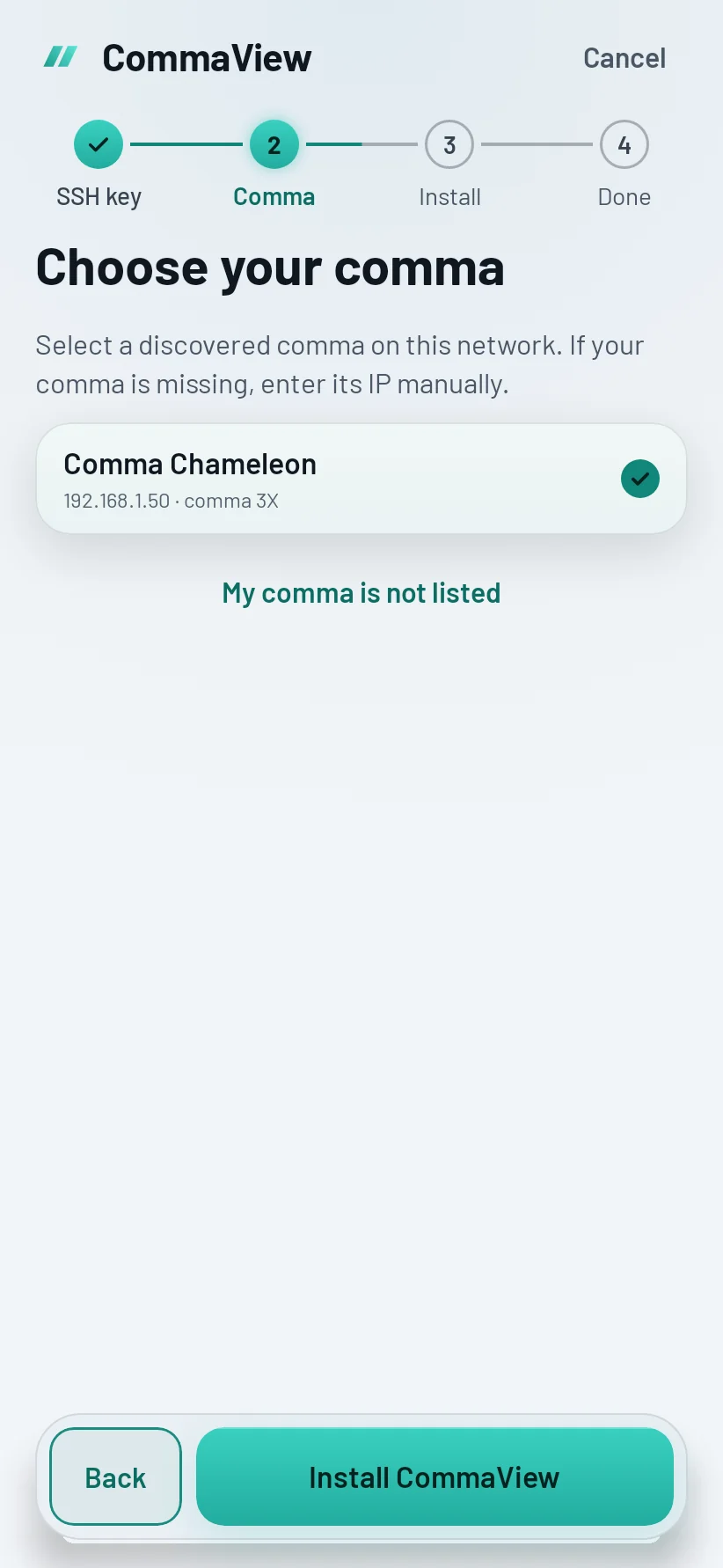
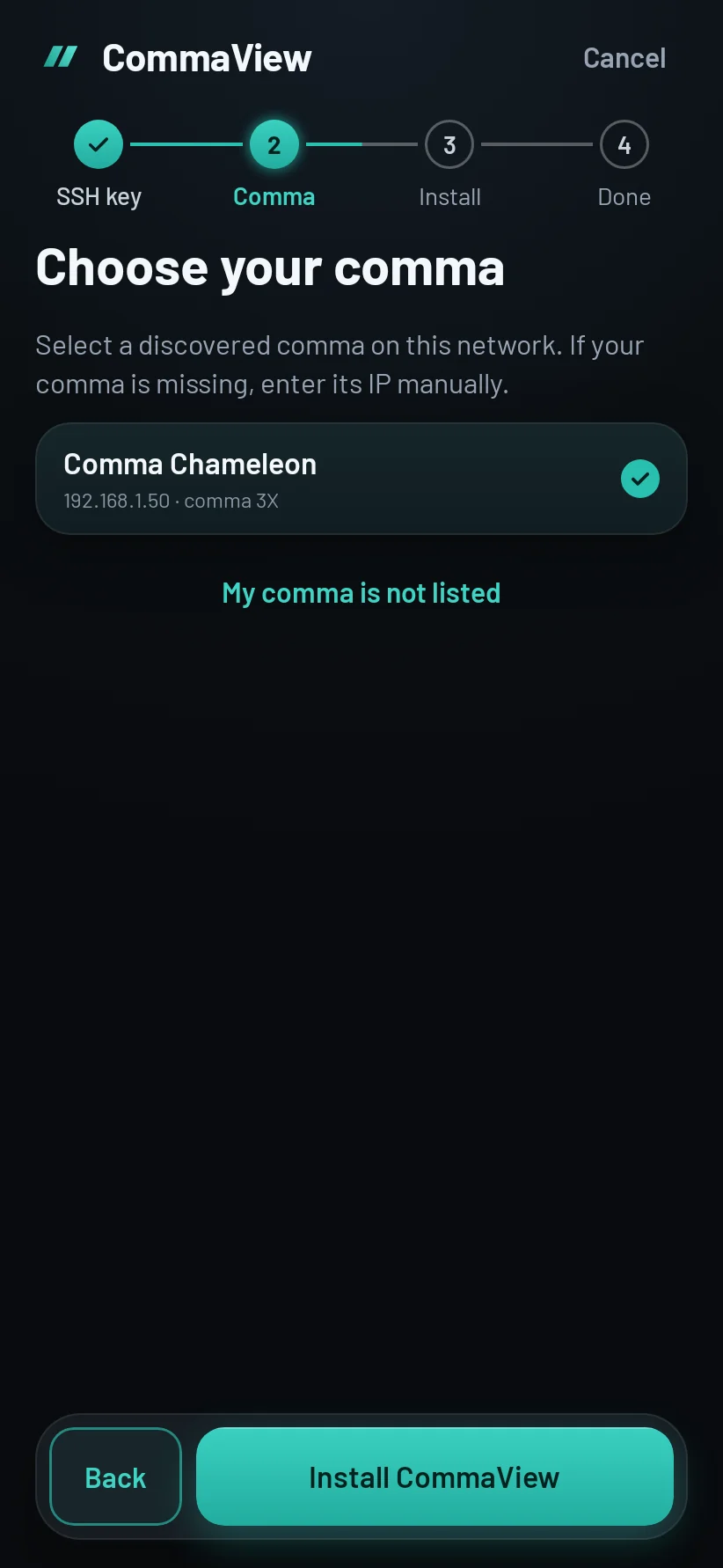
CommaView lists the commas on this Wi‑Fi network that already run CommaView, so a comma you’re setting up for the first time usually isn’t there yet. Tap My comma is not listed and type its IP address. Then tap Install CommaView.
You’ll find the IP on the comma under Settings → Network: under the network’s name on the Wi‑Fi button on a comma four, or under Advanced on a comma 3X.
-
A comma that already runs CommaView. One saved on this phone is marked Saved on this phone.
-
My comma is not listed: enter its IP address.
-
Install CommaView.
-
-
Step 7 of 8: Start the Safe Install
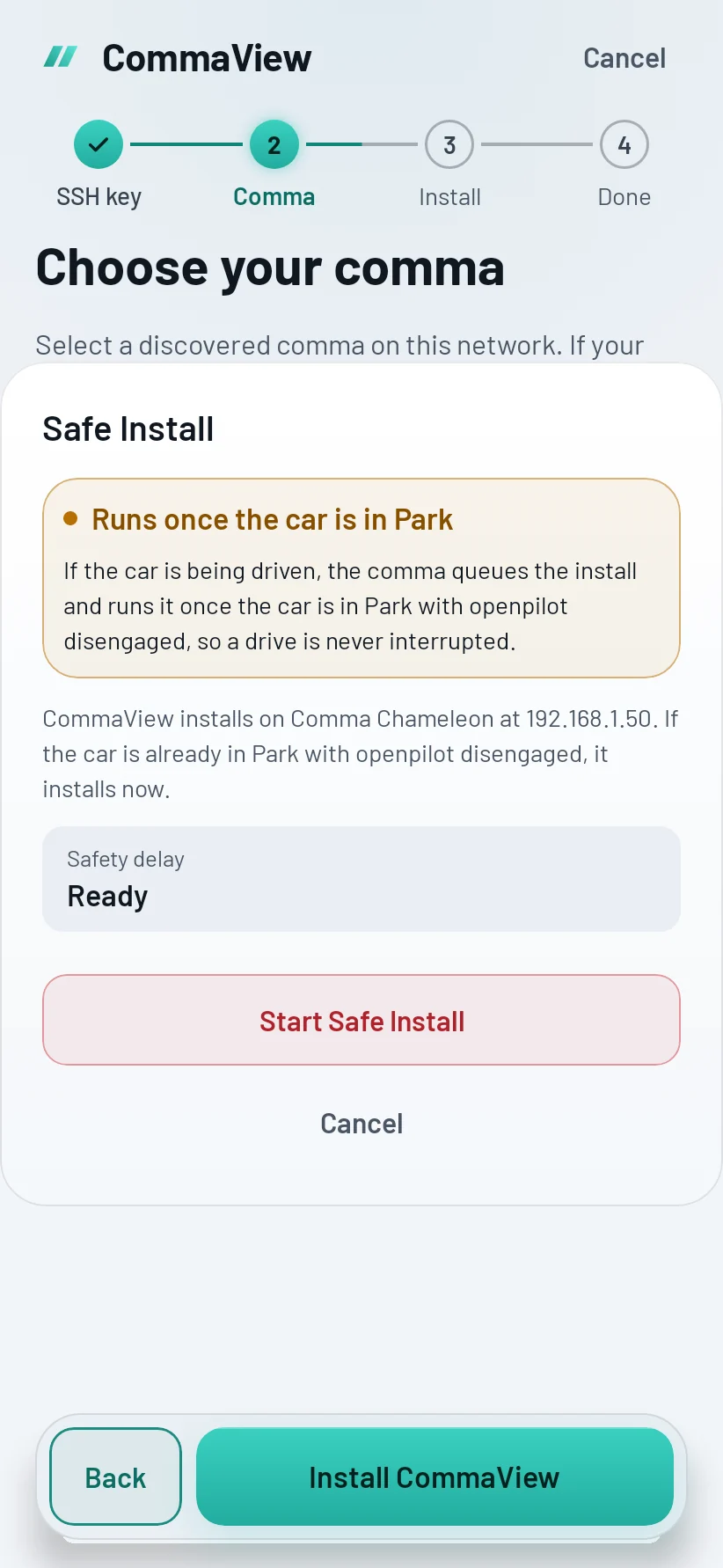
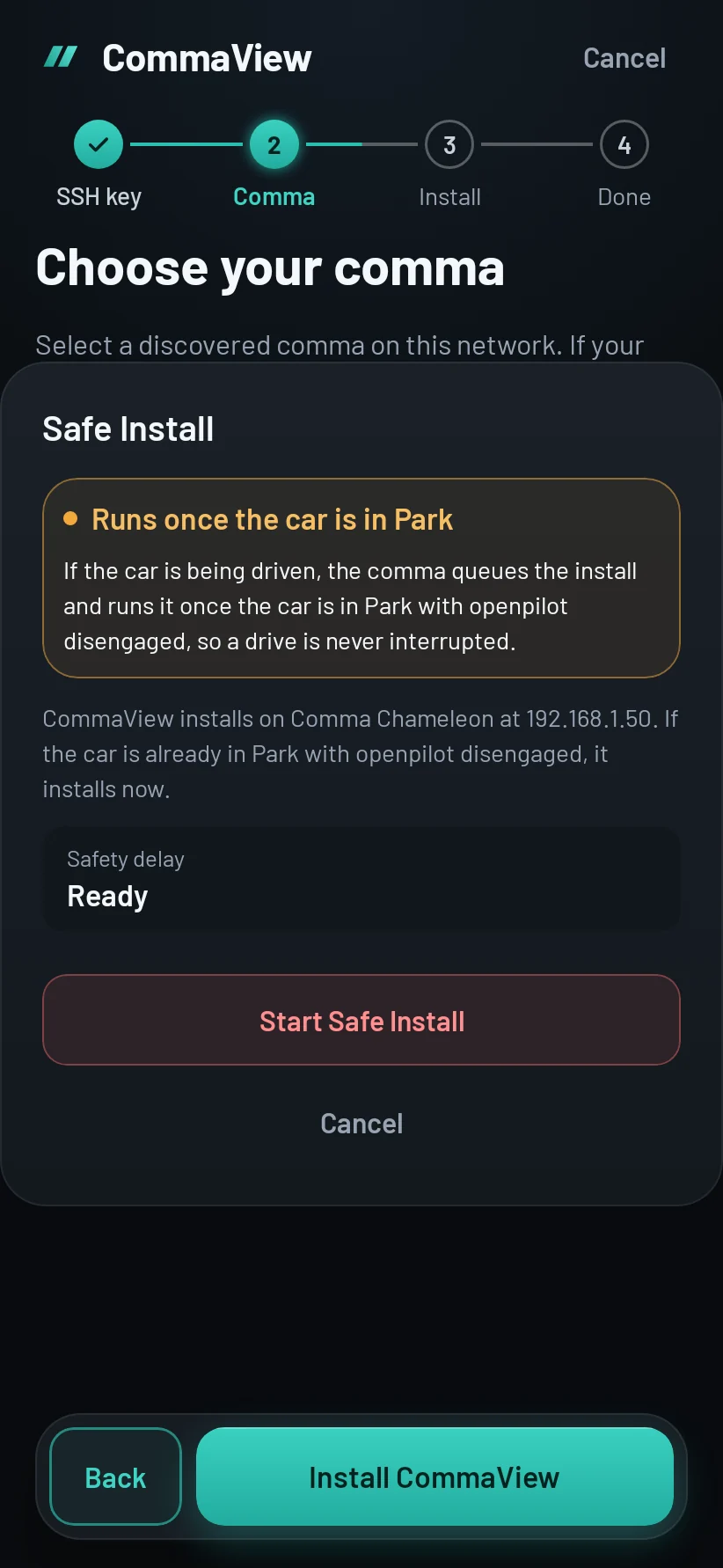
The Safe Install dialog names the comma it installs on. Read the note, then tap Start Safe Install once its short countdown ends.
The car is in Park
If the car is in Park and openpilot isn’t engaged, CommaView installs now.
-
Start Safe Install, after its countdown.
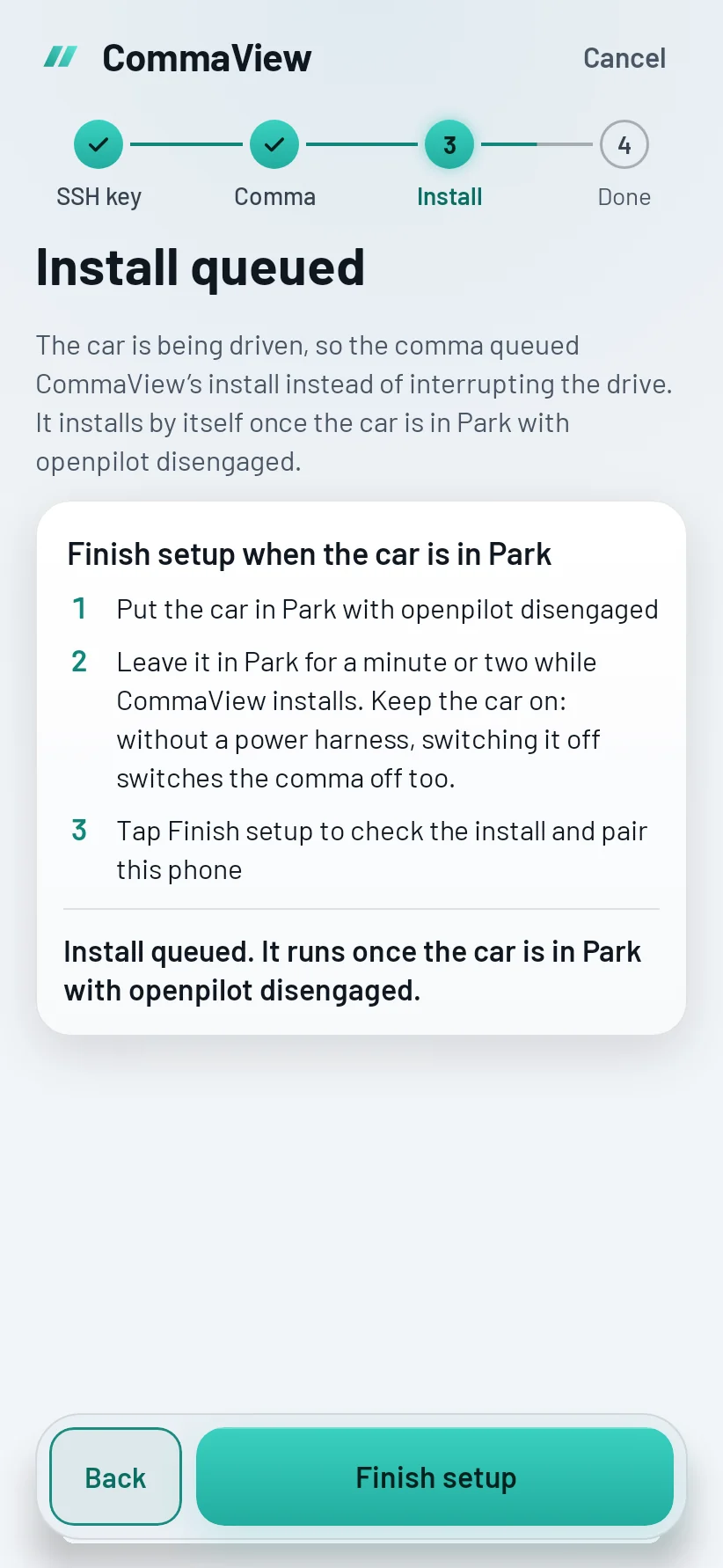
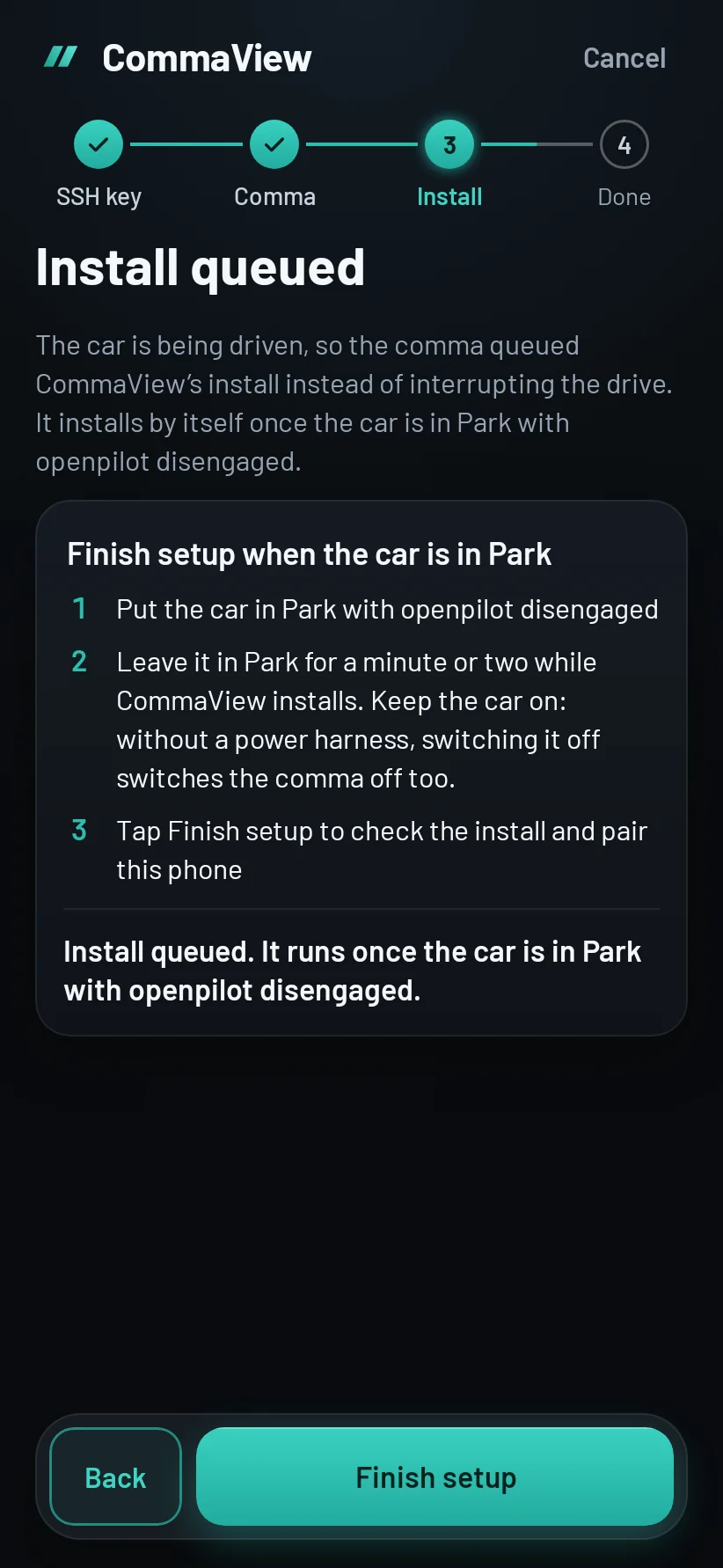
The car is being driven
The comma queues the install and runs it once the car is in Park with openpilot disengaged, so a drive is never interrupted. Setup shows Install queued: put the car in Park with openpilot disengaged, wait a minute or two, then tap Finish setup.
-
Finish setup, once the car is in Park.
Then CommaView connects to the comma over SSH, checks which comma it is, and installs the runtime this version of the app was tested with. It checks the install is answering and saves your comma on this phone. Keep the phone on the same network until it’s done.
Keep the car on, in Park. Without a power harness, switching the car off switches the comma off too, which stops the install.
-
-
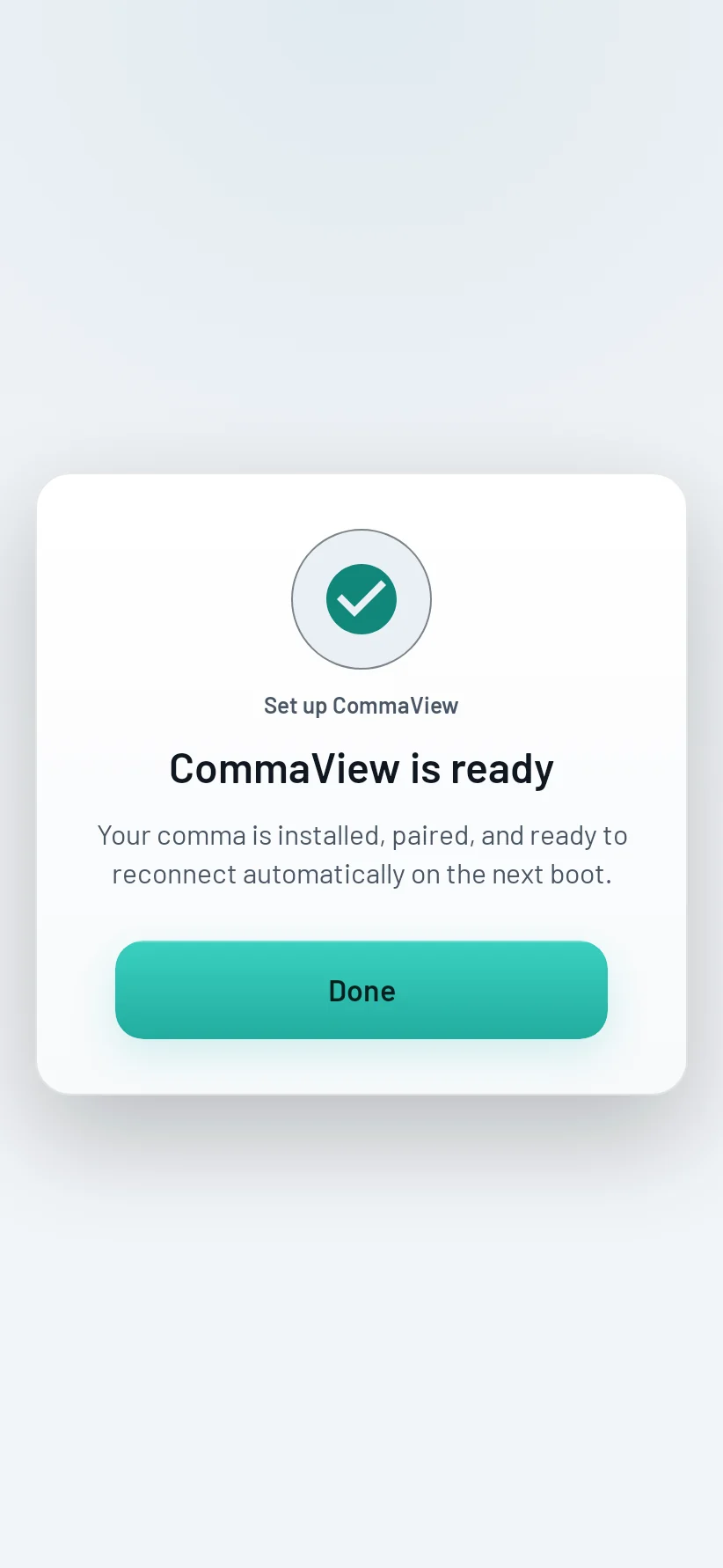
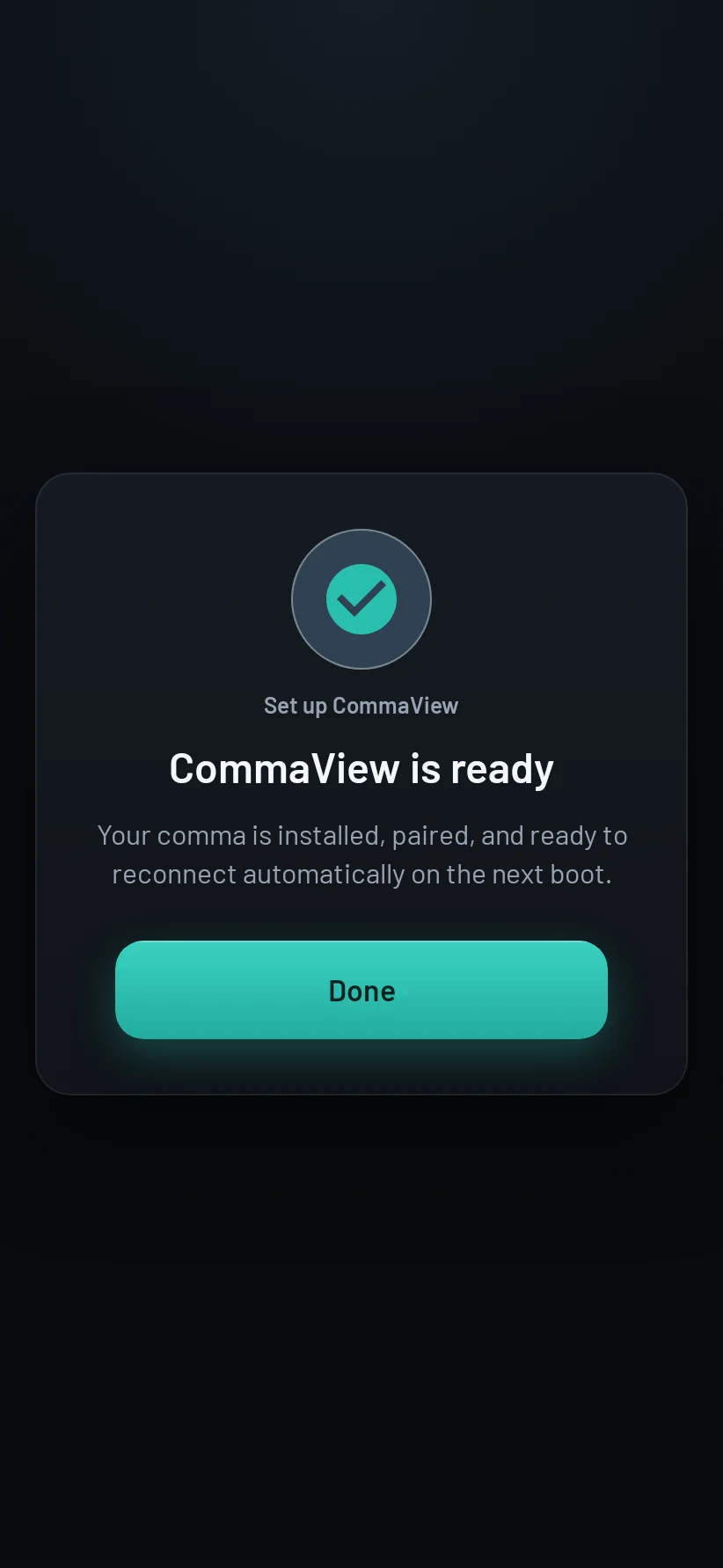
Step 8 of 8: CommaView is ready
Your comma is installed, paired, and reconnects by itself the next time it starts.
CommaView is ready
Tap Done.
-
Done takes you to Home.
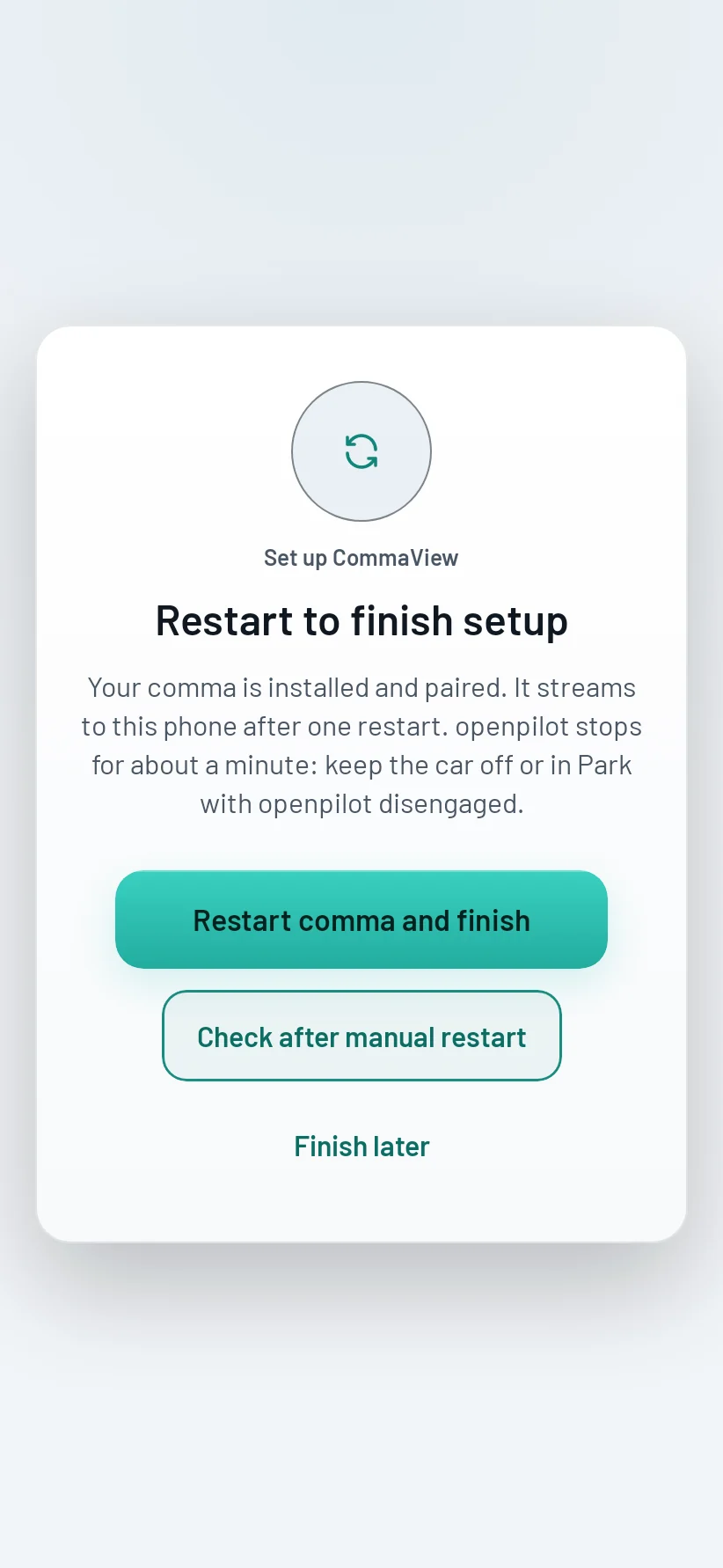
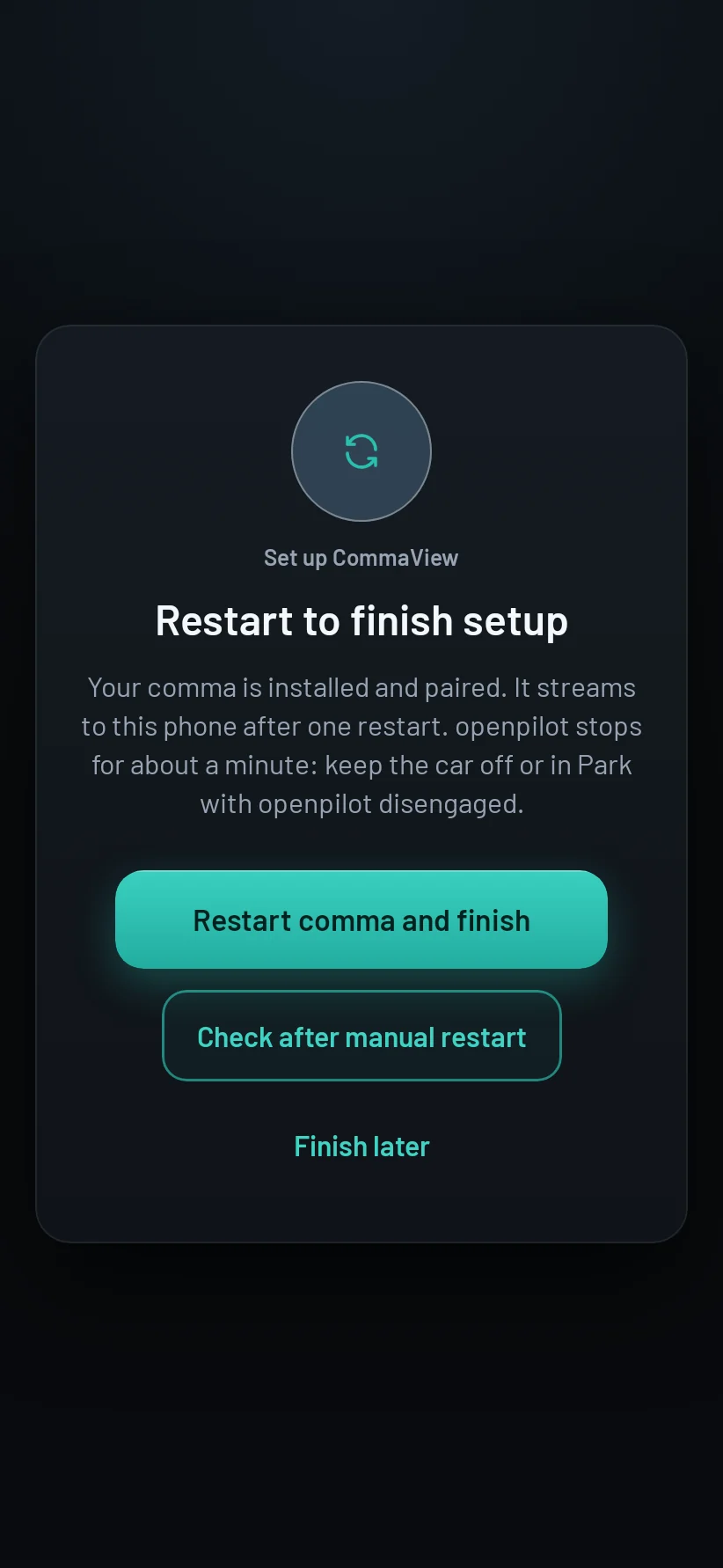
Restart to finish setup
Sometimes setup says Restart to finish setup: the comma streams to your phone after one restart. Tap Restart comma and finish with the car off or in Park with openpilot disengaged. openpilot stops for about a minute while it restarts.
-
Restart comma and finish.
-
How you know it worked
Home shows your car with its comma Connected, the runtime and the comma’s address. Tap Open Live View: the road plays live, with the path and the car ahead drawn over it. From now on the app finds your comma by itself when your phone and the comma are on the same network, even if its address changes.
Manual setup from a terminal
Only if SSH already works from your computer to the comma as user comma.
-
In CommaView choose Manual setup, then Continue to manual setup. The app shows the command for its runtime on Install from your terminal, ready to copy (Tap to copy). It looks like this one, which installs the current release’s runtime:
curl -fsSL https://commaview.com/commaviewd/install.sh \ | ssh comma@COMMA_IP bash -
Run it from a computer on the same Wi‑Fi network as your comma, with
COMMA_IPreplaced by the comma’s IP address (Settings → Network on the comma: under the network’s name on the Wi‑Fi button on a comma four, or under Advanced on a comma 3X). Your computer downloads the installer, and SSH runs it on the comma as usercomma. -
When the installer finishes, CommaView starts on the comma and shows a one-time pair code.
-
Back in CommaView, tap I ran the command. On Add your comma, select your comma or enter its IP, type the pair code, and tap Add a comma. The app checks the runtime and saves the comma.
Before your first drive
Try it in Park before you drive.
- Home shows your comma as Connected.
- Live View plays and the path moves with the car.
- If the app shows a warning or asks for a repair, sort it out before you drive.
- Set it up so it never needs your attention while driving.
Still stuck? Ask in the CommaView Discord, or send feedback from the app. If support asks for logs, send a support bundle.
If it doesn’t work
Couldn’t connect over SSH
Check SSH is on under Settings → Device → SSH on the comma, the GitHub username is yours, and the CommaView key is on that GitHub account. If you added the key after entering the username, remove the username and enter it again so the comma fetches the key.
My comma isn’t in the list
That’s expected the first time: the list shows commas that already run CommaView. Tap My comma is not listed and enter its IP address (Settings → Network on the comma: under the network’s name on the Wi‑Fi button on a comma four, or under Advanced on a comma 3X). Check the phone is on the same network as the comma and not on a VPN.
Setup says “Install queued”
The comma saw the car being driven, so it waits. Put the car in Park with openpilot disengaged, wait a minute, then tap Finish setup. Leave the car on: without a power harness, switching it off switches the comma off too.
Setup says my comma isn’t supported
On a comma 3, setup stops and offers Set up CommaView on a comma 3X or comma four. On a fork whose screen CommaView can’t add its view to, setup says so and changes nothing. Check your comma and fork are supported.
The pair code didn’t work
Pair codes are one-time and expire quickly. Run the installer again for a fresh code, and check you typed it as shown (the hyphen is optional).
Connected, but no video
Setup and pairing are done; this is the video stream. Check the comma is on and onroad-ready, keep the phone on the same network, and reopen Live View. If it says Can’t reach this comma, see Can’t find your comma.
Did this guide get you there?
Tell us what’s missing