
All guides · Updates and your account
Guide · Updates and your account
How CommaView releases work
CommaView has two parts that update together: the Android app, and the small runtime on your comma. Here is how a release gets to you, and how updates stay safe.
Steps
Tick each step off as you go.
-
Step 1 of 3: See which version you have
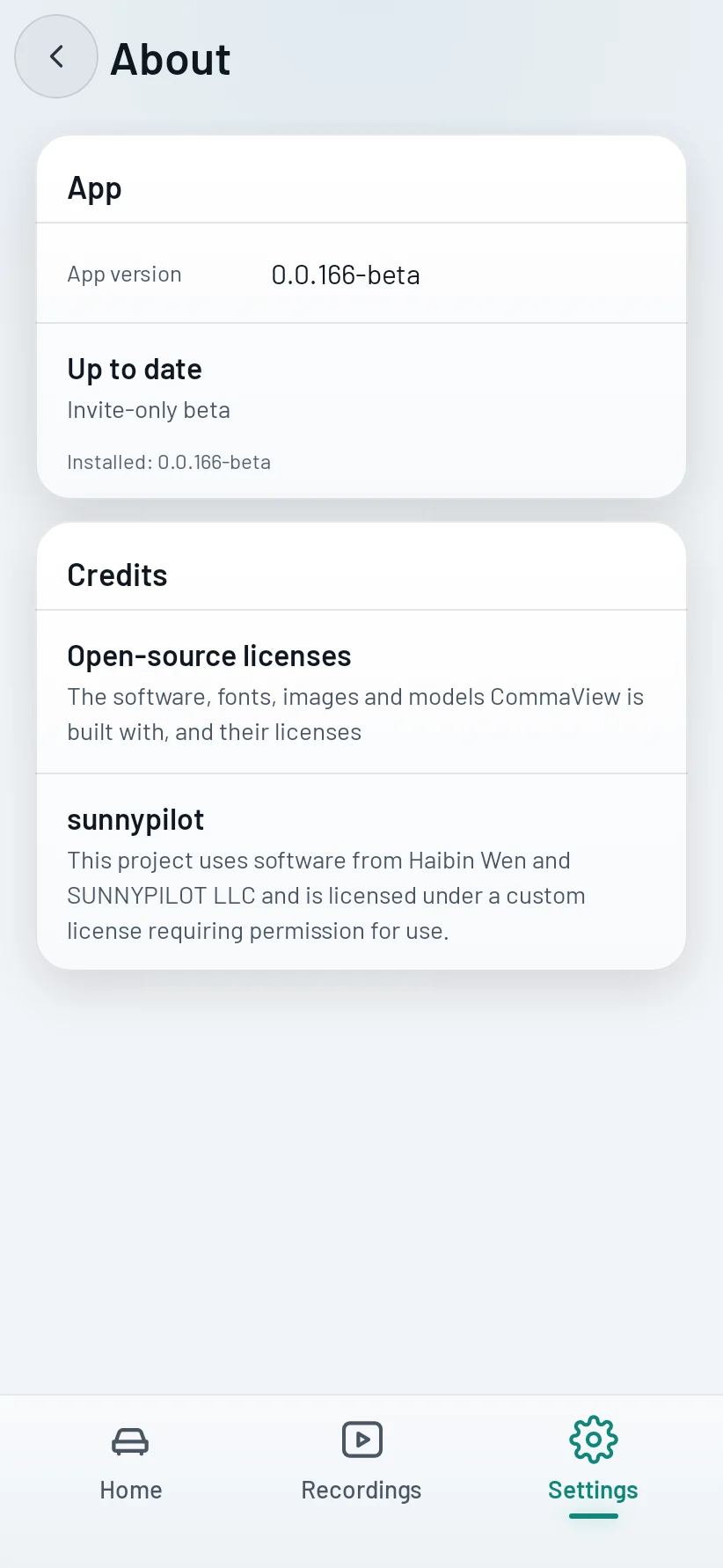
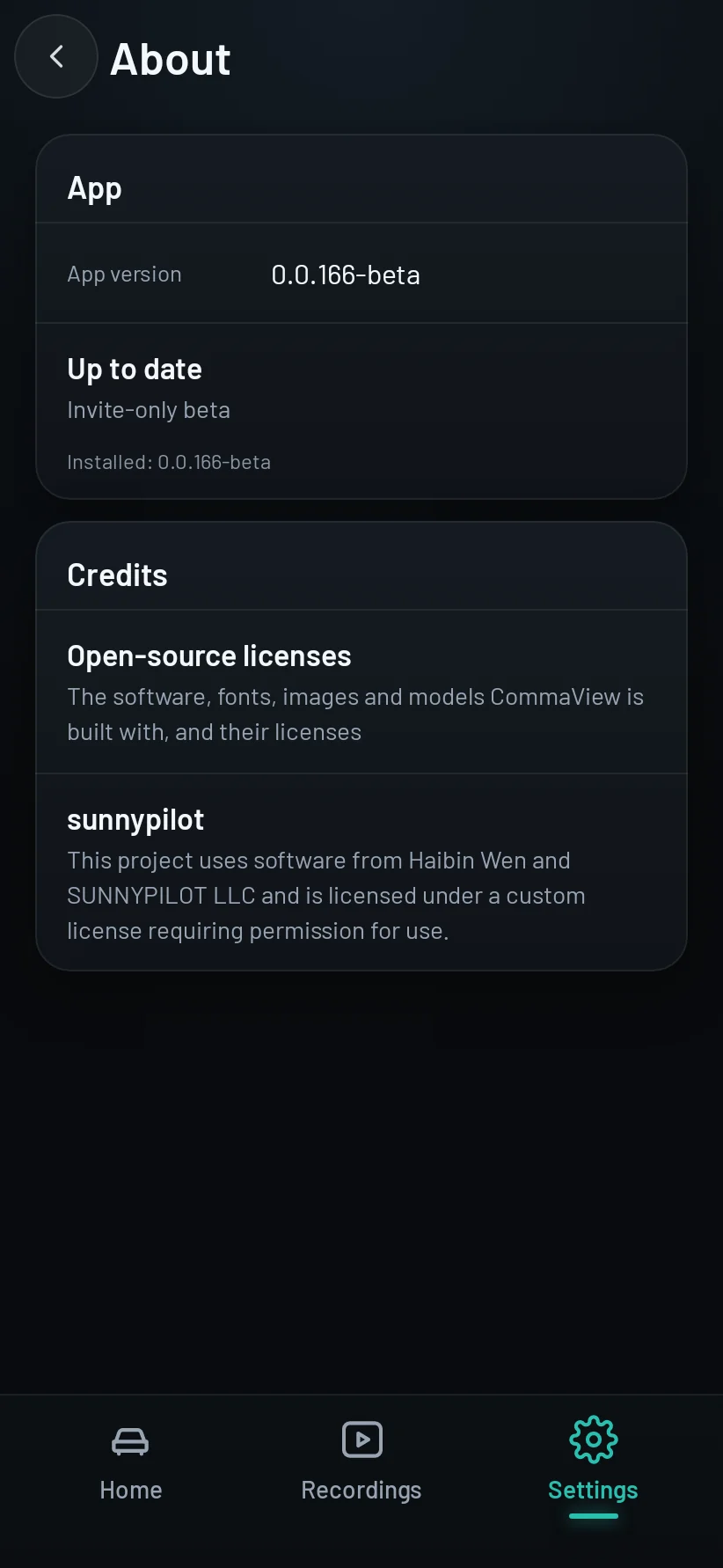
Settings › About shows the app’s version, and whether it’s Up to date or an update is available, with its version. CommaView checks your account for a new release and tells you when one is ready.
-
The app’s version.
-
Up to date, or the release ready for you.
-
-
Step 2 of 3: Update the app from inside it
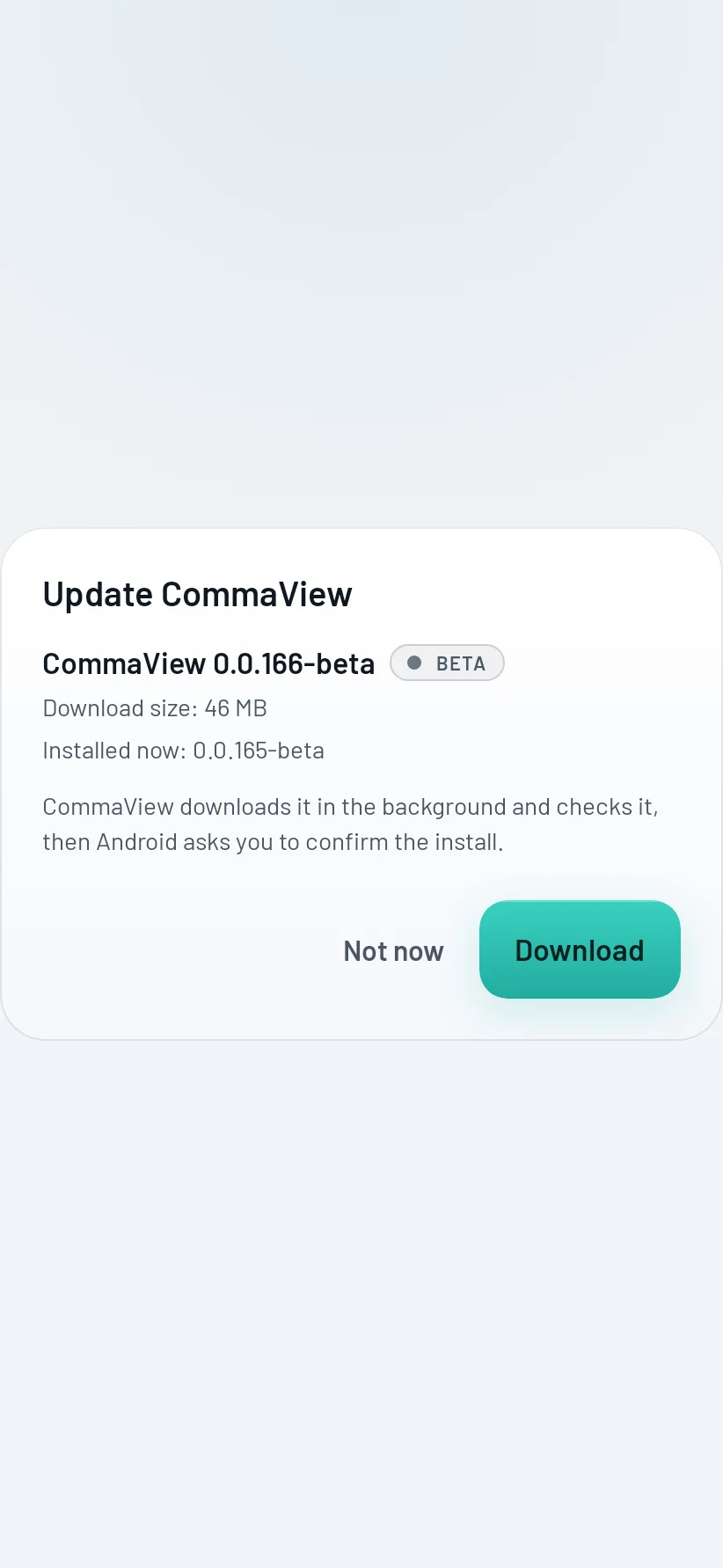
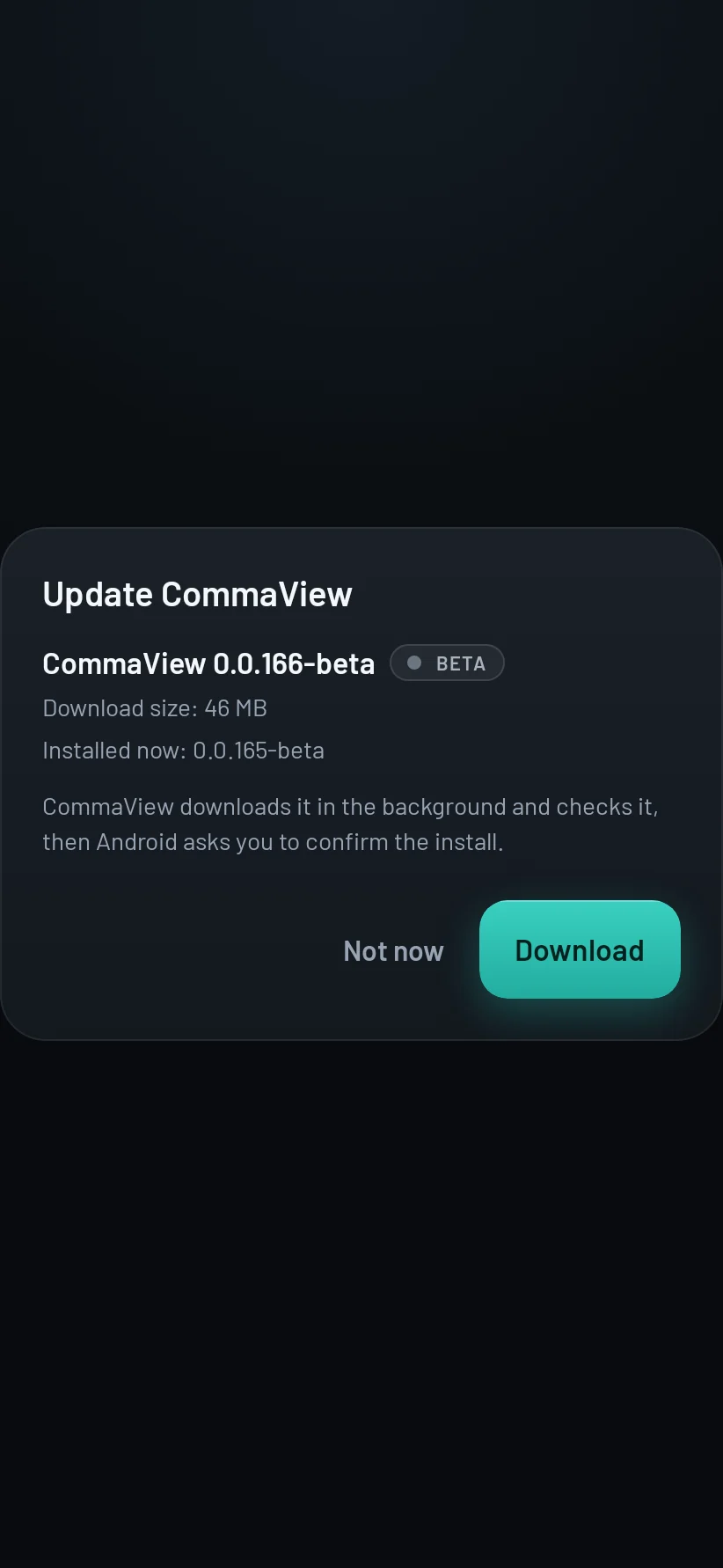
When a release is ready, Update shows at the top of Home and in About. Update CommaView names the version and its channel: Beta for everyone invited, or Alpha, “An early build for testers. It may have more problems than the beta.” Tap Download: CommaView downloads it in the background, checks it, then Android asks you to confirm the install.
-
The channel: Beta or Alpha.
-
Download. Not now leaves it for later.
-
-
Step 3 of 3: Then update your comma’s runtime
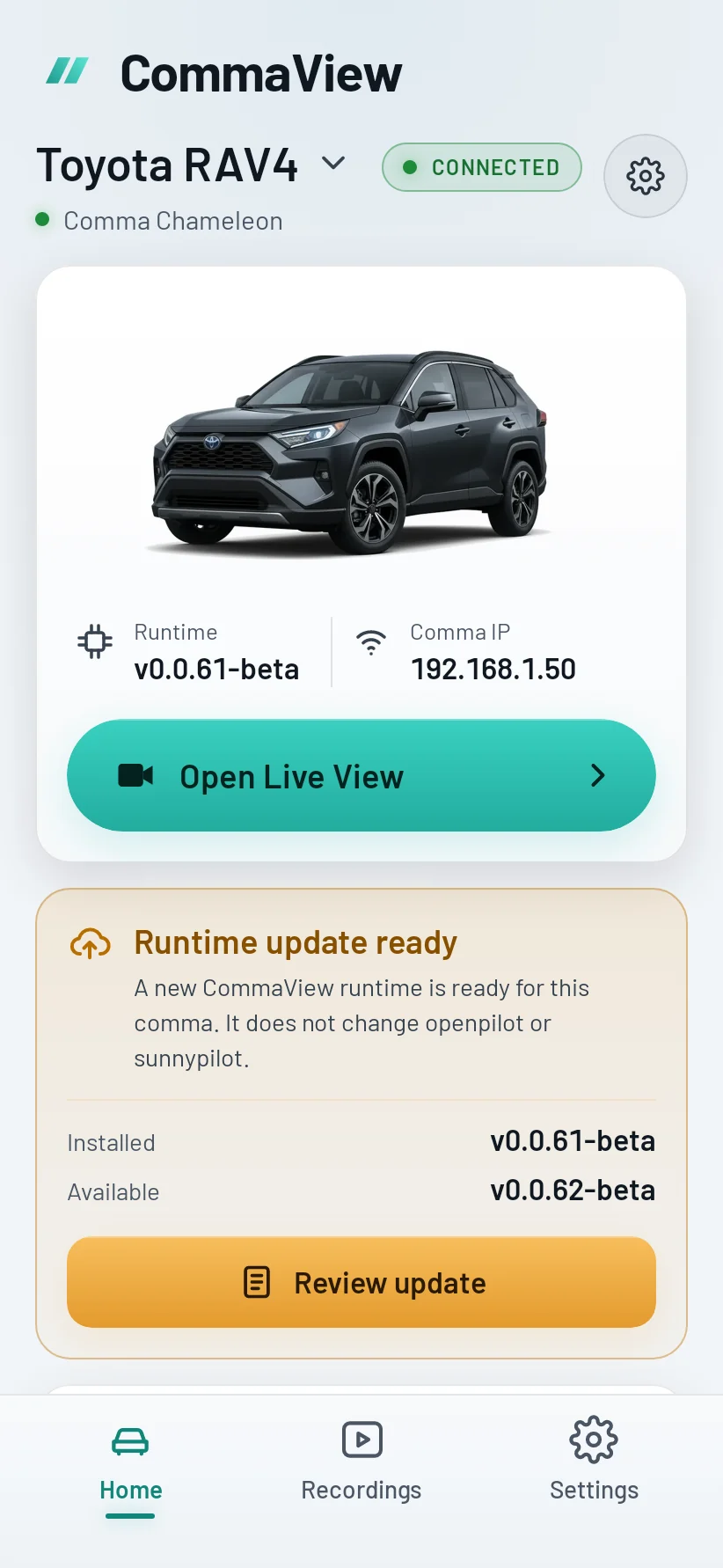
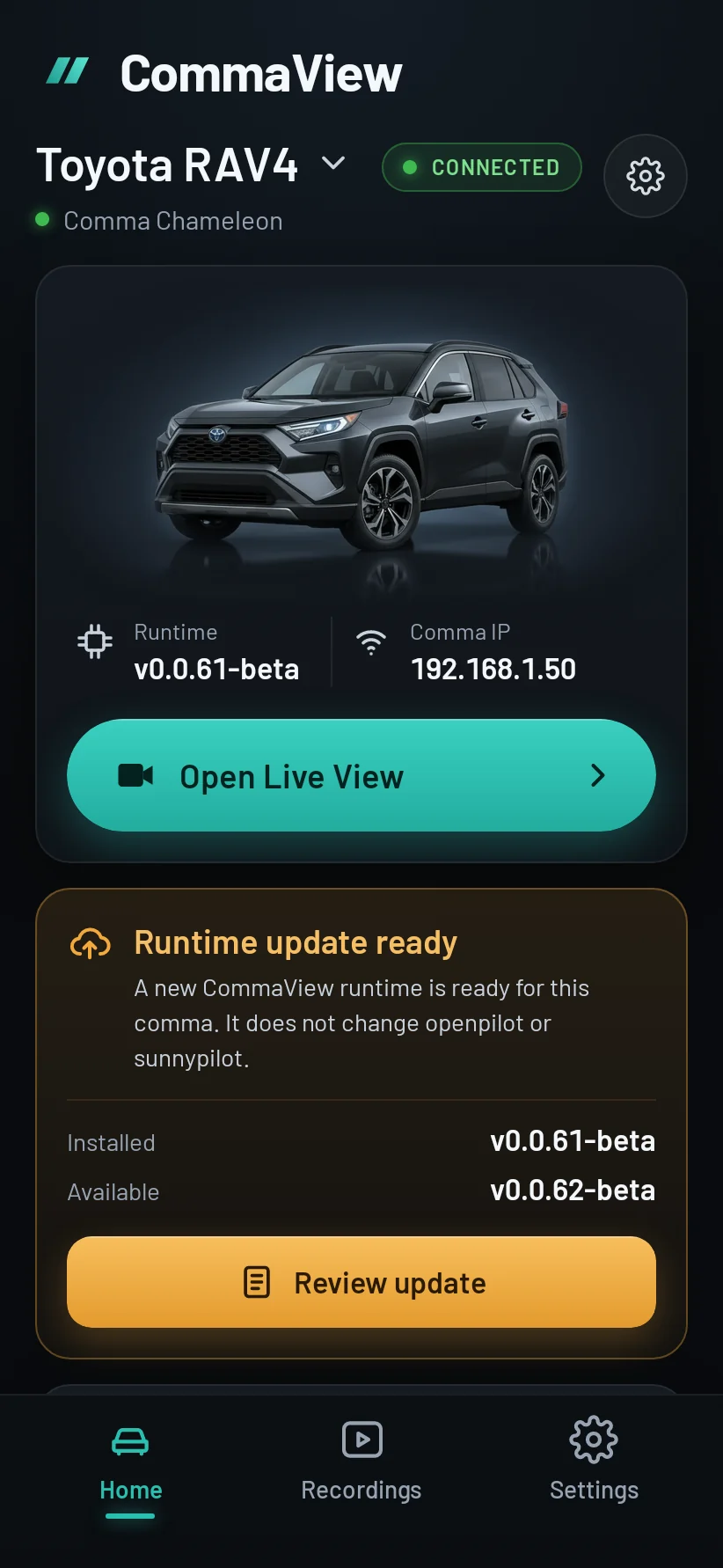
Each app release names the runtime it was tested with. Once the app is updated, Home offers that runtime with Runtime update ready. Runtime updates start from the app, never on their own. Update your comma’s runtime has each step.
-
Runtime update: the installed and the available runtime.
-
Alpha, then beta
- Each version is first released as a series of alphas to a few testers.
- When an alpha holds up, it becomes that version’s beta and goes to everyone invited.
- Your account at my.commaview.com always offers the release that’s right for you.
Signed and matched
- Every app download is a signed release build, never a debug build, with its SHA-256 checksum shown beside it on my.commaview.com. The app checks the size and checksum of an update it downloads before it offers to install it: “The download didn’t match its checksum, so it wasn’t installed.”
- Each app release names the runtime it was tested with, and the app installs exactly that one on your comma.
- An older app is never offered a runtime it hasn’t been tested with. A comma whose runtime is newer than the app installs says so: update CommaView, then try again.
Updating your comma safely
- Runtime updates start from Home or Device settings, never on their own.
- Updates never interrupt a drive. If the car is being driven, Safe Update queues the update and the comma installs it once the car is in Park with openpilot disengaged. You don’t need to switch the car off.
- After a runtime update, the comma needs a reboot before CommaView streams again. The app asks for it.
- You can remove the runtime from Device settings at any time: Remove CommaView.
Where you hear about it
- The app tells you when a new release is ready.
- What’s new lists every change.
- We email you about important changes, and you can send feedback from the app at any time (Settings › Support & diagnostics).
Did this guide get you there?
Tell us what’s missing